Using the Canvas Integration to Import Canvas Outcomes, Assessments, and Results
This resource will provide a guide on how to use the Outcomes-Canvas Integration in order to aggregate data collected in the LMS using Canvas' Outcomes feature. This integration is especially valuable for General Education, Institutional, and Programmatic Assessment. It allows institutions to set up Canvas so that faculty collect SLO results as they are doing their grading in the LMS. Then, administrators are able to capture results from multiple courses, outcomes, and assessments in bulk within Anthology Outcomes.
Importing and managing results
Complete the configuration steps outlined in this article.
Check with your Outcomes Administrator to make sure the feature has been enabled, and Outcome Permissions have been properly adjusted.
Check with you Canvas Administrator to make sure you have the proper permissions in Canvas. Please look at this resource to review the Canvas Permission requirements.
A course must have at least one outcome that has been assessed on at least one assignment to be available for import. Also, if you are using "New Quizzes" in Canvas, that data cannot be brought in directly on an outcome statement. This is because Canvas has not yet made this data available via their API. However, this data can be imported directly onto an assessment in Outcomes from the Canvas assignment.
Navigate to the organizational unit in Outcomes where you would like to add results from Canvas courses.
To be able to pull in assessment results from Canvas, the outcome statement that is being assessed in Outcomes must first be created, copied, or assigned to the organizational unit. The process for pulling over results is the same, regardless of how the learning outcome is provided at the given organizational unit within Outcomes.
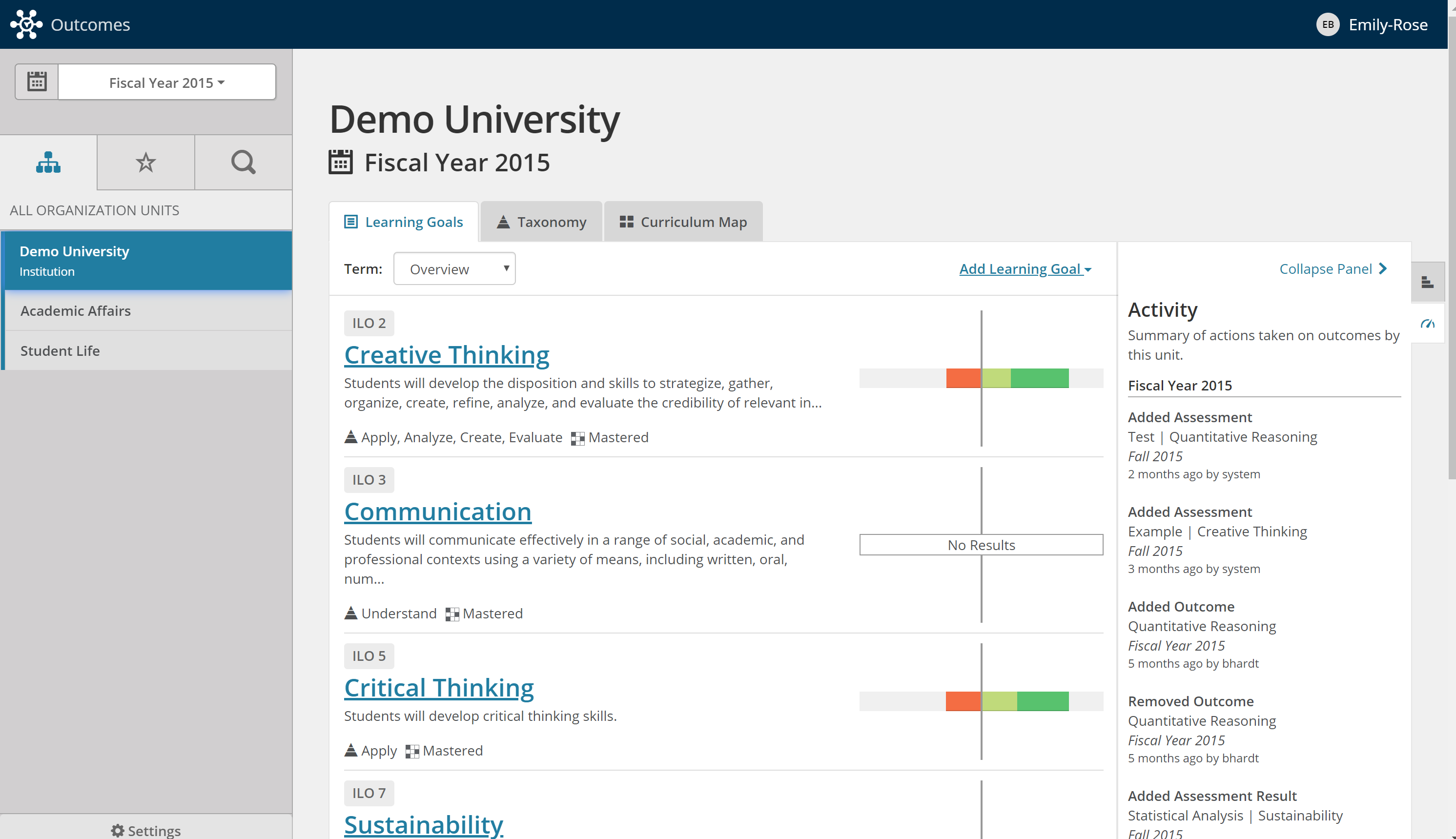
Once you have the outcome statement you want to assess in Outcomes, open the outcome by selecting the title, which will be highlighted in blue.
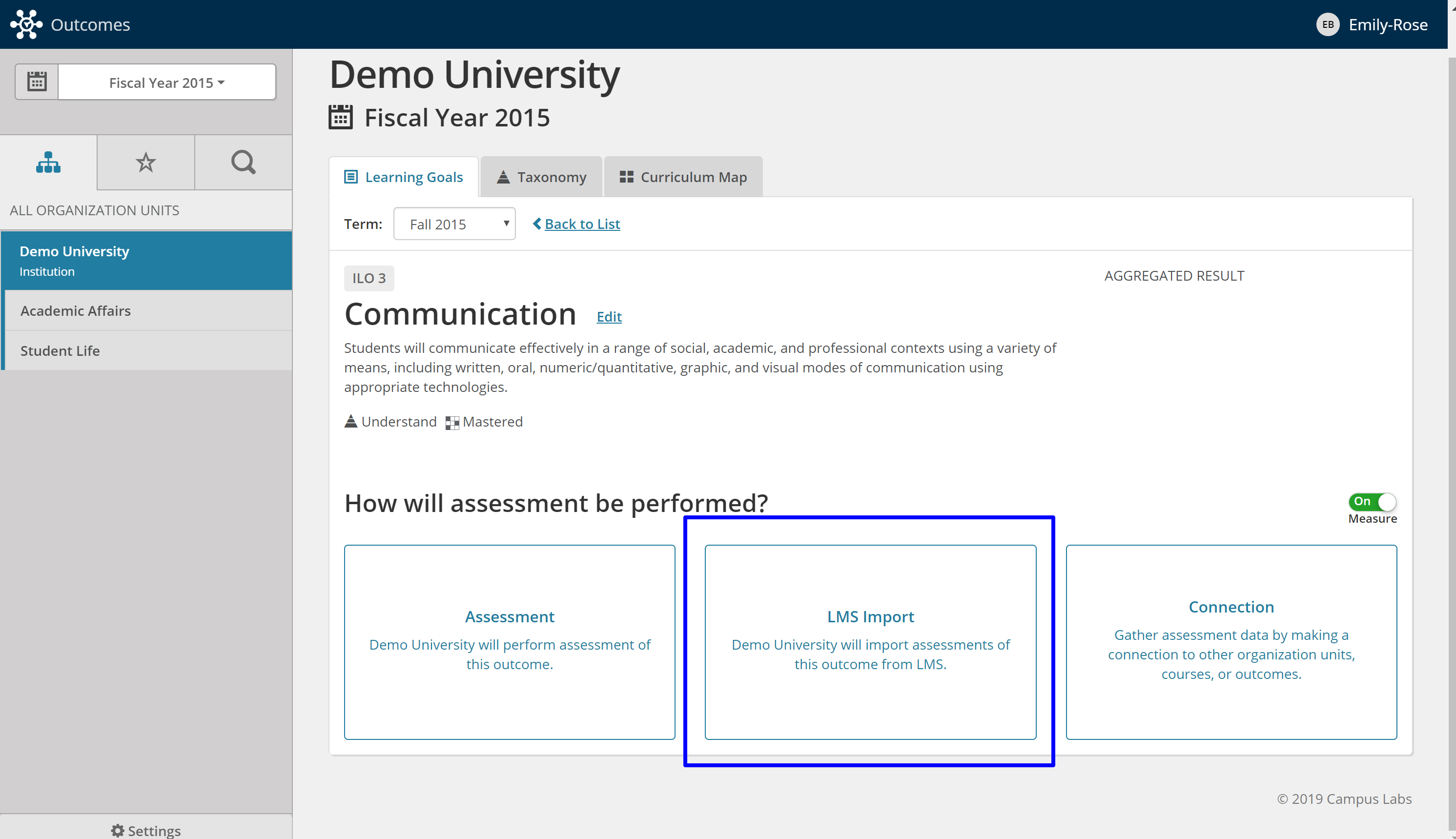
You will then be provided with a choice on how you want to conduct the assessment.
To import results from Canvas, you should select LMS Import.
Once the LMS Import option is selected, a new modal will display that contains a list of all the courses in Canvas you have permissions for. Please read this article to learn about the permission requirements.
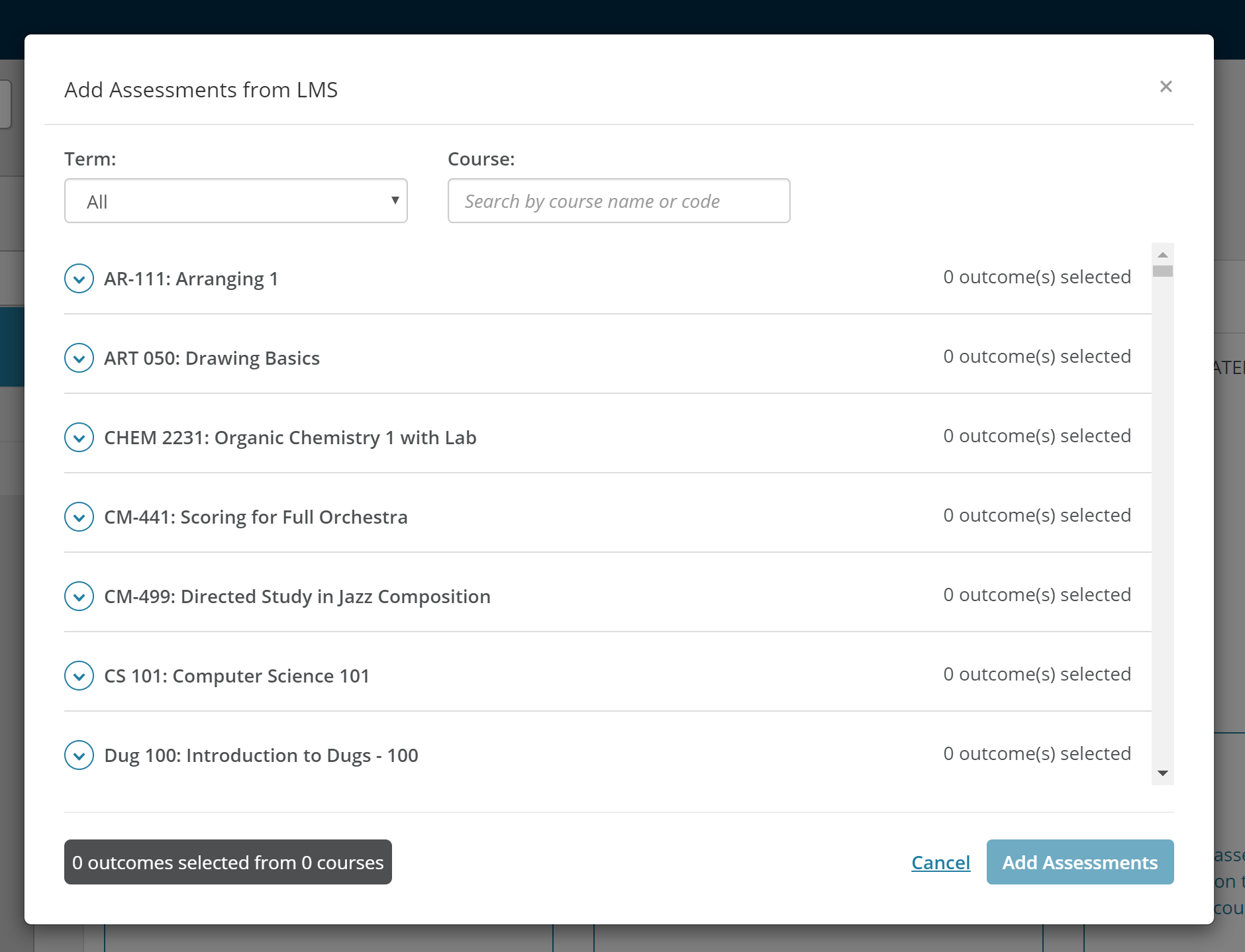
Find a course you want to import assessment data from and select the course title.
The Term filter and Course search box located at the top of the display should help you easily find the Canvas course(s) you are looking for. Expand each course by selecting the carrot to the left of the course name to display all the learning outcomes that have been created for that Canvas course. Check the box next to the desired outcome results you would like to import. You can select multiple outcomes from multiple courses.
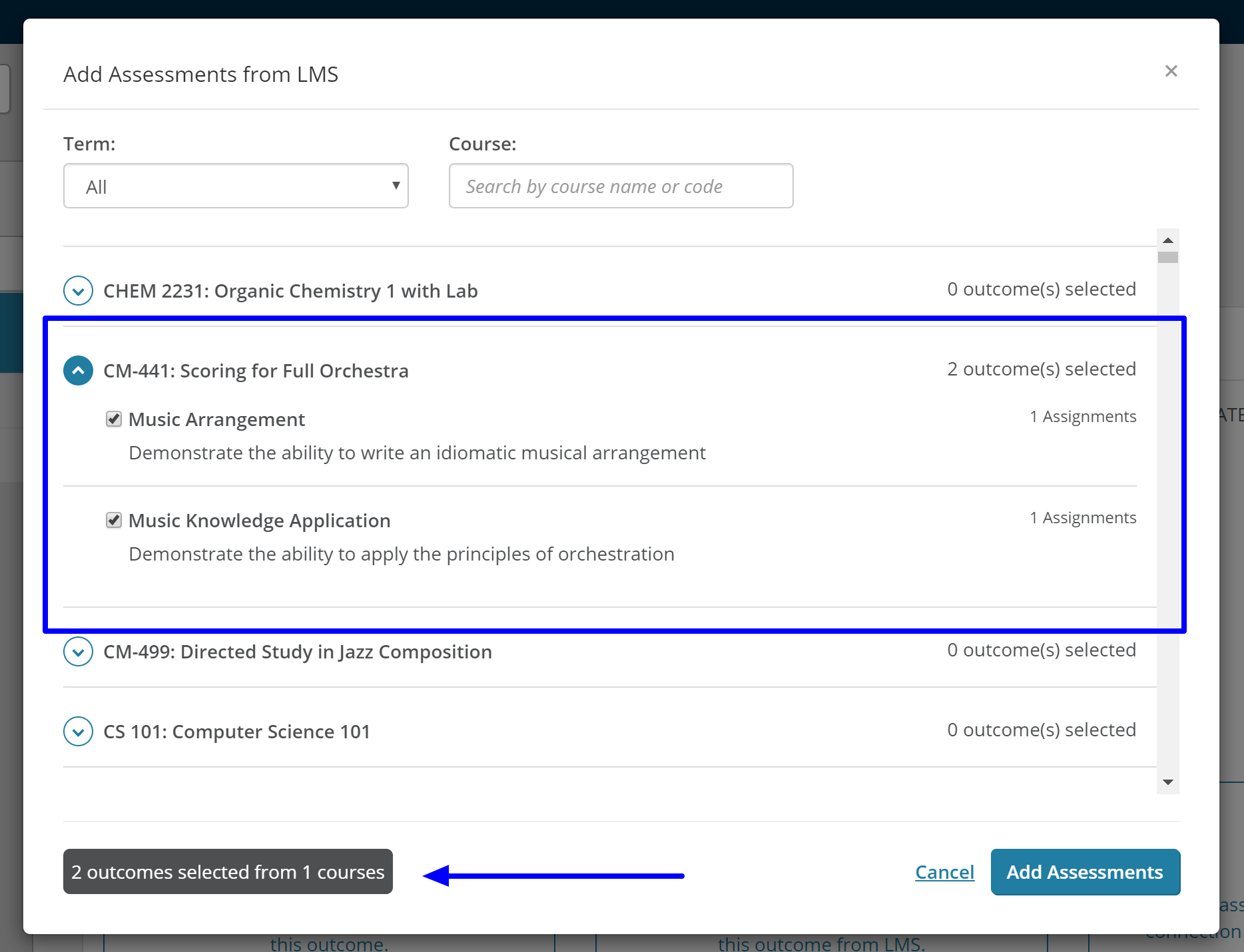
Select Add Assessments to import all selected results.
Tip
Not seeing the course you expected in the modal?
Check to make sure you have the proper permissions in Canvas.
Check to make sure you still have access to the term data in which you are trying to pull results from in Canvas.
Ensure that the course has at least one outcome that has been assessed on at least one assignment.
Make sure you are using the term filter to navigate to the appropriate term. Still having trouble? Send a ticket to Anthology Support.
Once imported, assessment results will appear in Outcomes under the Imported from Canvas header in the middle of the page. You can select a course to expand the selection to see all the outcomes that were imported for that specific course. You can further expand the selection by clicking the outcomes title to see each assignment and its assessment results that contributed to the overall results.
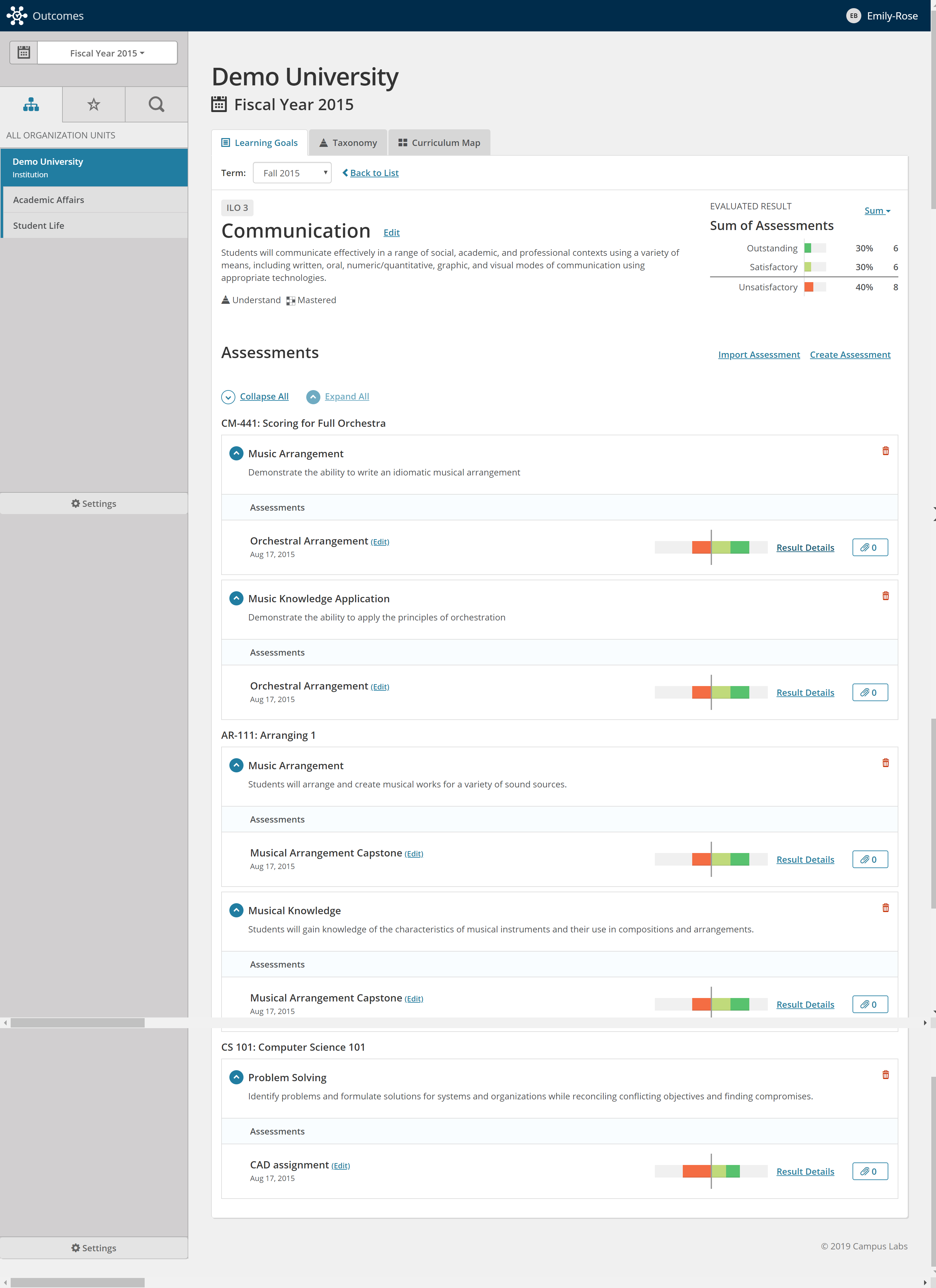
By default, all assessments results will be summed in the Aggregate Results area. You can change the aggregated result calculation method at any time. This resource will demonstrate the different option.
You have the ability to edit results after the initial import.
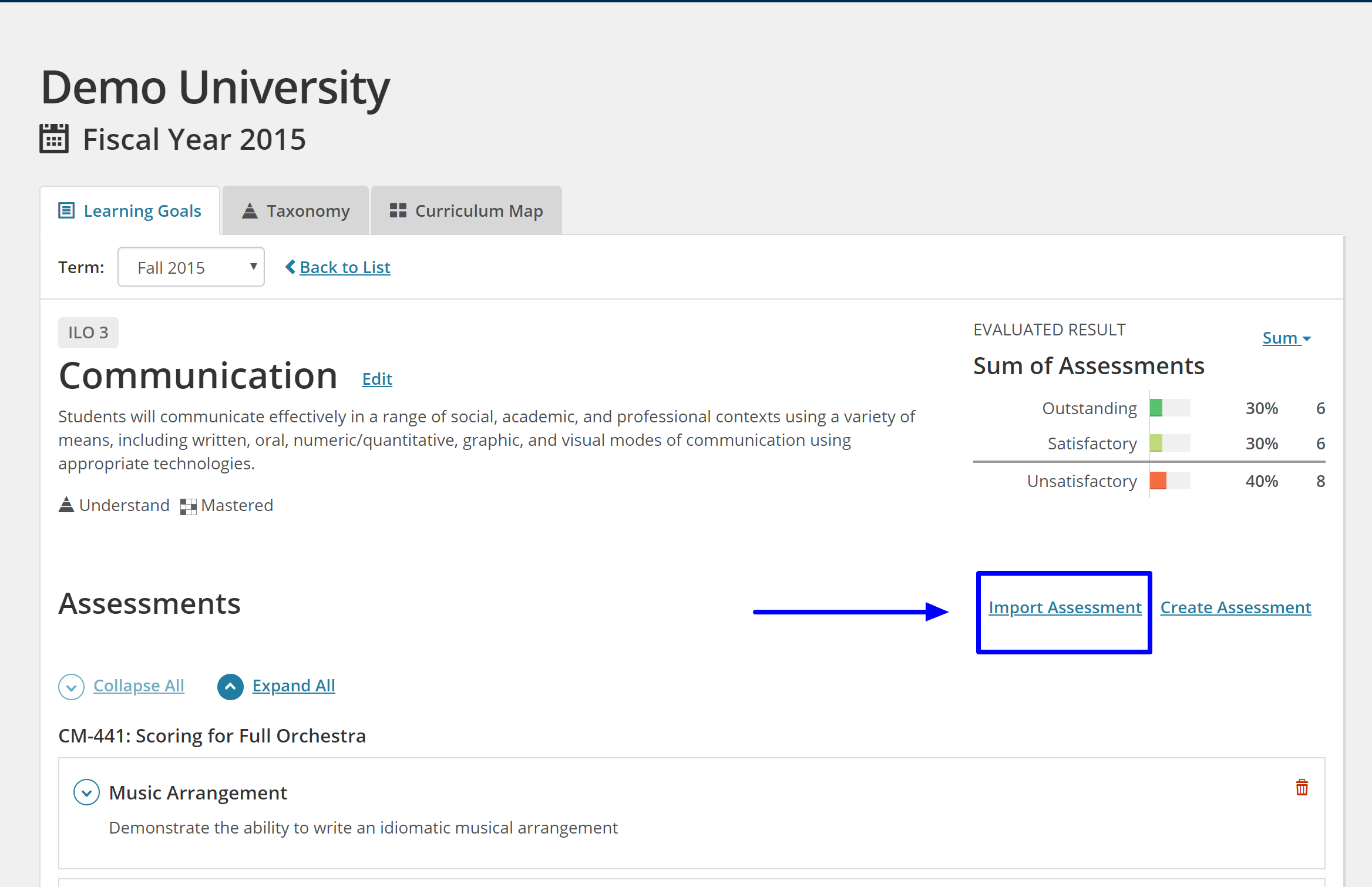
Select Import Assessment to import more assessment results from Canvas.
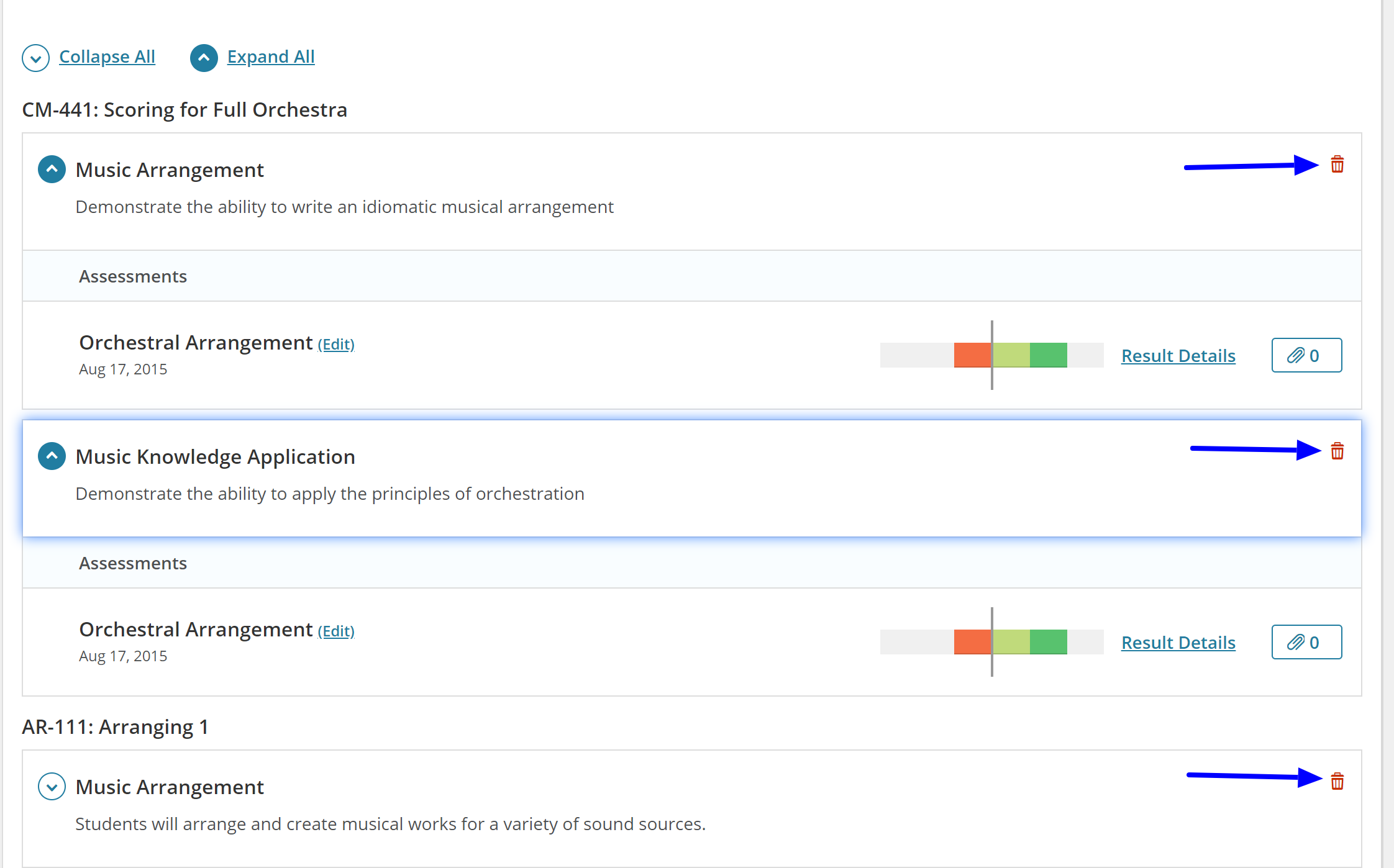
Select the Delete icon next to the item to delete individual assignments within an outcome from Canvas or to delete entire course outcomes and all associated results. Deleting all results and outcomes should also delete the course from Outcomes.
Assessment result edits should automatically be reflected in the data visuals.
You can create assessments within Outcomes at the same organizational unit level that results have been imported from Canvas. This option allows for course level assessment results to be combined with programmatic or department assessments for the same outcome.
Select Create Assessment. Refer to these resources for more information: how to create an assessment and how to enter results.
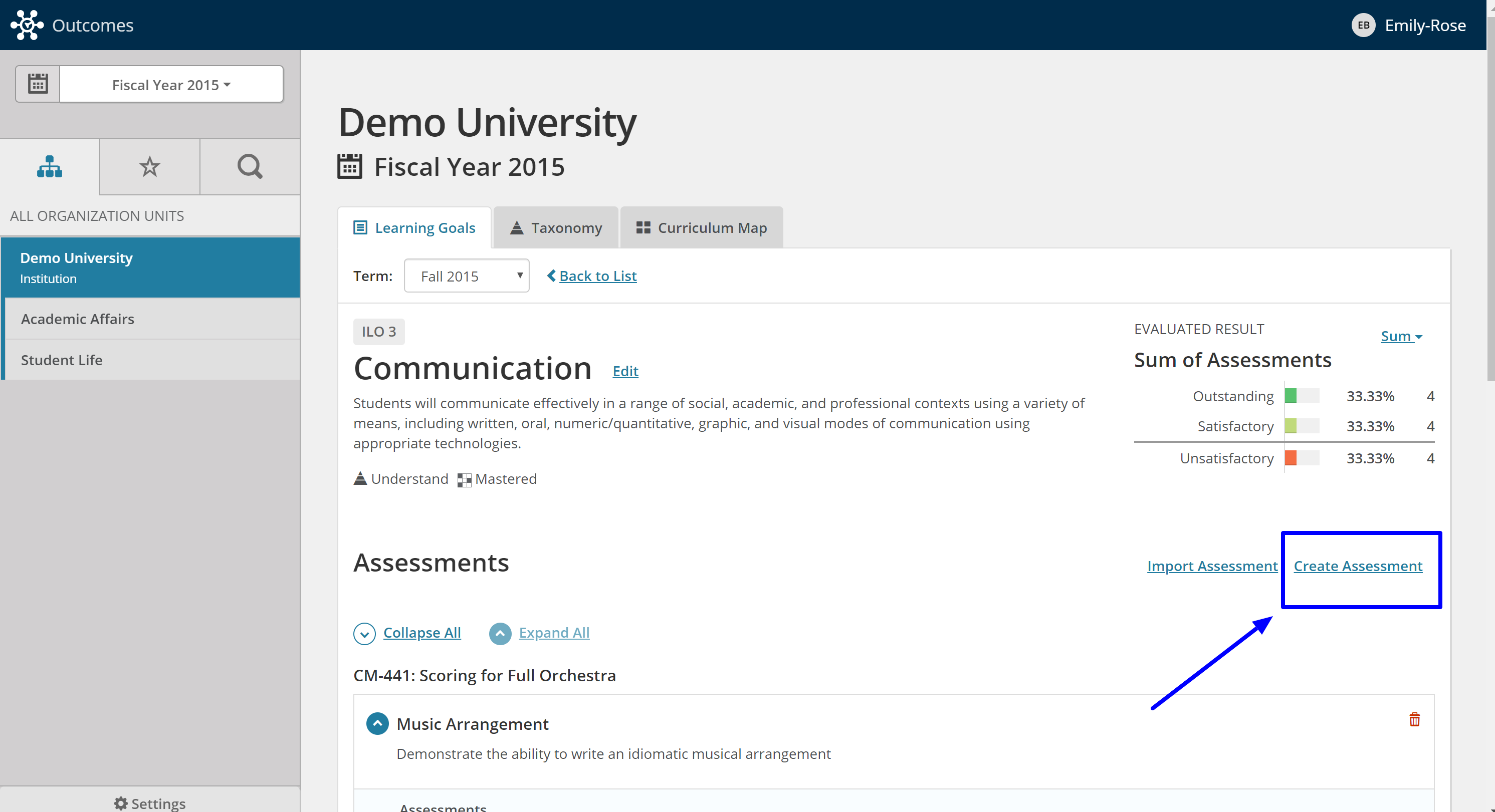
Assessment results from assessments created at the organizational unit will appear under the Created Assessment header. Results from Created Assessments will also be included in summed results.
Thresholds and the Results Scale
Outcomes requires the use of one institutional results scale. If the results scales or thresholds across assessments in Canvas are different, Campus La bs will employ an intelligent algorithm to transform results into the institutions chosen results scale. You are not required to do anything for the algorithm to work. Only under specific circumstances will the algorithm be unable to import results. If you see an error message when importing a specific course assessment, please submit a ticket to Anthology Support.
Additional Templates
When results are imported from Canvas, the Assessment template will also populate the Title, Start Date, and End Date fields. If the institution has turned on required fields in templates, the Import from Canvas option will override these requirements. You have the ability to visit these templates and add or edit any information after the import.
Static Results
When assessment results are imported from Canvas, they are not live. This means any changes to the assessment data in Canvas will not automatically appear in Outcomes. If any changes are made to the data in Canvas, you will have to remove the static results for the outcome or assignment in Outcomes and re-import the edited results. Campus Labs strongly recommends you confirm all data has been completed and entered in Canvas before importing.