Outcomes LTI 1.3 Instructions
Setting up Anthology Outcomes LTI Tool
Login to Blackboard with an admin account
Open the Admin screen and click LTI Tool Providers
Select Register LTI 1.3/Advantage Tool
Change Client ID to
de9b8b7f-60d2-40fa-a5c3-5502af3f8bc0Click Submit
Tool Status: May be changed to 'Approved' or 'Excluded' to turn on or off the Tool. Leave it on Approved to use this tool.
Click Submit on the bottom of the screen.
*Note:All LTI configuration options in Blackboard must done by a user with admin privileges. If your institution is an Anthology Evaluate user you may already have this LTI Tool added. Skip ahead to Add LTI Tool Placement(s)
Add LTI Tool Placement(s)
This placement allows the ability for users to access Outcome from Blackboard. There are multiple placement options:
Course Content Placement: Allows Outcomes availability in the Content Marketplace within a course
Course Tool Placement: Allows Outcomes availability in the "Books & Tools" menu tab within a course
System Tool Placement: Assigns Outcomes in the Tools tab from the main menu
Administrator Tool Placement: Assigns Outcomes to the Administrator Panel > Tools and Utilities section
Setting up Placement
Navigate to the LTI 1.3 tool previously setup in the steps above in "LTI Tool Providers" named "Anthology REST.LTI - A".
*If you previously set up an LTI connect with Anthology Evaluate you may see historical name "Anthology Evaluate" for LTI tool.
Click on the "Manage Placements" link in the dropdown arrow for the tool.
Click on the “Create Placement” button on the Manage Placements page.
Fill out the following fields:
Label= Anthology Outcomes
Description= optional field
Handle= outcomes_home
Handle uniquely identifies the placement. If Anthology Outcomes has multiple placements, create a unique Handle that identifies each placement.
Availability= "Yes"
Type= Options for Anthology Outcomes include:"Administrator Tool," "Course Content," "Course Tool," or “System Tool”
Launch in New Window: Checked
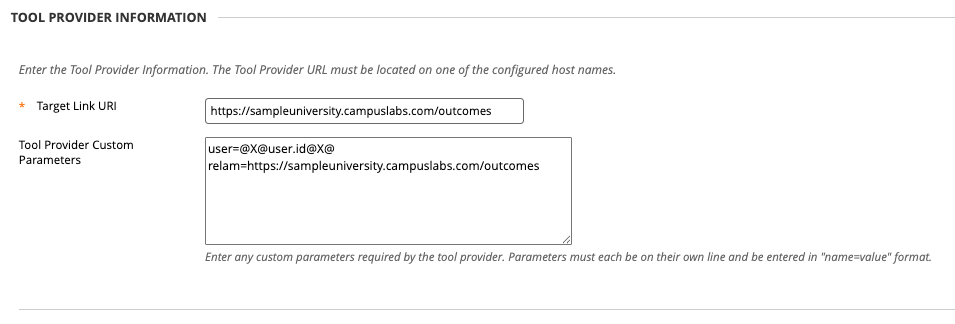
Scroll to the Tool Provider Information section:
Target Link URI value will be unique to each institution and will consist of two parts. Follow the template below to create your own value: https://sampleuniversity.campuslabs.com/outcomes
*Your institution's URL should start with https:// and end with .com/outcomes
Enter the following values for the Tool Provider Custom Parameters field:
user_name=@X@user.id@X@
realm={COPY/PASTE THE TARGET LINK URI FIELD}
*The
user_nameparameter must be set to what your institution uses as the identifier for Outcomes. For example, the example here is for email, so it would be as pictured below. If you are using username, user id, externalId, or some other field from Blackboard, this will be different. See Blackboard Support regarding available variables and syntax.
The final result should look similar to the following image
 |
6. Click “Submit” once complete.
Reminder: Users must be users of Outcomes to use this authentication method.