Using Blackboard LMS Integrations
Create an assessment for an outcome with the individual score of result type.
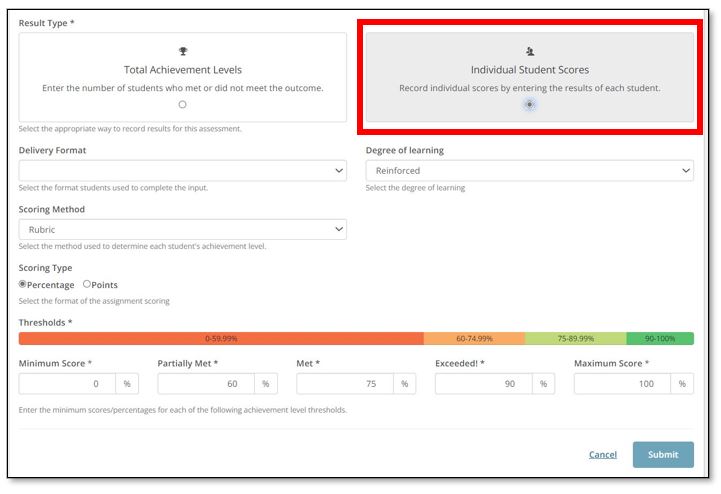
From the outcome screen, select Add Results.
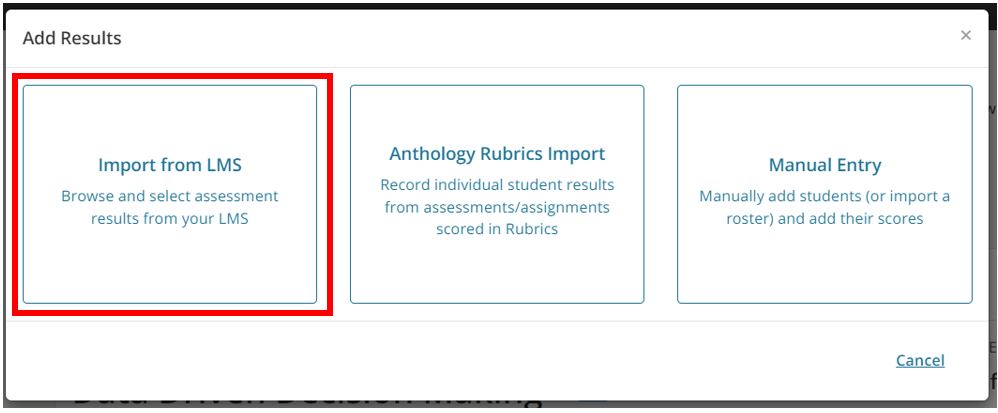
In the modal, select Import from LMS.
Note
The first time you use this feature, you will have to enter your LMS credentials to provide Anthology Outcomes with permission to access your data in the LMS. This will only need to be completed once.
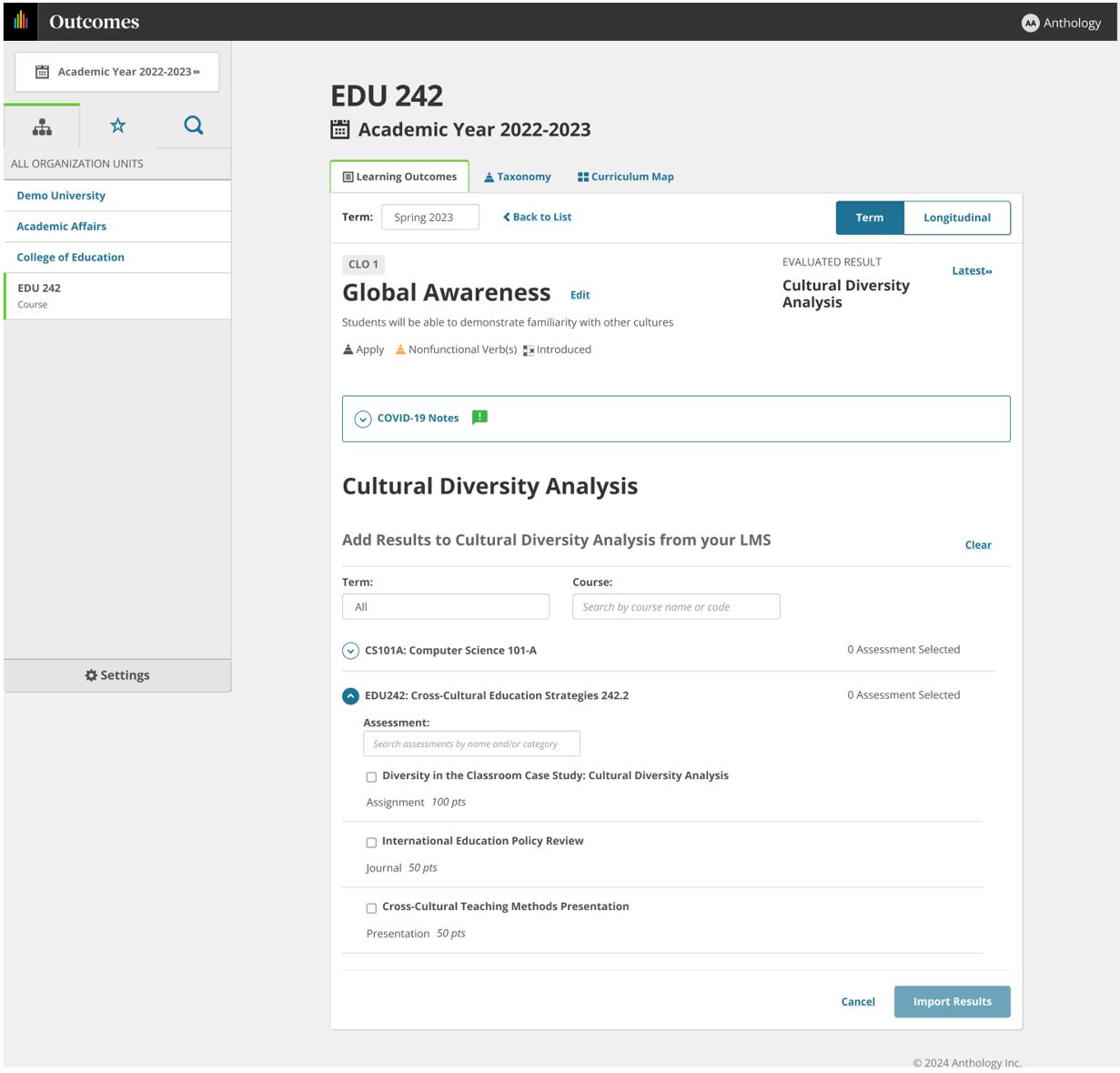
Use the term filter and course search in Outcomes to find the course(s) integrated from Blackboard that contains data related to this assessment.
Select the assignment.
You will only see courses listed that you have permission to in the LMS. You can select multiple assignments and assignments from multiple courses if you want those results tied to the same assessment in Outcomes.
If you do select multiple assignments, you'll be prompted to review the data before it is pulled into Outcomes.
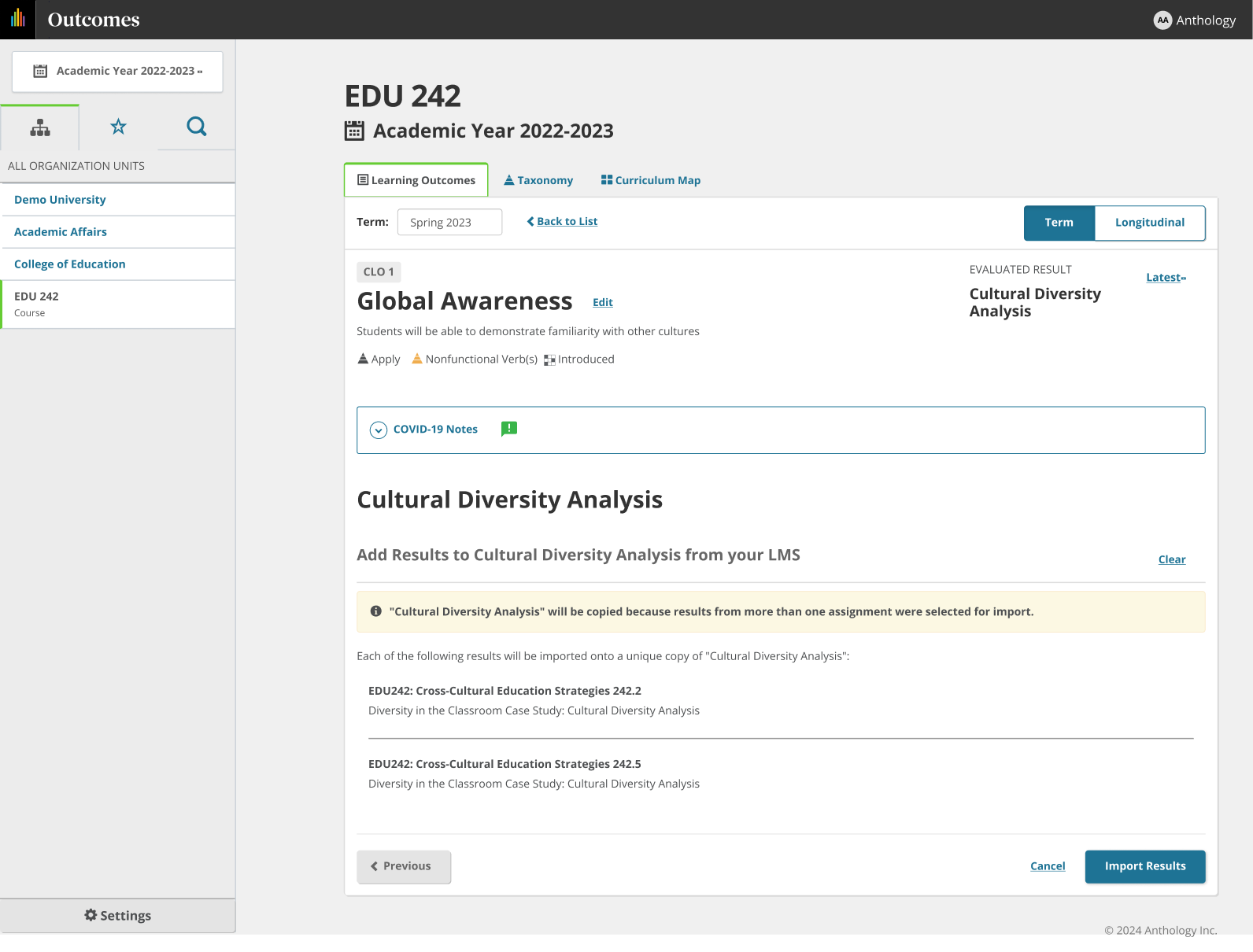
Select Import Results.
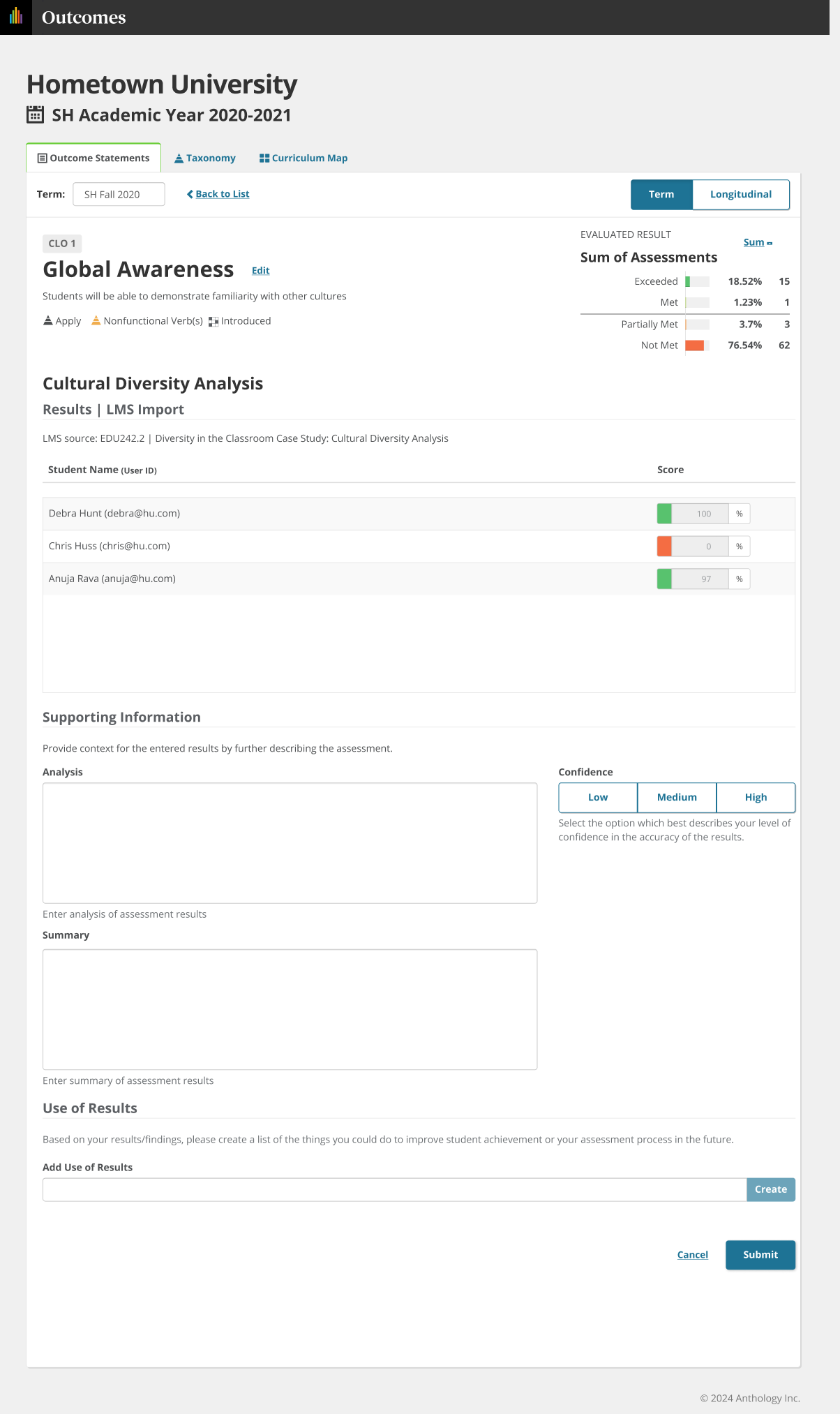
Student scores will be imported from the LMS gradebook* and automatically bucketed into the appropriate achievement level based on the assessment's thresholds. You are now ready to complete the rest of the assessment information requested on your institution's template.
For Blackboard users, the gradebook column cannot be a "Calculated" grading type (i.e., a column with a formula applied to calculate its value). You can also aggregate by Blackboard Rubric Criteria for assessment result measures. Learn more here.
 |