Entering Results- Importing an Anthology Rubric
Institutions have the option to import rubrics and their accompanying rosters and scores into Outcomes. To enable Rubrics integration contact Support.
Refer to the Rubrics Support Site to learn how to create rubrics.
To import a rubric assessment into Outcomes, users must have already completed assessments or assignments using the Anthology Rubrics tool. If a user does not see the option to Import a Rubric, this means the option has not been enabled for your institution.
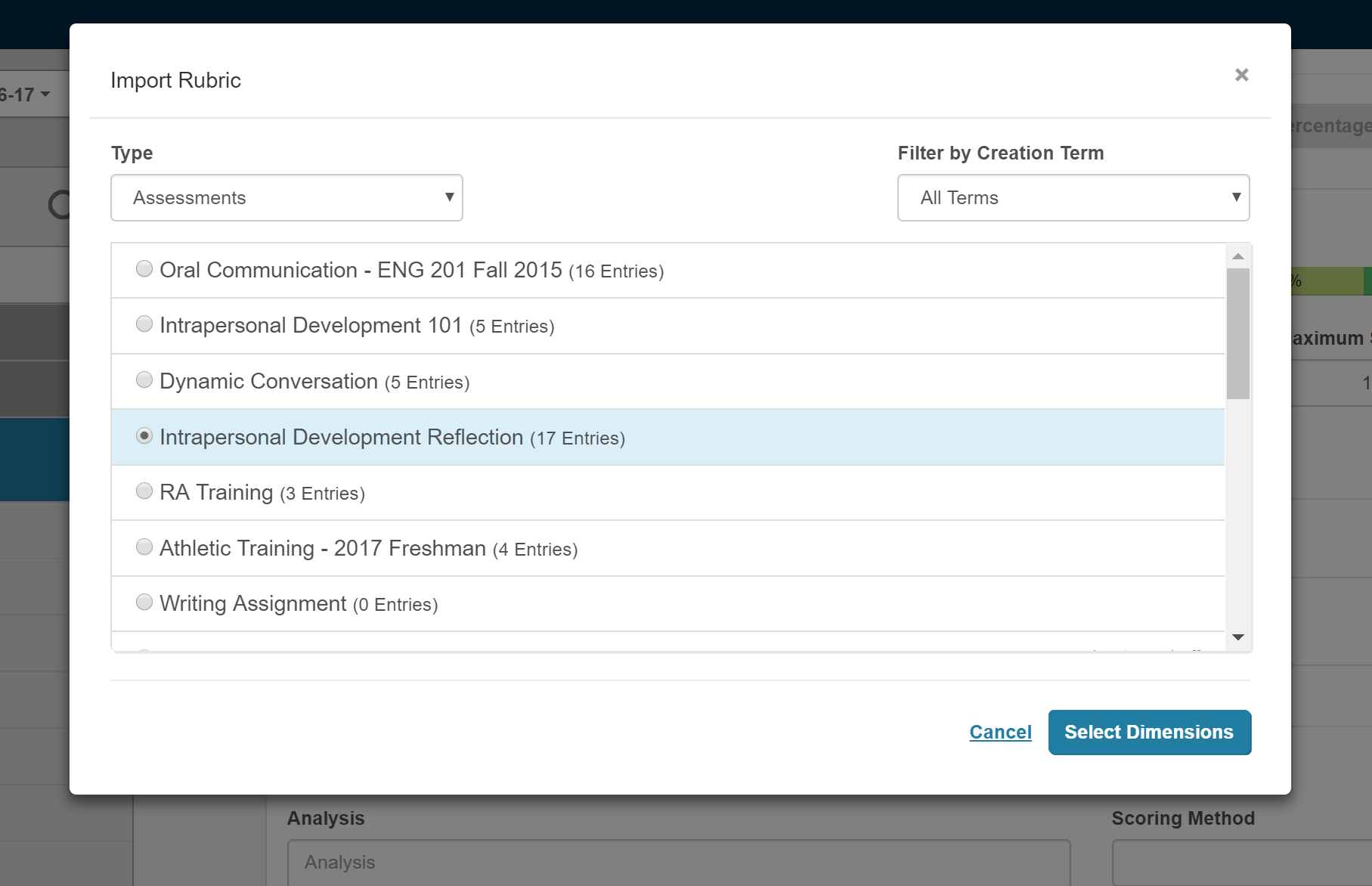
Select Import Rubrics.
A new window will show Users a list of their Assessments and Assignments that they have evaluated.
Select the appropriate rubric. Users can filter by Assessment or Assignment as well as by Term to locate the evaluation.
Select Select Dimensions.
Include or exclude dimensions of the rubric as needed.
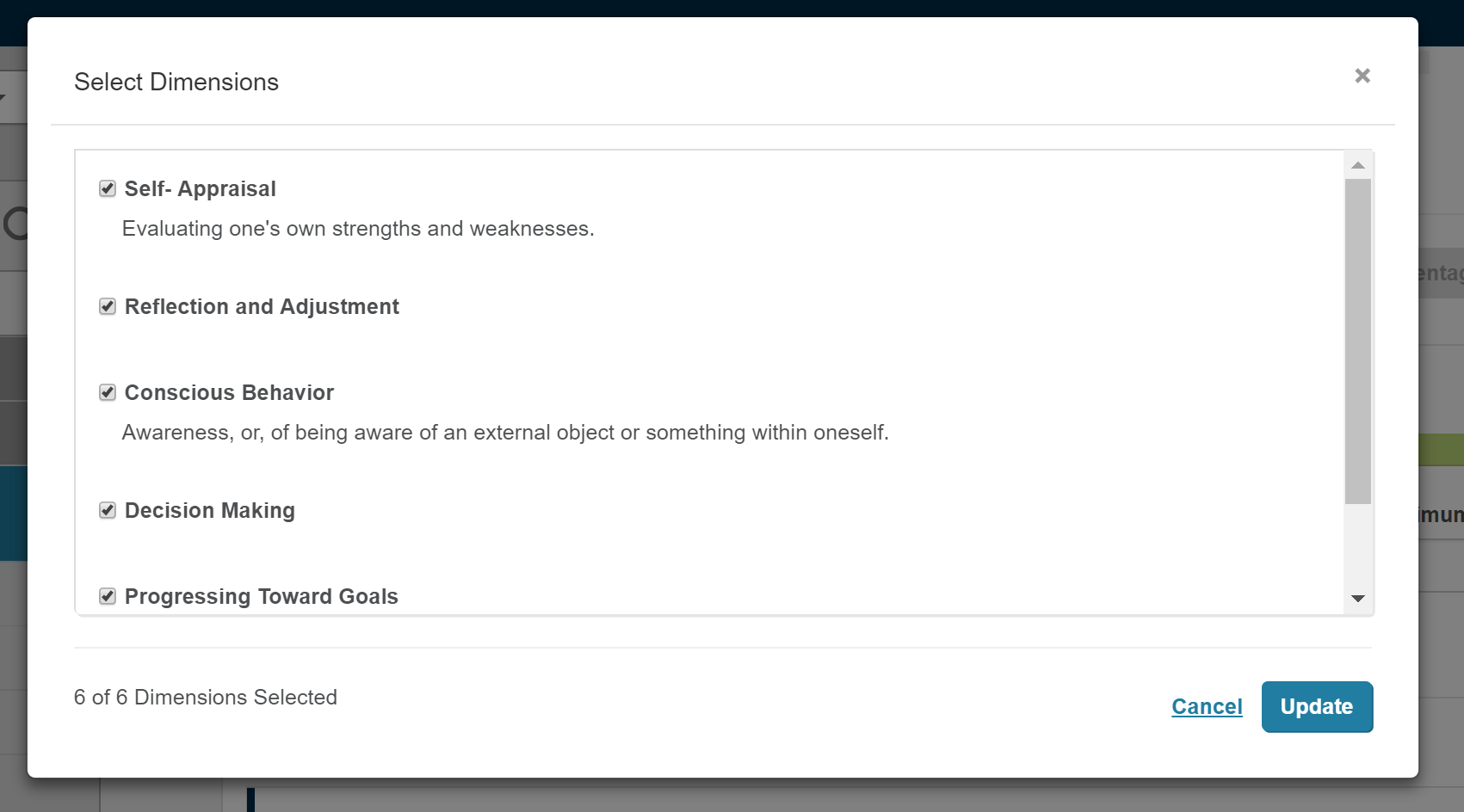
Select Update.
This will bring over the student's scores for the dimensions that were selected. Student names and scores cannot be edited in the Outcomes platform when importing rubrics. If Thresholds requirements have been entered before importing, student scores will automatically be placed into the corresponding categories.
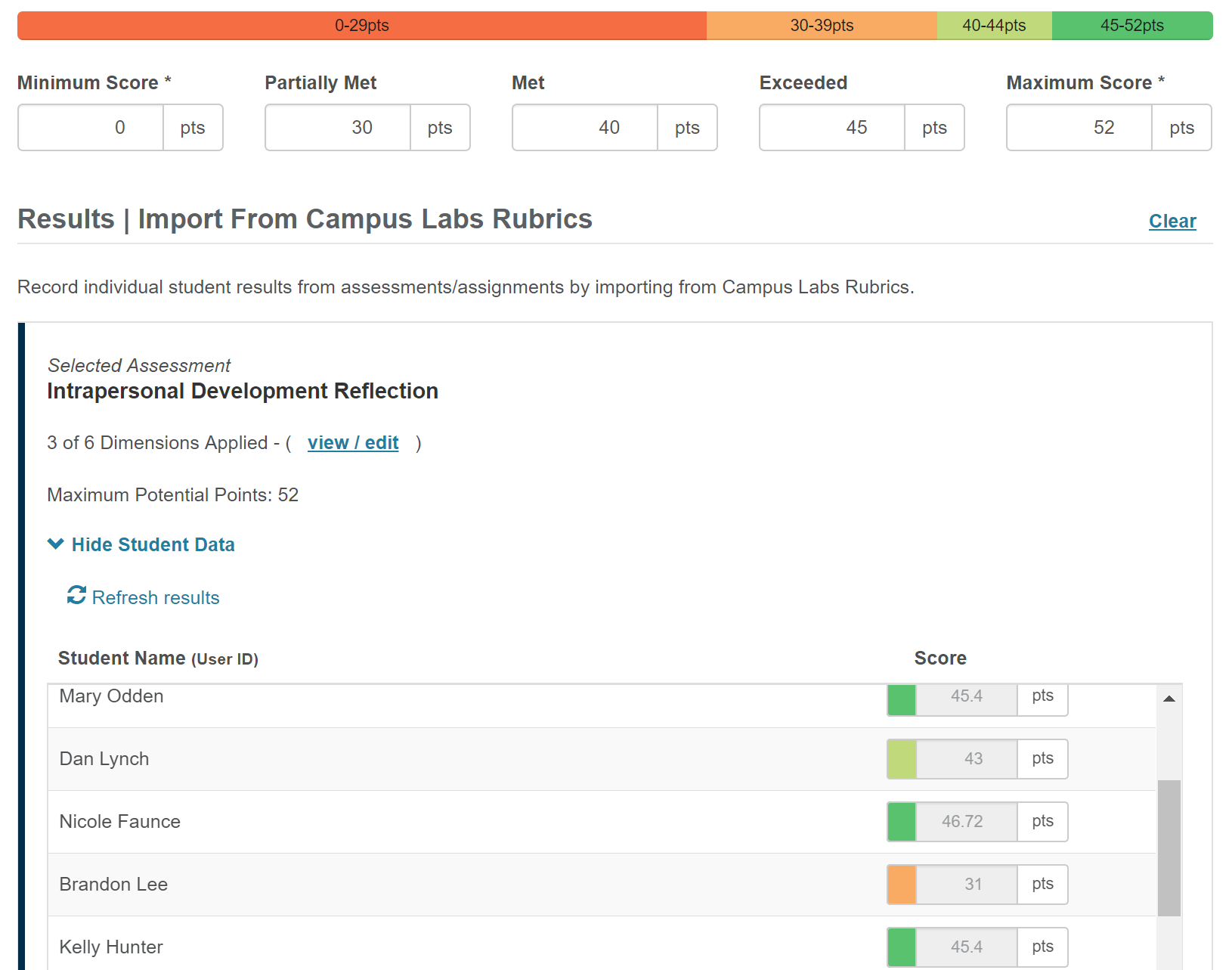
If Threshold's were not set before the roster is imported, users will need to fill out Thresholds information to create the criteria for the Results Scale Units. If using points please keep in mind the Maximum Potential Point value of your dimensions should match your maximum point value of your thresholds unless there was possible extra credit.
Once Thresholds have been filled out, the individual scores will automatically populate the corresponding Scale Unit. From here, a user would be able to populate the other fields in the Results Template. Results are not saved until users select Submit.
Note
Your highest threshold cannot be the same as your maximum score.
Students with no Rubric Score
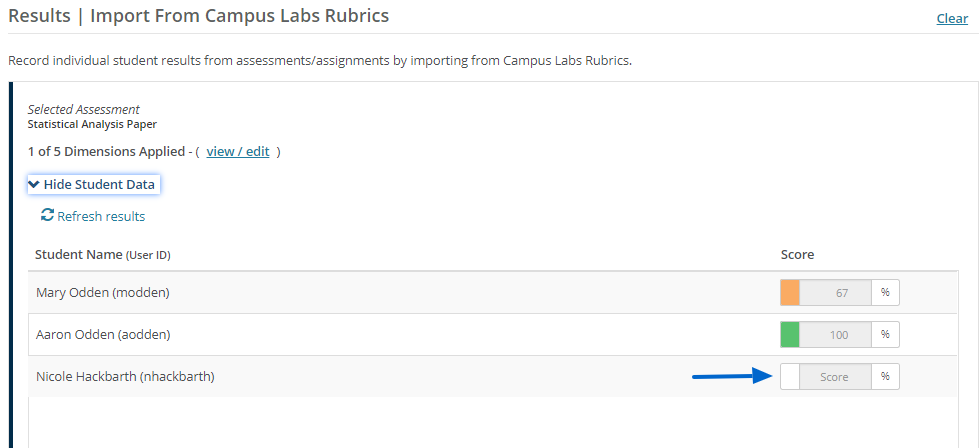
If a rubric entry is being pulled into Outcomes with no score attached to it, the entry will nulled in Outcomes. Nulled results will appear blank, indicating there is no score. The color-coded key indicating what results scale category the entry has been placed into, will appear blank as well. This means no score will appear for the entry in Outcomes, and that nulled value will not be used in any type of data aggregation or data visual.
Some reasons for the nulled scores could be:
the student's entry is marked INCOMPLETE in Rubrics.
the student received N/A on all dimensions of the rubric
the student received N/A on the dimension(s) selected in Outcomes
Rubric entries with a score of zero will still be imported and appear in Outcomes.
This screenshot shows a visual representation of a nulled score. The last entry was not scored in Rubrics. When pulled over into Outcomes, it appears blank with no score.
 |
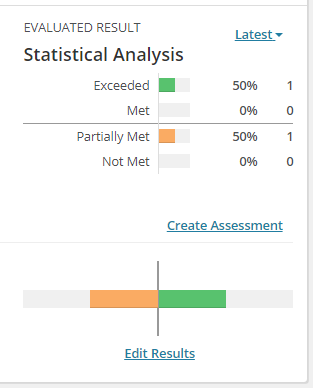
In the assessment results data visualizations, you can see that the nulled score was not included in calculations. The screenshot below is the visualization of the results scale from the previous data entries and only reflects the two rubric entries with scores.
Resources
For more information on adding results please refer to these resources.