Outcomes Data Source
A major component of Anthology's mission is to break down silos and build a strong foundation for unified information, valuable insights, and better decisions. The ability for our products to work together is a key aspect of fulfilling this mission. In this, users have the ability to connect student learning outcome data from Anthology Outcomes to an item inside of Planning.
For many institutions, measures of learning outcomes achievements is one aspect of data collection and analysis in developing an understanding of the impact of various learning and developmental opportunities across campus. In keeping with Anthology's mission of breaking down silos, we provide users with the ability to connect project data from Baseline to an item within Planning. This ability allows users to bring together data from Outcomes and other sources inside of Planning for the purposes of analysis and to turn that analysis into action.
Before Planning users are able to link Outcomes data the Site Administrator will need to enable the appropriate fields. If you are a site administrator for your institution and would like to learn how to do this, please review this article. If you are not a site administrator and believe such a feature would be valuable for your institution, we encourage you to speak with your site administrator.
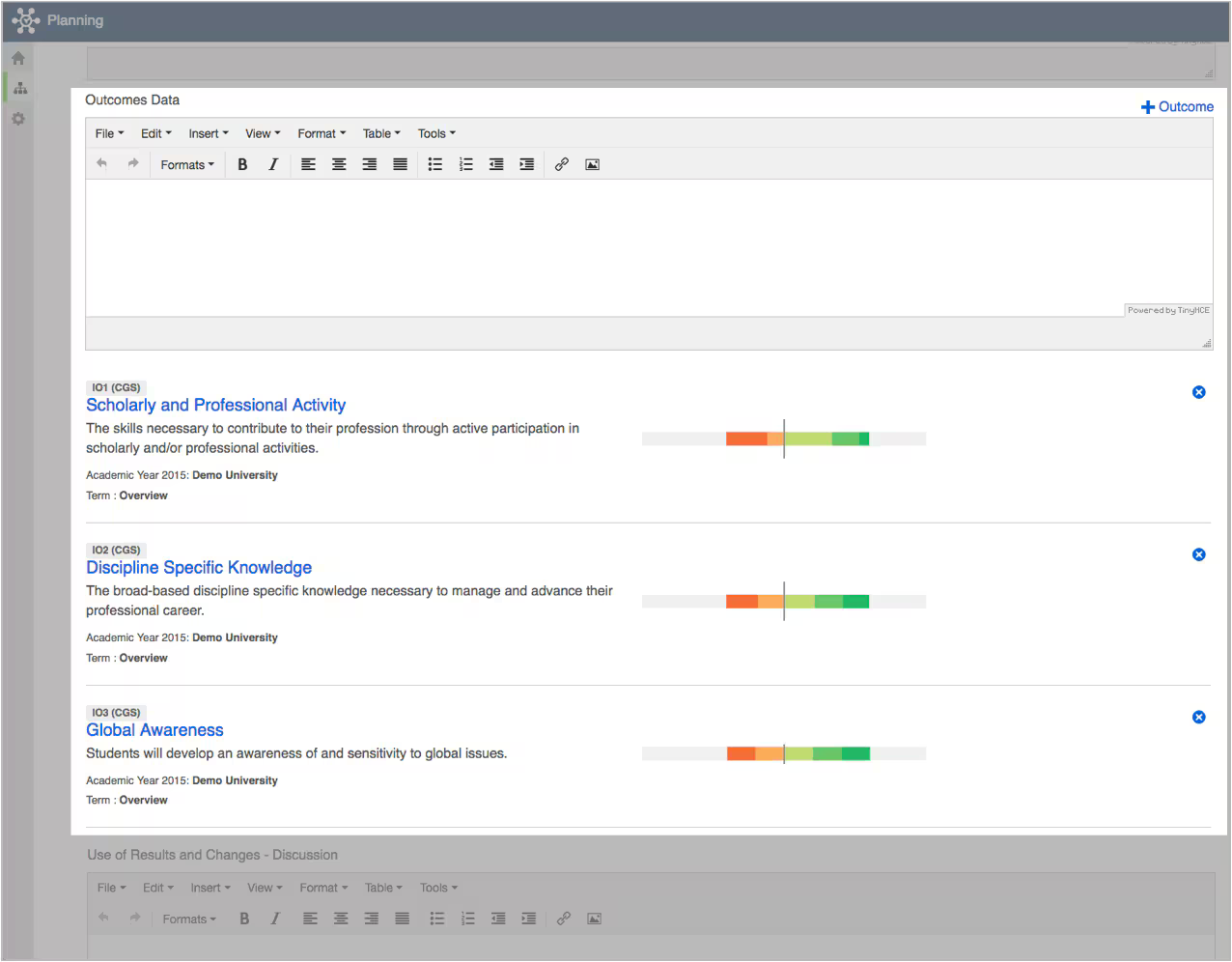
In the screenshot below you will see that we have connected three university-level student learning outcomes from the Outcomes application to a Planning assessment item where we can write a reflective narrative of the results and attach additional supporting documentation.
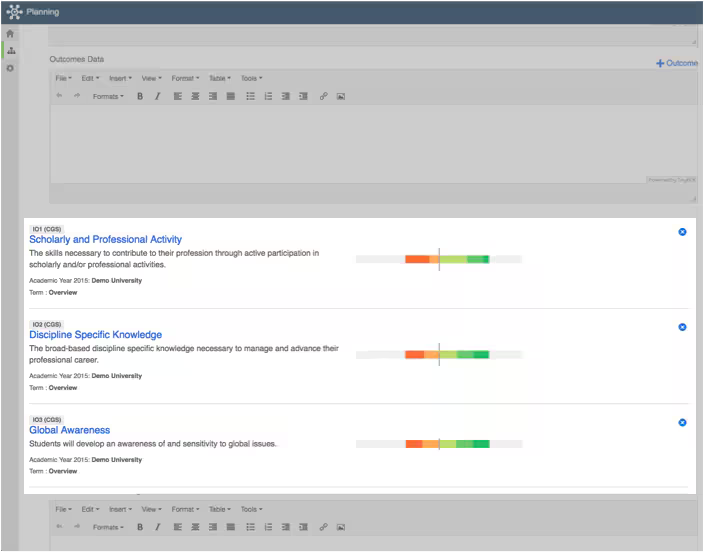
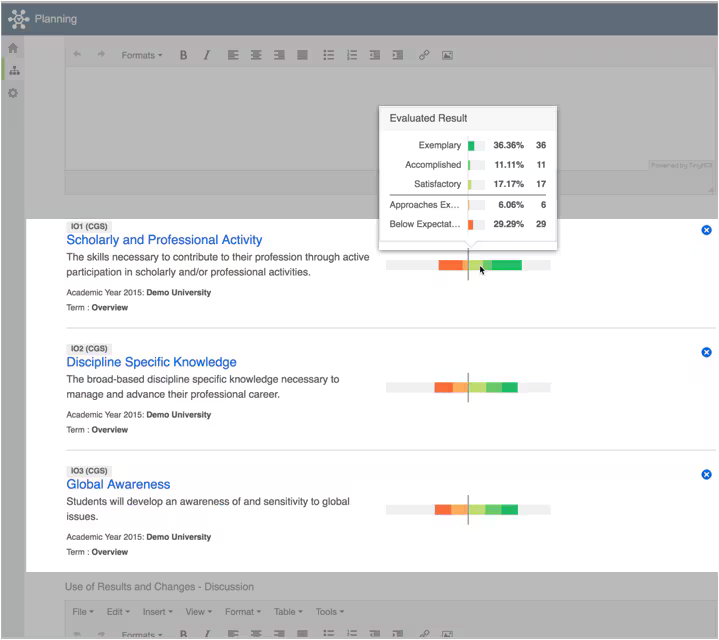
This connection brings over the year and unit in which the outcome exists, as well as the outcome statement and the aggregate results. When hovering over the outcome results distribution a user will be provided with the percentage and raw counts for each of the result scale units.
It is important to know that any changes to the results or outcome inside of the Outcomes application will be reflected inside of Planning, as the connection is "live." It is recommended to lock a given year in outcomes so that results displayed are reflected in a manner that aligns with the reflection and/or the analysis.
Add the field to a template.
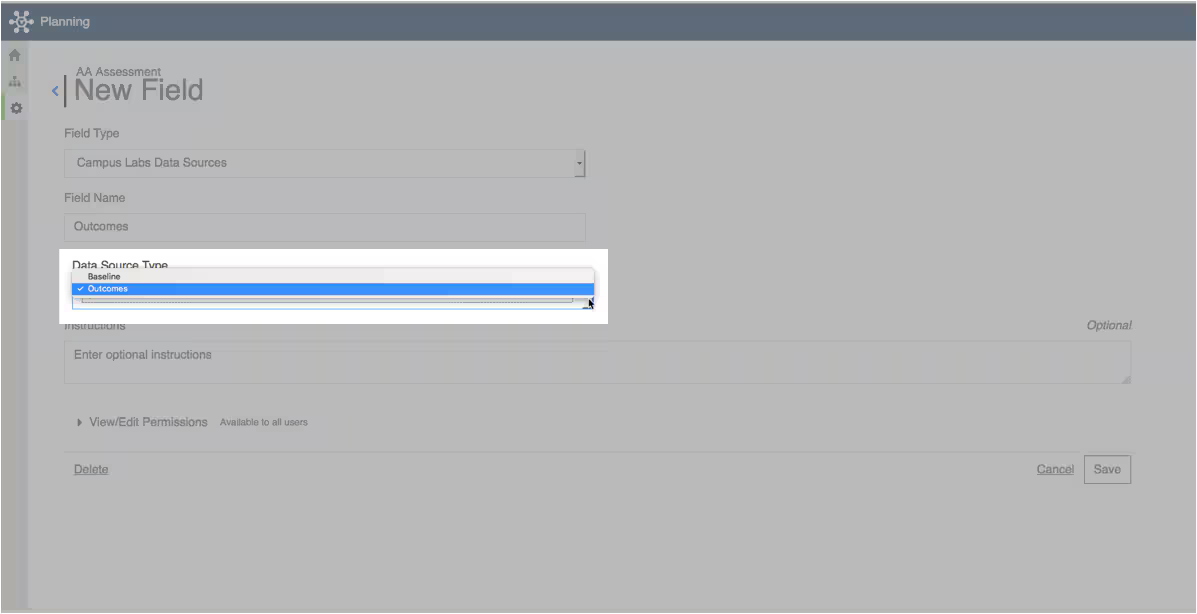
In this example, we are adding the Anthology Data Source to our Academic Affairs Assessment template.
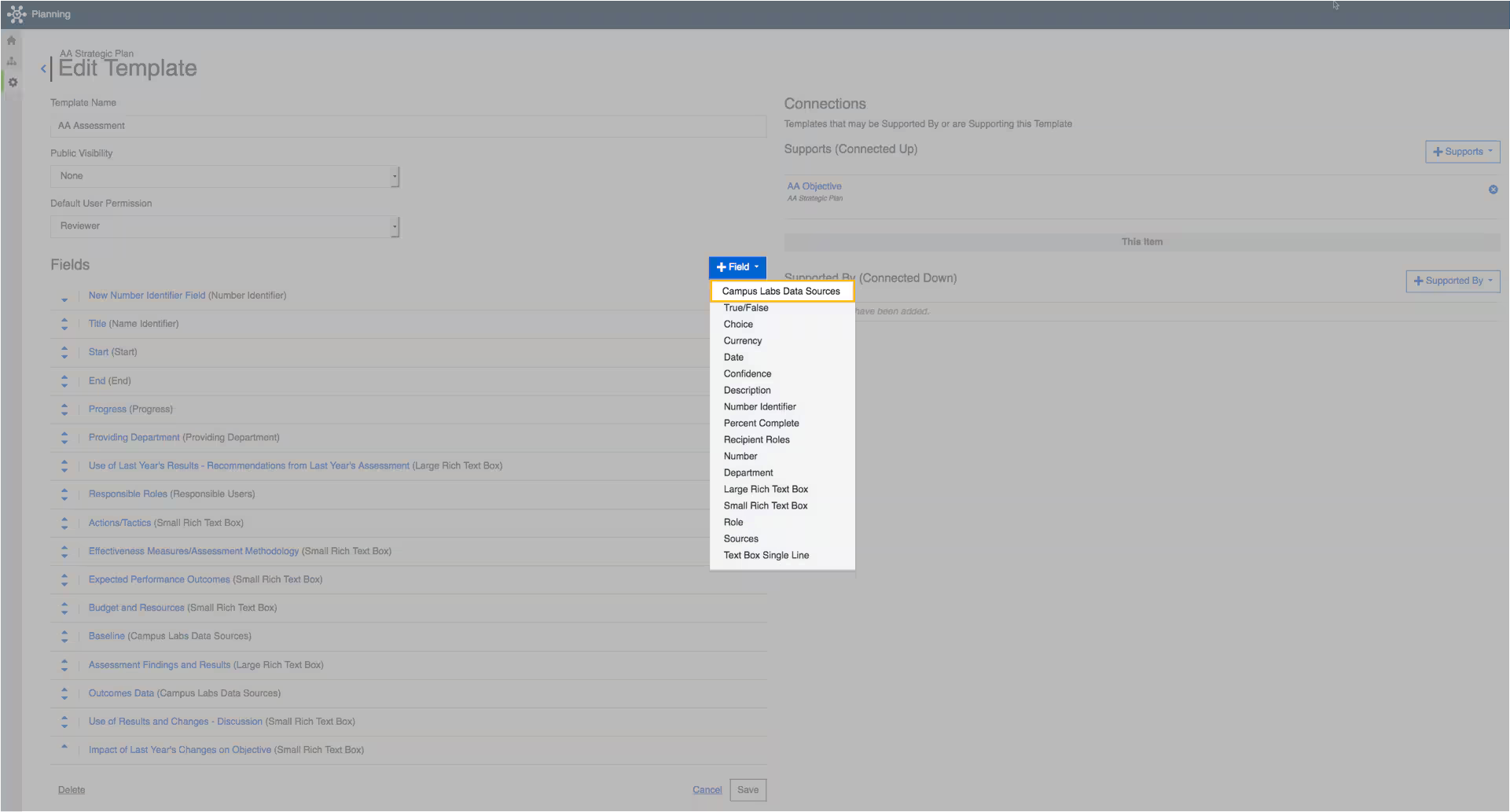
Select Outcomes as your source of data.
You can add multiple Anthology Data Source fields. For example, one baseline and one outcome data source field and multiple outcomes data source fields.
After adding the data source field(s) to a template users will then be presented with a new field when filling out a template as shown below.
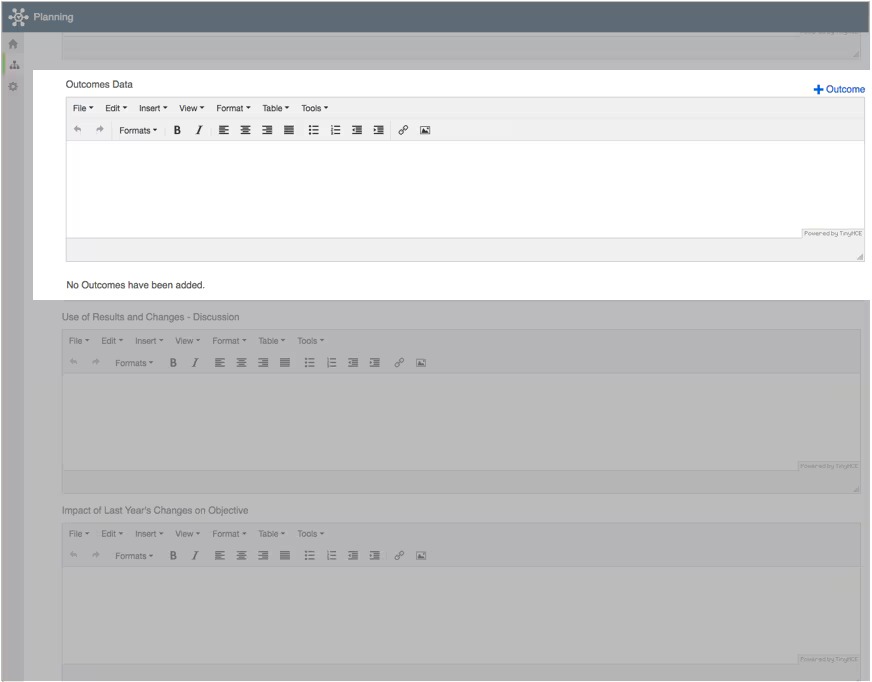
Select + Outcomes.
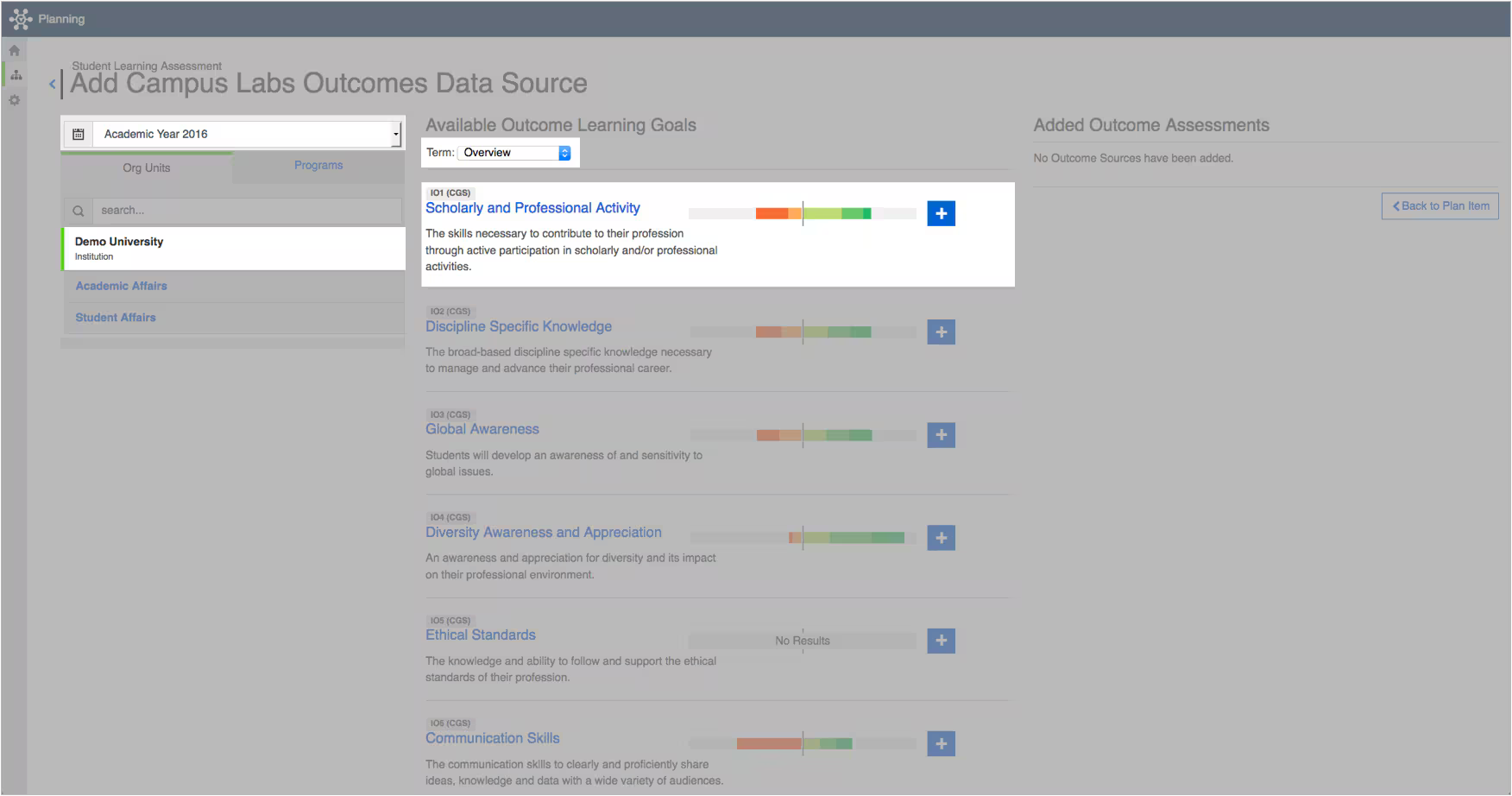
A new screen will open within the planning application that will allow you to navigate Anthology Outcomes to find and select your desired outcomes for the plan item you are creating. You can filter by academic year, organization unit/program, and term to find an outcome. Select the plus + to add an outcome(s) to the plan item.
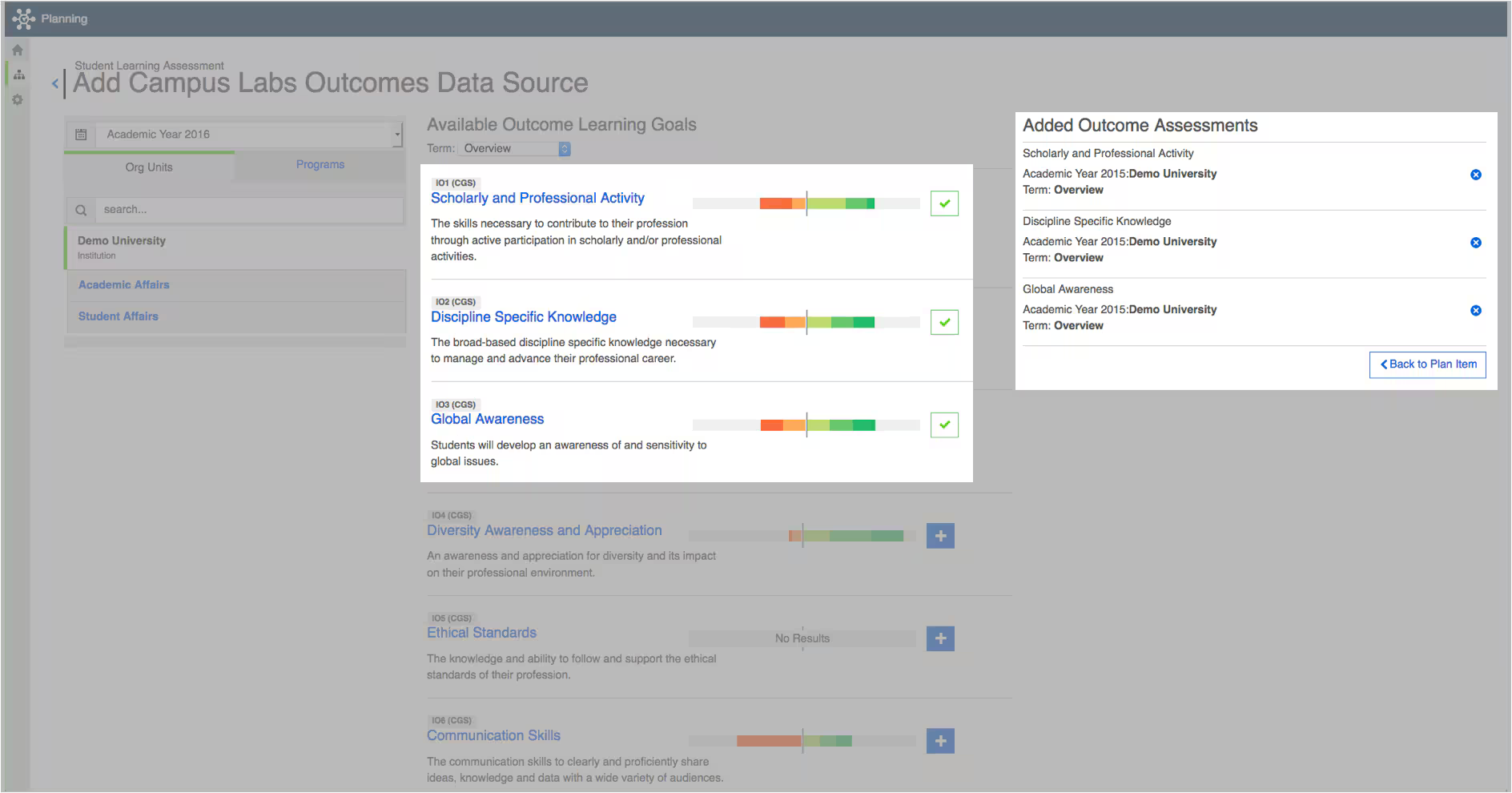
A green checkmark will appear after clicking the plus button, indicating that you have successfully added a connection to the given outcome. The choose outcome(s) will appear under Added Outcome Assessments as well. Select the X if you wish to remove a connected outcome.
Once you have finished selecting the desired outcomes and are ready to return to Planning, select Back to Plan Item.
Upon returning to Planning, you will now see the selected outcomes and their aggregate results appear in the user interface below a textbox where you can provide a reflection/analysis of the associated outcomes results.