Set Up Notifications
On your activity stream's Notification Settings panel, you can choose which notifications you receive about activity in all of your courses:
Activity stream: Choose which activities appear on your Stream page.
Email: If you want to receive email notifications, add an email address to your profile page. Then, choose how often and which activities you want to receive notifications for.
Push notifications: Messages pop up on your mobile device if you have Blackboard LMS App installed. You can select which notifications are sent to your device.
To open Notification settings:
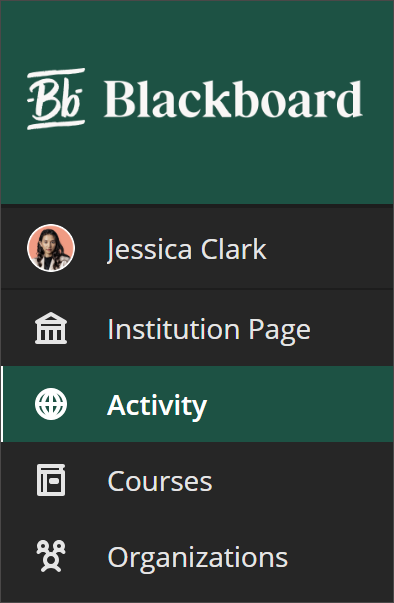
Select Activity in the base navigation menu.
Select Settings (the gear button at the top corner of the Activity page).
Stream notifications
You can control which activity appears in your stream. Select the Stream Notification Settings tab to open the panel.
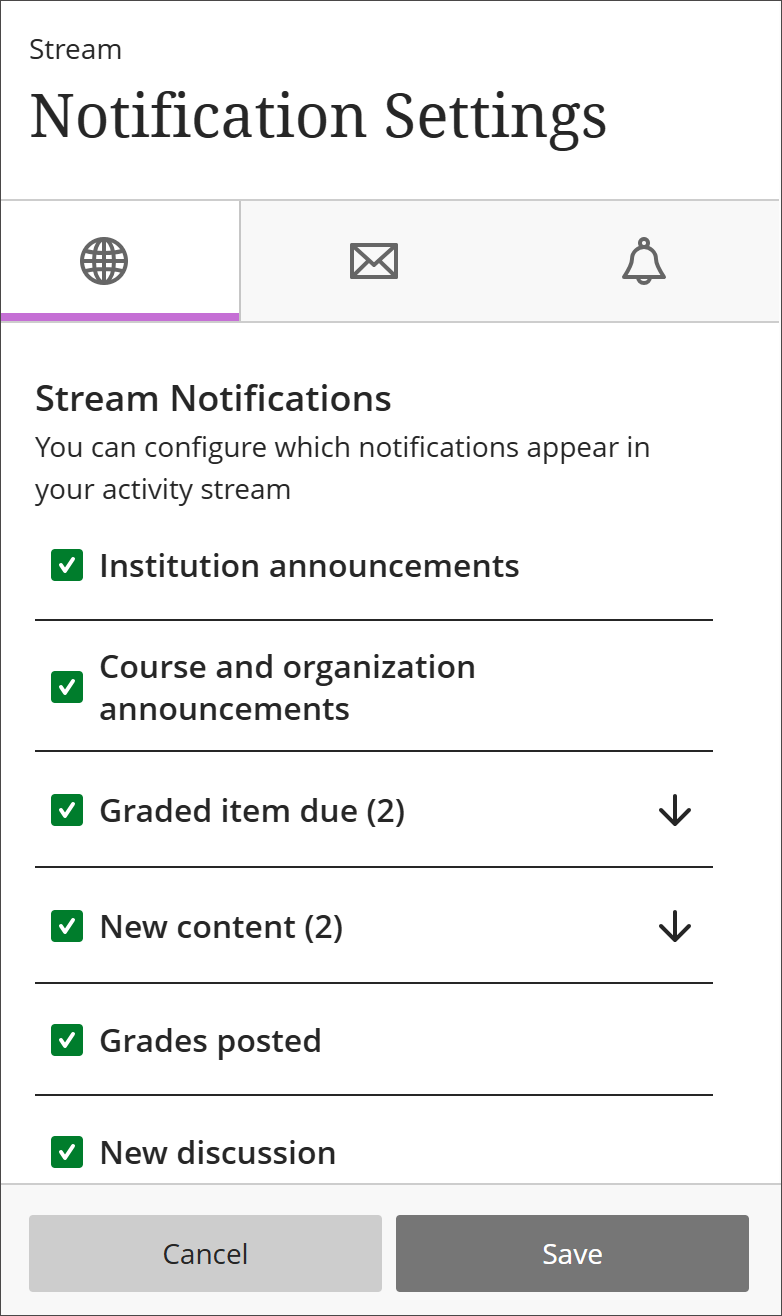
Notifications for due dates, grades, and feedback always appear in your stream.
For all other activity, choose which notifications you receive. Options include announcements, new content, grades and activity, discussions, and calendar events, among others. Select all, some, or none. To stop receiving notifications for an activity type, clear its checkbox.
Understand email notifications
Select the Email Notification Settings tab.
If you haven't added an email address to your profile page, you won't see any options in the Email Notification Settings tab.
Note
Organization activities won’t trigger email notifications.
Choose how often you want to receive emails for activities in all of your courses:
Email me right away: Receive individual notifications for each activity you choose from the list.
Email me once a day: All notifications are collected and sent once a day at a time set by your institution.
For each frequency, select which activity types trigger notifications. Options include grades and feedback, discussions, messages, new content, due dates, and new course availability. To stop receiving emails for an activity type, clear its checkbox.
Use push notifications
If you have Blackboard LMS App installed, you can receive push notifications on your mobile device.
You can manage which push notifications are sent in these ways:
Blackboard LMS on the web: Log in to Blackboard LMS on a web browser and navigate to your Activity page. Select the Settings icon. From the Notification Settings panel, select the Push Notification Settings tab.
Blackboard LMS App In the app's main menu, tap Settings. Manage your push notification settings based on your device.
Select which activity types send push notifications. Options include new content, discussions, grades, and feedback. Due date notifications are supported for tests, assignments, discussions, and manual grade columns only. You can also set additional reminders a specific number of days before a due date.
Due date push notifications always appear one day before the due date and can't be turned off like other push notification types.
When an instructor changes a due date, a new Test Due push notification is generated. The push notification doesn't state that it's a changed due date.
Video: Notification Settings
The following narrated video provides a visual and auditory representation of some of the information included on this page. For a detailed description of what is portrayed in the video, open the video on Vimeo