ORIGINAL Threads
Navigate the Thread page
When you view a thread, all posts and the thread description appear on one page. Each author's profile picture accompanies their post to help you easily identify your classmates.
The editor appears immediately after the message you're replying to. You can refer to any post on the page while you type your reply.
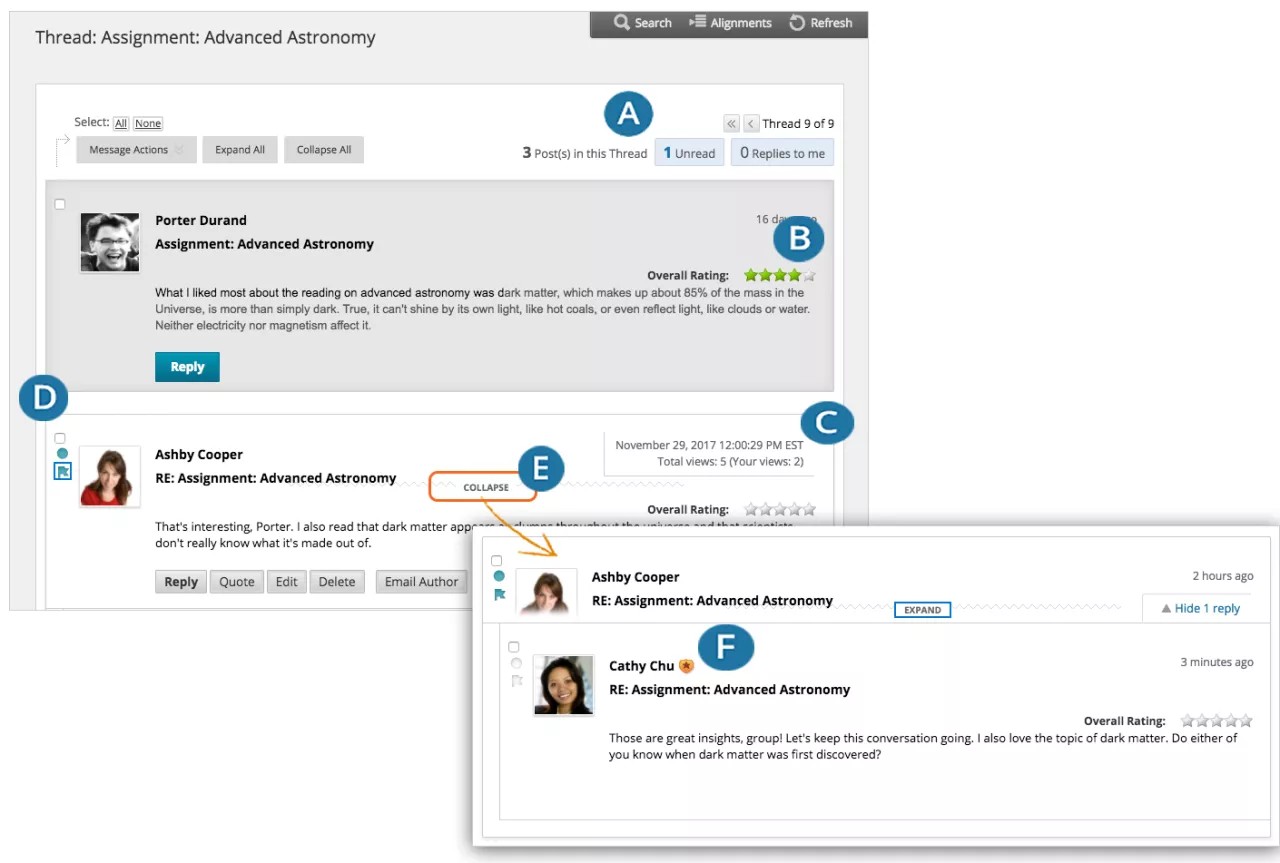
Use Expand All and Collapse All to manage the visibility of posts on the page.
Move your mouse anywhere on the page and options appear at the top, such as Search and Refresh.
Select the number of unread posts to view only those posts in a thread. Use the arrow buttons to navigate to other threads in the forum.
When you view threads, a badge appears next to a forum manager or moderator's name. Point to the badge to see the user's course role and forum role. Custom roles are displayed if your institution uses them.
View relative dates for posts, such as "7 days ago." When you point to the relative date, you can view the absolute date of creation or editing, and the number of views.
Mark posts as read or unread. Blue icon = unread. White icon = read. Only expanded posts that you view onscreen are marked as read. Posts are not automatically marked read if you quickly scroll down the page. Select the icon to manually change the status of a message. You can also flag posts you want to review again later or indicate as important.
Point to a post to see Reply, Quote, Expand/Collapse, and other available options. Select Collapse to minimize a post and increase the vertical screen space.
If your instructor enabled the rate posts feature in a forum's settings, Overall Rating displays the average rating for a post. When you point to the rating area, it changes to show Your Rating.
Create a thread
Forum settings control who can post, and what other types of actions you can take, such as if you can edit your own threads, post anonymously, or rate posts. Based on the forum settings your instructor selected, you may be allowed to create a new thread.
If your instructor has associated a rubric with the discussion forum or thread and made it available to you, you can view grading criteria before you start. Select Grading Information to access the forum or thread's Grade page. Select View Rubric.
Open a discussion board forum and select Create Thread.
The Create Thread page opens and you can view the forum description as you write your response.
Type a subject and instructions, a description, or a question. You can use the editor options to format the text and add files, images, web links, multimedia, and mashups.
You can attach a file in the Attachments section. Select Browse My Computer to upload a file from your computer. You may also be allowed to upload a file from the course's file repository: the Content Collection.
Note
If you upload a file from your computer, it won't be saved to the Content Collection.
Select Save Draft to store a draft of the post or select Submit to publish your thread.
Draft posts
You can use the Save Draft option if you need to return to your post at a later time. This option saves your comments and files on the page.
To access your drafts, return to the forum page and set it to List View. Access the Display menu and select Drafts Only to view the saved post.
Select the draft's title to open the Thread page. While you view your post, point to it to view Edit and Delete. Select Edit to open the editor. After you make your updates, select Save Draft again to update the draft or Submit to publish the post.