Hotspot Questions
About hotspot questions
Hotspot questions present you with an image that requires you to drop a pin on one or more hotspots created by your instructor within that image. Hotspot questions are great for a variety of disciplines. In an anatomy course, for instance, you might be asked to identify parts of a body. In a geography course, to mark a specific location on a map. In a foreign language course, to select specific articles of clothing. In an ecology or biology course, you might be asked to identify which animal species or individuals belong to the corresponding habitat described by the main image, or don't.
Types of hotspot questions
You can find different types of hotspot questions in a test or assignment:
Standard Hotspot: It present you with an image that requires you to drop a pin inside of one or more hotspots created by your instructor within the image. You don't know where the hotspots are actually located.
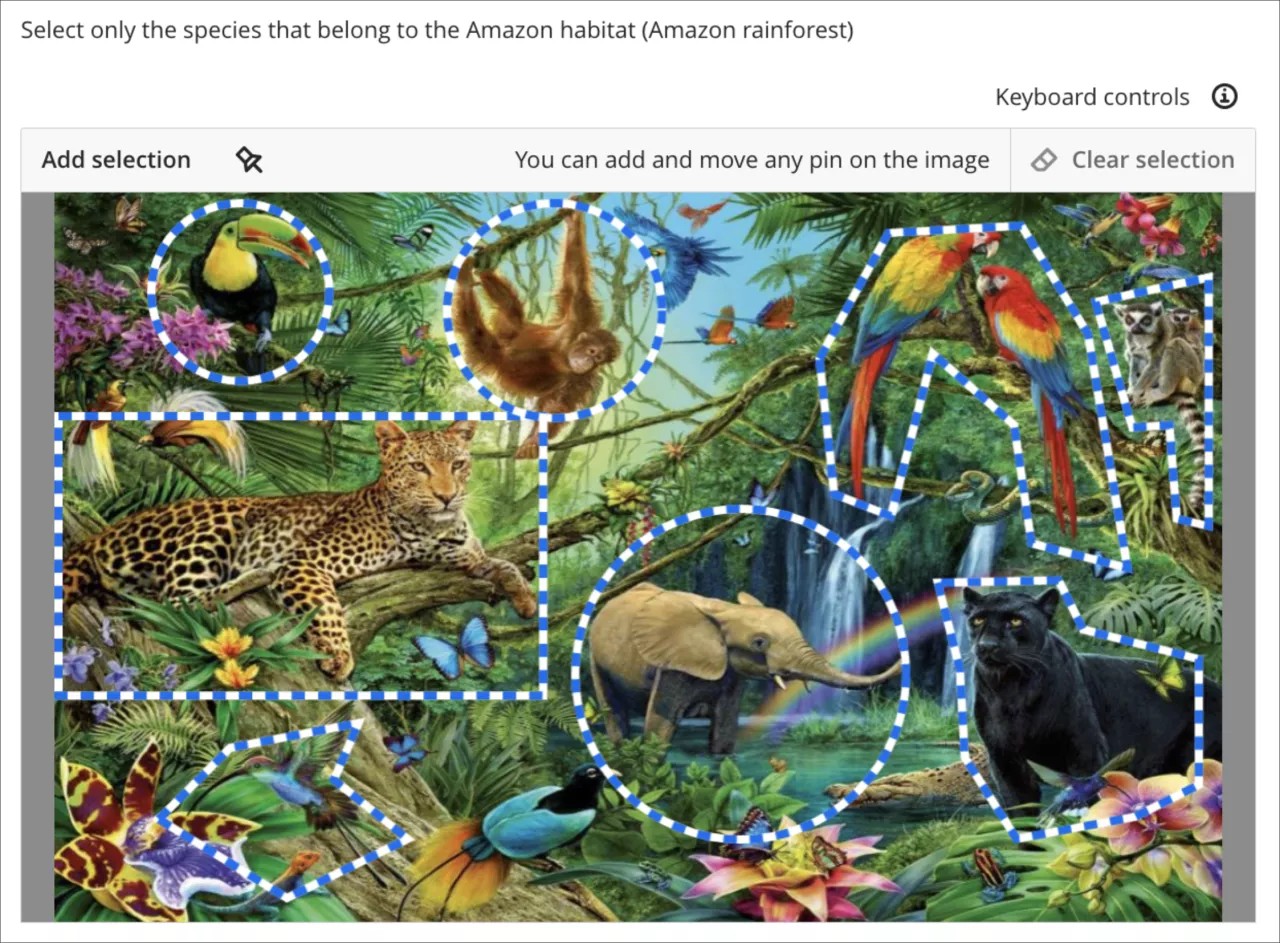
Multiple Choice Hotspot: It presents you with an image that requires you to drop a pin inside of one or more hotspots created by your instructor. You can see where the hotspots are located. One hotspot is correct and the other hotspots are distractors.
Multiple Answer Hotspot: It presents you with an image that requires you to drop a pin inside of one or more hotspots created by your instructor. You can see where the hotspots are located. One or more hotspots are correct and the remaining hotspots are distractors.
Important
Hotspots may or may not include descriptions, and/or be visible or hidden on the image, depending on how your instructor created the test or assignment.
How do I answer a hotspot question?
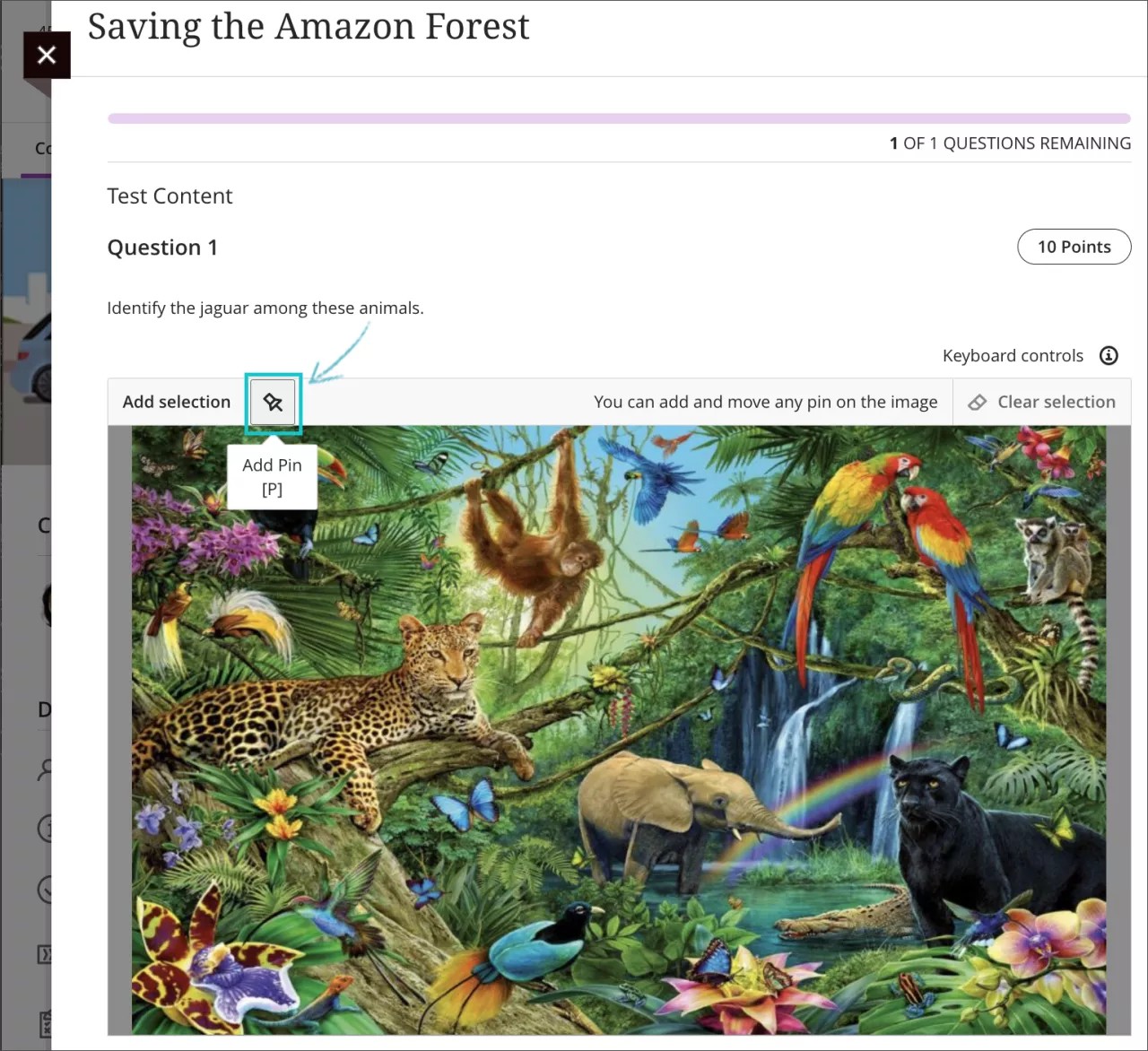
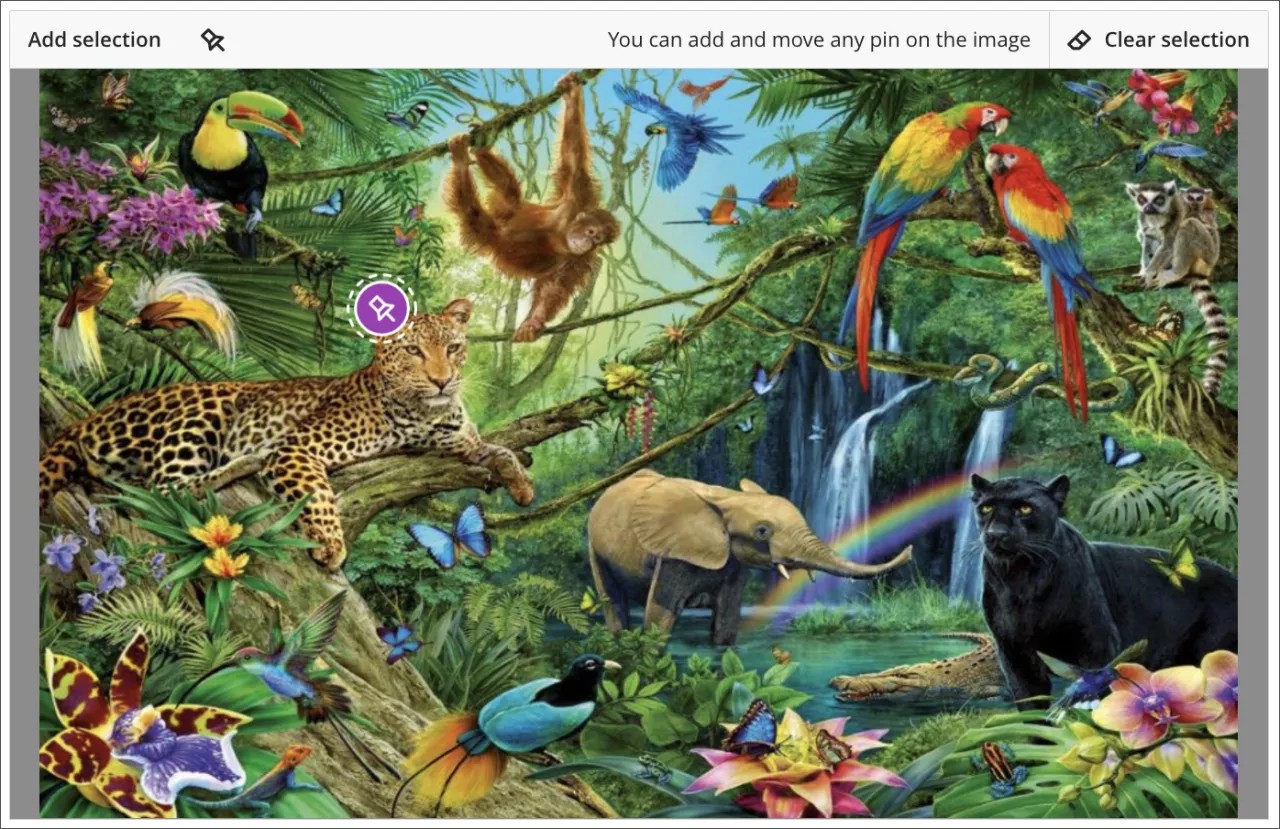
The first pin appears on the canvas automatically when you select the image with the mouse. Move the purple “pin icon” that was dropped onto the image to the correct location on the image.
The instructor may task you with identifying more than one item within an image. You have the option to add more than one pin to the image even if their is only one hotspot.
To add additional pins, select the pin icon from the toolbar above the image on the hotspot question, or the P key.
In some cases, your instructor may show you the hotspots they created. When this is the case, one or more of the hotspots are distractors (incorrect answer options). You’ll need to ensure that you’re placing the pin on the hotspots that are correct.
Note
You can find rectangular, circular or polygonal hotspot areas, depending on your instructor choice for the assessment.
How to save my answer for a hotspot question?
Pin placements are automatically saved as they are dropped onto the image, or repositioned.
What if I accidentally add a pin I don’t want to use?
You can delete a pin by selecting the pin and them select the “Clear selection” button above the uploaded image, or by using the delete key on your keyboard. Either option will delete all selected pins.
What keyboard shortcuts are available when dropping a pin on an image?
Use Tab and Shift+Tab to select pins
Use the P key to create a new pin
Use arrow keys to move pins
Use Alt or Option + arrow keys to move a selected pin by smaller increment (1 px at a time)
Use Delete to delete a selected pin
Watch a video about Hotspot Questions
The following narrated video provides a visual and auditory representation of some of the information included on this page. For a detailed description of what is portrayed in the video, open the video on Vimeo.