Work on an Assessment
Starting or resuming an attempt
If no time limit exists, you can open the assessment and begin working without submitting right away.
If your instructor has enabled the Prohibit Late Submissions setting, your attempt will auto-submit at the due date if you haven’t submitted it manually.
Select Start attempt to open the assessment.
If you're not ready to submit, select Save and Close to save your work and return later.
When you return, select Continue attempt to resume your work.
Completing your work
You can complete your work in several ways:
Drag and drop files directly into drop zone.
Upload files using the Upload a file button.
Upload from cloud (e.g., OneDrive, Google Drive). Files added this way are copies.
Use the WYSIWYG editor to type or paste your response.
Add to the conversation. If your instructor enabled conversations, select the Open class conversation icon. Anyone can make a contribution to the assignment conversation, including your instructor.
Note
You may only have one option - either submitting files or using the text editor - depending on how your instructor has configured the assignment.
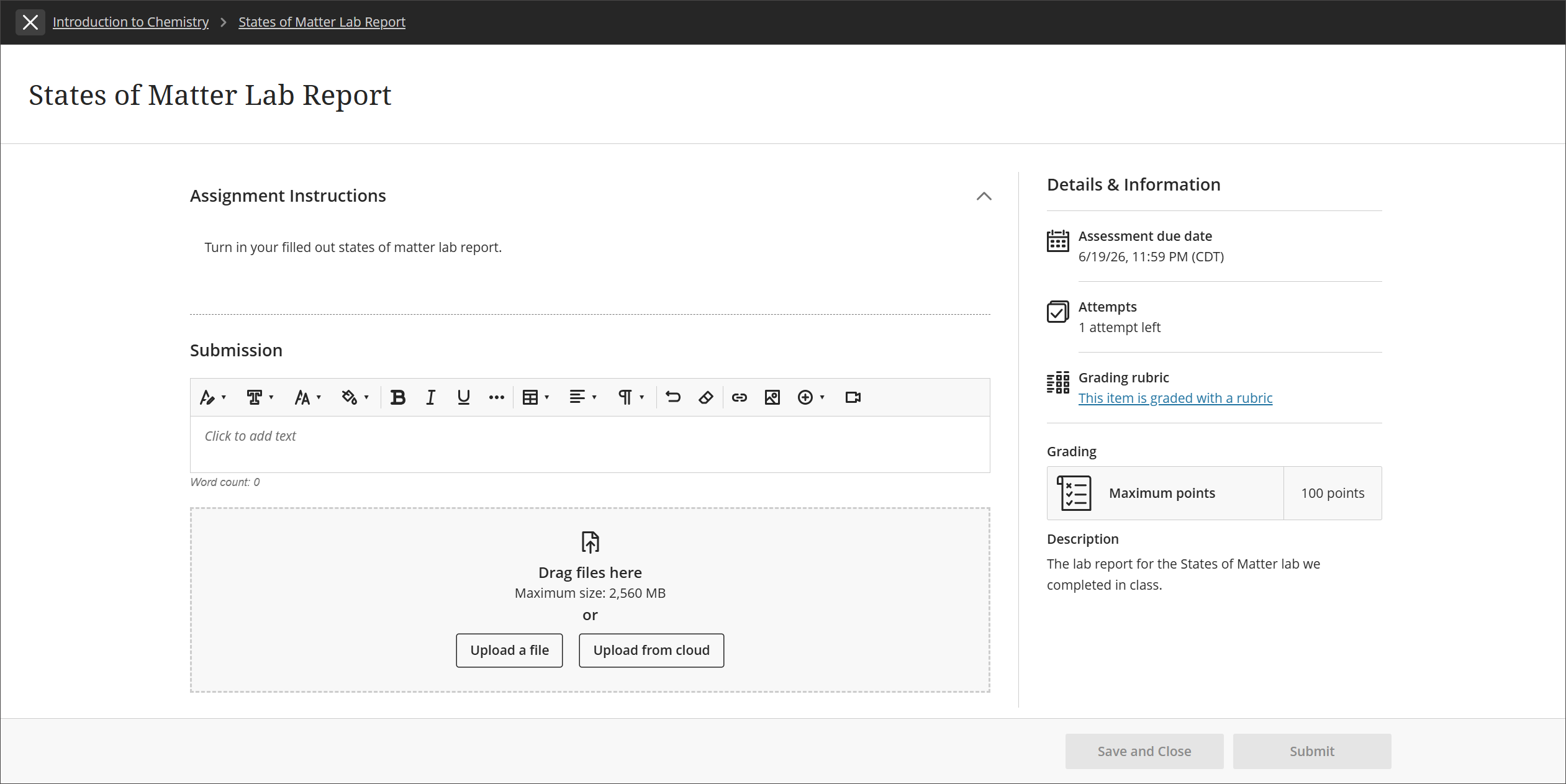
If your instructor allowed one attempt, you can't edit your work after you submit. If your instructor allowed multiple attempts and you submit an attempt past the due date, the attempt will be marked late. Any attempts you submit before the due date aren't marked late.
Word count in the editor
As you type in the editor for Essay questions and the submission area, the word count appears below the editor. After you save, the word count no longer appears.
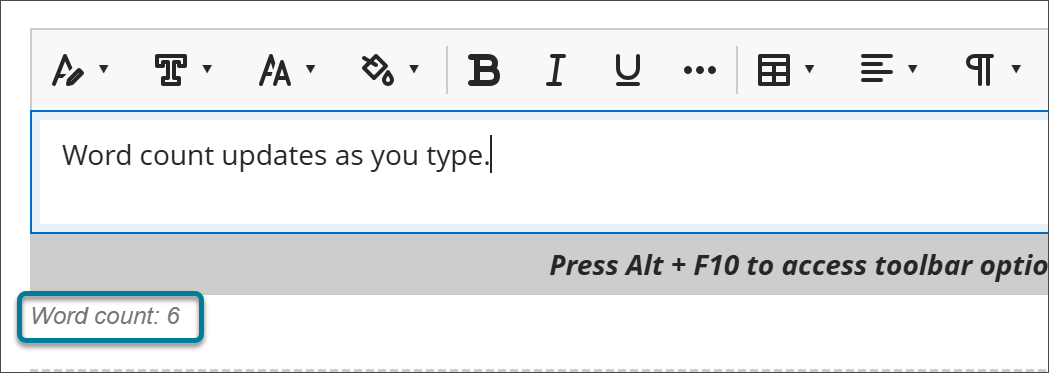
These items are included in the word count:
Individual words
Web links
Text in bulleted or numbered lists, but the bullets or numbers themselves aren't included
Superscript and subscript text not part of another word
These items and formatting elements don't affect the word count:
Images, videos, and file attachments
Math formulas
Blank spaces and lines
Alternative text
When you use punctuation to attach words or numbers, the count is affected. For example, "We went...without you" is counted as three words. The words or numbers on either side of the punctuation are counted as one word.