ORIGINAL Tasks
You can use the tasks tool to keep track of your upcoming work and assignments. Each task has a status and a due date. Your instructor identifies the course tasks and adds them to the list.
You can use this list to keep yourself on track. You may be required to report your status for each task.
You can also create your own personal task list from the Tools panel on the My Institution tab. When you create a personal task, you're the only one who can view it.
Tasks are also available as a course group tool for tasks that are specific to a smaller group in a course.
Note
You may see a To Do notification module on a course home page. This module only displays information for that course. To learn more, see Home Page.
Watch a video about tasks
The following narrated video provides a visual and auditory representation of some of the information included on this page. For a detailed description of what is portrayed in the video, open the video on YouTube, navigate to More actions, and select Open transcript.
Video: How to Create and Manage Tasks explains the difference between personal and course tasks, and how to access, create, and manage tasks.
The Tasks page
You can access tasks from the Tools link on the course menu or in the tasks module on the course Home Page. Your instructor can also add a customized link to tasks on the course menu.
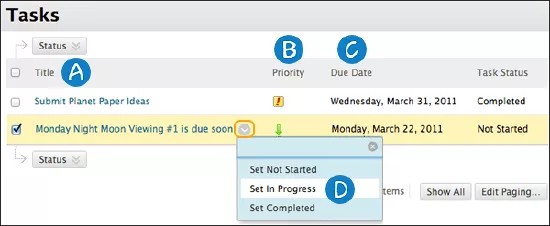
Select a task link to view the description.
Your instructor can assign a level of priority for tasks:
High priority icon: Exclamation mark
Normal priority: No icon
Low priority icon: An arrow pointing down
Select a column heading to sort a column.
In a task's menu, you can select a status:
Not Started
In Progress
Completed