Add Display Logic to Evaluations
With Display Logic, you can set conditions that control which questions appear to a respondent based on how they answered a question on a prior page. Rather than building multiple versions of the same evaluation to account for different respondent paths, you can create one evaluation that adapts in real time based on prior responses.
For each page you configure in the Builder, you can reference a specific question and answer from any preceding page, and determine which response should trigger that page to display. This lets you tailor the evaluation experience, so each respondent only sees questions relevant to them — improving the respondent experience, increasing completion rates, and producing cleaner, more targeted data.
Note
Display Logic is not available on the first page, since it serves as the starting point for how the evaluation path moves forward.
Configure display logic for a page
In the Pages section, select the page you want to apply display logic to.
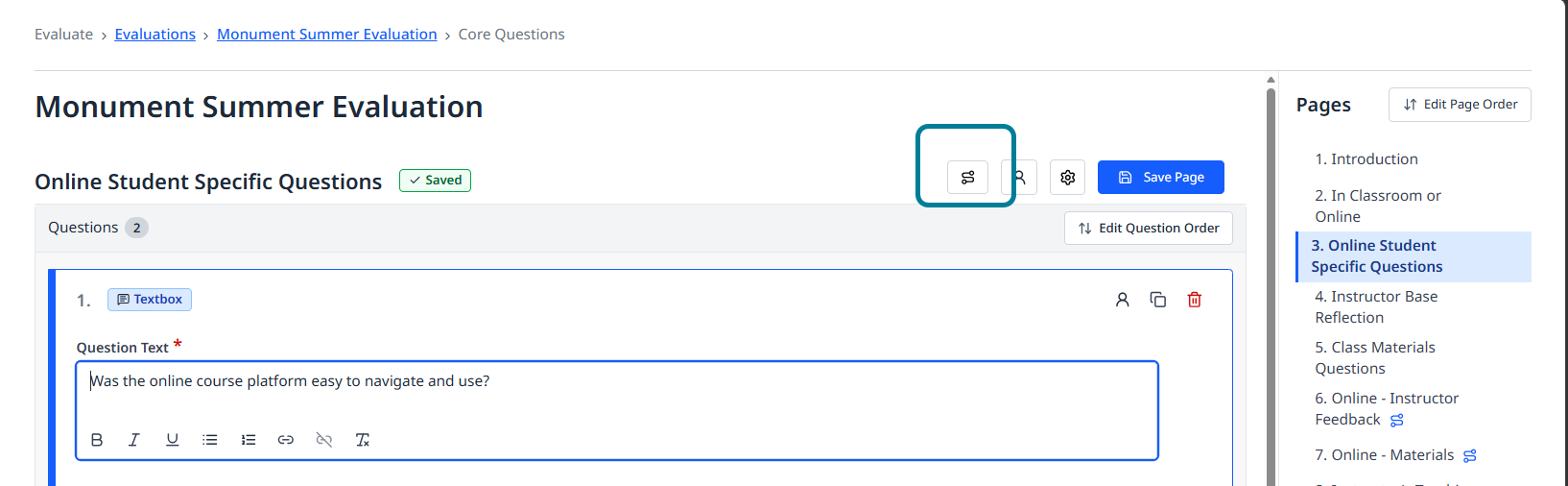
Select the Display Logic button at the top of the page. The Display Logic screen appears.
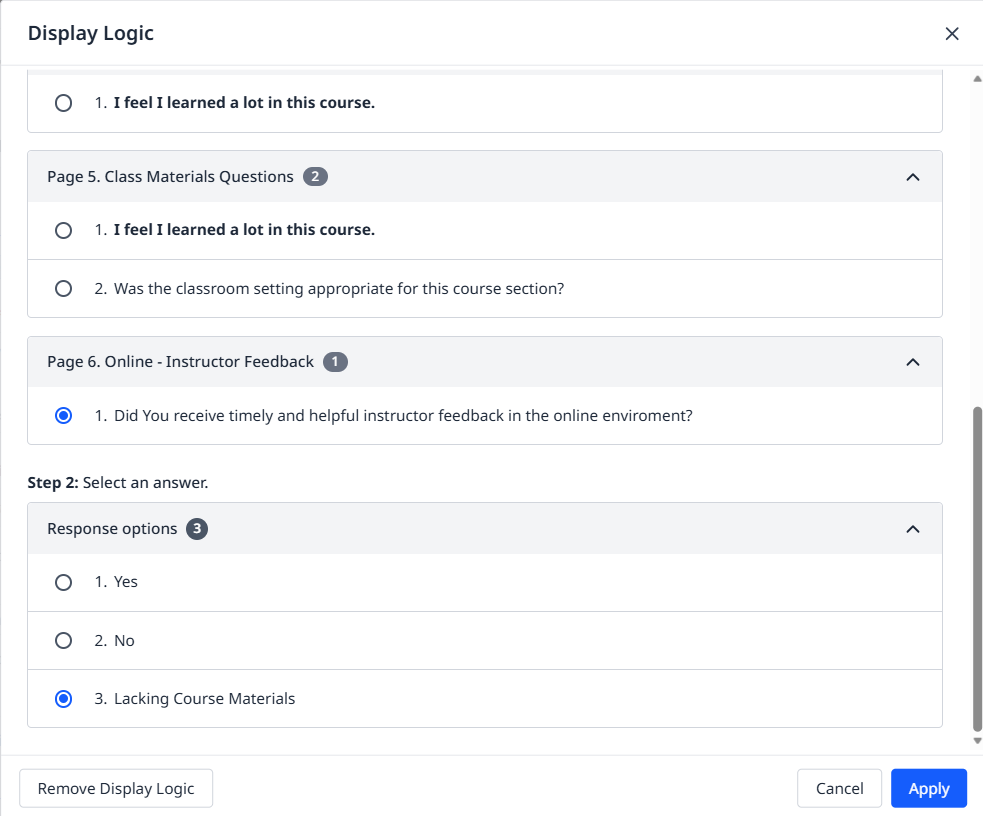
For Step 1, select the question you'd like to reference from each prior page. All questions are available and organized by page.
For Step 2, select the response option that determines which students see this page based on their answer. For example, if the question is Yes or No, you can select a page for "Yes" answers and another page for "No" answers.
Select Apply to save the logic for this page. Then save the page.
Continue until you've defined the logic for each page.