Distributed Permissions
Getting Started
Distributed Permissions allow greater control over assigning granular permissions to create custom user access that better aligns with your institution's needs. This system will allow you to responsibly delegate Course Evaluation tasks and assign custom report access to any user or group across your institution.
Access Distributed Permissions
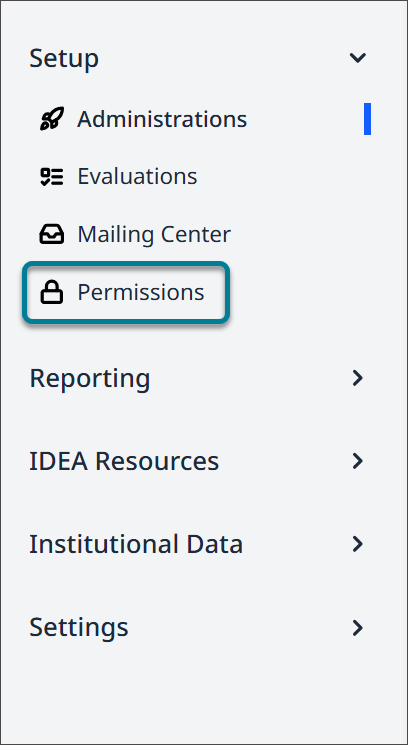
The Permissions link will appear in the side bar navigation if distributed permissions are enabled on your site.
Any users with access to manage permissions will be able to access this link.
To enable distributed permissions please contact Blackboard Support.
 |
The User Permissions page will display all user accounts. There are various ways to filter and organize this list as permissions are assigned. Flexible column customization gives administrative users the ability to structure the page in the way that best fits their needs.
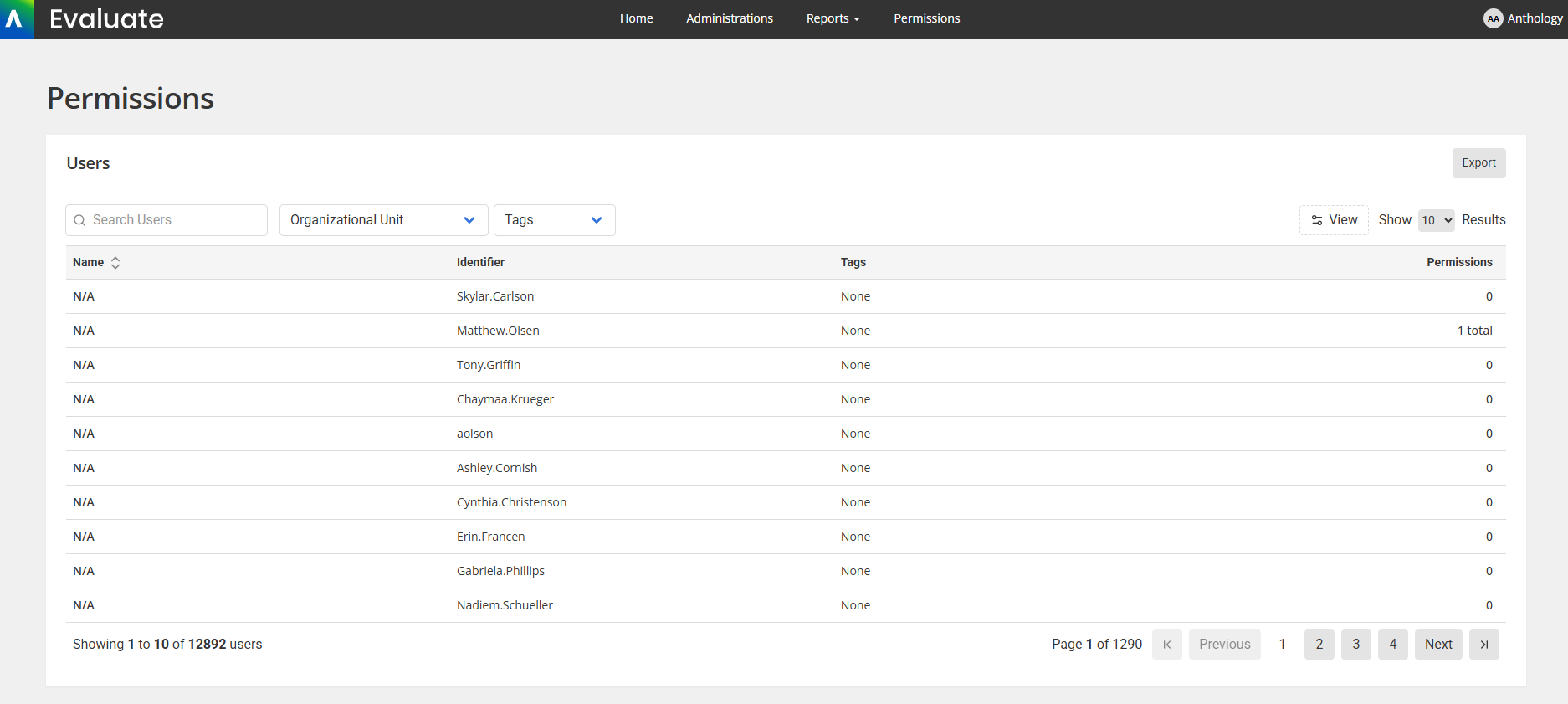
To set permissions, select a specific user account from the list to begin managing permissions and tags.
Understanding Tags
Tags are markers that can be applied to individual user accounts within your Evaluate permissions. You can utilize these markers in any way you choose; however, they are typically useful for organization and in labeling users with similar permission assignments or campus roles.
Assign Tags
When you select a user, Account Tags are shown beneath the user information at the top of the screen. To add tags to a user account:
Select Add or Edit next to Account Tags. A list of existing tags appears.
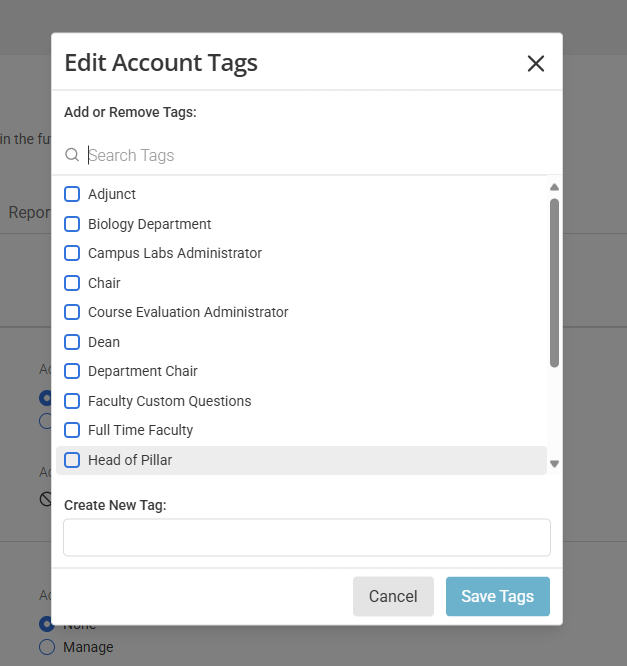
To search for an existing tag, type its name in the Search Tags field. Select the tags you want to add to the user.
To create a new tag and add it to the user, type the full name of the tag in the Create New Tag field.
Select the Save Tags button.
Use Tags
Tags allow you to filter users on the permission landing page.
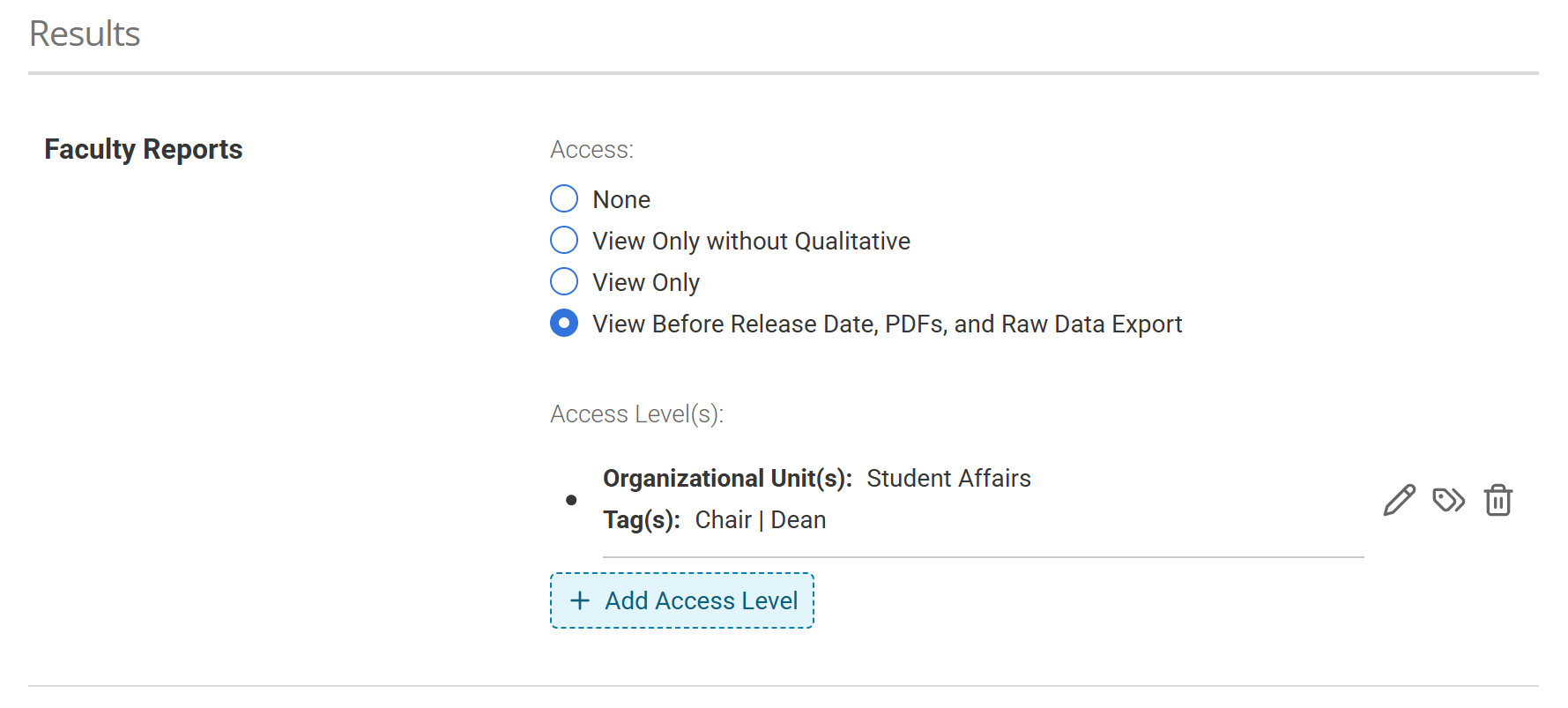
Tags give you additional control over whose faculty reports a user can view. Learn how to restrict access by tags.
Add Access level tags to specific permissions. Administrators will now be able to assign these tags within the Faculty Reports permissions.
Manage User Permissions
After selecting a user account, you will be brought to their permission details page.
Permissions are organized into three (3) categories displayed as panels. Each panel houses multiple sub-categories and individual permission items that refer to specific areas of the site and the associated tasks. You may manage the level and scope of access for each permission through the Actions and Data Access columns.
Before granting permissions you can learn more about the details about each permission item.
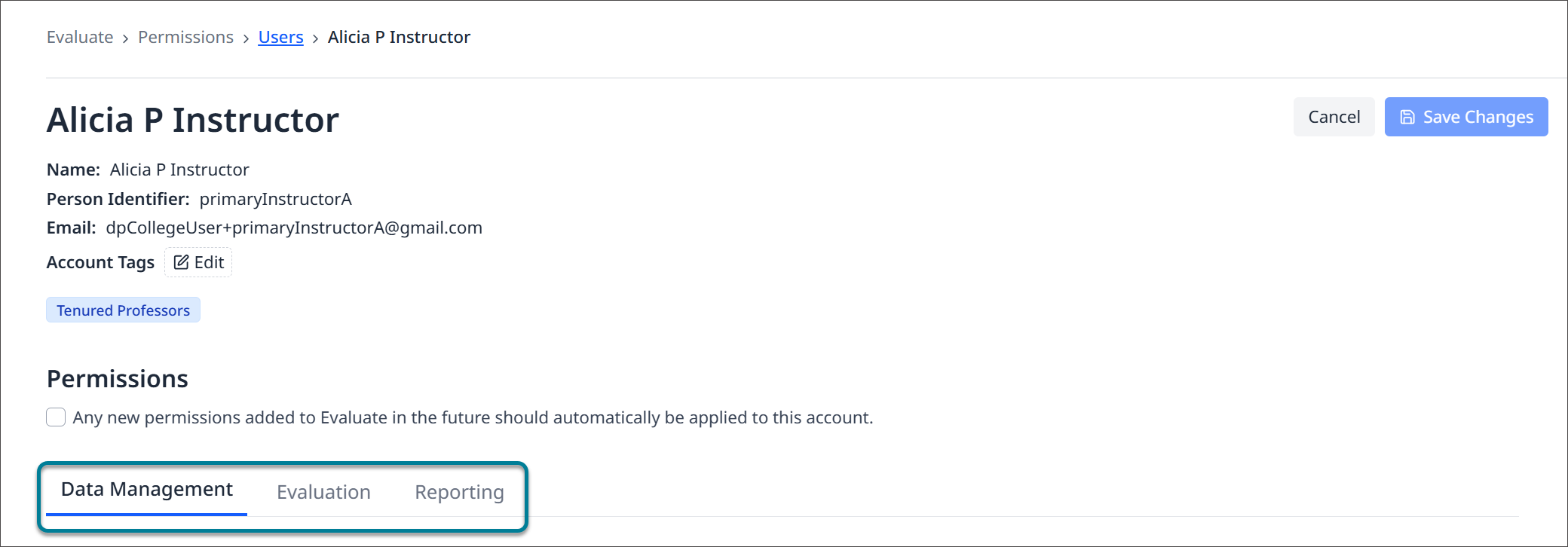
Actions Menu Overview
The actions column controls the actions a user can perform as it relates to the corresponding permission. By default, all permissions are set to None.
Each Action consists of unique tiers which range from the lowest to the highest level of access. The options available will be unique and relative to the permission it refers to, although most permissions will include a view-only and/or manage tier. Manage access will allow the user to perform all actions associated with that area of the site whereas view-only will not allow them to make any modifications to the page.
The Faculty Reports permission item contains unique options which explicitly indicate the various tiers of access the user can be granted.
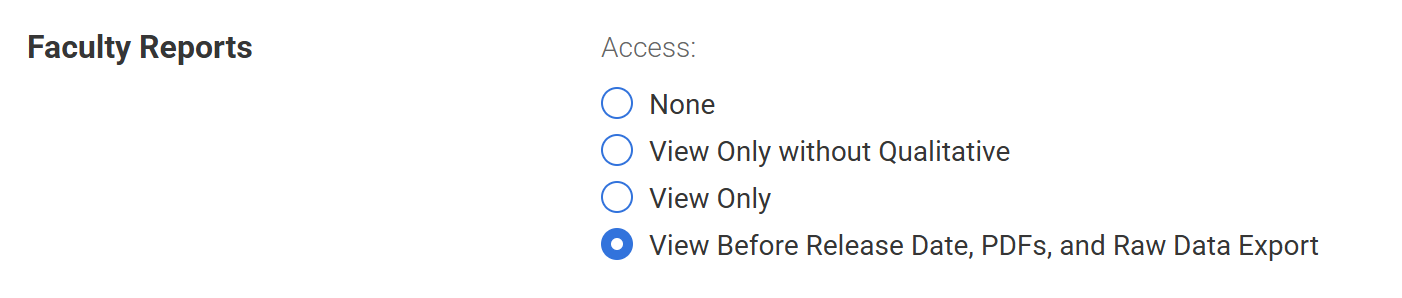
Enable Access to a Permission
Select the appropriate tier of access the user should be granted on a permission item.
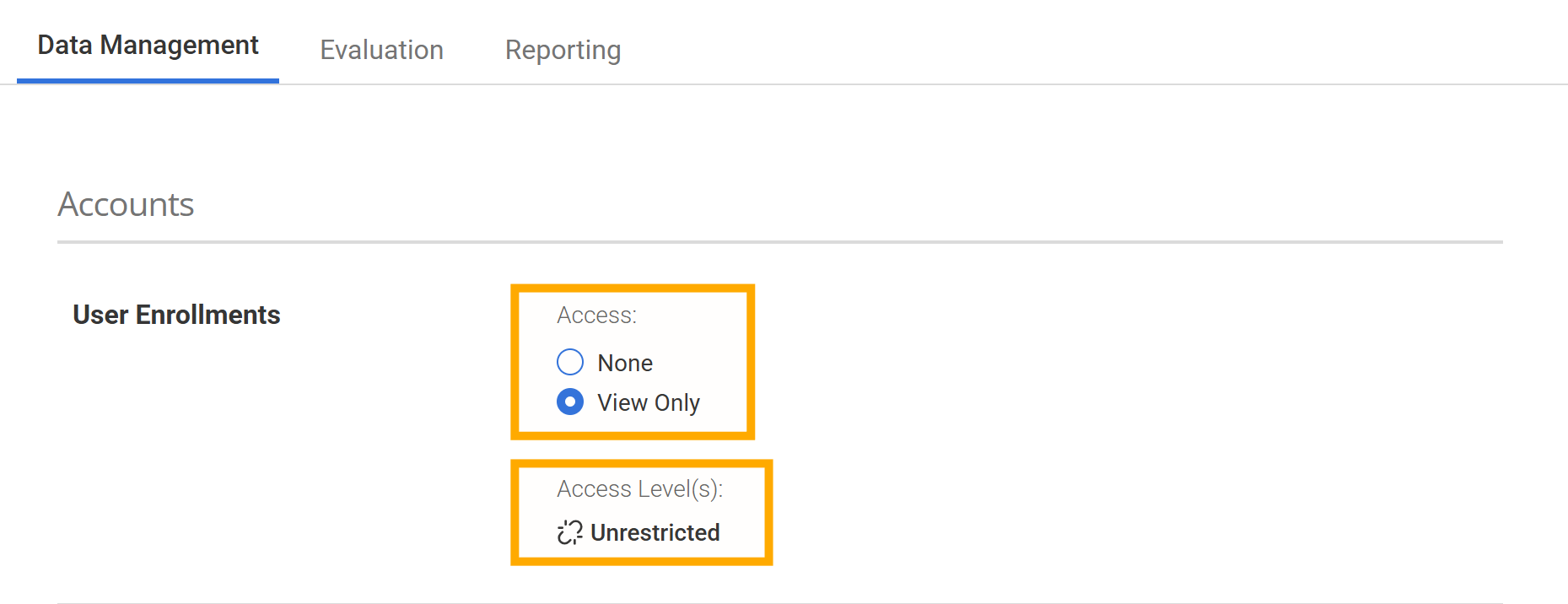
After selecting an option other than None from the actions menu the data access column will indicate whether further action is needed.
Permissions that display Unrestricted access to the data set do not require any further action.
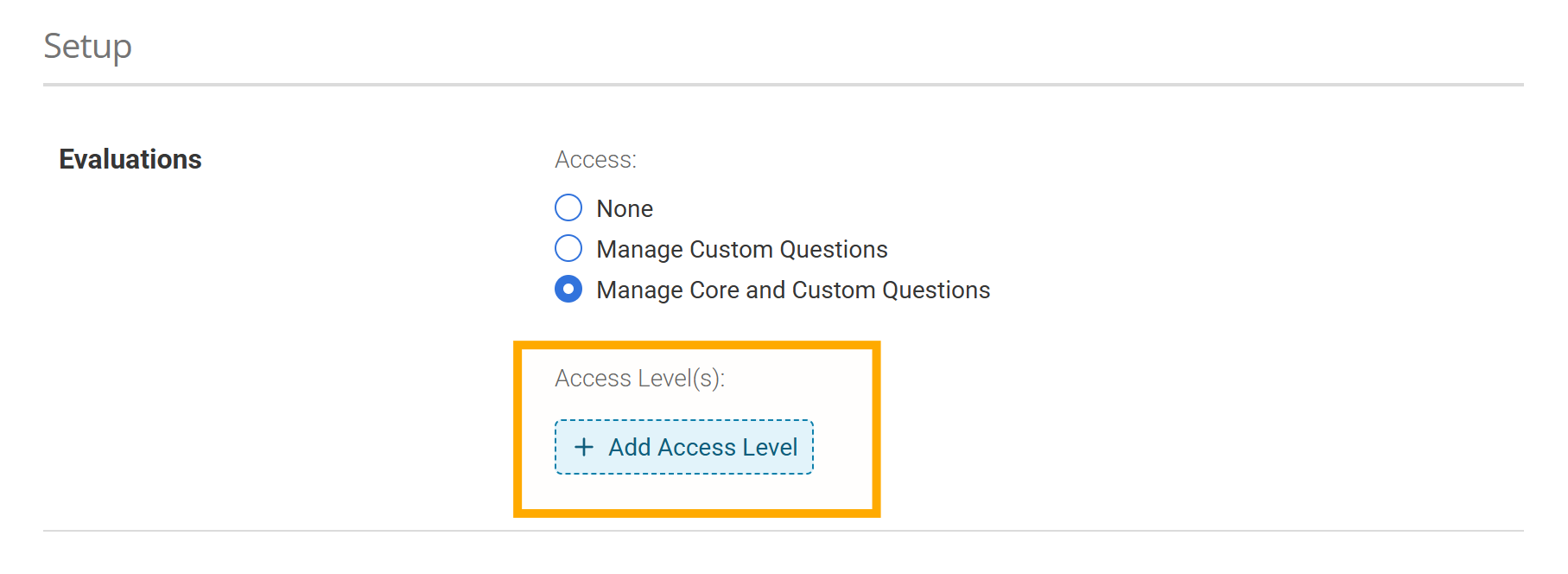
Permissions that display a Select link in the data access column require an Organizational Unit assignment before the permission can be applied.
Select the Add Access Level link. A side panel will appear for you to make your selections.
Select the appropriate organizational unit. Selecting the highest-level organizational unit will enable the user full access to all underlying units, whereas selecting a lower-level organizational unit will limit access to that subset of the data.
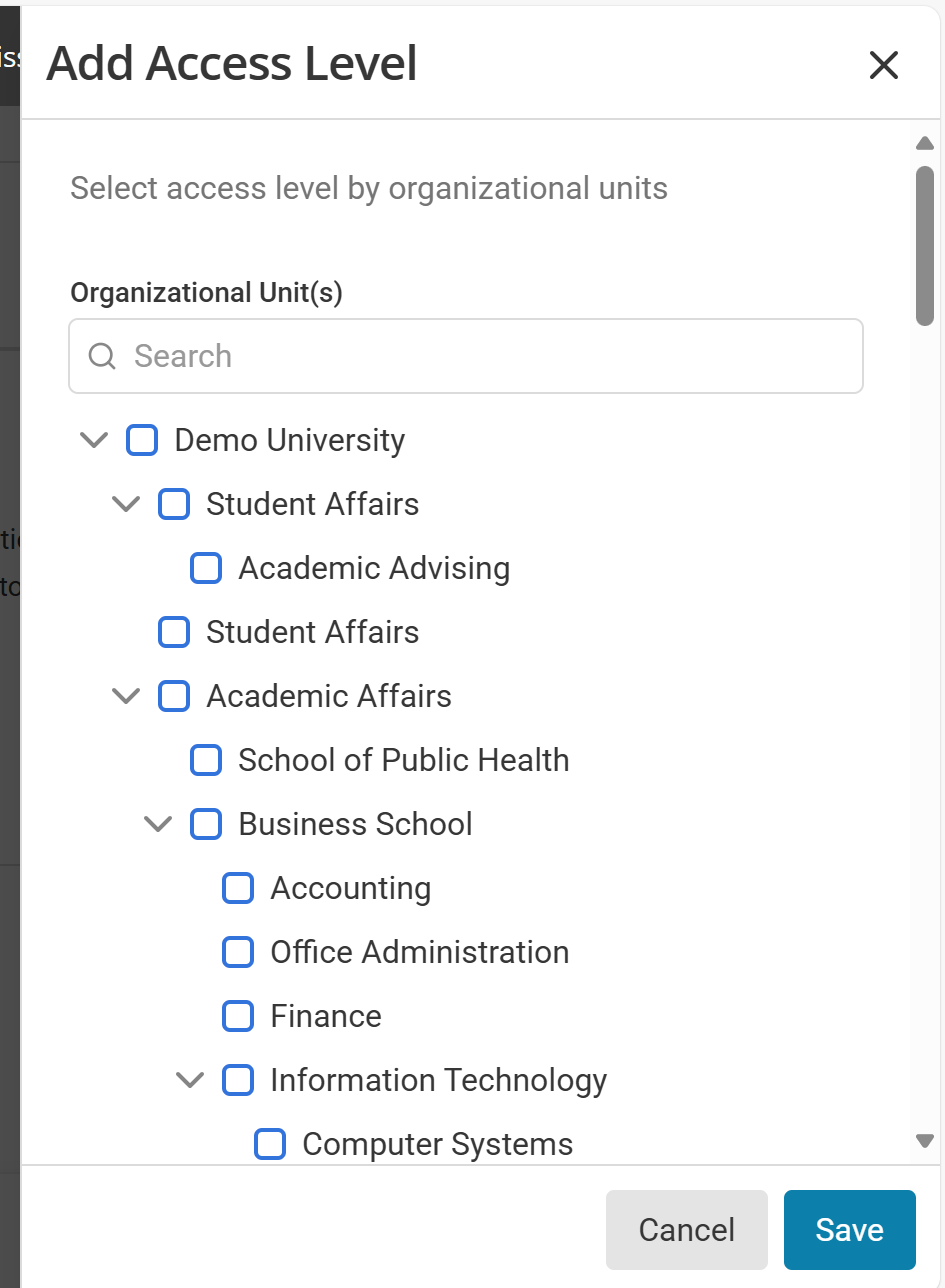
Select Save.
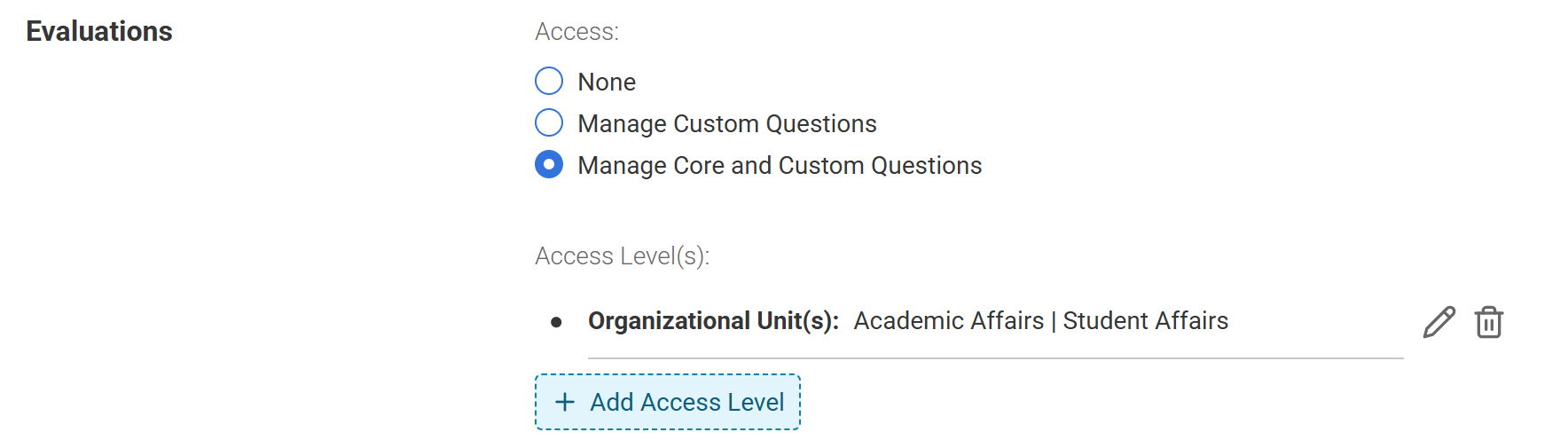
The enabled Actions will now be limited to the Organizational Unit displayed .
Before granting permissions you can learn more about the details about each permission item.
Use Tags and Attributes to Further Restrict Report Access
The Faculty Reports permission, found under the Reporting panel, will allow you to add additional restrictions to report access with the use of Tags or Attributes.
If desired, Tags, Attributes, or both may be used to control reporting views. The use of Tags or Attributes in Set Data Access will restrict which reports are visible to the user to the reports associated with other users that have the same Tag or Attribute applied to their User Account .
Follow the steps above to assign report access to an Organizational Unit. By default, users have access to all reports assigned within the selected org unit.
Add Tags or Attributes associated with users that report access is being given to.
Select Save when you have finished limiting access with Tags or Attributes.
Learn more about Report related permission details by visiting Distributed Permission Item Details.
Navigating User Permissions
The Distributed Permissions system now features an export function, enabling users to generate a CSV file that displays all user permission assignments. This enhancement offers comprehensive transparency into the permissions granted to all users within the site.
Additionally, there are a number of different filter capabilities directly on screen to help organize granted permissions. If a user was assigned an Organizational Unit and/or Tag this information will populate the User Permissions grid to help easily organize and filter this list.
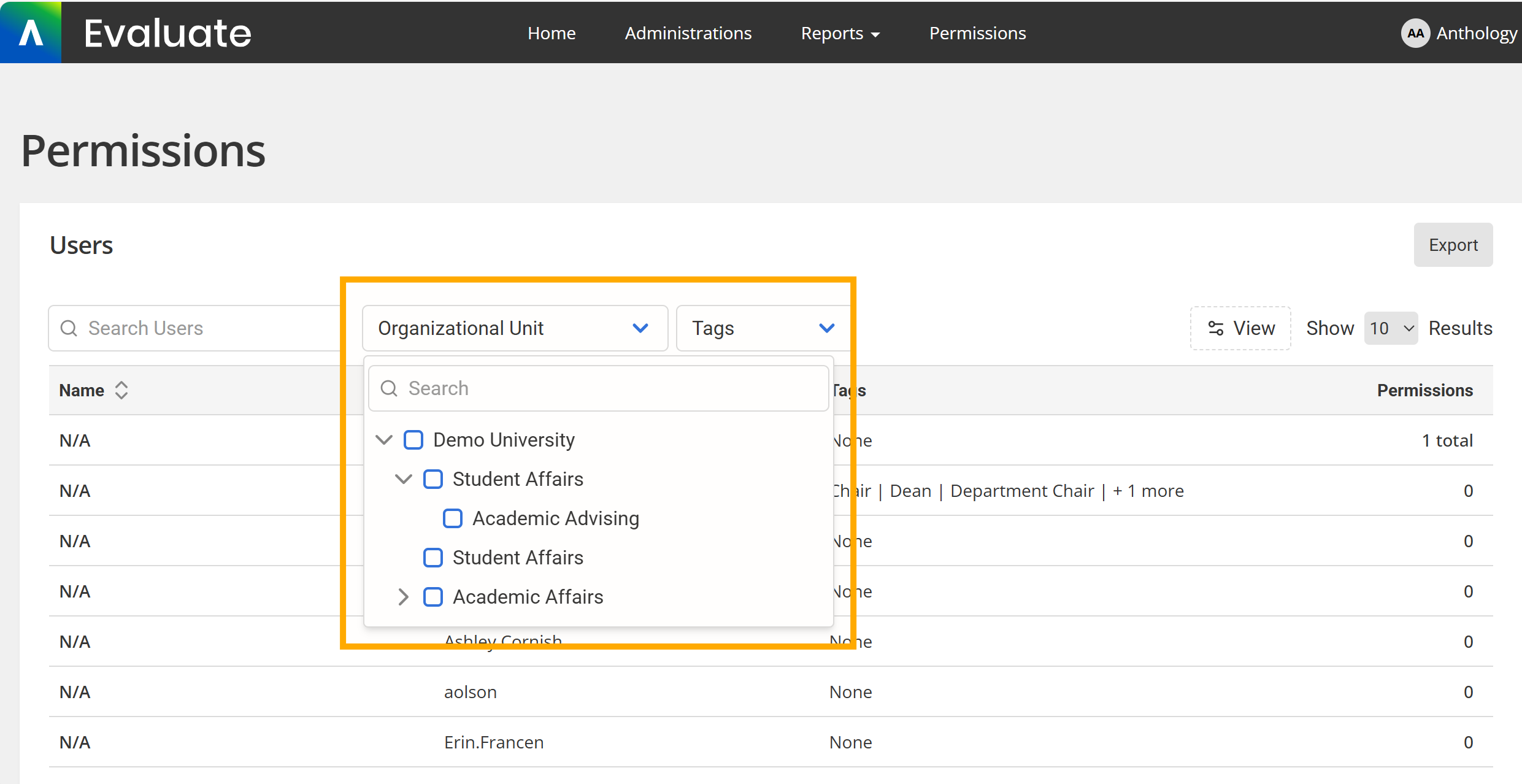
Filter by Organizational Unit
Locate the Organizational Unit drop-down and select the organizational unit s you wish to filter by. The list will only display users with that selected Organizational Unit.
Filter by Tags
Any tags that you have created or applied to user accounts will appear in the “Tags” filter area. This may be used to filter the User Permissions grid to locate specific groups of users that you have defined.
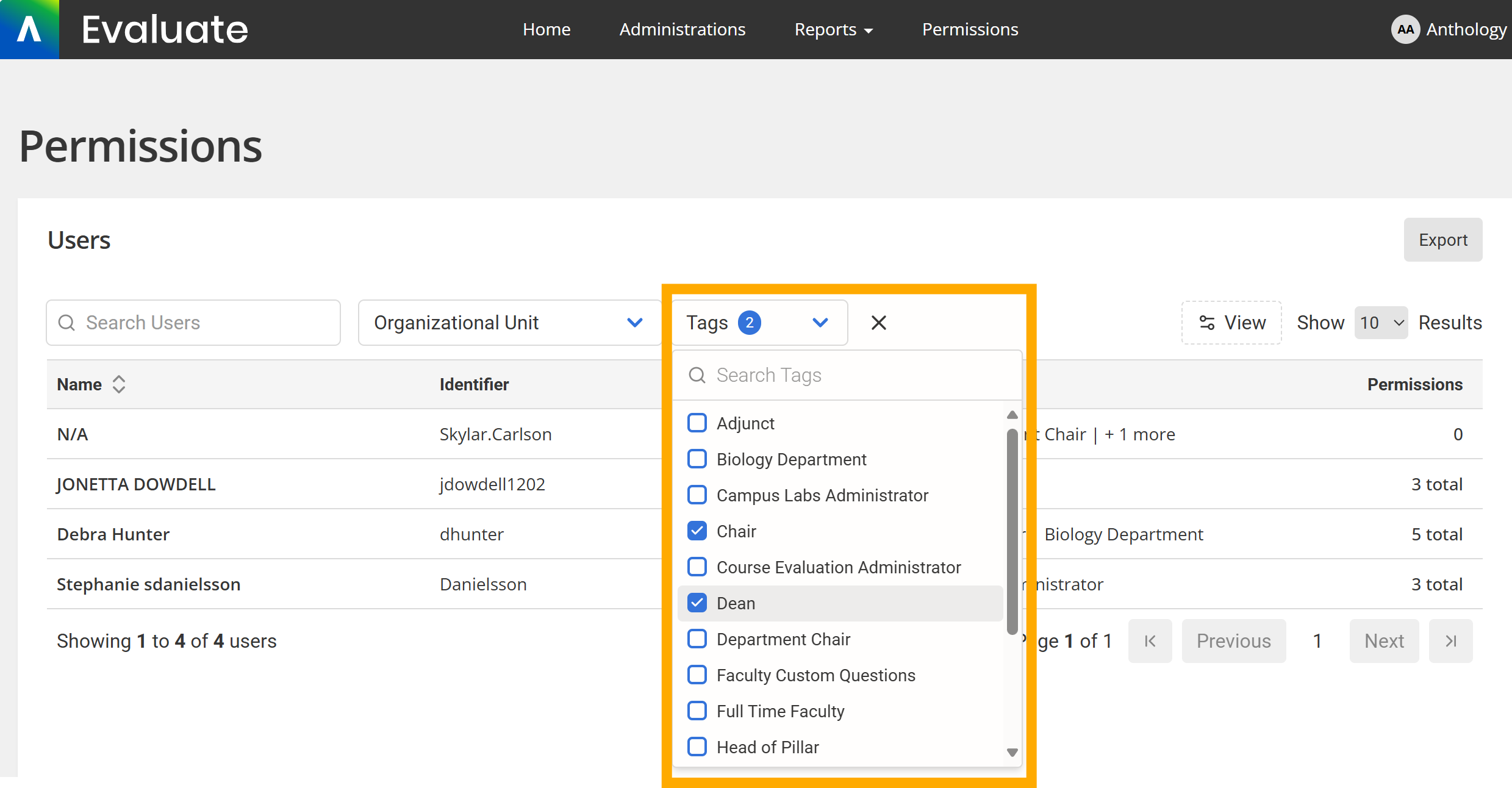
Additionally, you may use the search bar provided to search for users by name.