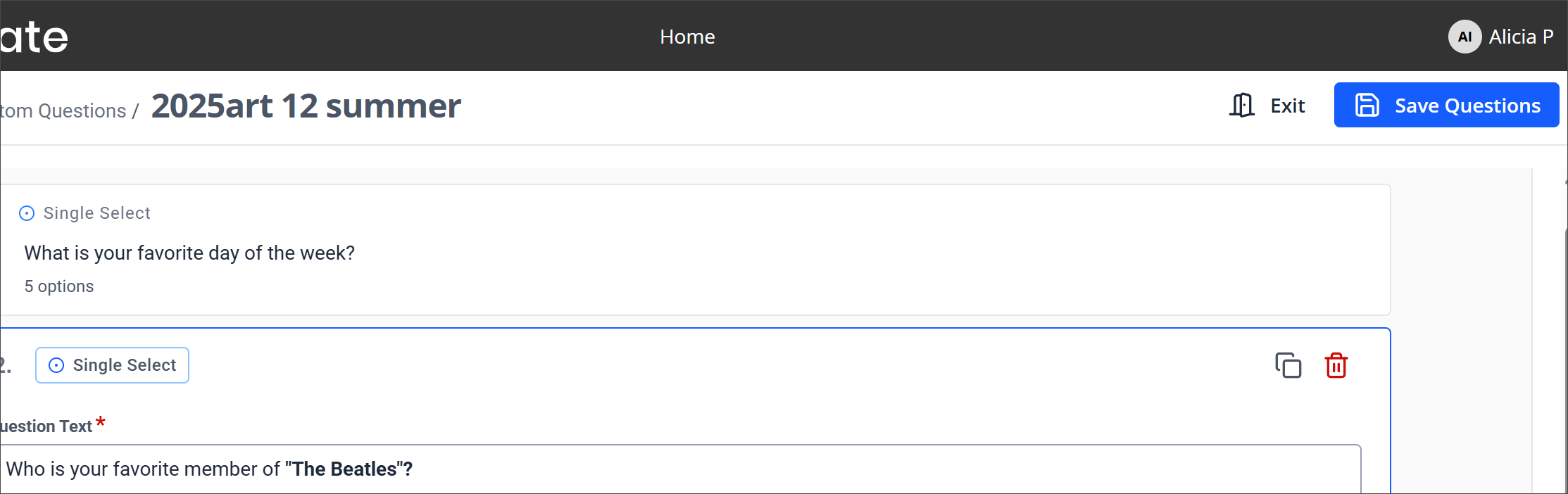
Adding Custom Questions to a Course Section as an Instructor
Instructor-added custom questions allow instructors to add questions to the evaluation for a specific course section. These questions appear at the very end of the evaluation. Administrators need to designate permissions to allow instructors to add additional questions.
Questions may only be added up until the time the administration opens. The results will be available when reports are released.
Instructors assigned to cross-listed course sections will be able to independently assign questions specific to each section in the cross-listing, while instructors in a course section with more than one instructor (team taught) will be able to collaborate on the questions that they will ask. Both instructors will see questions added by the other instructor on their preview as well as the results to those questions when reports are released.
Full Administrators and Report Administrators can see the additional questions that were added by the instructors as well as the responses from students.
Log into your faculty experience homepage at https://yourschool.campuslabs.com/faculty/
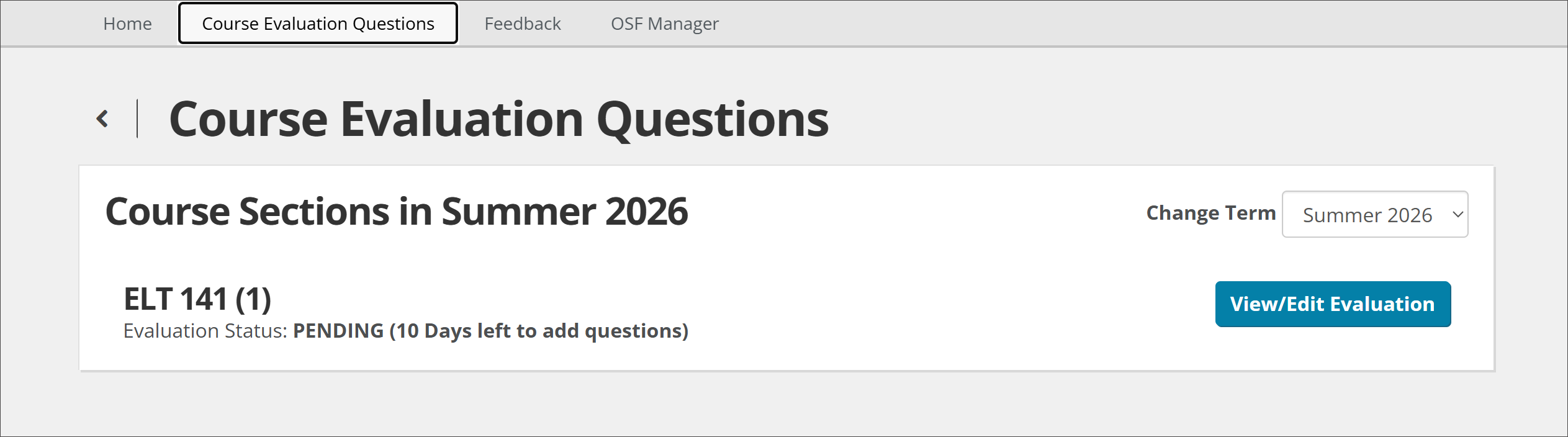
Select Course Evaluation Questions in the top navigation bar.
Select View/Edit Evaluation to add custom questions. This option will be available if your administrator has enabled you to add additional questions to a section.
If custom questions are not enabled, or if the administration has already opened, you can access the evaluation questions by selecting View Evaluation.
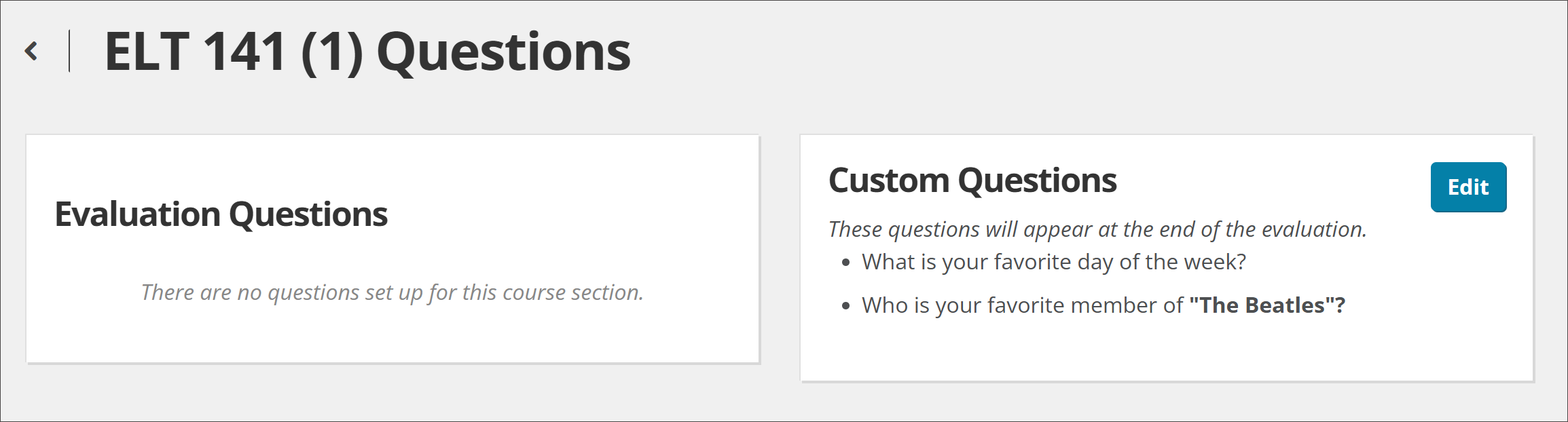
On the left-hand side of the page, you can view the questions that are currently on the evaluation. On the right-hand side of the page, you can add and edit custom questions for the section you are in. Select Edit to create or edit your questions.
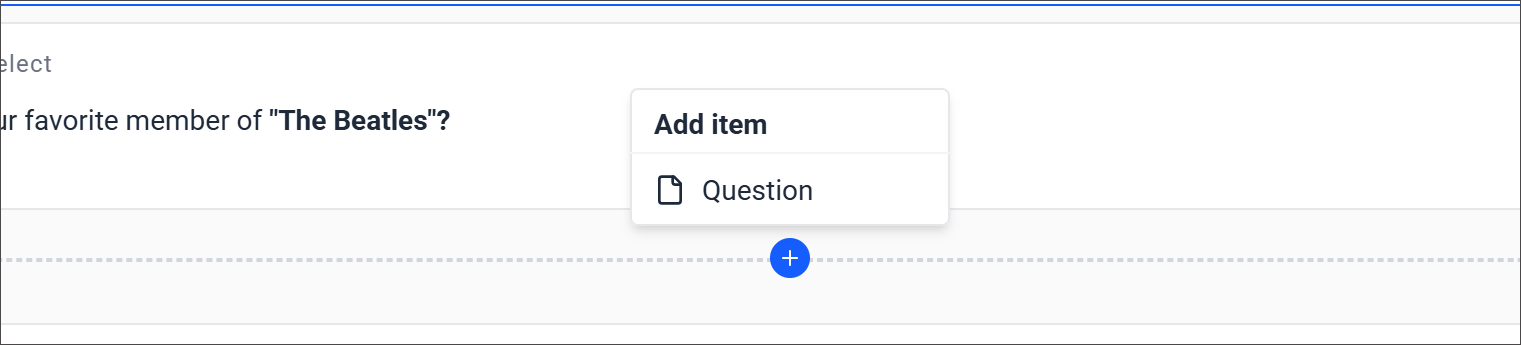
Select the blue plus sign to add an item and select Question.
A panel of options appears, allowing you to choose either Single Select or Textbox.
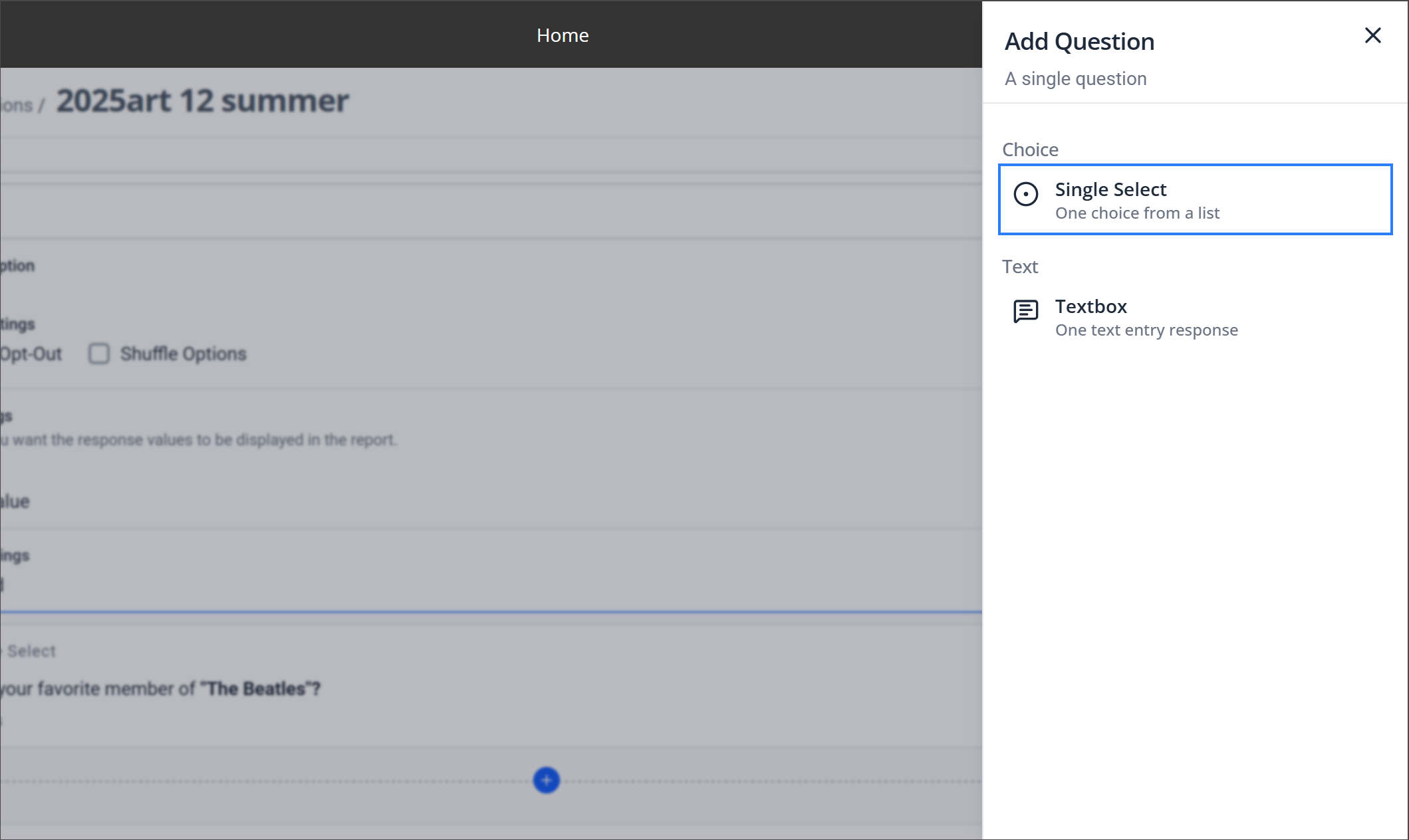
Add Single Select questions:
Select the blue plus sign, then select Question.
Select Single Select from the panel that appears.
Enter your question text and response options.
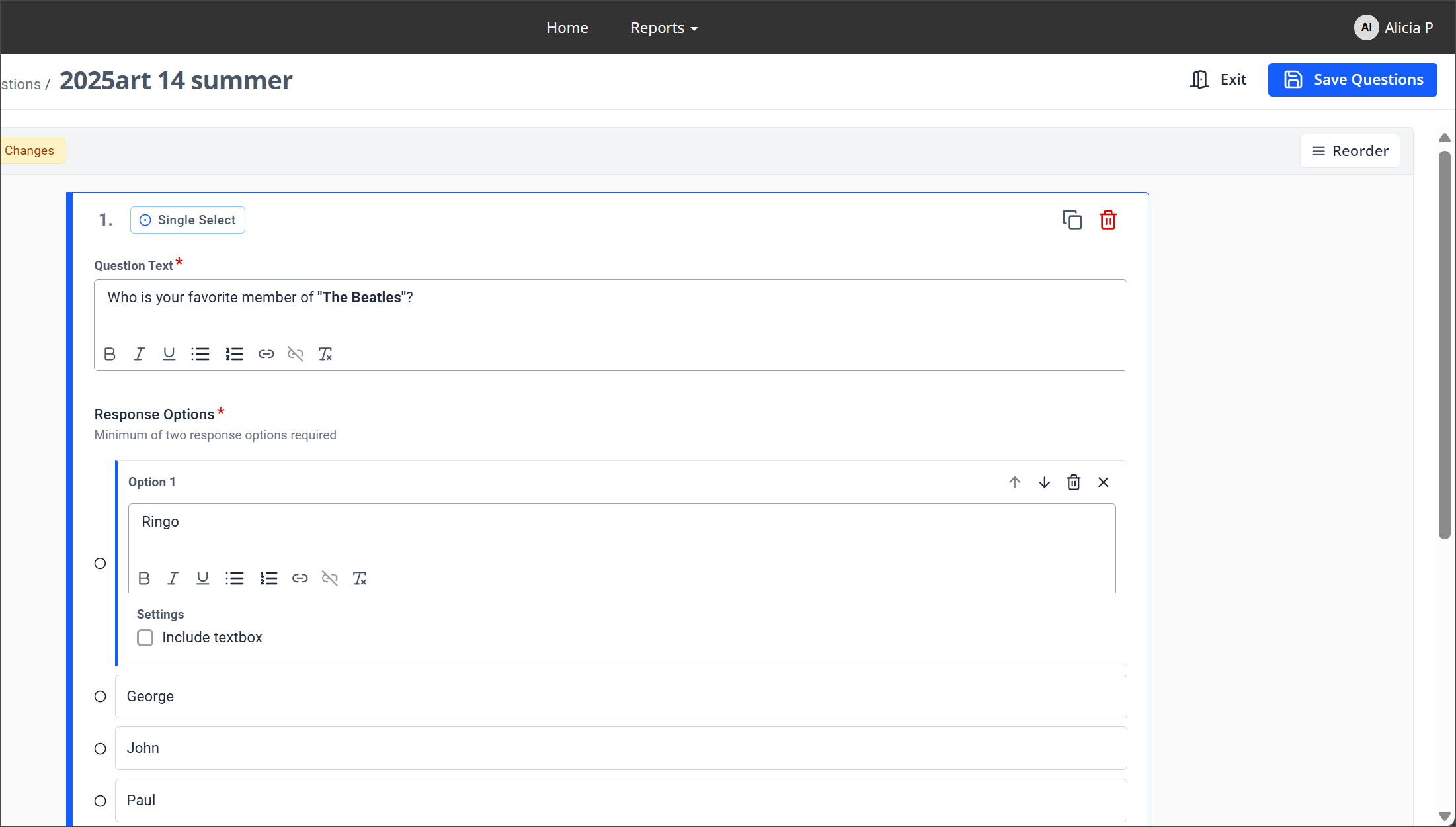
You may continue to add additional questions as necessary. Select the text of the question to update it, or the response choice to change the value or settings.
Response Options
From the box where you enter options, you can:

Move option — Move the option up or down in the list.
Delete option — Deletes the option from the builder.
Close editor — Closes the option editor.
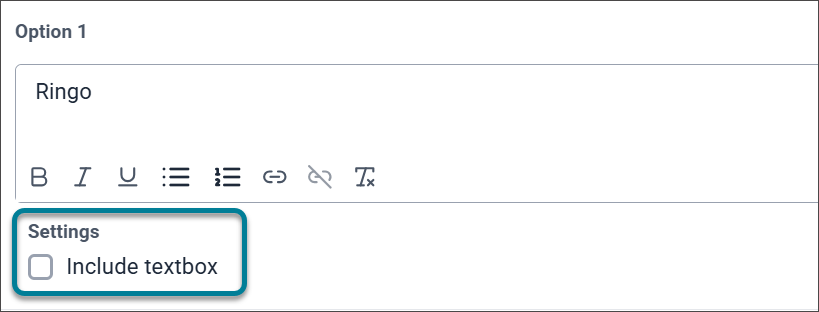
Option Settings
In the option's Settings section, you can select Include textbox to include a free response text box for respondents.
Response Settings
Additional configuration options for responses include:
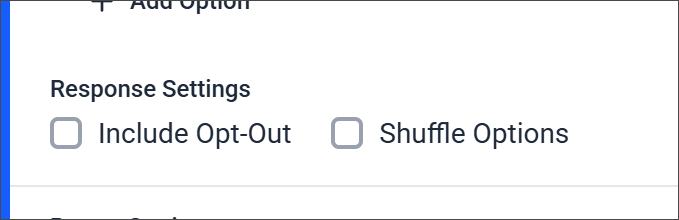
Include Opt-Out — Allows respondents to skip the question.
Shuffle Options — Randomizes the order of the response options for each user.
Report Settings
You can define how response values appear in reports:
None
Scale Value — If you want there to be a Mean/Standard deviation available for the question when viewing your report, you must choose the Scale Values option from the dropdown menu at the bottom.
Ascending — Scales start with 1, 2, 3, 4.
Descending — Scales start with 4, 3, 2, 1.
Custom:
Select Custom in the dropdown menu in the report settings.
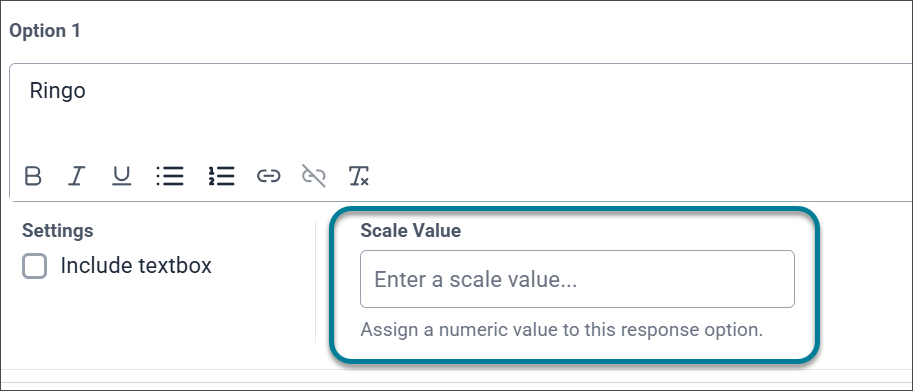
You must then define a custom scale value for each response option. Select each option and enter a custom scale value in the Scale Value field for that option.
Question Settings
Additional question settings can be applied to each question:
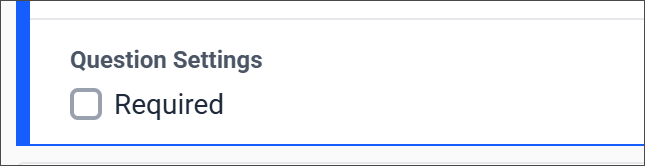
Required — Respondents must answer this question before completing the evaluation.
Finish adding questions
You may continue to add additional questions as necessary. Select the text of the question to update it, or the response choice to change the value or settings.
After all questions have been added to the builder, select the Save Questions button to save.