Thresholds for Viewing Reports
An institution-wide threshold feature is enabled by default on your Evaluate site to allow for restricting access to reports if a section does not meet three (3) or more responses - or - 10Threshold Management is turned on by default for your Blackboard: Evaluate site. It lets administrators set a minimum number of responses that must be met before Faculty Reports are released. For example, if your institution requires at least 7 responses, Evaluate enforces that standard automatically. If a course doesn’t meet the threshold, its reports are not released.
Your data is still safe. Responses from courses below the threshold remain available through the Raw Data Export.0% response rate. The table below describes the requirements of the threshold in more detail below.
100% Participation Override
Threshold Management works alongside the 100% Participation Override. When a course reaches full participation, Evaluate automatically waives the threshold, even if the response count is below the minimum. This helps smaller courses, such as seminars and graduate programs, where low enrollment makes a standard threshold hard to reach.
*The threshold is required for all campuses using IDEA evaluations.
Frequently Asked Questions
Can we change the threshold from 3 to make it more restrictive?
Yes. An administrator can change the threshold on the Settings page at any time.
Can we disable this threshold feature?
Yes. You can turn it on or off in Settings, depending on your institution’s policies.
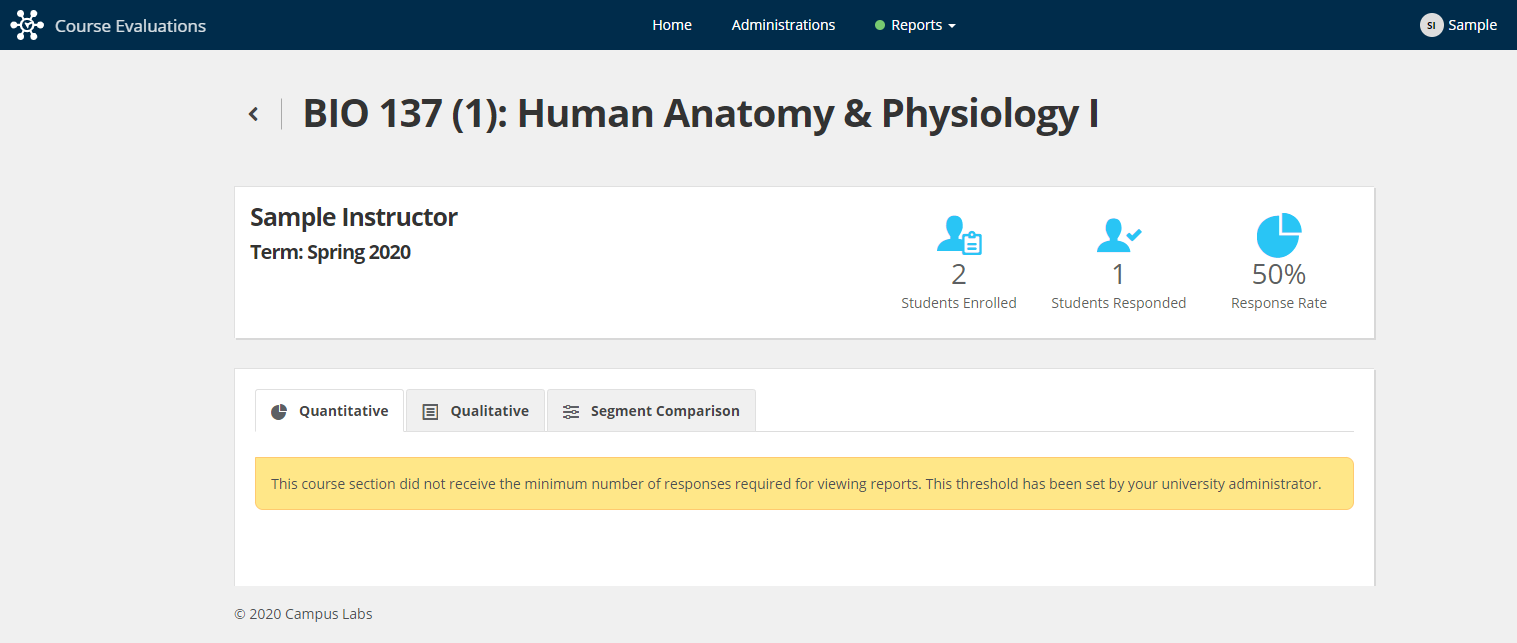
What will the user see if they try to access the Course Report?
We display a message letting the user know that "This course section did not receive the minimum number of responses required for viewing reports. This threshold has been set by your university administrator."
All users will see this message including Full Site Administrators, Report Administrators and Instructors.
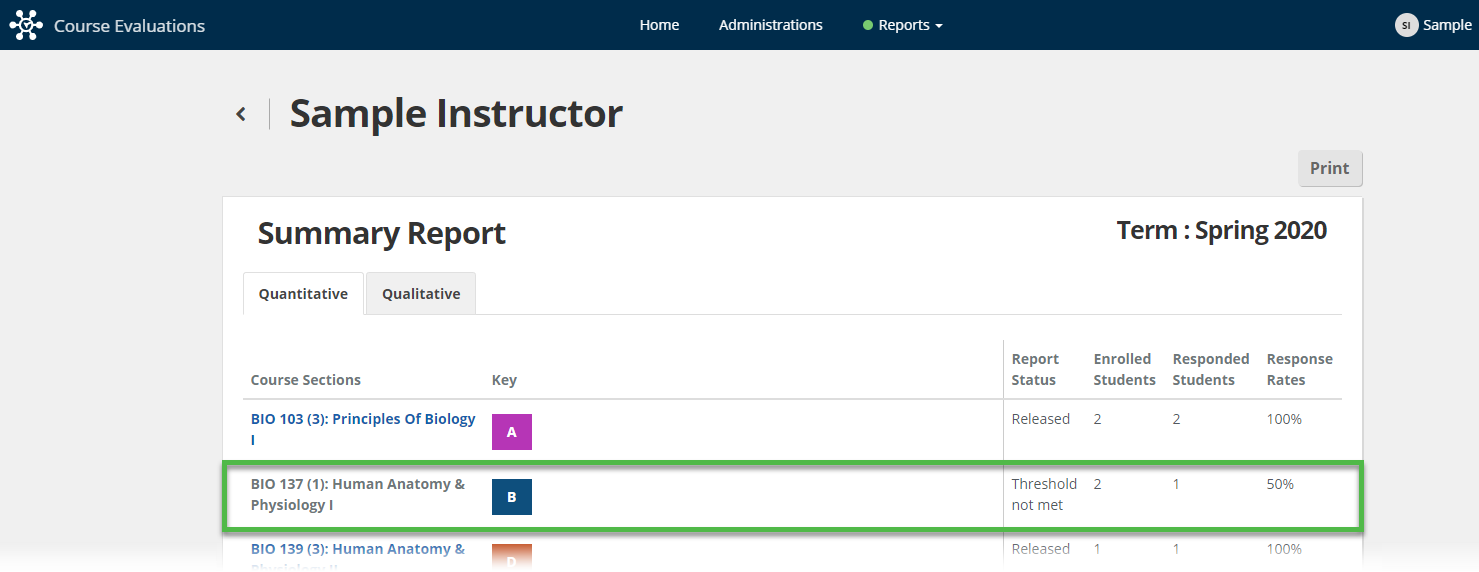
What will the user see if they try to access the Summary Report?
We let the users know that the threshold was not met and the results for that section are not displayed in the report.
All users will see this message including Full Site Administrators, Report Administrators and Instructors.