Introducing the Settings Page
Institutions now have their own Settings page in Evaluate. This page gives them direct control over how Evaluate is configured. Administrators can access and manage settings that were previously unavailable to end users. The Settings page is also the foundation for more configuration options that will roll out over time, giving institutions an expanding set of tools to tailor Evaluate to their needs.
Note
Access to the Settings page is permission-based. Administrators must grant users the appropriate permission before they can access or configure any settings.
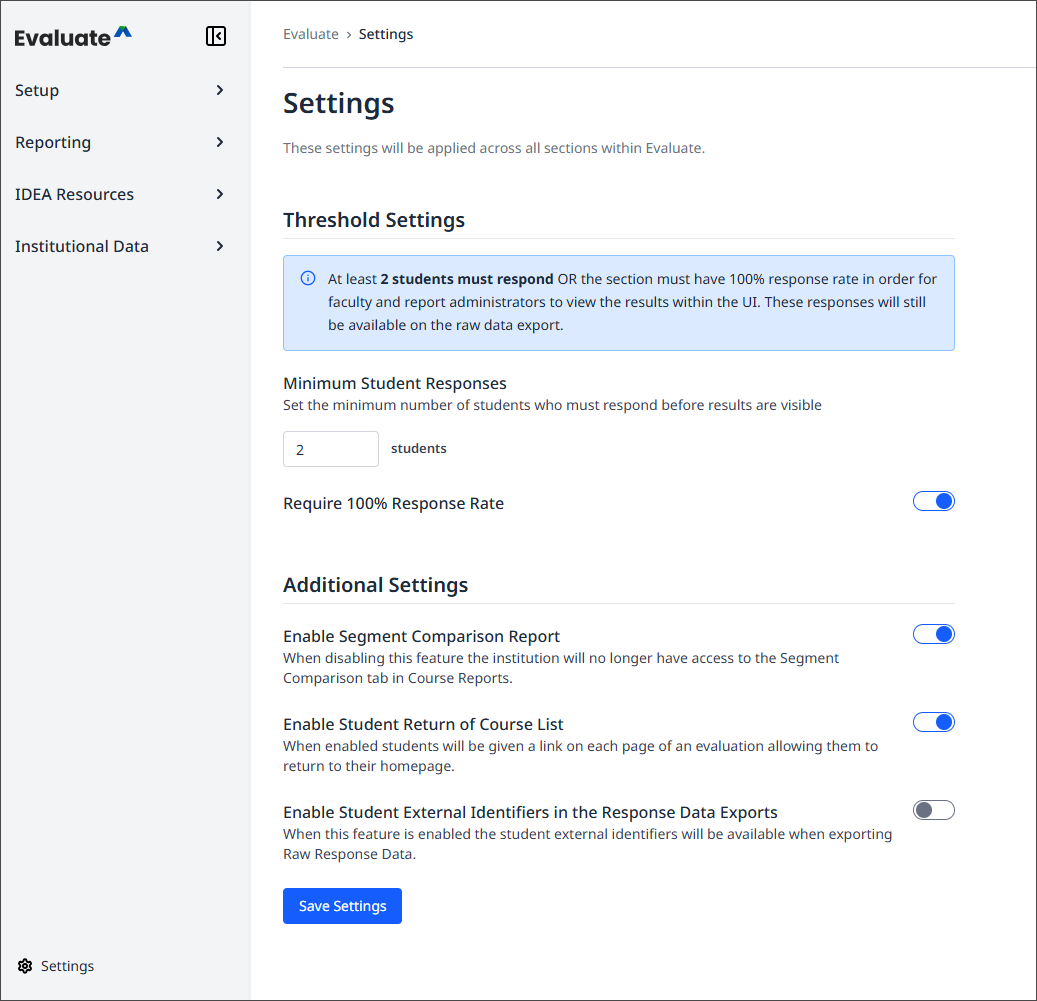
Threshold Management
The first feature available on the Settings page is Threshold Management, a capability introduced at Building Blackboard Together 2026.
Threshold Management lets administrators set a minimum response threshold that Evaluate must meet before releasing Faculty Reports. For example, an institution that requires a threshold of 7 responses can configure Evaluate to enforce that standard automatically.
100% Participation Override
Paired with Threshold Management is the 100% Participation Override. When a course reaches full participation, Evaluate automatically waives the threshold requirement, even if the response count falls below the configured minimum. This is useful for smaller courses, such as seminars or graduate programs, where low enrollment can make standard thresholds difficult to reach.
Addition features now available on the Settings page
Student External Identifiers in Response Data Exports: when this setting is turned on, student external identifiers are included in response data exports.
Segment Comparison Report: when this setting is turned off, the institution loses access to the Segment Comparison tab in Course Reports.
Student Return to Course List: when this setting is turned on, students have access to a link on every evaluation page that returns them to their homepage.