학습 모듈

중요

Your institution's Blackboard Administrator has the option of displaying Learning Modules with or without the Table of Contents side panel feature. The final section of this page has information for users without the Table of Content feature.

학습 모듈은 정리된 콘텐츠 컬렉션의 컨테이너입니다. 모듈을 통해 학습자들은 방해나 추가 클릭 없이 한 콘텐츠 항목에서 다음 콘텐츠 항목으로 이동할 수 있습니다. 학습 모듈을 사용하면 학습 중인 레슨이나 개념에 집중할 수 있습니다. 코스에서 교과서를 사용하는 경우 교수자는 모듈을 사용하여 이러한 자료의 속도에 맞게 콘텐츠를 그룹화할 수 있습니다.

Navigating a Learning Module

참고

Read this information if your institution uses Learning Modules with the Table of Contents feature.

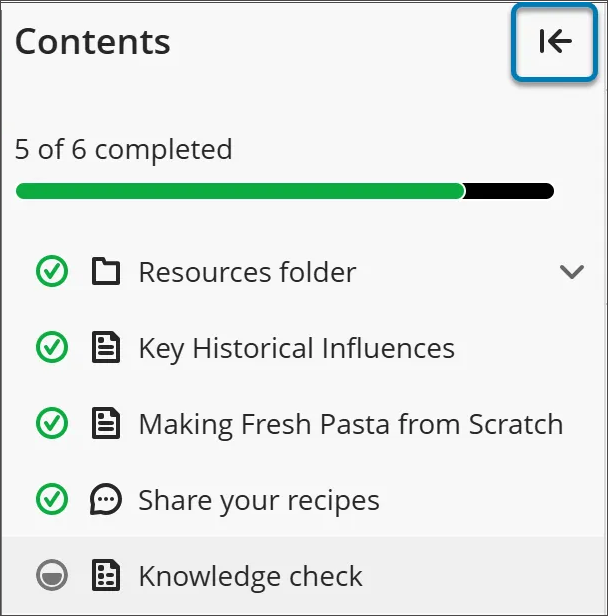
When you open a Learning Module, a collapsible table of contents is displayed on the side panel of your screen. This panel shows all the content items in the Learning Module and helps you quickly understand the scope and organization of the contents.

learn_student_LearningModules_toc.png
  • Select any item in the table of contents panel to open it directly (unless your instructor has enforced a specific sequence).

  • If you want to hide the table of contents, select the arrow button at the top corner of the table of contents.

learn_student_LearningModules_nav-buttons.png
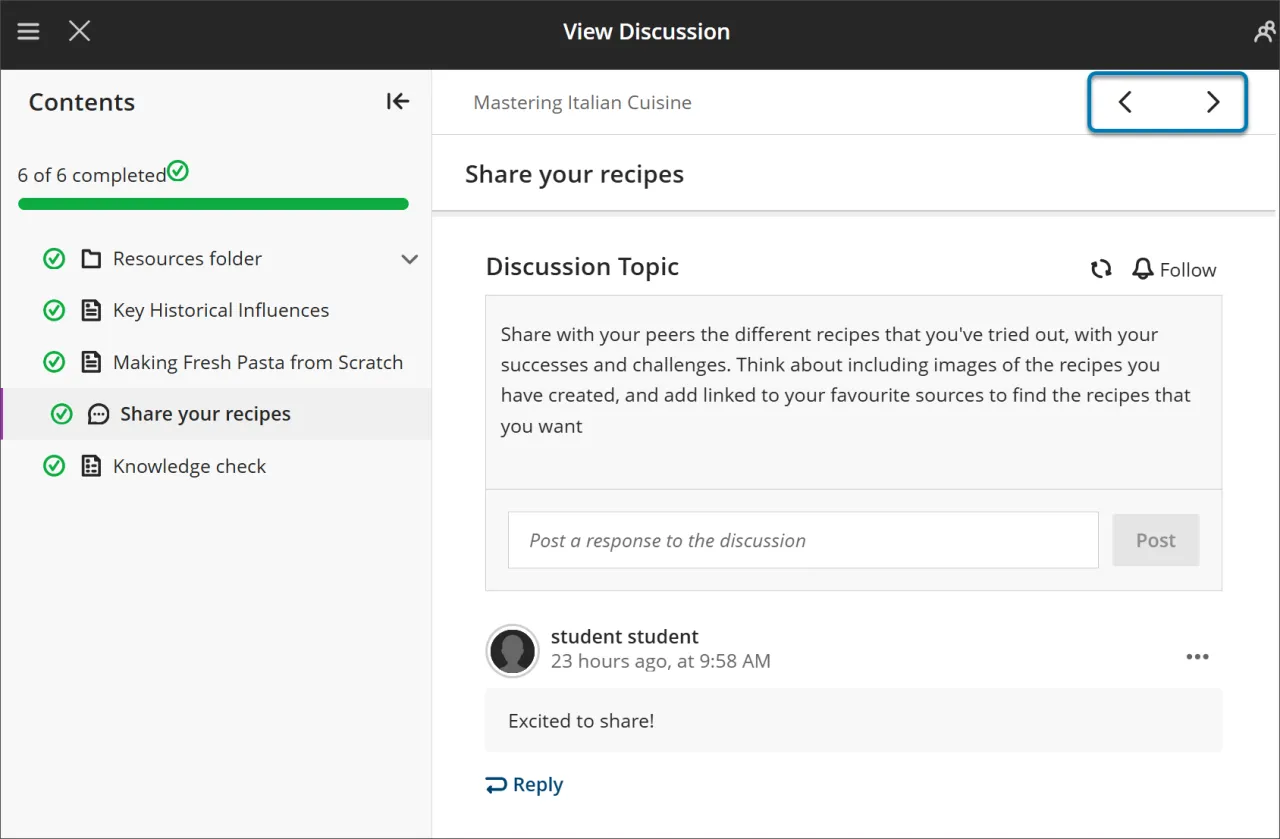
  • Use the Next and Previous buttons at the top right to move through content in order. If your instructor has enabled forced sequence, you may notice the next item is locked.

  • You’ll need to meet certain conditions before Next and the next item in the Table of Content menu become available. You can still revisit any previously unlocked items.

Tracking Your Progress

참고

Read this information if your institution uses Learning Modules with the Table of Contents feature.

A Learning Module appears similar to a folder on the Course Content page. Select the title or arrow to open the Learning Module and view its contents.

Learning Modules can include:

  • Readings and files

  • Assessments (Assignments and Tests)

  • Group projects

  • Discussions and collaboration tools

You can view all visible content within the Learning Module, including due dates.

Forced sequence

If your instructor requires items in the Learning Module to be completed in a specific order, a message appears. Other conditions, such as access dates or prerequisites, may also apply.

If the Learning Module contains folders, you navigate through them the same way as other content. Your instructor may require that you complete content within a folder before moving on.

Assessments in Learning Modules

참고

Read this information if your institution uses Learning Modules with the Table of Contents feature.

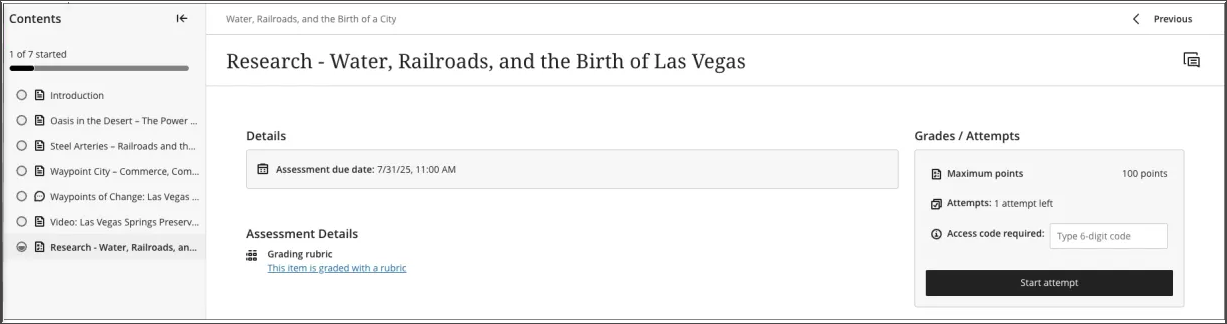
When you open an assessment from within a Learning Module, it appears in a full-page panel. This layout provides a consistent and focused experience, helping you stay engaged with the material.

learn_student_LearningModules_assessment-full-page.png

Work in a Learning Module

A learning module appears similar to a folder on the Course Content page. Select the title or arrow to open the module and view content.

In addition to content items, files, and assessments, your instructor can add activities and tools that promote interactive learning and collaboration.

learn_ultra_student_LearningModules_Overview.png.jpg

For example, you may see assignments or group projects in the module. You may also open collaboration tools such as discussions where you can brainstorm and share your ideas about the topics presented.

You can view all visible content within the module, including due dates. You can open the content in any order. If your instructor requires a content order, a message appears. Other conditions such as an access date are also included.

After you open a content item, navigate through the module with the arrows at the top of the browser window.

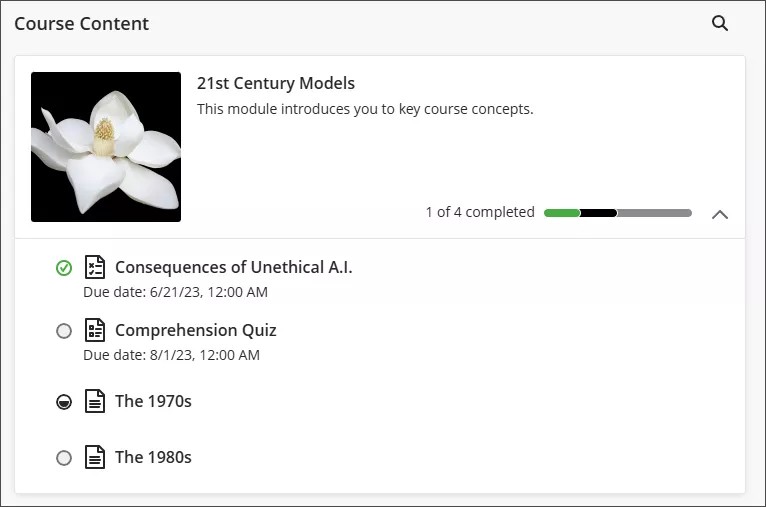
You can exit the module before completion. When you return, icons appear next to the module content if the order is enforced. The icons show which content is complete, in process, and not started, so you can pick up where you left off.

  • A green circle with a check mark means that content is complete

  • A partially filled black circle means the content is in process

  • An empty circle means that you haven't started the content

  • A lock icon means that you do not meet the conditions to access the content yet

If the module contains folders, you navigate through content in folders the same way as any other content in the module. Remember, your instructor may require that you access and complete content within the folder before you move on.