Video Studio Viewing and Accessibility
There are multiple ways to access and experience Video studio recordings. You can control playback speed, caption display, and transcript visibility to suit your learning preferences. This topic covers how you can manage playback, captions, and transcripts, as well as answer knowledge check questions.
访问 Video Studio 录制内容
要访问 Video Studio 音频或视频录制内容,只需在录制屏幕内部选择即可播放录制内容。使用键盘导航的用户可以选择 Tab 键,直到您将焦点放在录制屏幕上。然后选择enter。
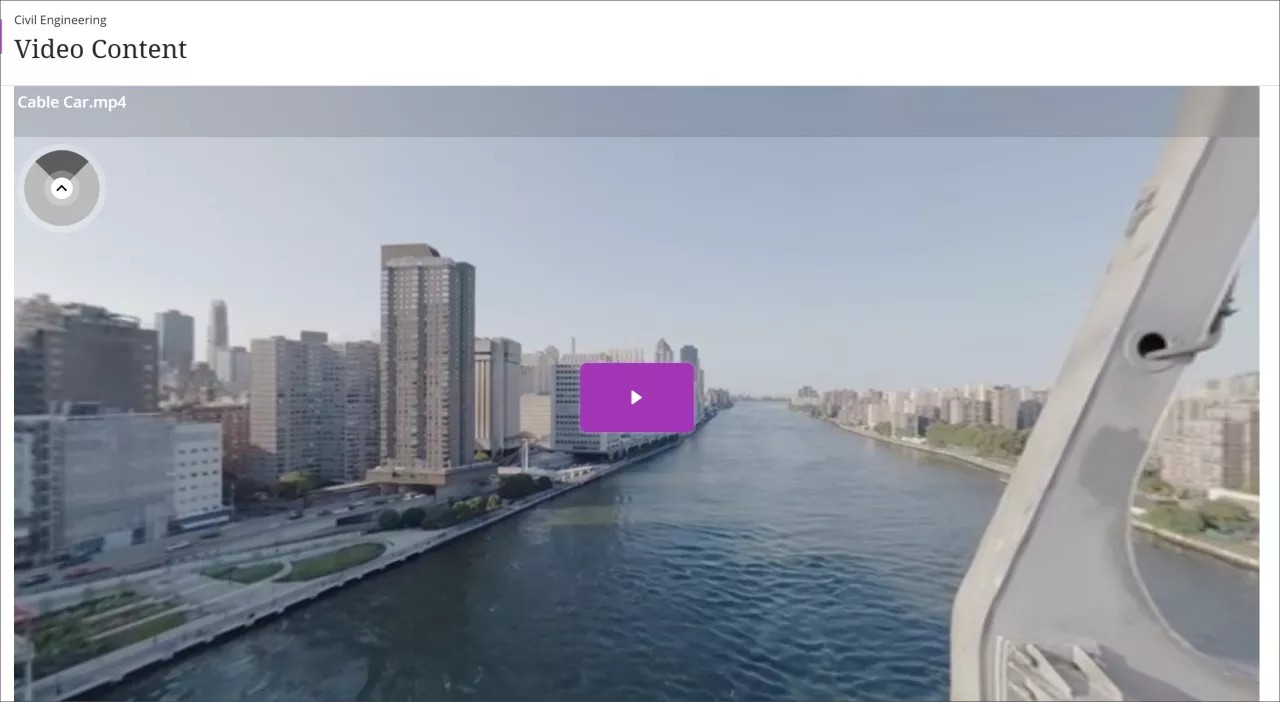
如果你的老师附带了 360° 视频,你可以在视频中左右平移。您可以使用导航辅助工具在视频中平移,该辅助工具会在录像左上角显示一个阴影圆圈。您还可以使用 W、A、S、D 键进行键盘导航。
控制录制速度,并显示字幕和文字稿
在 Video Studio 中,你和学生可以控制录制的播放速度,以及字幕和转录的显示。
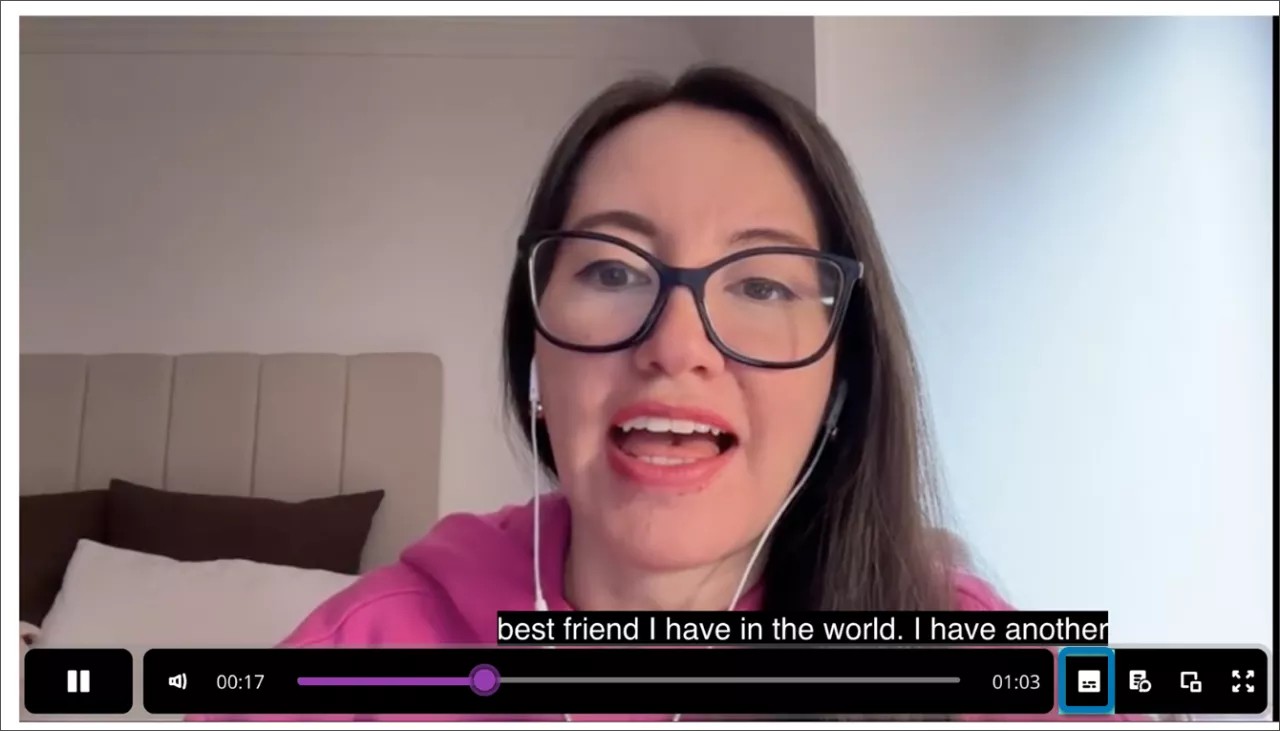
Video Studio 通过自动显示字幕来提高录制内容的无障碍访问性。为了满足不同的学生偏好,个人用户可打开或关闭字幕。例如,如果他们不想查看自动生成的字幕,您可以关闭这些字幕。要关闭字幕,请选择视频底部进度栏旁边的字幕按钮。
视频编辑器还会为创建或上传的录制内容自动生成脚本。与字幕一样,您可以控制转录内容的显示。
要查看脚本,请选择视频底部进度栏旁边的脚本按钮。
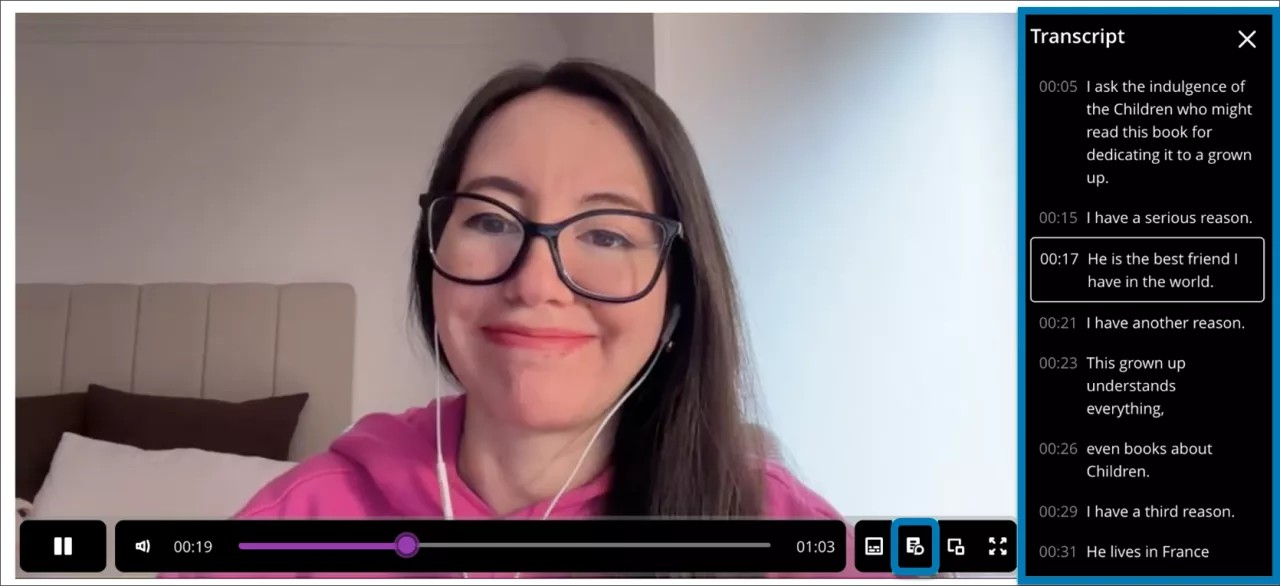
当视频显示三列和四列宽时,您可以在文档中以内联和全屏方式查看脚本。当视频宽度为 1 到 2 列时,脚本将全屏显示。
Access Audio Descriptions
If your instructor has added audio descriptions to a Video Studio recording, you can turn them on or off while watching. Audio descriptions are spoken narrations that describe important visual elements—such as actions, settings, and on-screen text—that aren’t conveyed through audio alone. This makes video content more accessible if you are visually impaired or have low vision.
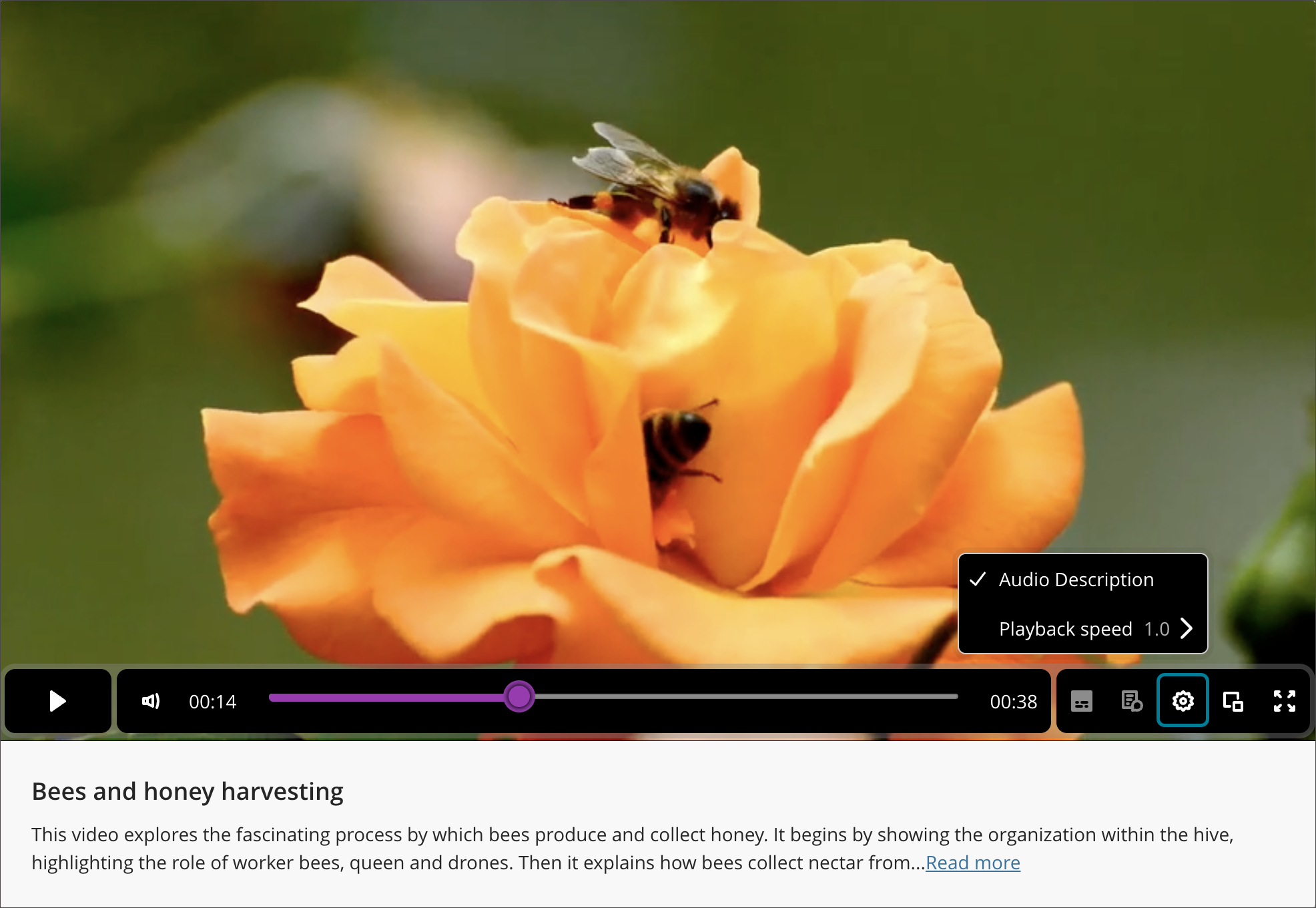
When a video includes audio descriptions, the option to turn on the feature appears when you select the settings at the bottom panel of a Video Studio recording. When turned on, the video pauses while the audio description plays and then resumes automatically, so you don’t miss any content.
Audio description text also appears in the video transcript and is synchronized with video timestamps, so you can read descriptions in addition to listening. When you download a video with transcripts, the download reflects the selected audio track, including audio descriptions when enabled.
注意
Audio descriptions are only supported in English at this time.
访问四分之一大小的录制内容的脚本
当用户打开四分之一大小的 Video Studio 录制文件时,录制内容下方会显示一个查看脚本按钮。
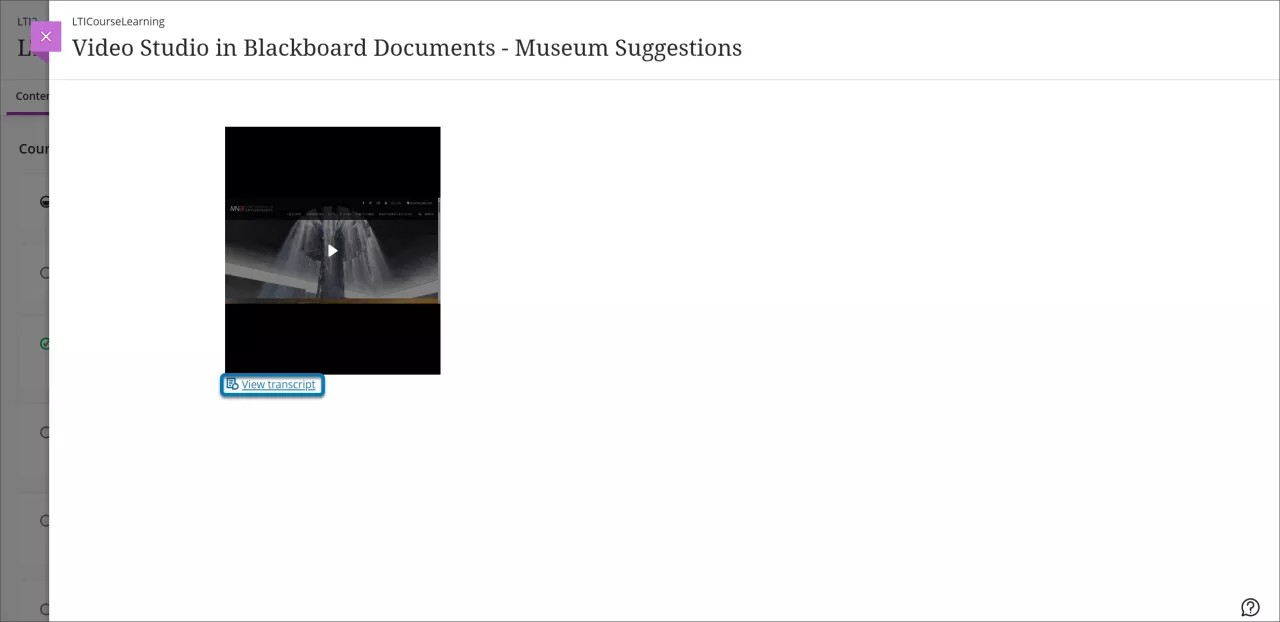
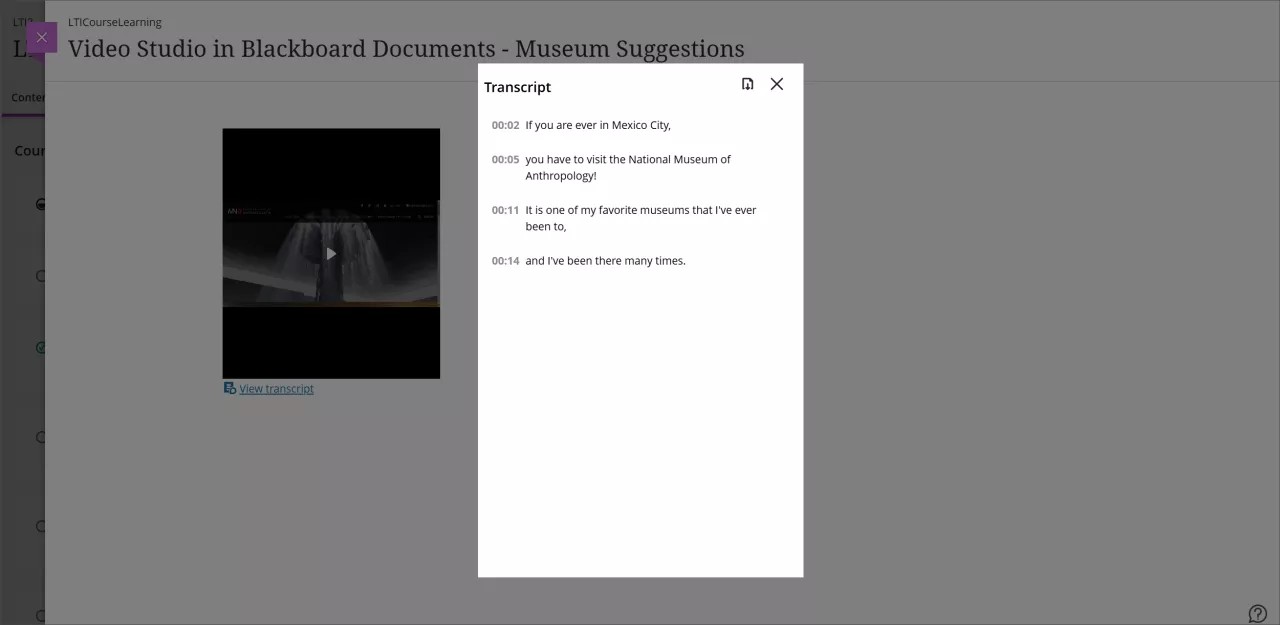
选择查看脚本将打开一个模式窗口,其中包含只读模式的录制脚本。对于以默认全宽的四分之一大小显示的录制内容,脚本编辑功能保持不变。
在录制的内容中向前或向后跳转
注意
用户无法在 1/4 大小的 Video Studio 的录制内容中向前或向后跳转。
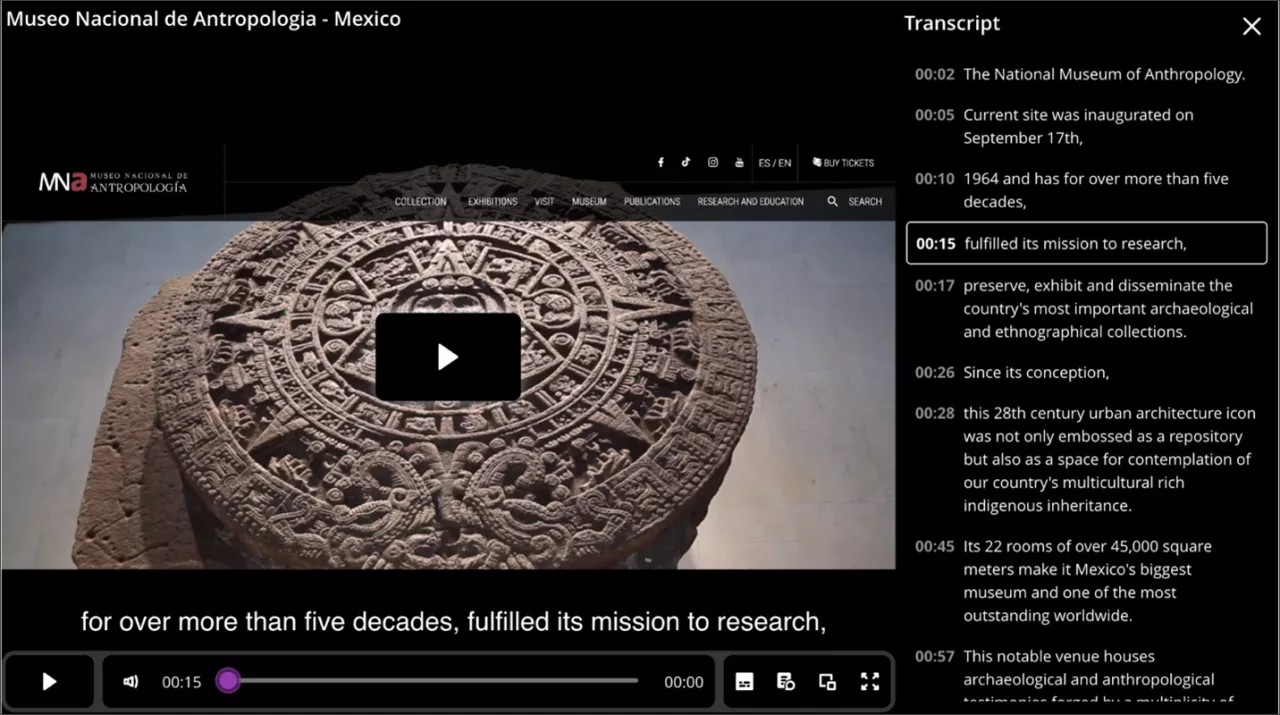
您可以通过选择脚本中的时间戳来跳转至记录的特定部分。从脚本中选择特定时间戳,记录即会从所选的相应时间进行播放。
例如,观看录制的讲座时,您可以跳转至视频的特定部分。您还可以通过在脚本中选择所需的时间戳来重新播放视频的任何部分。
Answer knowledge checks in videos
Your instructor may embed knowledge check questions directly into a video. When you reach a designated point in a video, playback pauses and a question appears. You must answer correctly to continue watching. You can try as many times as needed – knowledge checks are ungraded and designed to support your understanding, not assess your performance.
Knowledge checks create an interactive viewing experience that encourages active participation and deeper understanding of the course material.
Bulk edit speaker names in transcripts
You can update all instances of a speaker’s name in a video transcript in one step. This makes editing faster and keeps names consistent throughout the transcript.
To bulk edit a speaker name, open the Transcript Editor for the recording. Select the speaker name you want to change and apply the update. All occurrences of that name update automatically throughout the transcript.
下载录制内容脚本
您现在可以下载使用 Video Studio 创建内容的脚本。您可以使用它来打印或突出显示录制内容的文本。
选择您录制的内容,然后点击播放。
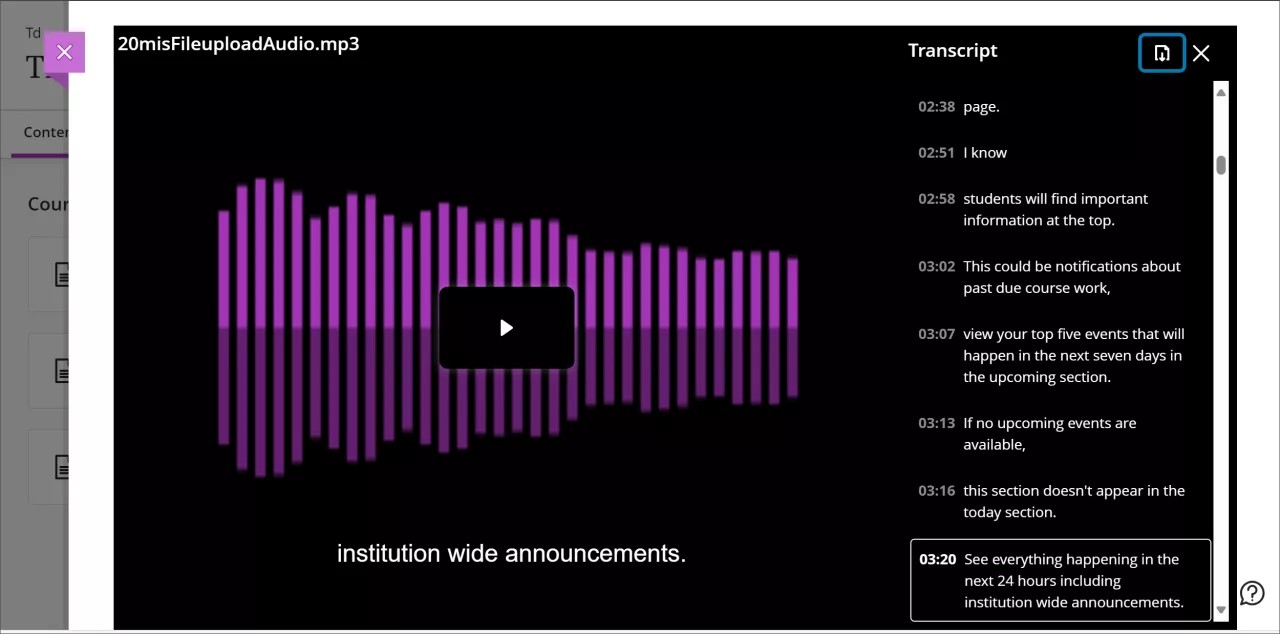
选择视频屏幕下角的脚本按钮。这将打开显示脚本文本的脚本面板。
选择脚本列顶部的下载按钮。
脚本将以 VTT 文件形式下载,其中包括时间戳和演讲者旁白。
下载录音
如果你的教师提供此选项,你可以将录音直接下载到本地设备,以便离线使用。这让你在没有网络连接的情况下更灵活地访问课程内容。下载按钮显示在录制画面下方。
没有直接下载到云存储的选项,但你可以手动将文件迁移到云服务。
360° 视频:连接台式机到 VR 头戴式设备
Video Studio 有一个简单的过程可以将台式机连接到 VR 头戴式设备。
重要
[注意重要图标]: 使用前请查阅 VR 头戴式设备操作说明。一些用户在使用 VR 头戴式设备时可能会出现晕动症、头晕或轻微不适。在极少数情况下,对闪光灯敏感的人可能有癫痫发作的风险。定期休息并遵循安全指南有助于确保舒适的体验。
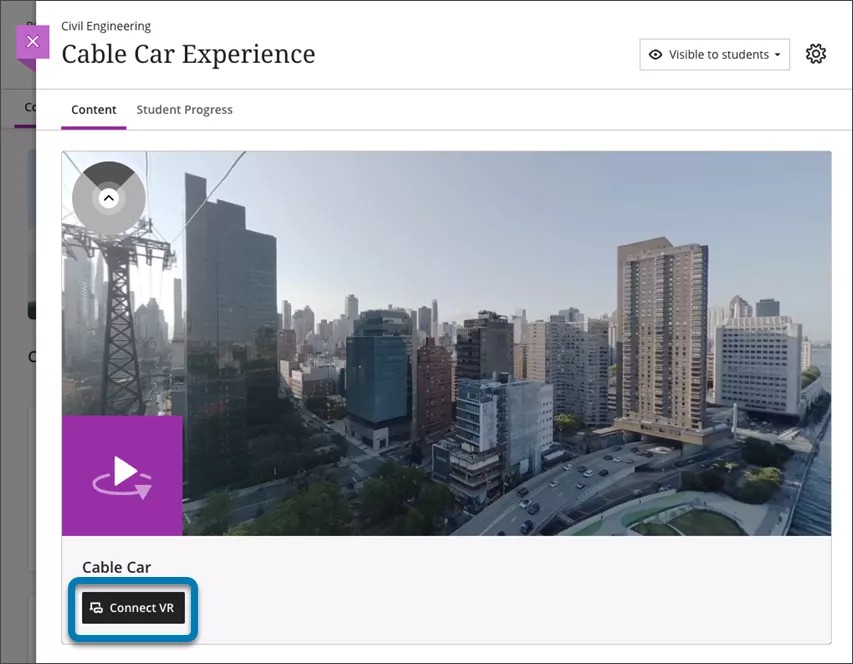
在 VR 头戴式设备中观看 360° 视频:
Ensure you are viewing a 360° video in a browser (mobile or desktop).
Below the video, select Connect VR.
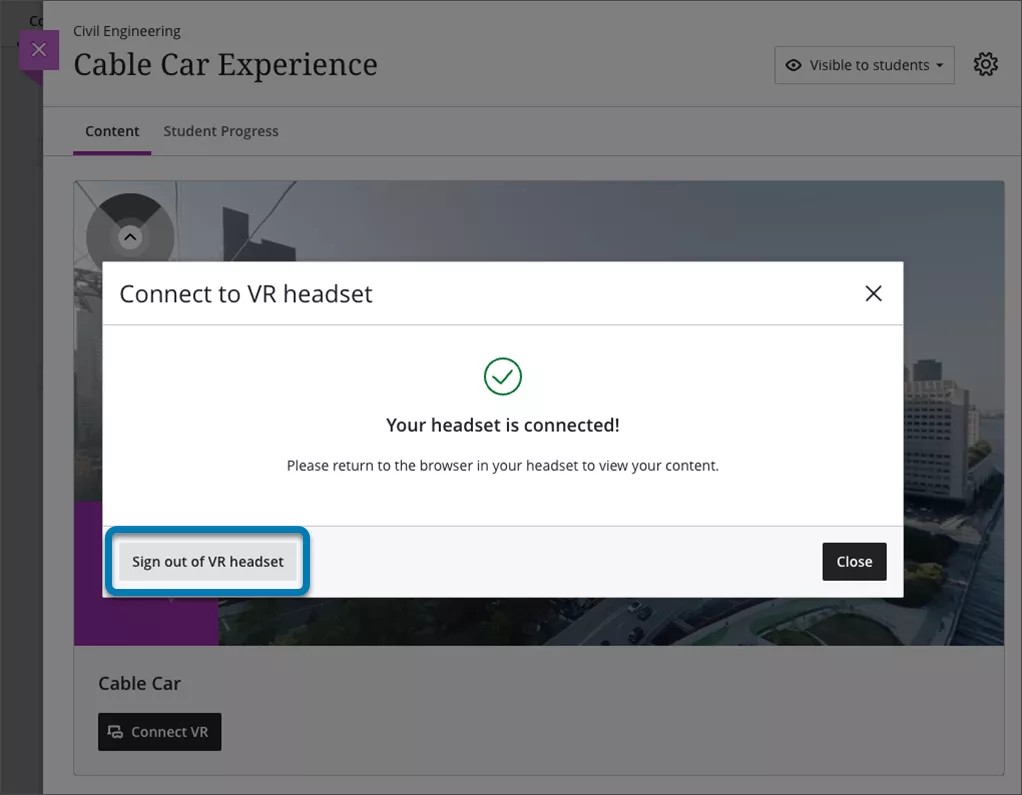
A Connect to VR headset overlay appears on the screen. Keep this onscreen as a code will need to be entered into the input box.
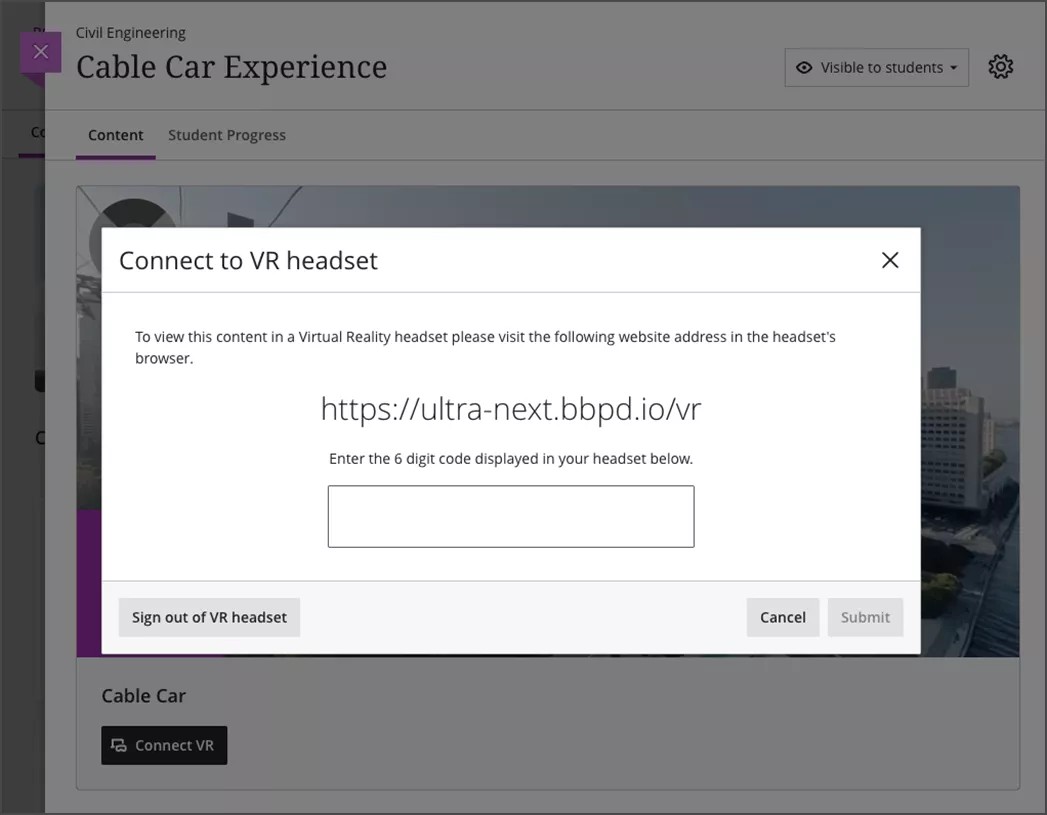
Place your headset on and, using the headsets browser, visit the URL shown onscreen in step 3.
A 6-digit code will appear in your headset’s browser. Type this 6-digit code into the overlay on your desktop or mobile browser.
Once you receive confirmation on the screen that the code is correct, put your headset back on. The VR headset automatically progresses to show the video.
You may need to select View Immersive below the video or Enter VR on your headset’s browser.
Consume the immersive content on the headset.
You can continue to navigate around Blackboard or view other available immersive content from the headset.
Once you have finished with the headset, make sure that you logout. This can be done by navigating to logout in the headset or selecting Sign out of VR headset on your mobile or desktop overlay shown in step 3.