公式编辑器
Note
本文档采用 AI 辅助机器翻译。译文仅供参考,不保证准确性;此内容的英文版为官方权威版本。
您可以使用公式编辑器将数学方程和公式插入到测试、作业、讨论和日记中。您还可以在任何可以选择公式编辑器的富文本编辑器中输入 LaTeX 公式。公式编辑器可在任何浏览器和操作系统上运行,包括智能手机和平板电脑。激活后,MathJax 会在 Blackboard 支持的区域中呈现在内容编辑器中输入的 LaTeX 代码。如果未激活 MathJax,Wiris 将呈现公式。
The math editor and typing LaTeX code are two different ways to add math formulas in the rich text editor. The math editor is a visual, point-and-click tool that lets you build a formula without writing any code. When activated, MathJax renders LaTeX code that you type as plain text into the rich text editor across supported areas of Blackboard LMS. Both methods render using MathJax, so you can choose whichever fits your workflow, such as pasting LaTeX code copied directly from an exam bank, textbook, or other source material. If MathJax is not activated, Wiris will render formulas.
数学公式以 PNG 图像格式呈现,其文件大小比文本更大。在图像显示之前,数学公式可能需要几秒钟的时间才会出现。
互联网连接速度和内容大小会影响加载时间。一些学生可能难以理解包含许多公式图像的内容。
减少公式图像大小和加载时间的一些建议:
使用公式编辑器或 LaTeX 单独创建每个公式。
避免在公式编辑器或 LaTeX 代码中包含问题描述或额外文本。相反,请使用富文本编辑器编写任何问题、说明或文本描述,并且仅使用公式编辑器或 LaTeX 创建数学公式。
例如,教师在测试中编写加速数学问题。为了减少内容文件的大小,讲师直接在富文本编辑器中以纯文本形式编写问题描述和变量值。然后,教师使用公式编辑器编写加速公式。
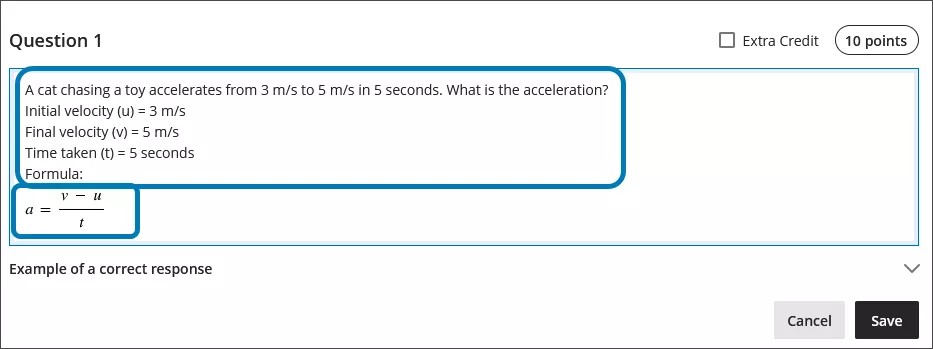
使用公式编辑器
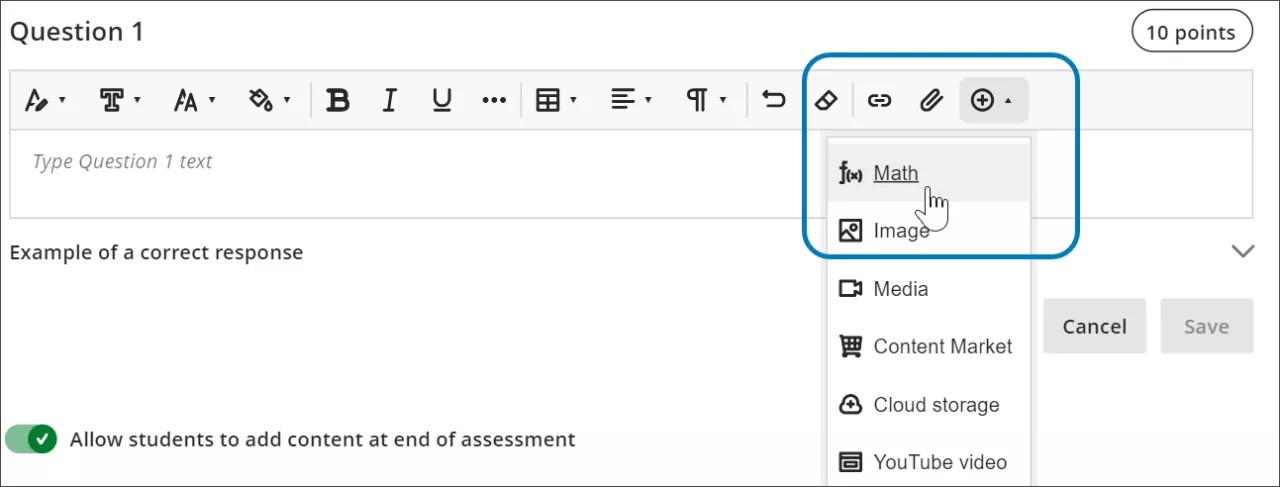
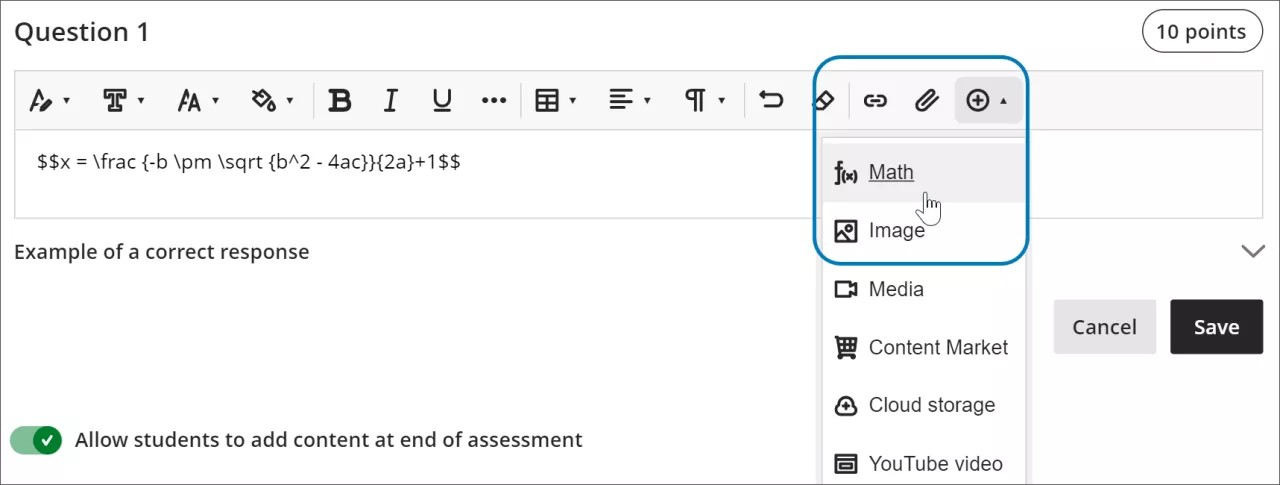
Access the math editor by selecting the + icon in the rich text editor. Select Math in the menu.
You can access many features in the math editor by selecting different tabs at the top.
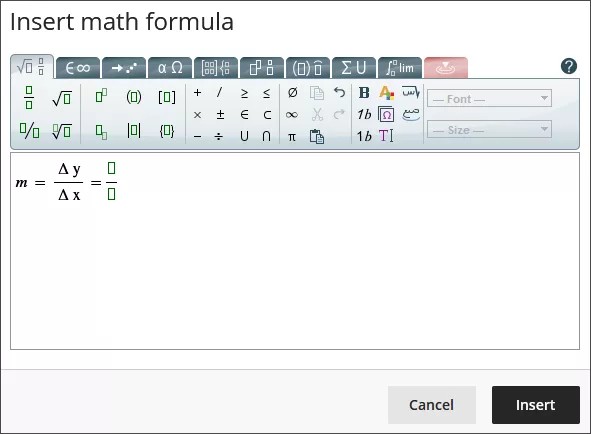
Use your keyboard to enter numbers, letters, and symbols. Select the appropriate icon in the math editor to create complex formulas, such as creating a square root.
If you are using an option that changes the level of the text for your formula, such as subscript or a fraction, use the arrow keys on your keyboard to return to the default level. We recommend using the keyboard to navigate within a formula.
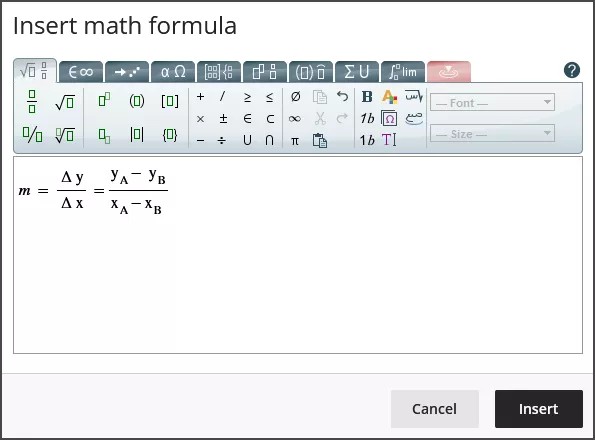
Some of the options for the building formulas in the math editor include:
基本运算:加法、减法、乘法、除法、平方根、指数、分数
希腊字母表:alpha、beta、gamma 等 •
矩阵计算
积分、导数和极限
三角函数:正弦 (sin)、余弦 (cos)、正切 (tan)
字体样式和大小
WIRIS 网站提供了有关数学编辑器所有功能的详细信息。
在富文本编辑器中使用 LaTeX
LaTeX 是一款软件,可用于根据纯文本编写的编码约定创建公式图像的。Learn 的富文本编辑器可以呈现 LaTeX 编码。
Enter a LaTeX formula by writing the specific code within delimiters in the rich text editor. MathJax supports the following delimiter options, depending on how you want the formula to display:
$$...$$or\[...\]for display equations, which appear centered on their own line, separated from the surrounding text. Display equations work well for complex expressions such as integrals, sums, and products.\(...\)for inline equations, which appear within a line of text alongside other content.
Using the delimiters that match your original source material makes it faster to copy LaTeX code from textbooks, exam banks, or other STEM materials into Blackboard LMS without needing to reformat the code.
Select Save to review how the formula displays as an image. You can go back into the rich text editor to edit the formula until it displays correctly. Some activities, such as tests and assignments, don’t allow students to save in the rich text editor and preview the rendered LaTeX formula. Students will have to check their submission afterwards to make sure that their formula rendered correctly.
不能使用富文本编辑器更改公式的外观(如粗体或更改字体大小)。要更改公式的字体样式或大小,您可以在富文本编辑器中选择公式内的任意位置,然后选择公式编辑器。当您保存并添加到 LaTeX 代码时,在公式编辑器中做出的所有更改都将被应用。
select anywhere within the formula in the rich text editor.
select the math editor
All changes made in the math editor are applied when you save and added to the LaTeX code.
Example of a formula formatted in LaTeX
注意
This example uses $$ delimiters for a display equation. You can also use \[...\] for a display equation or \(...\) for an inline equation instead, depending on how you want the formula to appear in your content.
二次公式可以用 LaTeX 格式化。
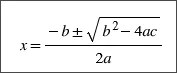
Enter $$ in the rich text editor.
$$
Next, enter the LaTeX code for the formula:
$$x = \frac {-b \pm \sqrt {b^2 - 4ac}}{2a}
Close your formula by entering $$ at the end.
$$x = \frac {-b \pm \sqrt {b^2 - 4ac}}{2a}$$
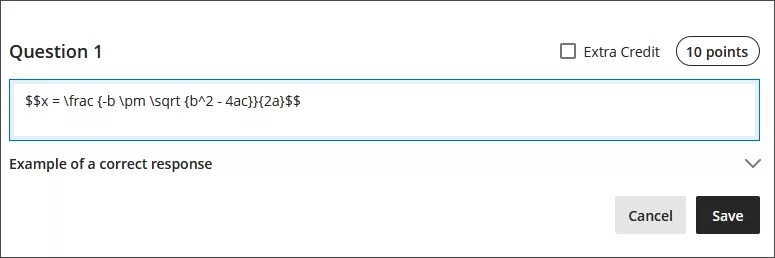
Select Save in the rich text editor. The math formula renders as a PNG image. Rendering the image may take a few seconds, depending on your internet connection and content size.
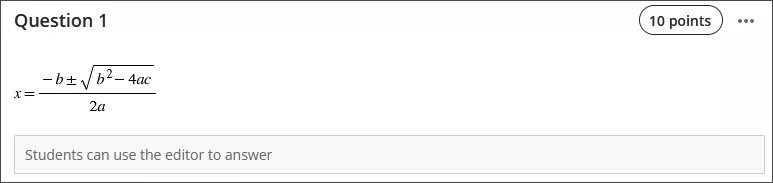
Select Edit in the rich text editor to go back to your LaTeX code.
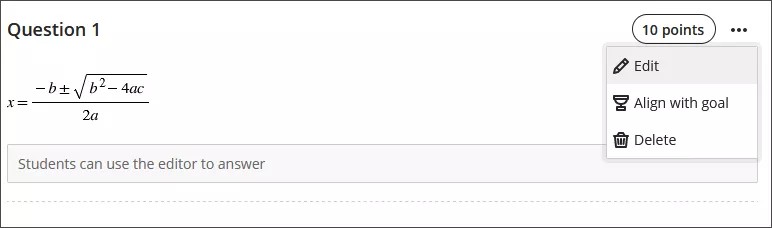
Edit your formula to overwrite your LaTeX code as plain text inside the rich text editor. For example, add a +1 to the end of the quadratic formula.
$$x = \frac {-b \pm \sqrt {b^2 - 4ac}}{2a}+1$$
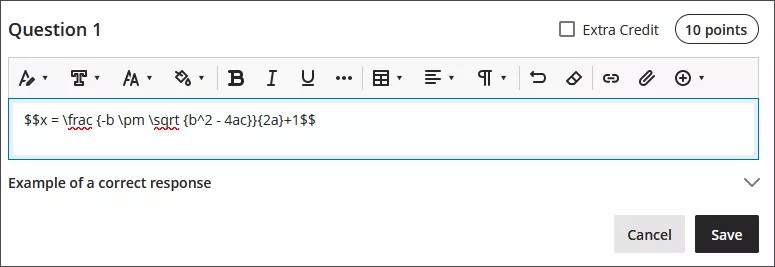
Select Save to render the formula as a new image.
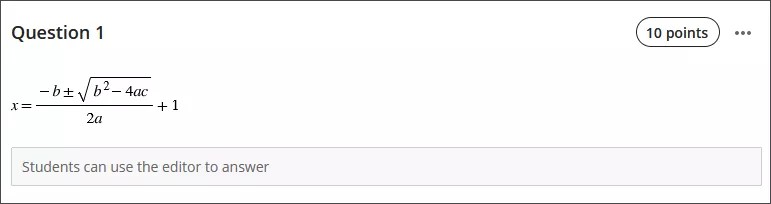
You can make further adjustments to the style of the formula. In the rich text editor, select anything inside the LaTeX code.
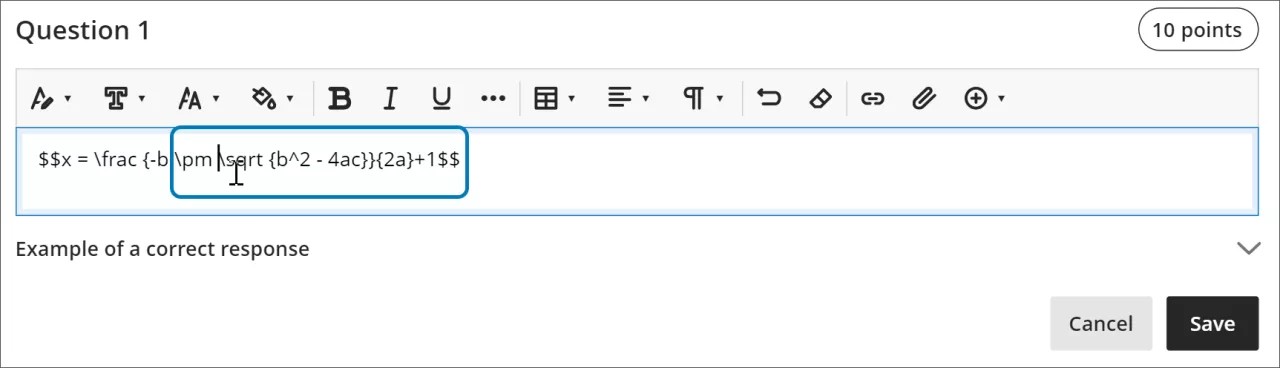
Open the math editor.
Apply the styles you want to the formula. For example, you can bold part of the formula and change the font size.
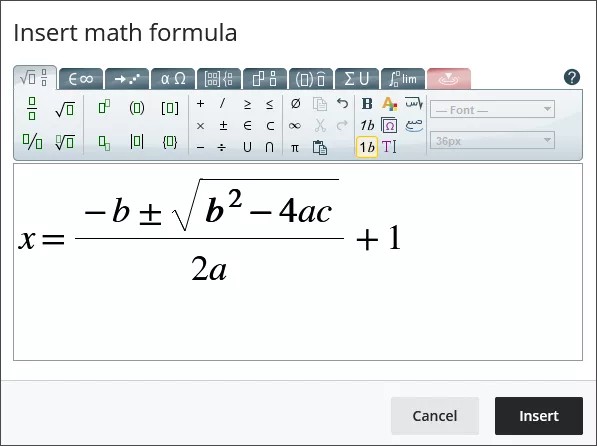
Select Save in the math editor. The LaTeX code for the quadratic formula with your style adjustments is now:
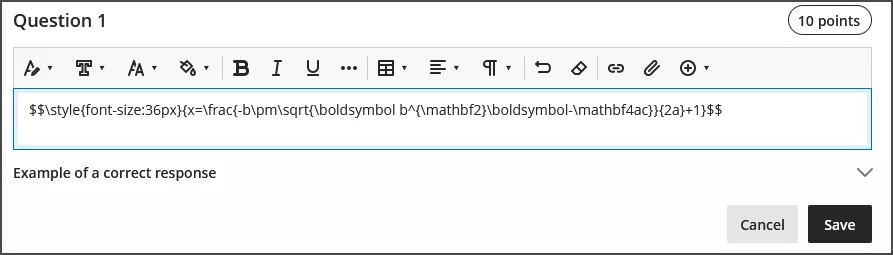
$$\style{font-size:36px}{x=\frac{-b\pm\sqrt{\boldsymbol b^{\mathbf2}\boldsymbol-\mathbf4ac}}{2a}+1}$$
Select Save in the rich text editor to render your adjusted formula as an image.
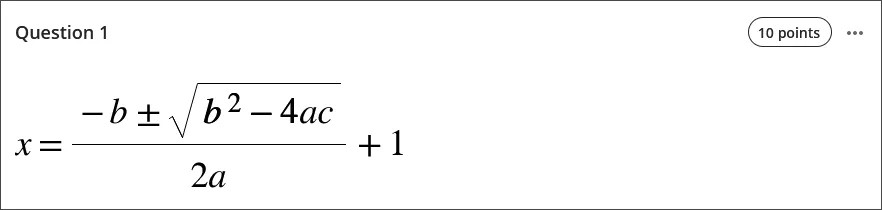
无障碍访问功能
数学公式图像质量较高,因此用户可以放大图像,图像仍然清晰。您也可以更改字体大小以帮助您的学生。较大的字体可以帮助您的学生详细地看清带有小数和符号的公式。
在您创建公式并将其呈现为图像时,屏幕阅读器可以访问公式。
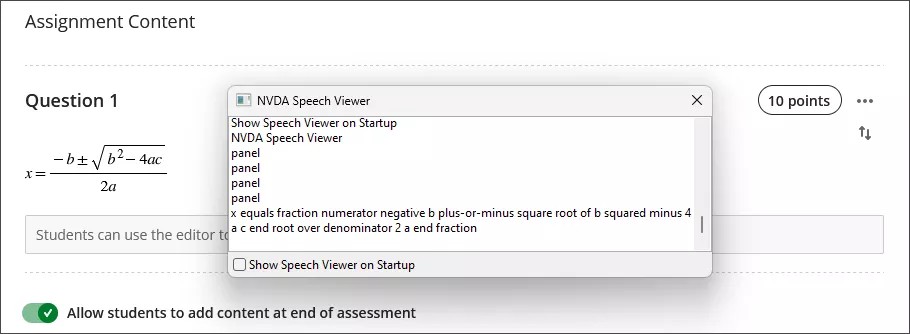
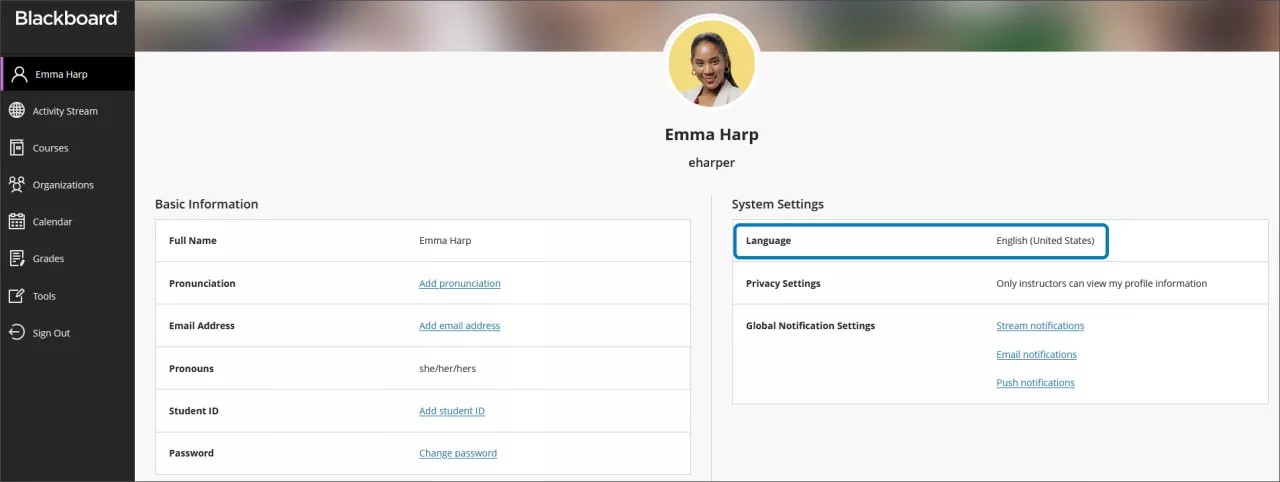
数学公式的替代文本会根据您在 Learn 中的个人资料中的语言设置自动生成。屏幕阅读器遵循您的本地设备设置,包括语言、速度和语音。为了获得更好的屏幕阅读器和替代文本体验,请确保 Learn 中的语言设置与本地设备上的设置相匹配。
注意
如果公式编辑器或富文本不支持某种语言,则将以英语读取公式。