Admin Guide to the Student View
The Points feature within Engage offers a dynamic way for students to track their involvement, celebrate achievements, and discover new opportunities on campus. As an administrator, your guidance is essential to ensuring students understand the value of this system and use it to support their academic and personal development. This article outlines the student experience within the Points feature and provides actionable advice for helping students engage meaningfully.
Understanding the Student View
Students access their points and engagement data via the My Points dashboard, found by selecting the points icon in their left-hand navigation. Every user, including administrators, has access to their own My Points dashboard.
Overview and Data Population
When students first enter the My Points dashboard, what they see will be dependent on several factors including overall Points earned by users and how Points is configured for your site.
If no points have been earned by the student, they will see a notice explaining that data will appear once they complete a point-earning activity.
Once a user has earned Points, one of the following screens will be displayed, depending on how you have configured your Points Settings:
Ranking is Off and Refresh is Off | 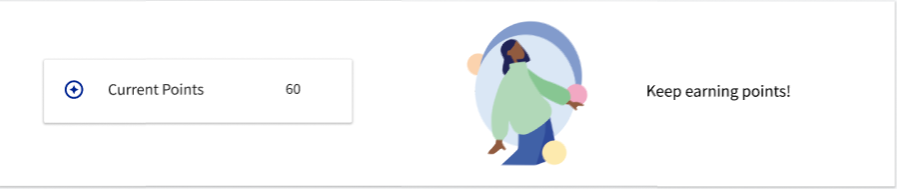 |
Ranking is Off and Refresh is On | 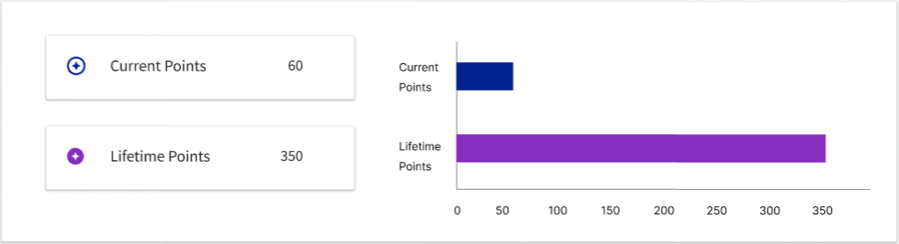 |
Ranking is On and Refresh is Off | 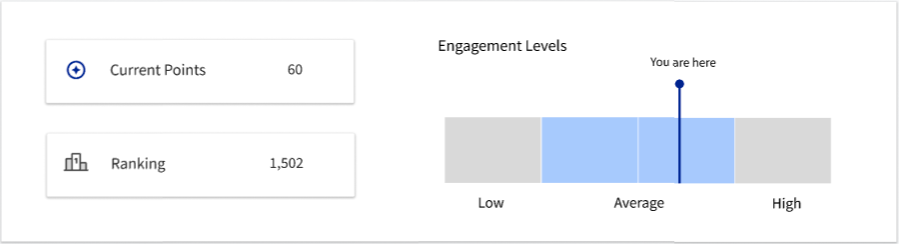 |
Ranking is On and Refresh is On (data threshold not met) | 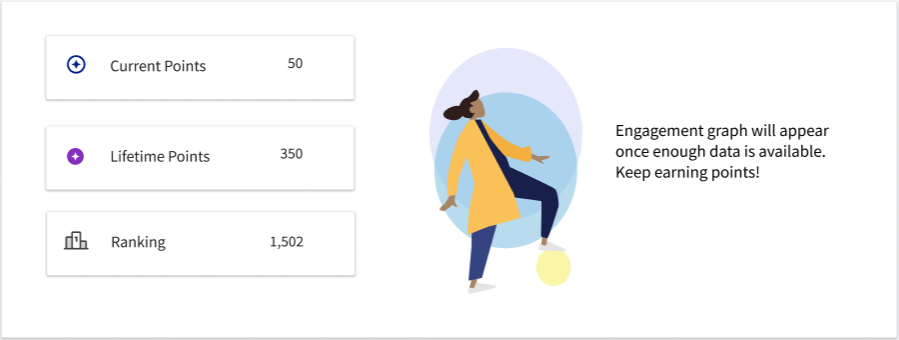 |
Ranking is On and Refresh is On (data threshold met) | 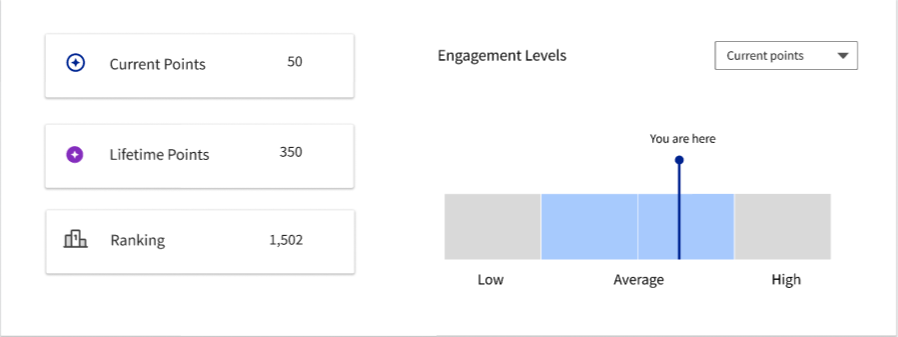 |
Refresh: Current and Lifetime Points
Activating the Refresh feature in your Points program resets every student's Current Points to zero on a set date—often at the start of a new semester or academic year. This means all students begin each period with a fresh start, making it easy to track new engagement and see how participation impacts their points and—if enabled—their ranking.
There are two counts of Points that are displayed to students:
Current Points: The total number of points a student has earned since the most recent Refresh date.
Lifetime Points: The total number of points accumulated since your campus first launched the Points system.
Ranking: Promoting Engagement Through Ranking
Relative Rankings help students understand how their level of involvement compares to peers by showing exactly where they fall within the distribution of Points earned on campus. Students can easily see which quartile they belong to based on their Points total. If the Refresh feature is enabled, students can also track their Relative Ranking for both Current and Lifetime Points, making it possible to see how their standing changes over time. Administrators are encouraged to guide students in using these rankings as tools for self-reflection—so they can spot trends in their engagement and make adjustments that fit their academic and personal priorities.
Students in the top quartile may be highly involved and might benefit from reminders about balancing activities with coursework.
Those in lower quartiles might experience feelings of isolation or disengagement; administrators can use these insights to recommend events or groups that promote inclusion and connection.
Championing the Earn Points Widget
The Earn Points widget on the dashboard makes it simple for students to find upcoming opportunities to get involved and earn points. With this feature, students can:
Search for events by keywords in titles, types, or descriptions
Quickly access event details, RSVP options, calendar integration, and subscription features
Encourage students to use these tools to explore campus life, discover activities that match their interests, and set personal goals for engagement.
Important: Only activities listed in the Earn Points widget are eligible for points. If an activity isn’t shown here, students won’t earn points for participating. To avoid confusion, remind students to use the widget to find activities that qualify for points.
Recent Activity Log: Building Trust and Accountability
Students can review all completed activities, points earned, and dates of participation in the Recent Activity Log. Highlight this feature to ensure students know their engagement is recognized and recorded accurately—building trust in the system and reinforcing the connection between participation and achievement.
Actionable Tips for Administrators
Host info sessions or workshops on how to use the My Points dashboard and interpret engagement data.
Collaborate with student leaders to share success stories and peer perspectives on engagement.
Regularly promote new opportunities to earn points and help students set realistic goals for growth.
Monitor participation trends and reach out to students who may benefit from additional support or encouragement.
Conclusion
Administrators play a crucial role in fostering adoption and meaningful use of the Points feature. By proactively guiding students, interpreting their engagement data, and connecting them with opportunities, you empower them to make the most of their campus experience while supporting their holistic development.