ORIGINAL Grades
Watch a video about checking grades
The following narrated video provides a visual and auditory representation of some of the information included on this page. For a detailed description of what is portrayed in the video, open the video on YouTube, navigate to More actions, and select Open transcript.
Where are my grades?
You can see grades for all of your courses or one course at a time.
In the list where your name appears, select Grades.
Note
This information also applies to organizations.
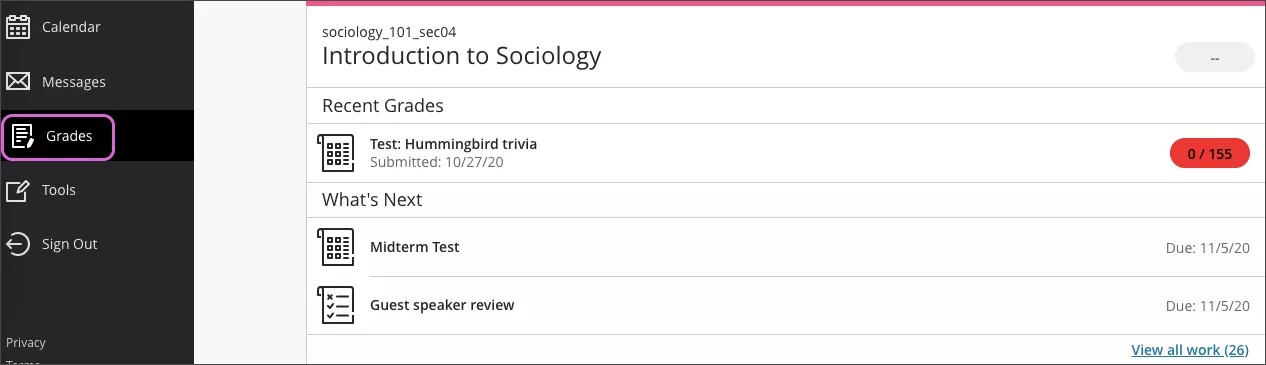
Your grades are organized by course name and term in alphabetical order. You can select most items in any course to view details.
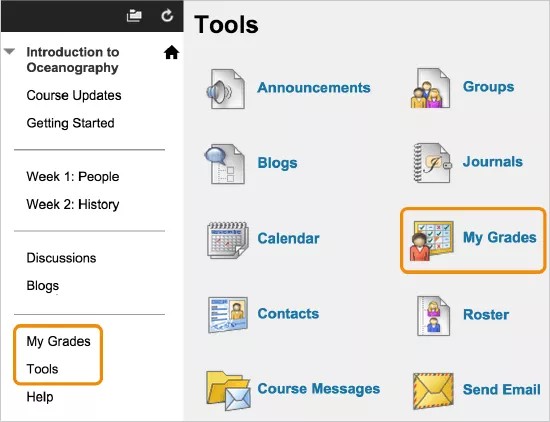
To view the grades for the course you're in, select the course link on the main Grades page or on the Tools page.
Your instructor controls which links appear on the course menu.
My Grades page
On the My Grades page, you can view all the coursework and grades for the course you're in. If your work hasn't been graded, grade status icons appear.
You can filter and order your view.
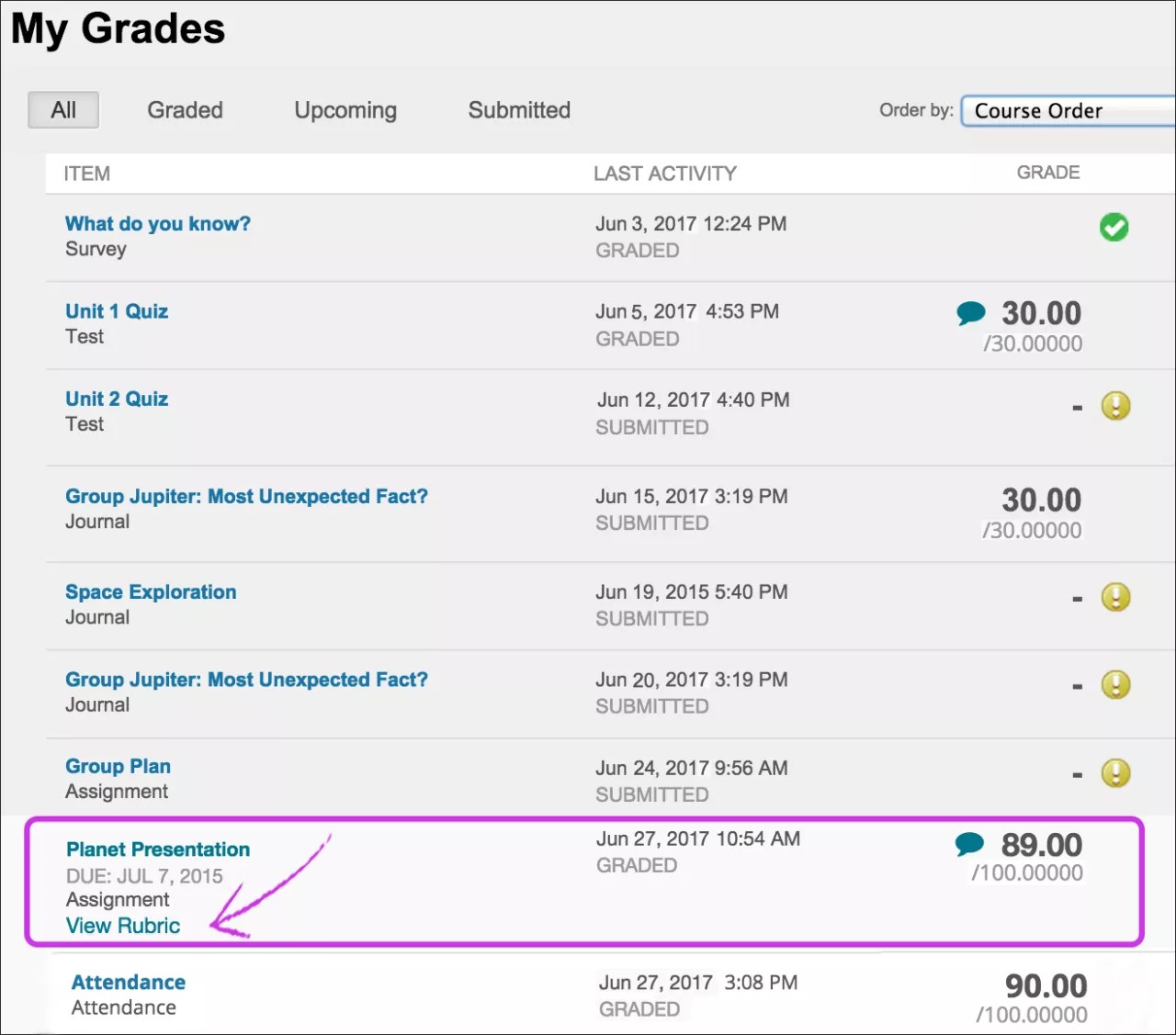
Select an item's title to review your submission. For example, your instructor can type comments and highlight text in your document. Select an assignment's title to access the assignment's Review Submission History page and review the grade, annotations, and feedback in context.
Reminder: For tests, after you select the title, the View Attempts page opens. Select the grade to review your submission.
If your instructor used a rubric to grade your work, select the View Rubric link to view details.
Select the View Feedback icon to view instructor feedback in a pop-up box.
If your instructor uses the attendance grading feature, you'll see an attendance grade.
What do the icons mean?
If your instructor hasn't graded your work yet, grade status icons appear.
Icon | Description |
|---|---|
- | No information is available. |
 | You completed the work, but no grade is assigned for items such as surveys. |
 | You submitted your work. This item is ready for grading. |
Grade | After an item has been graded, select the title to review your submission. For tests, after you select the title, the View Attempts page opens. Select the grade to review your submission. |
 | Your work is in progress, but you haven't submitted it yet. |
 | Your grade for this item is exempted. You don't have to submit work. |
 | An error has occurred. Contact your instructor. |
 | Your work was graded anonymously. Appears with submissions where your instructor assigned grades with student names hidden during the grading process. |
 | Select to view feedback from your instructor. |
New grade alerts
Return to the menu next to your name to view new grading activity.
If a number appears on the My Grades icon, you have new grades, items due, or new items with due dates. You can also choose to receive grade alerts through email and text messages if your institution allows.
Submission receipts
If your institution allows, you will receive a notification email for each assignment or test submission that includes information such as attached filenames and sizes. For group assignments, all the members in your group will receive the receipt when one member submits for the group.
Even when the email notifications are turned off, you can also access receipts any time on the My Grades page in the submissions area.
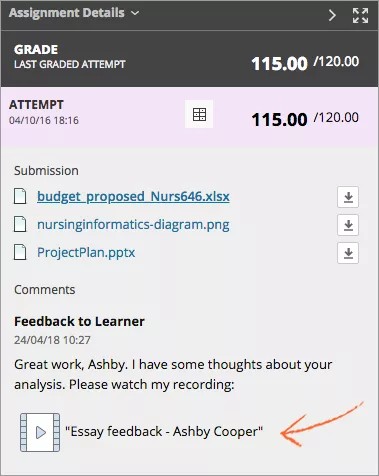
View a feedback recording
Your instructor might leave a video or audio recording for additional feedback to your grade. If there is a feedback recording, you'll see an icon in your feedback area of My Grades. Select the icon to stream the video to your computer or device. You can use standard playback controls such as pause or sliding the player bar. Playing a recording is supported in modern browsers without the need for a browser plug-in. You can't export or download the feedback recording at this time.