ORIGINAL Assignment Inline Grading
Note
Your institution controls if inline grading is enabled.
Access the Grade Assignment page
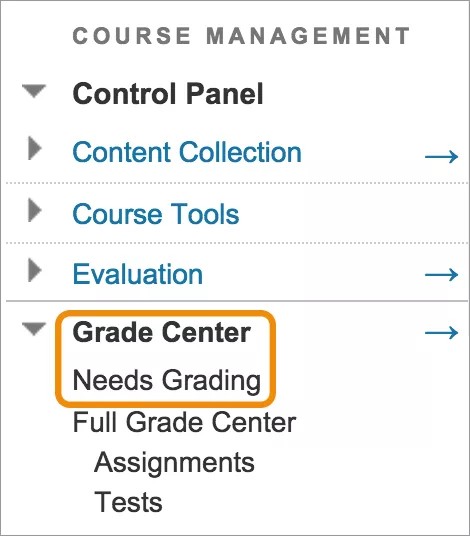
You can start grading on the Needs Grading page or in the Grade Center. On the Grade Assignment page, you can view, comment on, and grade student-submitted assignment files.
Choose file download location
In most browsers, you can select where the files that you open in courses are downloaded. For example, in Chrome, navigate to Settings > Advanced > Downloads. You can select the location for file downloads and choose if you want the browser to ask each time. In Safari, you have the same capabilities. Navigate to Preferences > General > File download location. You can perform an internet search to learn about file download choices in other browsers.
Send reminders about missing coursework
You can send email reminders from Grade Center columns to students and members of groups who have missing coursework. Students receive a system-generated email that lists the course, coursework, and the due date if you assigned one.
Can I grade assignments using the app?
Yes! If your institution uses Blackboard Q4 2018 or later, you can grade assignments in the Blackboard Instructor app.
Can I grade assignments right in the browser?
You can annotate and grade student assignment files directly within the browser with Bb Annotate. Bb Annotate is supported on the same browsers Blackboard supports.
Bb Annotate
You can use BB Annotate for inline grading in your courses. Bb Annotate offers a more robust feature set to provide customizable feedback to students. Features include a sidebar summary view, freehand drawing tools, various color selections, and much more.
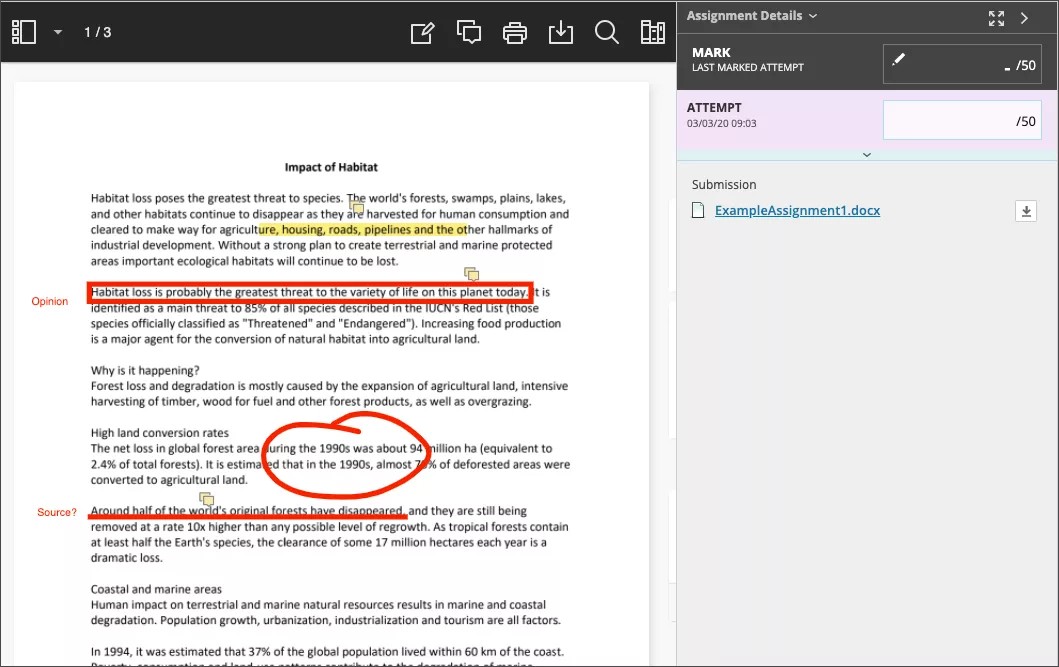
BB Annotate grading workflow
On the Assignment Submission page, supported file types open in the browser. You can view and annotate these document types in the browser:
Microsoft® Word (DOC, DOCX)
Microsoft® PowerPoint®(PPT, PPTX)
Microsoft® Excel®(XLS, XLSX)
OpenOffice® Documents (ODS, ODT, ODP)
Digital Images (JPEG, JPG, PNG, TIF, TIFF, TGA, BMP, HEIC)
Source code (Java, PY, C, CPP, etc)
Medical Images (DICOM, DICM, DCM)
PDF
PSD
RTF
TXT
WPD
Note
Office Suite Macros, such as Visual Basic, aren't supported.
Annotation sessions expire after one hour. You'll receive a warning message before your session expires. Your completed annotations, feedback, and files are saved on the page. When you return, you can resume working.
Note
Animated gifs display only the first frame in the pdf viewer for annotation purposes. Download the submission to view the animated gif.
Original formatting and embedded images are preserved. If a student submitted an unsupported file, you're prompted to download it. Assignment submissions created through the editor aren't compatible with inline grading.
Note
Bb Annotate is supported on current versions of Firefox, Chrome, Edge, and Safari.

Important
As part of the responsive design, the menu display changes based on the screen size. On medium and small screens, the Document View settings display the page number you're viewing. Annotation tools are stacked under the View Annotation Tools icon. On small screens, the Content Library is hidden.
Watch a video about Annotate in Blackboard
Video: Annotate in Blackboard provides a tour of the Annotate tools available for inline grading in your Blackboard courses.