Content Editor
Watch a video about the Content Editor
The following narrated video provides a visual and auditory representation of some of the information included on this page. For a detailed description of what is portrayed in the video, open the video on Vimeo
Where does the editor appear?
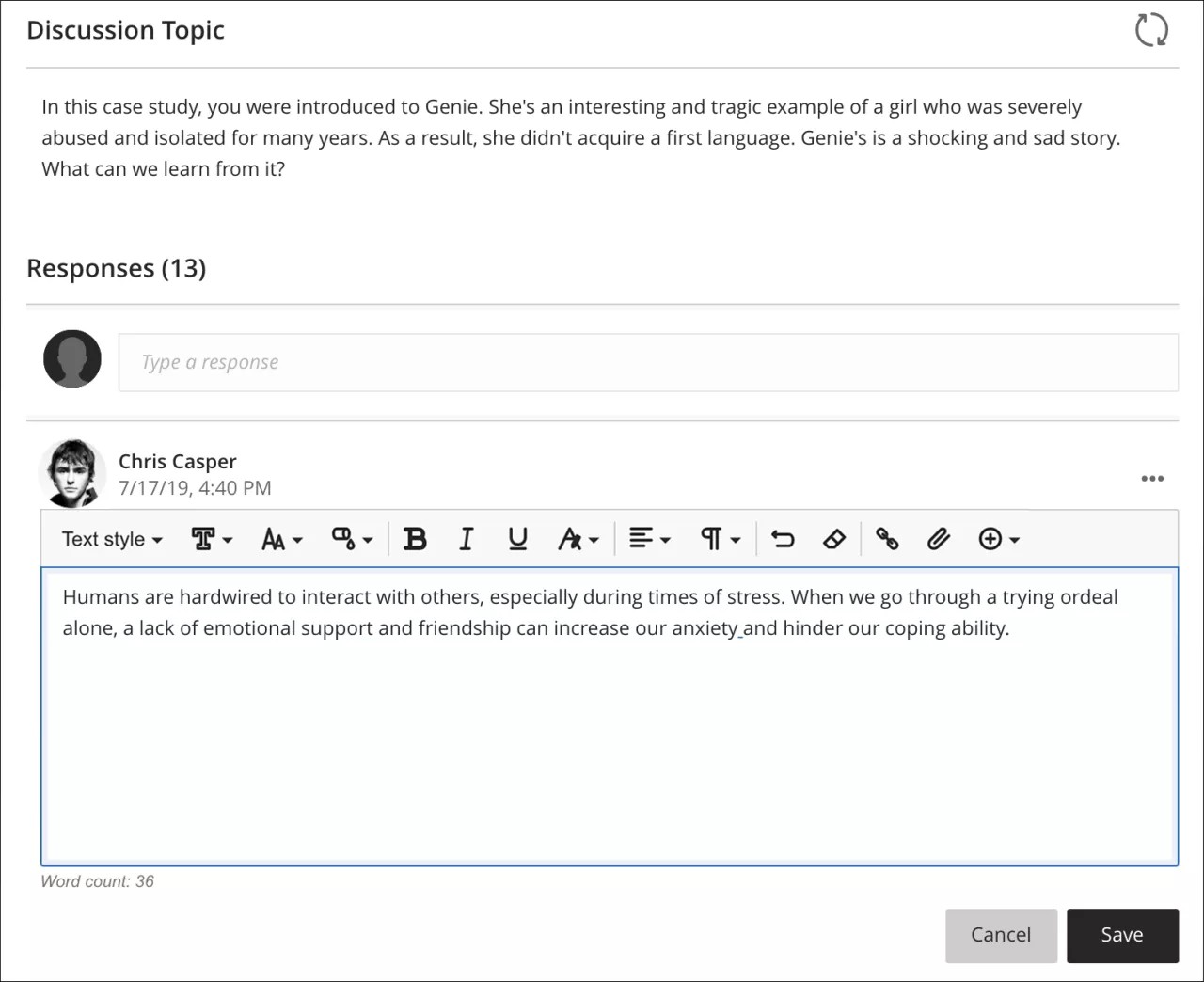
The editor appears in most places you can add text. You can use the editor to add and format text, embed images, attach files, and insert equations, links, and tables.
Tip
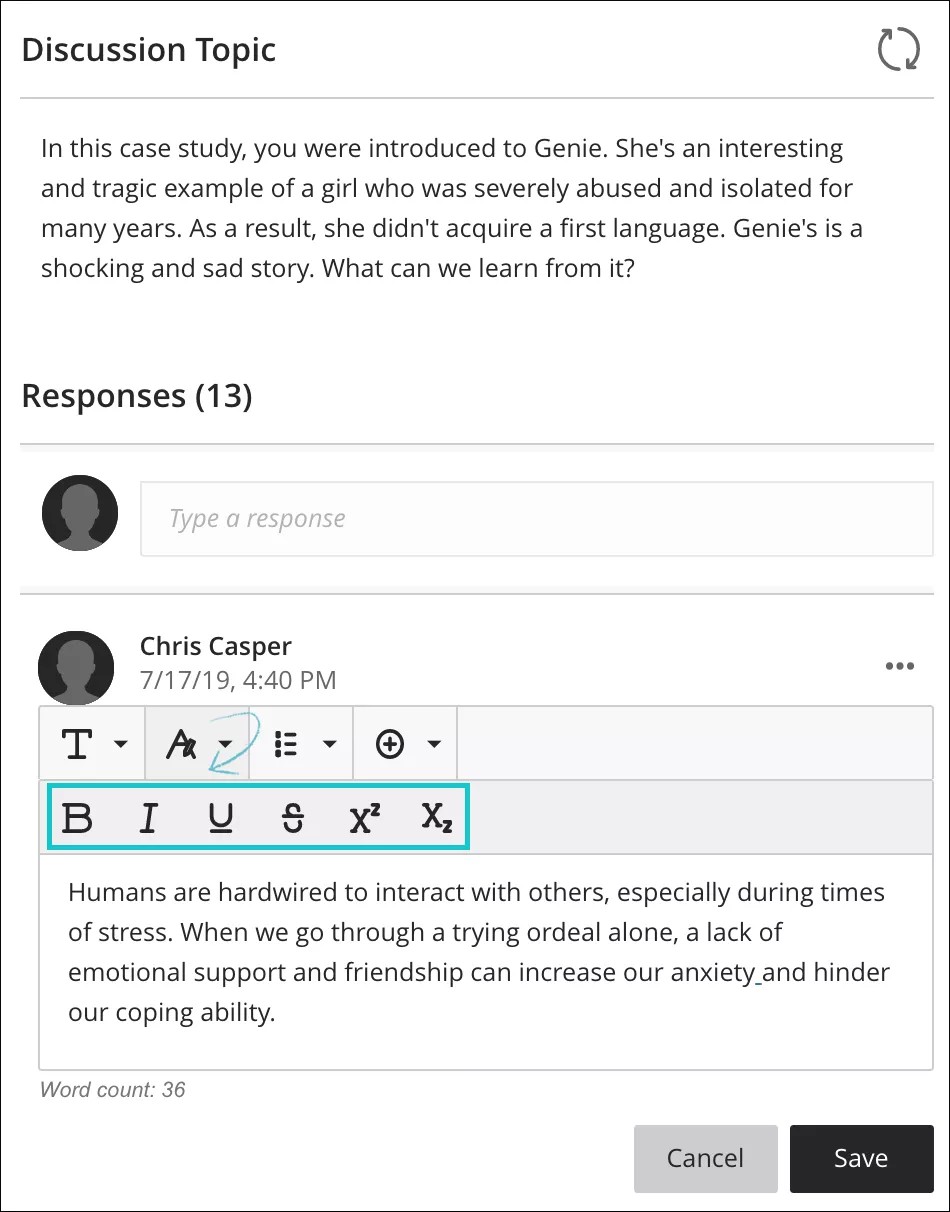
If you view the editor on a smaller screen, select the plus icon or the icons with arrows to view their dropdown menu or their second row options.
When you open the editor on a smaller screen, the options condense into menus or second line menus that will remain open until you select the menu again or select a different option menu, for easy access:
Note
To use your keyboard to jump to the editor toolbar, press Alt + F10. On a Mac, press Fn + ALT + F10. The focus is placed on the first icon on the left in the top row. Use the right and left arrow keys to move forward and backward. The up and down arrows don't work to navigate to different rows. Use the arrow keys to move to the end of one row and then up or down to the next available row.
Editor icons and options
Each editor option is represented by an icon. Some options include a menu of options.
Icons | Options | Description |
|---|---|---|
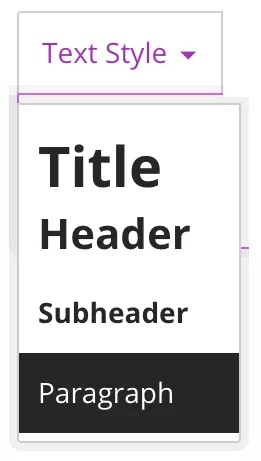 | Text style menu: Title Header Subheader Paragraph | Select a preformatted paragraph style from the list for the selected text. |
 | Font Style | Font type can be chosen between: Arial, Comic Sans MS, Courier New, Noto, Open Sans, Times New Roman and, Verdana. |
 | Font Size | Font size, it defaults to a specific chosen font type. |
 | Color Picker (Font color) | Font color can be chosen between: black (default), grey, purple, blue, green and, red. |
 | Bold | Bold or remove this style on the selected text. |
 | Italic | Italicize or remove this style on the selected text. |
 | Underline | Underline or remove this style on the selected text. |
 | Text options menu | The text options selector will open a second line menu with the options for: superscript, subscript and, strikethrough text to choose from. |
 | Create or edit table | Add a table. |
 | Format style: Strikethrough | Display text with a horizontal line through the letters. |
 | Format style: Superscript | Make the selected text appear slightly above your regular text or remove this style on the selected text. |
 | Format style: Subscript | Make the selected text appear slightly below your regular text or remove this style on the selected text. |
 | Alignment Options | The text options selector will open a dropdown menu with the options for: left-align, center, right-align and justify text to choose from. |
 | Left Align | Left-align for text. |
 | Center | Center alignment for text. |
 | Right Align | Right-align for text. |
 | Justify | Justified alignment for text. |
 | List options menu | The list options selector will open a second line menu with the options for: numbered and bulleted lists to choose from. Also includes the line height space selector option. |
 | List style: Bulleted List | Create a bulleted list. |
 | List style: Numbered List | Create a numbered list. |
 | Line height options menu | The line heigh options selector will open a dropdown menu with the options for: Single, 1.15, 1.5 and Double space options to choose from. |
 | Insert/Edit Math Formula | Open the visual math equation editor page or edit the selected equation. |
 | Undo | Undoes the last action performed. |
 | Clear Format | Clears the existing format in any selected section of text. |
 | Insert/Edit Link | Add or edit a URL link to a website, page, or file. |
 | Insert Local Files | Upload a file from your computer or device to embed in the editor. You can display it as a file attachment or inline with other text, if the browser allows. |
 | Insert Content menu | The content selector will allow you to choose from insert or edit: images from web, media from web, YouTube™ videos, Cloud Storage content and, LTI items. |
 | Insert/Edit Image from Web | Embed an image in the text box or edit an existing selected image. You can add images from a URL. |
 | Insert/Edit Media from Web | Add or edit a URL for a video from a YouTube™ or Vimeo™ channel, embed enterprise Office365 files. Please note: If the privacy setting of a Vimeo Media file is Unlisted, you need to include the privacy hash (the extra set of numbers added at the end of the video's URL) for embedding and sharing to work. |
 | Insert YouTube Video | Browse and add content hosted on the external content provider YouTube. |
 | Insert from Cloud Storage | Browse and add content from your cloud storage accounts. |
 | Insert/Edit LTI Item | You can add files or tools your institution allows from the Content Market. |
 | Insert/Edit Recording | Record and insert a file with your device camera and microphone. NoteAvailable for instructors only in the Feedback area of assessments. Your institution controls which tools are available. |
 | Insert/Edit Code | Eleven programming syntaxes are supported: Python, Java, JavaScript, Kotlin, R, PHP, Go, C, Swift, C#, HTML |