Set Up Attendance in Gradebook
Access attendance
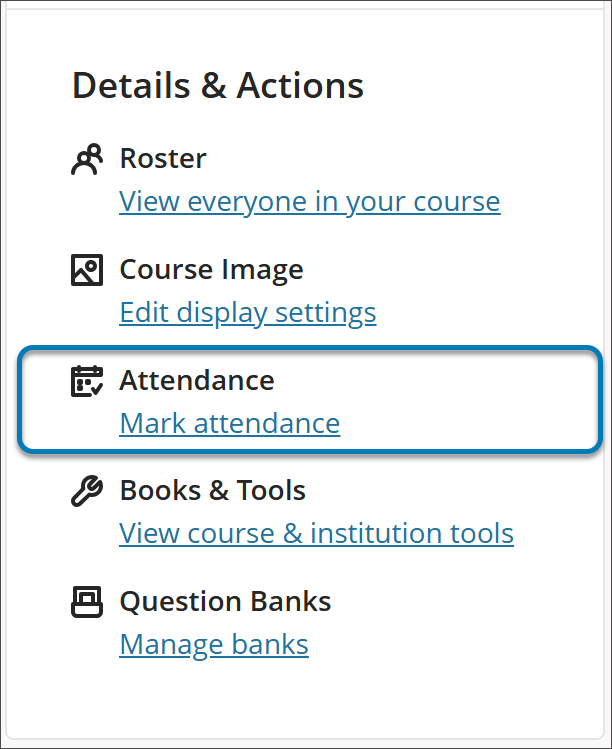
When you access the attendance feature for the first time, you decide if you want to add attendance to your gradebook.
On the Course Content page, select Mark attendance in the Details & Actions panel.
On the Attendance page, select Add Attendance.
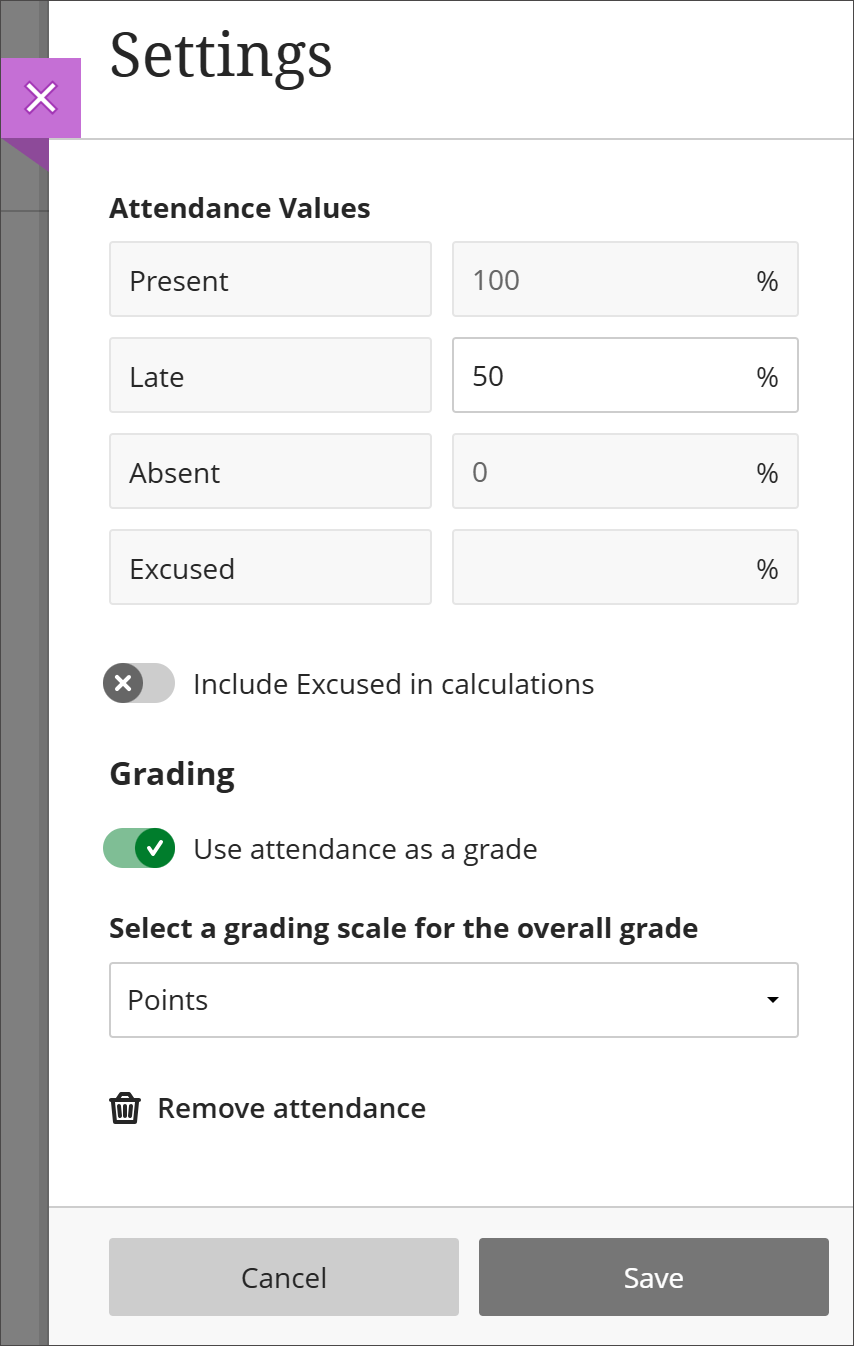
The Settings panel opens.
Configure attendance in the Settings panel.
You can change the default settings for the grade display and for Late in the grade schema. You can't change the percentages for Present, Absent, and Excused at this time. Excused counts as Present for scoring purposes. You can choose whether to include Excused in calculations.
Select Save.
At any time, you can change the schema in the Settings panel, save, and then refresh the page. You'll see your newly selected schema reflected in the grade pills on the Attendance page in the Overall view.
 |
Add attendance to your gradebook
You can add attendance to your gradebook in a course where no grades exists or in a course where other grades exist already.
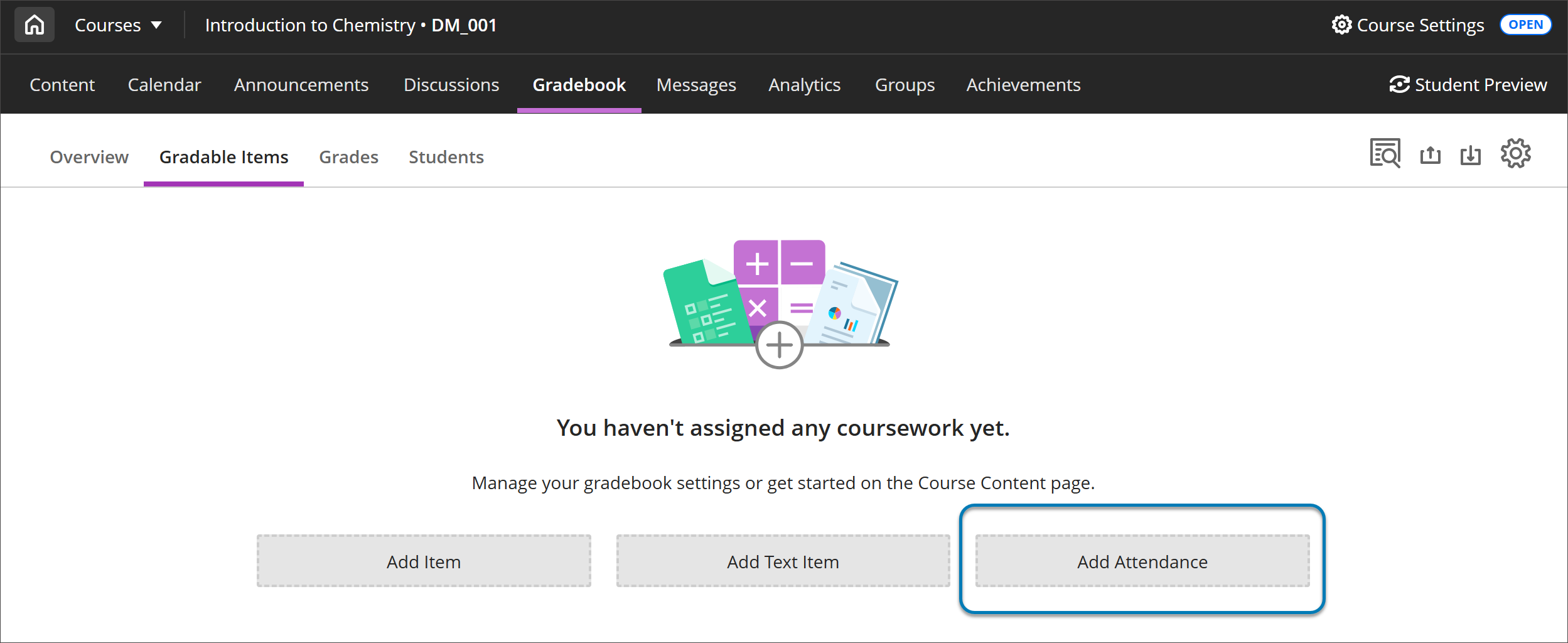
For a course where no grades exist in the gradebook, select Add Attendance in the Gradable Items tab within the Gradebook.
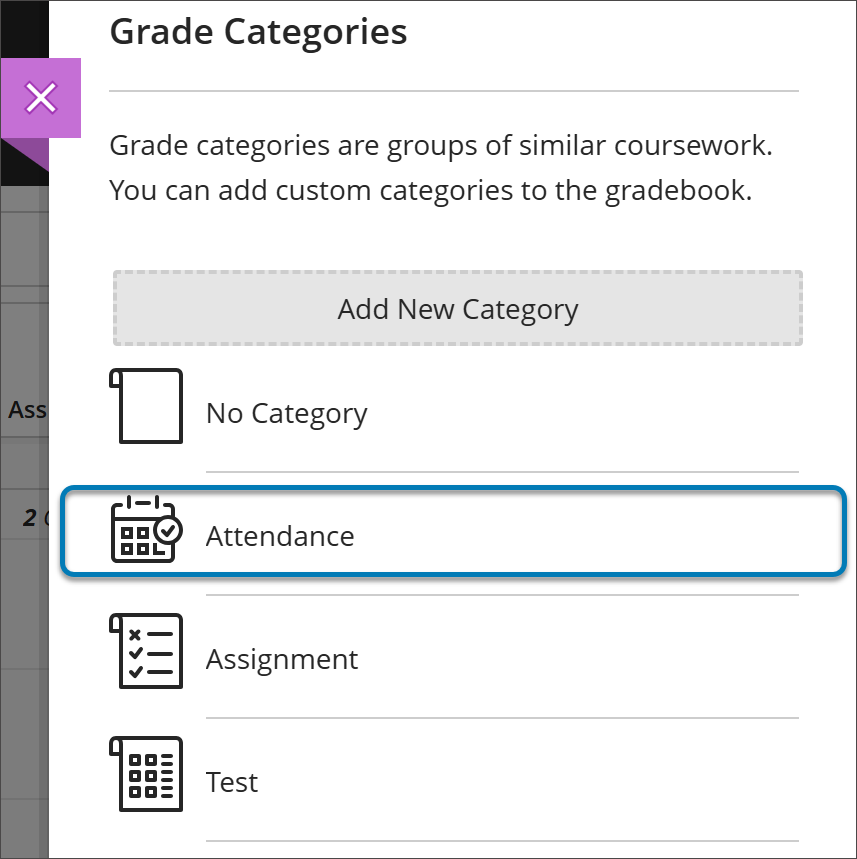
For a course where other grades exist in the gradebook, you can either add the attendance any of the Gradebook tabs: Overview, Gradable Items, Grades, Students. Select Settings (it is shaped like a gear) and scroll down to Grade Category. Select Attendance.
After you add attendance, the add option won't appear again.
Delete attendance
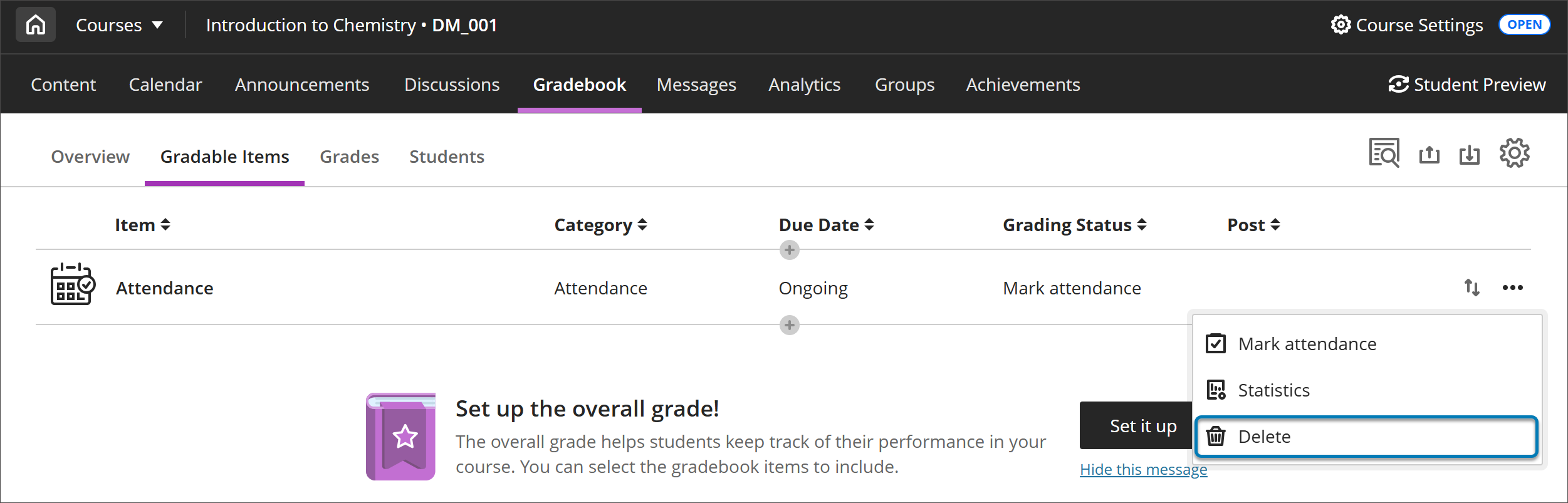
You can delete attendance if no attendance records exist. In Gradable Items, select three dot menu on the Attendance item to open the menu and select Delete.