Grades Tab in Gradebook
Navigating the Grades tab
The Grades view displays each student’s grade for a specific assignment, with one student per row and one gradable item per column. Use the arrow buttons to sort columns into ascending or descending order.
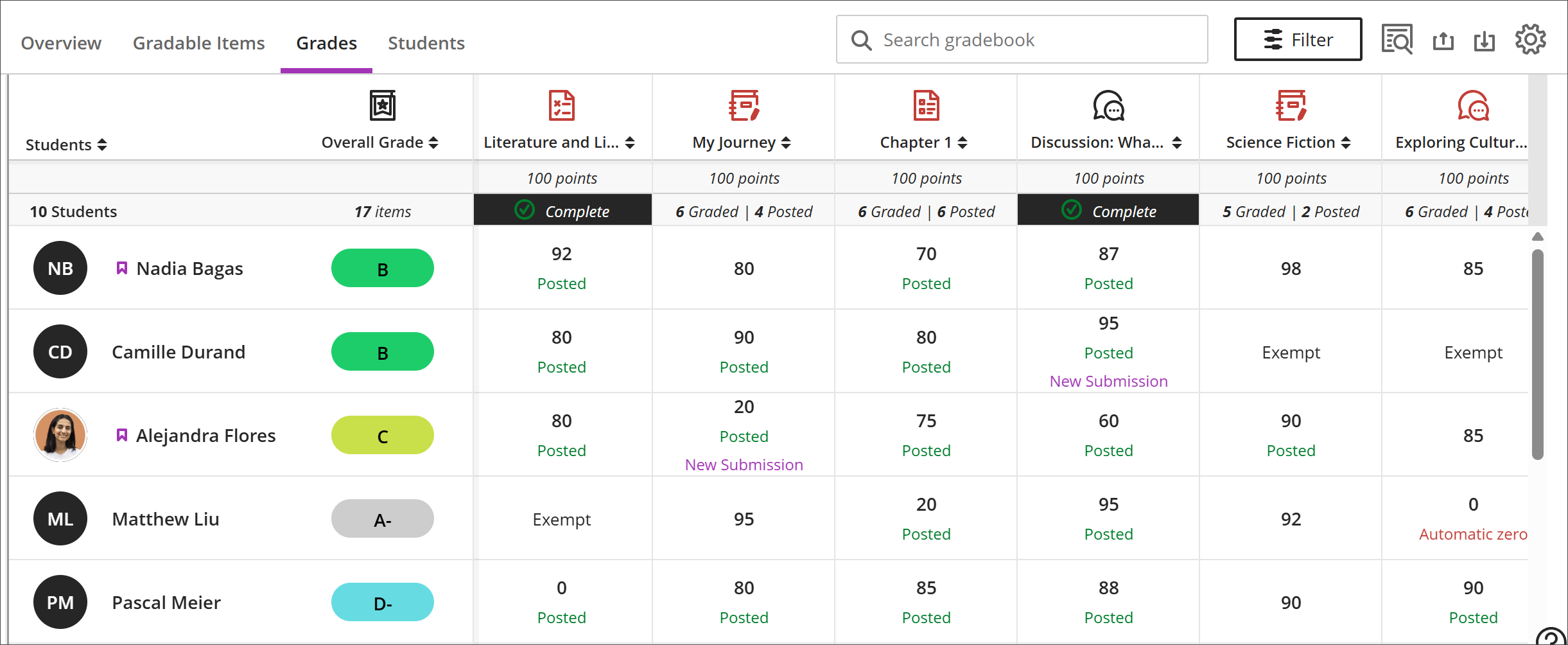
In the grid, you can select a student’s gradable item to open a menu with these options:
View — Go directly to the assignment submission and start grading.
Feedback — Enter feedback for overridden test/ assignment grades and automatic zeros.
Post — Post a grade that’s been assigned but not yet posted.
Add or edit exceptions — If an assignment is timed or has a due date, you can add exceptions here, as well as allow multiple attempts.
Add or edit exemptions — You can remove an assignment from being counted towards a student’s overall grade.
The student grid contains color-coded text:
Green — Posted grades
Red — Automatic zeros
Purple — New submissions
Gradebook actions
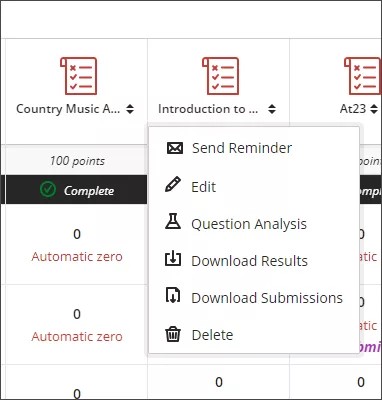
When you select a gradable item at the top of the Grades view, a menu opens with options to edit or delete the item or send a reminder. Additional options including Question Analysis, Download Results, Statistics, and Download Submissions are available based on the type of gradable item and whether students have made submissions.
Sorting and filtering the Gradebook
For a more efficient grading experience, you can customize the Grades view:
Use sort options on each gradable item's column to view the information ascending or descending order.
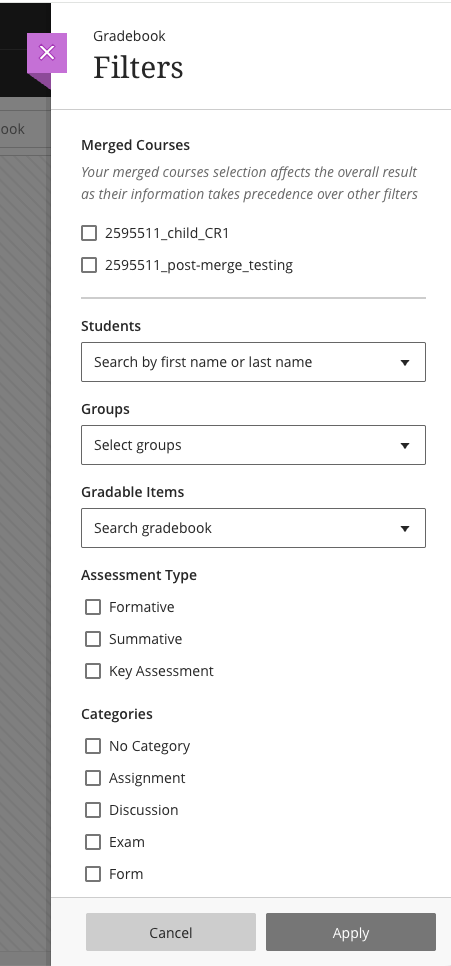
With the Filter button, you can narrow the information displayed in the grid to exactly what you need: Students, Groups, Gradable items, Assessment type, or Categories. In merged courses, you can also filter by child course.
Merged Courses filter
When courses are merged, the gradebook automatically creates a Merged Courses filter containing a checkbox for each child course. This filter appears at the top of the Filters panel, above the Students, Groups, and other filter options.
Note
Your merged courses selection affects the overall result, as merged course filters take precedence over other filters you apply.
In the Grades tab, select Filter.
Locate the Merged Courses section. Each child course in the merged course appears as a checkbox option.
Select one or more child courses to filter by.
Select Apply.
The gradebook updates to display only the students and grades associated with the selected child course or courses.
To remove the filter, open the Filters panel and deselect the child courses, or select Clear All.