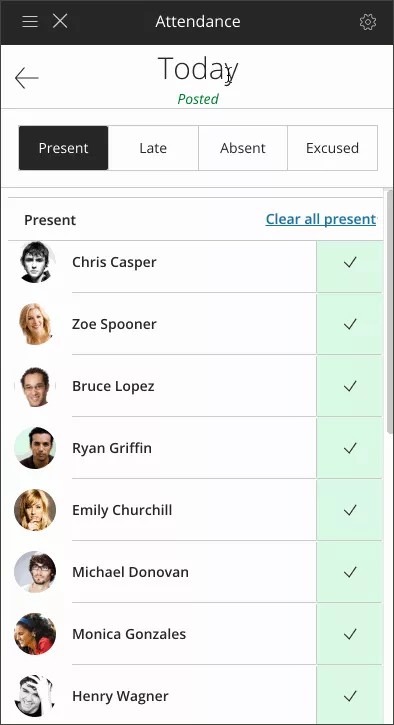
View Attendance and Gradebook
View attendance in the gradebook
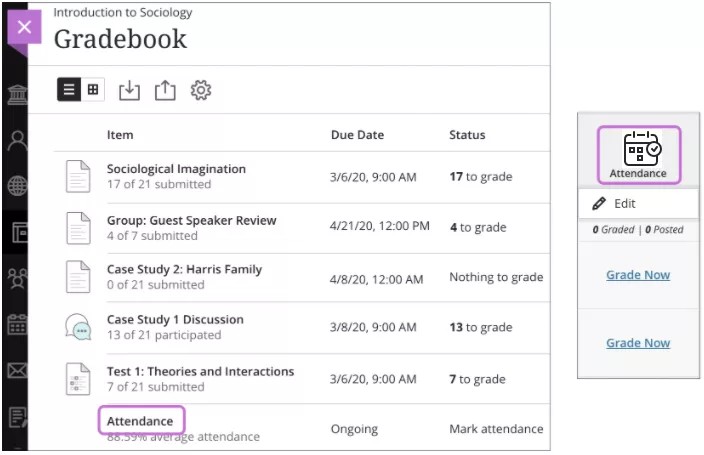
You can access attendance from the item list or grid view in the gradebook. The attendance column is added automatically to the Attendance category.
You can use attendance in calculations and as part of the overall grade.
In list view, select Attendance to open the most recent Meeting view to mark attendance. In grid view, select the Attendance column header to open the menu and select Edit.
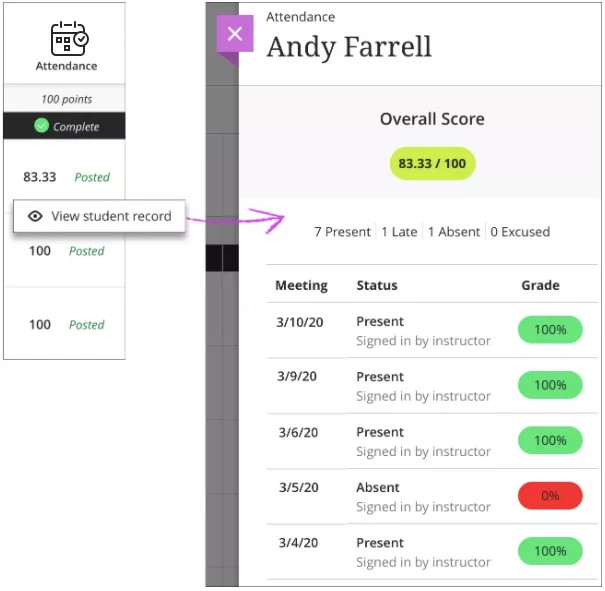
In the grid view, you can't edit attendance cells. Select a student's attendance cell and select View student record to view a summary of the student's overall attendance record. You can see how many class meetings the student has missed. The student's Overall Score appears with the schema you chose in the Settings panel. This view is read-only.
Mobile and tablet views
In your face-to-face classroom, you can use your mobile phone or tablet to mark attendance while you stand in front of your class. You have access to a compact view of attendance that displays one meeting at a time, complete with your students’ profile pictures. No need to make notes for later or take attendance on your computer.
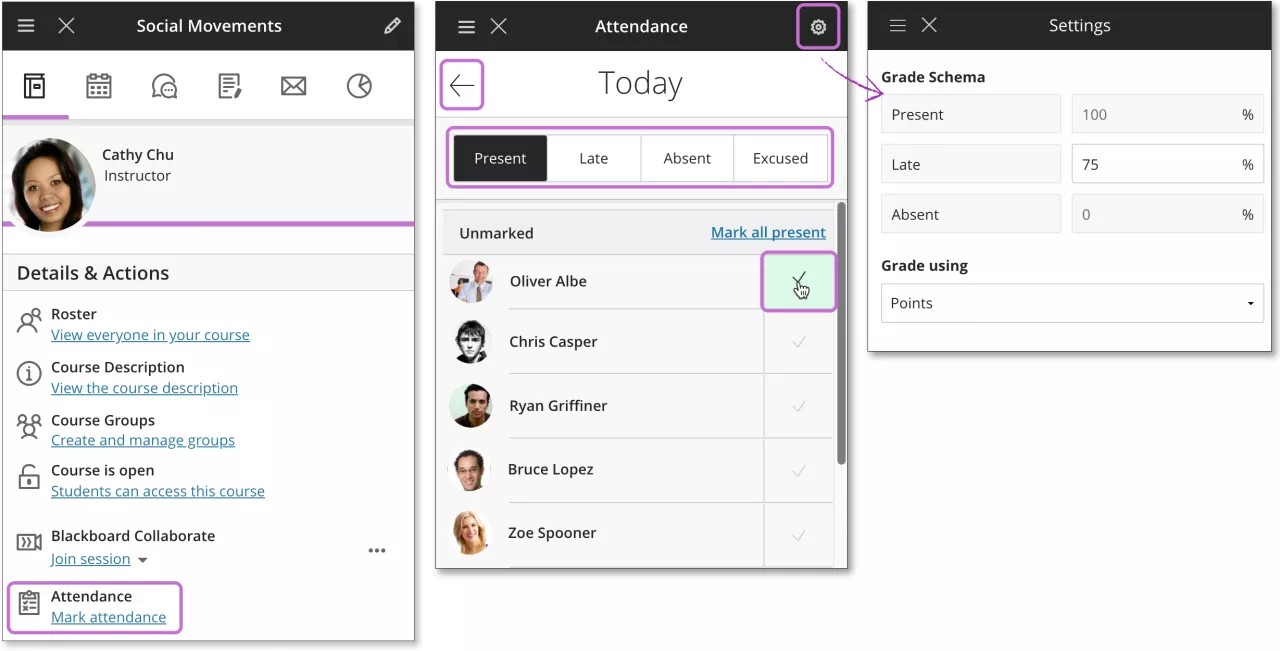
At the top of the screen, you can select a status and mark all students in one action. Your work is saved as you go. Or, you can individually mark some students one status and move to the next status. Students are grouped by the statuses you assigned. Unmarked students move to the top of the list. If any students are unavailable, they appear in a separate section.
As you mark students' attendance, their attendance grades are posted automatically. If you change students' attendance or clear marks, students see the changes immediately.
Use the Previous Meeting and Next Meeting arrows to navigate between meetings.