Enhanced Reader
Enhanced Reader enables you to read course content your way. You can adjust the text, colors, and reading aids to fit how you focus and read best. Enhanced Reader downloads as a file that opens in your browser, works offline, and remembers your settings.
Open Enhanced Reader
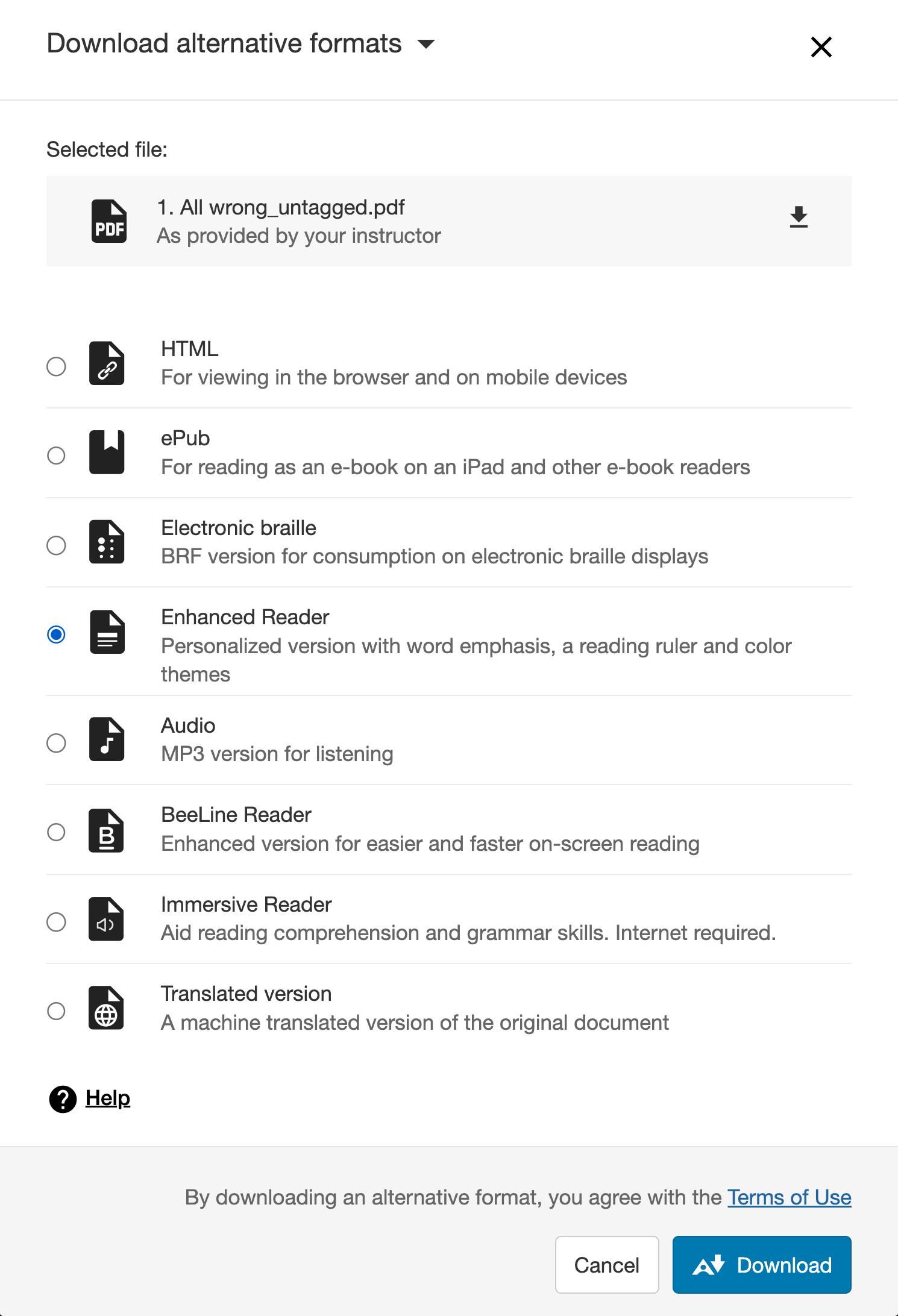
Select the Download Alternative Formats button next to a course file, select Enhanced Reader, and then select Download. The file opens in your browser. You can keep the file and open it again later, even without an internet connection.
To reach the reader controls at any time with a keyboard, press Alt+F11, or Option+F11 on Mac.
Appearance
Theme: Switch between light and dark.
Colors: Choose a Gray, Blue, Amber, or Stone color theme.
Text
Font type: Choose Default, Atkinson Hyperlegible, or OpenDyslexic. Atkinson Hyperlegible is designed for readers with low vision. OpenDyslexic is designed for readers with dyslexia.
Font size: Set text from 14 to 36 pixels.
Line height: Add space between lines, from 1.5 to 2 times the font size.
Letter spacing: Add space between letters.
Reading aids
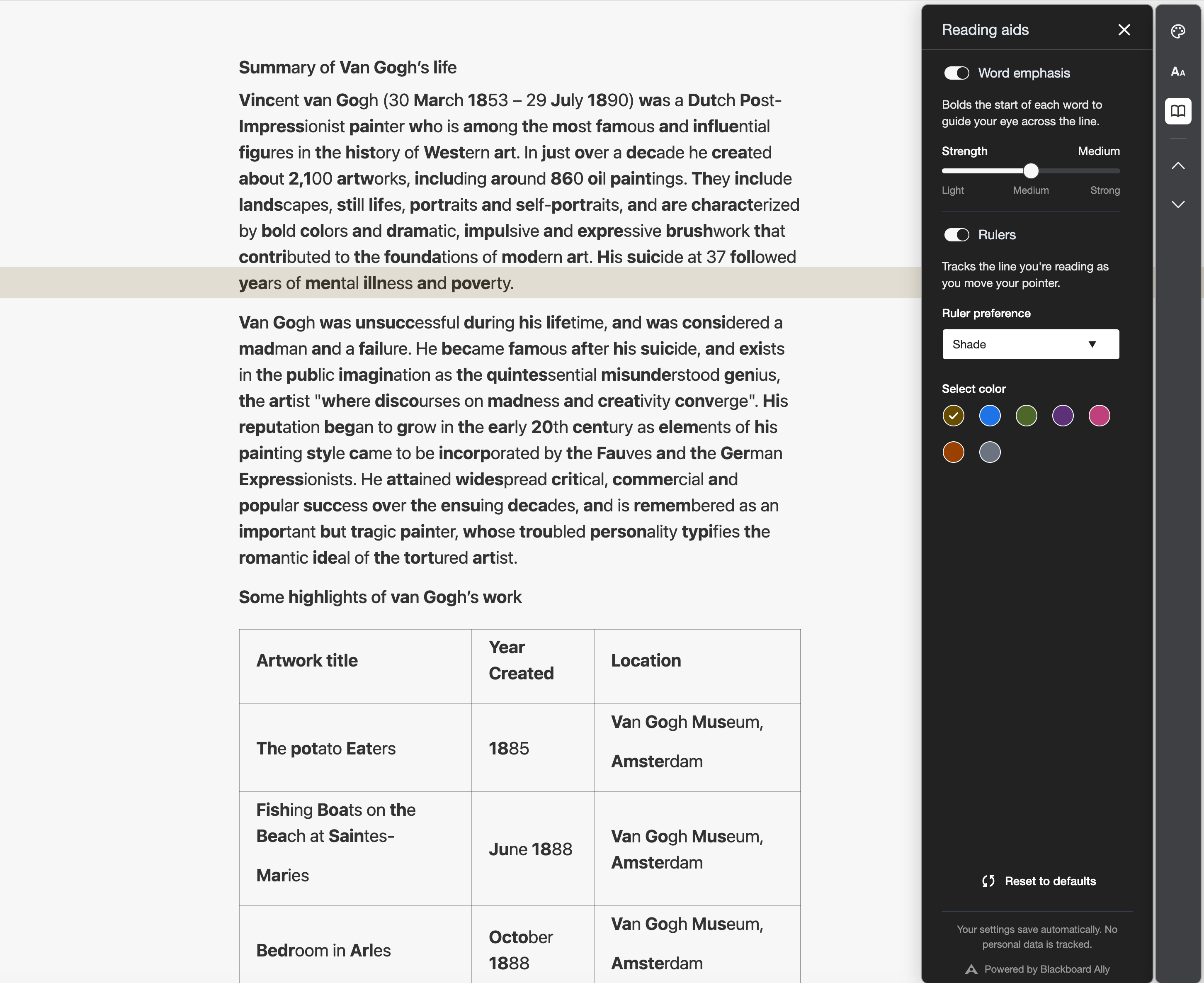
Word emphasis: Bolds the start of each word to guide your eye across the line. Set the strength to Light, Medium, or Strong.
Rulers: Tracks the line you’re reading as you move your pointer. Choose an Underline, Shade, Lightbox, or Sheet style and pick a color. If you use a keyboard, select Move ruler up or Move ruler down to move it.
To undo your changes in any panel, select Reset to defaults.
Your settings and privacy
Your settings save automatically in your browser, so they’re ready the next time you open an Enhanced Reader file. Your settings stay on your device and no personal information is sent to Ally. If you clear your browser data or use a different browser, your settings return to the defaults.
Use Cases
Enhanced Reader may be helpful to you if:
You want to change how text looks to make it easier to read.
You lose your place in long or dense readings.
You find your eyes get tired when reading on screen, especially at night.
You read better with a specific font, such as one designed for dyslexia or low vision.
You want to read course content offline, such as on a commute or while traveling.
You experience dyslexia, ADHD, low vision, or difficulty with visual tracking or focus.