View File Accessibility
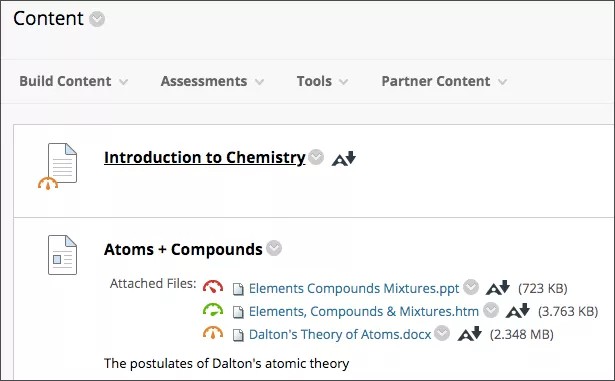
After you upload files in your course, Ally produces an accessibility score for each file. In lessons with multiple files, the accessibility score is shown for each file. In areas where you access files, the accessibility icon is located to the right or left of the file.
Select the icon to view information and improve file accessibility.
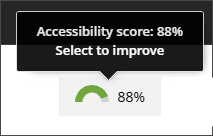
View file accessibility issues
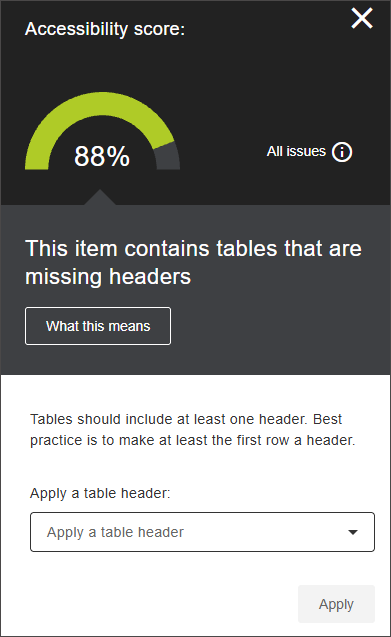
Selecting the accessibility score icon opens a panel that lists the accessibility issues in your file. By default, the system displays the most prominent or urgent issue from your file.
The file's accessibility score displays at the beginning of the panel. The score updates as you resolve the issues.
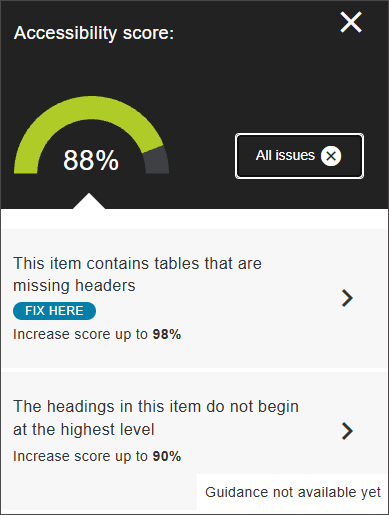
Select All issues to display a list view of your file's issues. From this view, you can decide the order in which you resolve the file issues. Select an issue to open the issue view.
The issue view lists a summary of the issue, what this issue means, as well as additional information such as guidance for resolving. Some issue types let you resolve the issue directly in the panel rather than re-uploading a file.
Select What this means to display details about how resolving this issue improves accessibility.
Blackboard LMS
Content must be attached in a course to be scored. If you are using Blackboard LMS, content in the Content Collection needs to be added to a course for Ally to provide a score. Any items in the Content Collection that aren’t attached in a course are ignored.
Find accessibility scores in the Original Course View
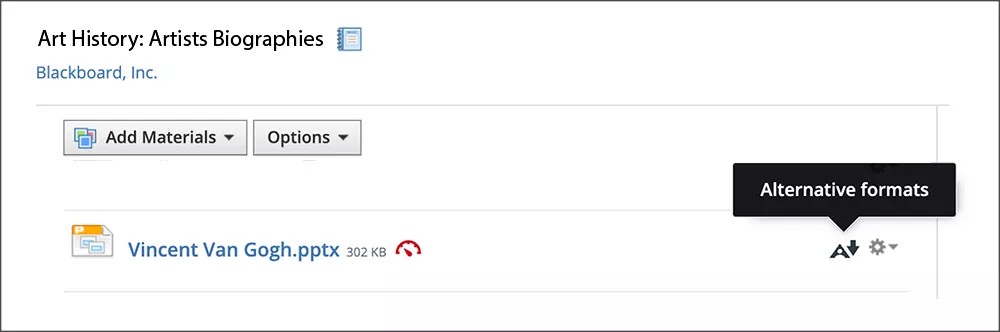
File accessibility icons are always located next to your file, but the specific location will vary throughout different areas in your course. Throughout Blackboard LMS, most accessibility icons will be to the left of the file.
Watch a video about viewing file accessibility in Blackboard LMS
The following narrated video provides a visual and auditory representation of some of the information included on this page. For a detailed description of what is portrayed in the video, open the video on YouTube, navigate to More actions, and select Open transcript.
Find accessibility scores in the Ultra Course View
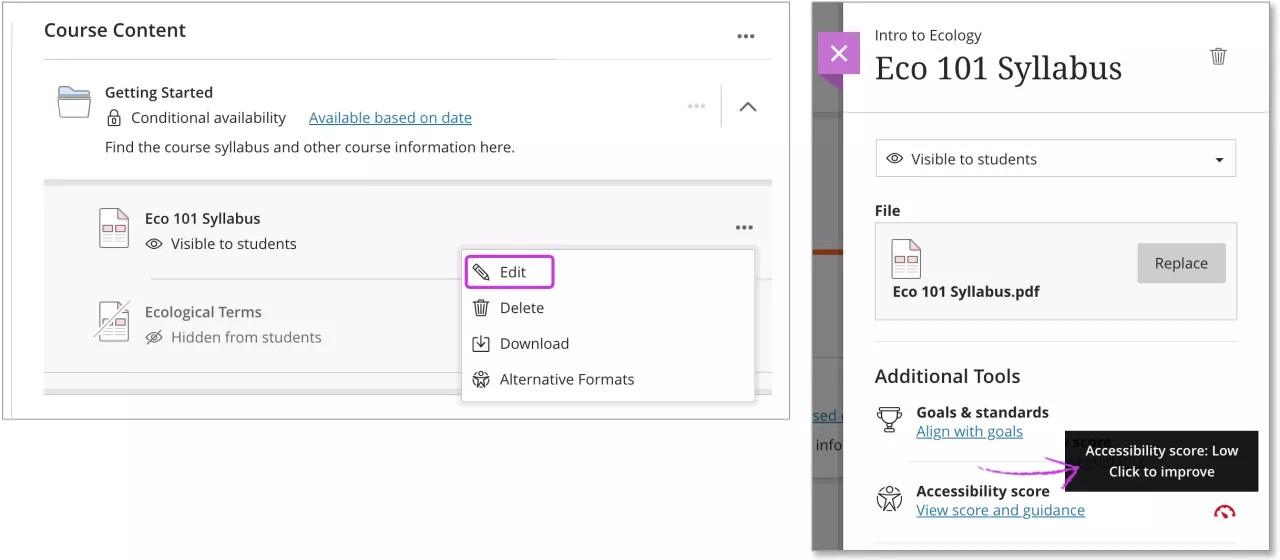
Edit a file to find the accessibility score. On the Course Content page, find the file you want to improve. In the More Options menu, select Edit. Next to Accessibility score, an icon appears to quickly show the file’s accessibility score. Hover over the icon to view the score.
Instructure Canvas
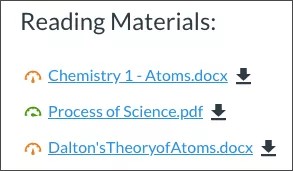
File accessibility icons are always located next to your file, but the specific location will vary throughout different areas in your course.
Assignments
Files

The accessibility icon is located to the right of the file in the Accessibility column.
Text-based

Find the accessibility icon in-line next to the file.
Moodle
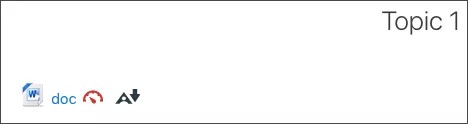
Find the accessibility icon to the right of the file's title.
D2L BrightSpace
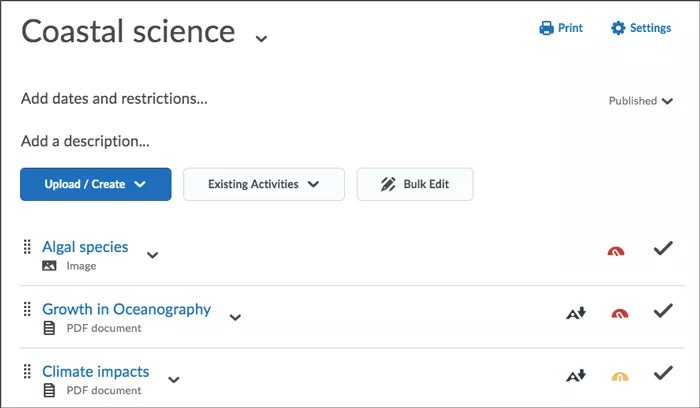
Find the accessibility icon to the right of the file's title.
Schoology
Find the accessibility icon to the right of the file's title.