Courses
See how digital course content at your institution is performing by course and by term. This table shows you all courses at your institution with accessibility issues.
Tip
Deleted courses aren't included.
For each course, you see the course ID and name, the number of students enrolled and impacted by issues in the course, the number of items in the course with an issue, and the accessibility score for the course.
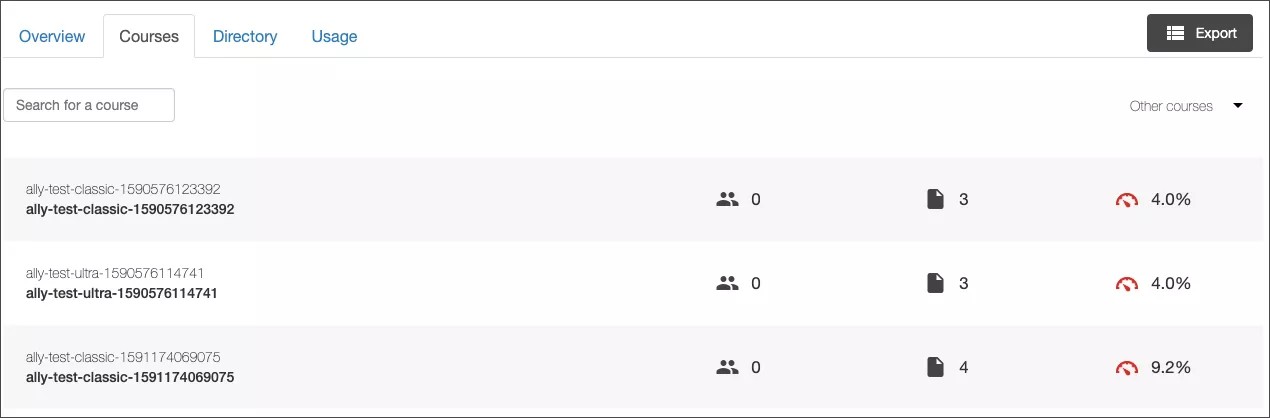
You can search for a specific course or select the term menu to see course performance in a different term.
Export the courses report or select a course for more details.
Note
Course templates in D2L Brightspace have course reports. Course templates aren't associated with a term. Use the Other courses option to filter your search.
Individual course report
From the individual course report, you can see the number of students enrolled in the course, total content created, the overall accessibility score, and accessibility issues in the course.
Select Export course to download the individual course report. Select an item to see the item in question. Select Go to course to visit the course homepage and use Ally instructor feedback to improve the accessibility of the item.
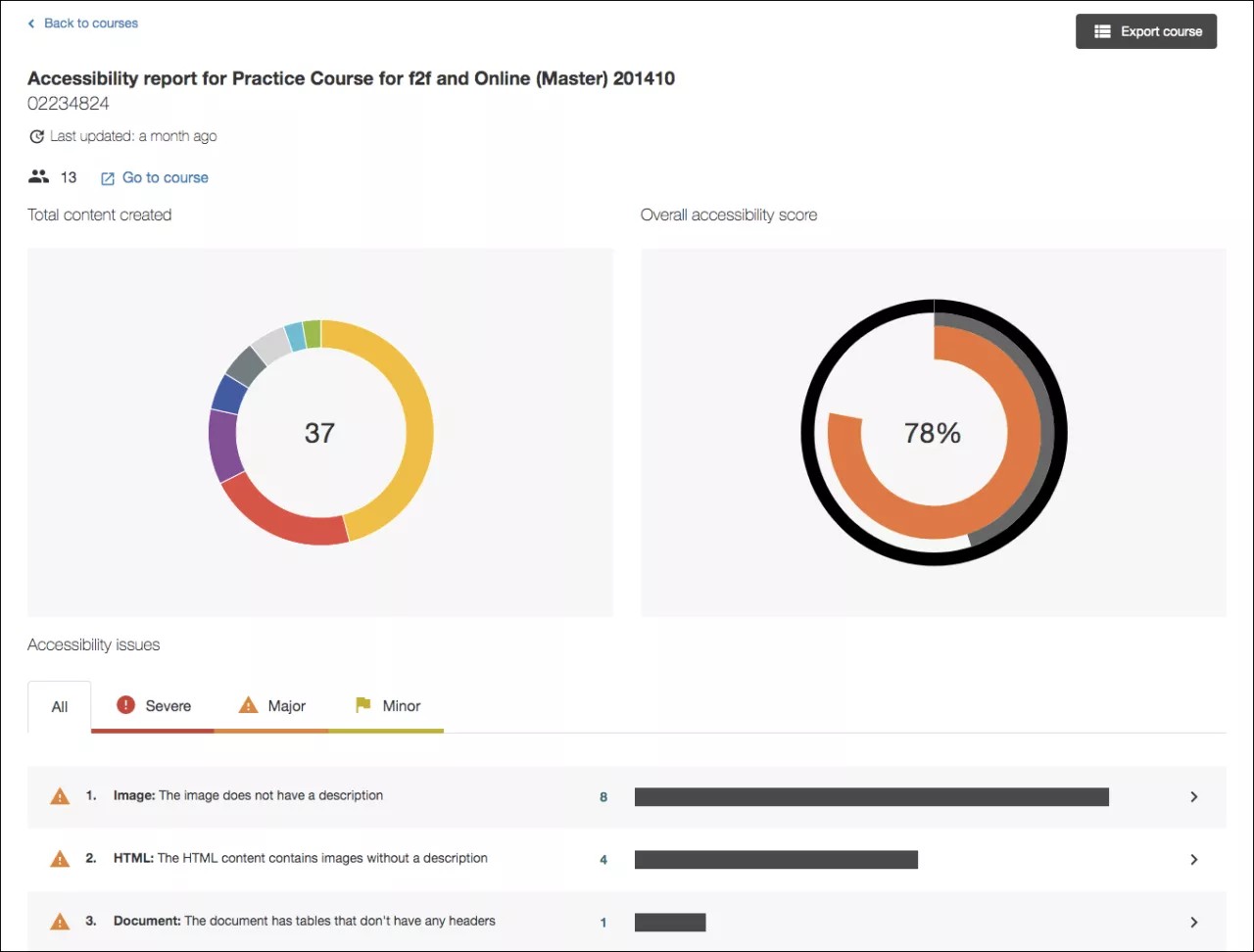
Total content created
In the Total content created report, color represents different content types. Point to a content type to see the total number created and an accessibility score for that type.
Tip
Screen reader users can press Tab to move through the hidden Total content created table.
Overall accessibility score
See a comparison of the overall accessibility score before and after improvements are made to items in the course.
The higher the score the better your content is performing. Move through the content in the report to see the average score for WYISYG content, files, and an overall score for the two combined.
Accessibility issues
See a list of accessibility issues found in the course. Issues are listed in order of priority from severe to minor. Those at the top of the list should be addressed first. Ally looks at the number of students impacted, how often the issue occurs, and the accessibility score to determine the priority. Select Severe, Major, or Minor to sort the issues by severity.

Severe. These issues are the greatest risk to accessibility and require the most attention.

Major. These issues impact accessibility, and while not severe, require attention.

Minor. These issues should be considered for a better accessibility score.
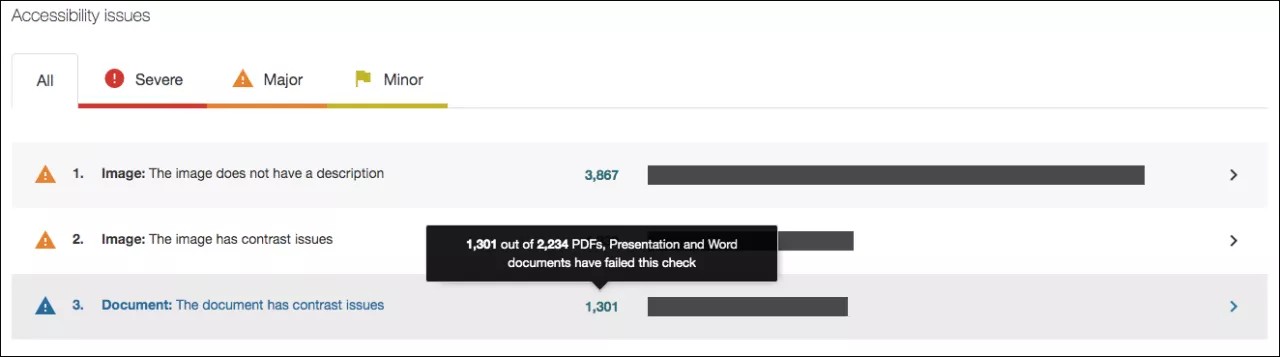
At-a-glance you can determine basic information for each issue.
Content type
Accessibility issue
Severity
Total number of content with the issue
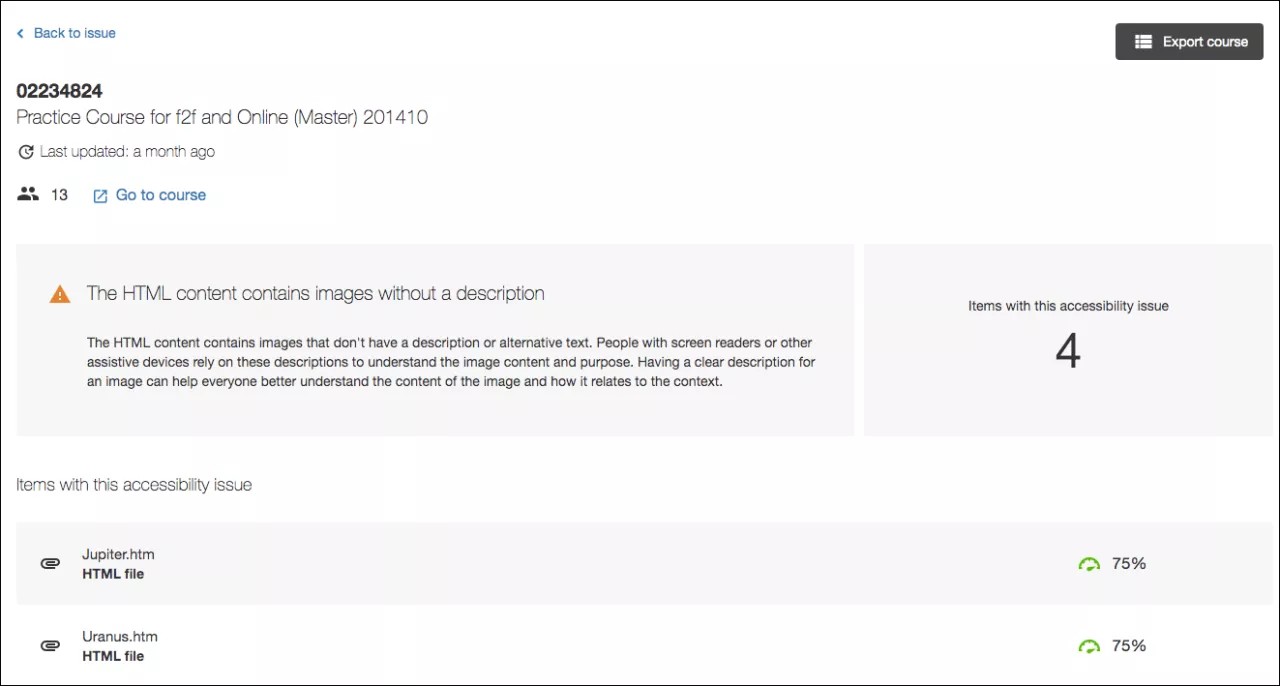
Select an issue to see a full description of the issue and the items impacted. See the number of students enrolled in the course and a list of items with the accessibility issue.
Select Back to course to return to the course report. Select an item to see the item in question. Select Go to course to visit the course homepage and use Ally instructor feedback to improve the accessibility of the item.
Improve an item's accessibility
Go to the institutional report in your LMS. From the Accessibility issues table, find a specific content item in a course with an accessibility issue. Select the content item's accessibility score indicator to open the feedback panel.
Note
This feature is disabled by default. Submit a support request to have it turned on. This feature is only available when accessing the institutional report from the LMS and not when using the direct access URL.