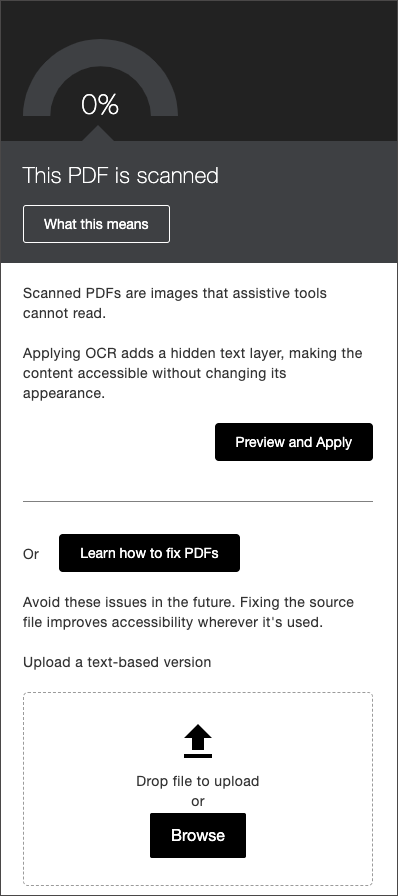
PDF Remediation Options
When reviewing identified issues within PDF documents, Instructors can take advantage of available quick fixes for PDF files as part of Ally’s feedback and guidance. This includes the ability to fix issues for missing title, missing language, untagged PDFs, images missing alternative text and/or OCR a scanned PDF all directly from within the Instructor Feedback panel.
After making these fixes, Ally will save and upload a new version of the PDF into the course and overwrite the old file in the process.
Images Missing Alternative Text
Instructors can add alternative text or mark images as decorative directly to the PDF within the missing alternative text workflow by selecting Start Fixing to begin.
Select Start Fixing to launch the alternative text workflow.
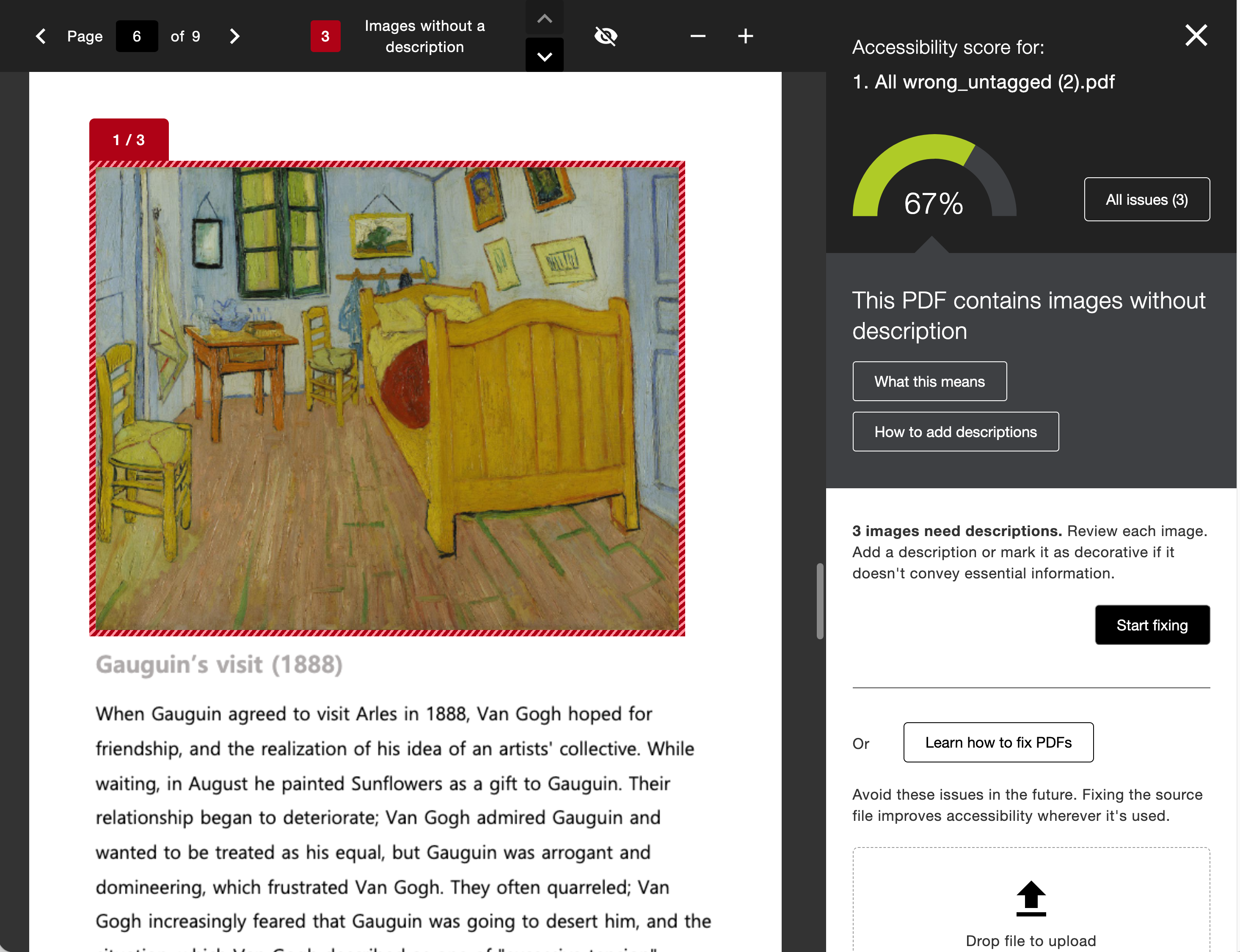
Review the guidance and add your alternative text or set your images as decorative depending on the context of the content.
If your administrator has turned on the AI Alt Text Assistant, you can select Auto-generate Description to be provided with a suggested starting point based on Ally’s analysis of the image and PDF content.
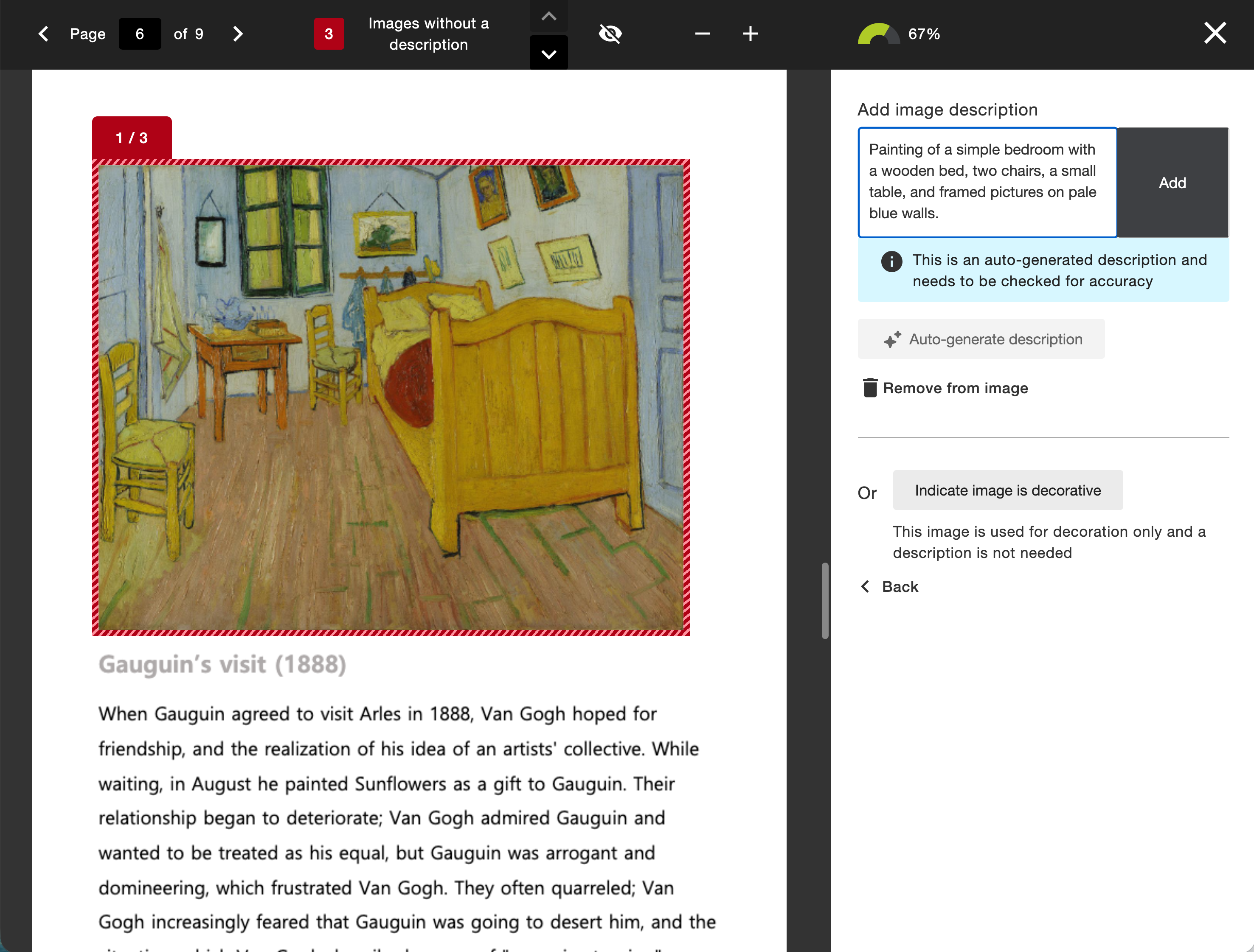
Select Add to add the alternative text to your document. Ally will save a new copy of the PDF directly back to your course after each image description is added.
We recommend reviewing the documents linked below (including the updated Transparency Note) as you consider using Ally’s AI Alt Text Assistant in PDF content or rich content. Refer to AI Alt Text Assistant for more information.
Untagged PDFs
Instructors can address PDFs that do not have tags by selecting Auto-tag PDF to apply tags to the document.
Refer to Key Facts about Auto-Tagging for more information.
Review details of what happens during the auto-tagging process and how to review generated tags.
Select Generate tags on the document.
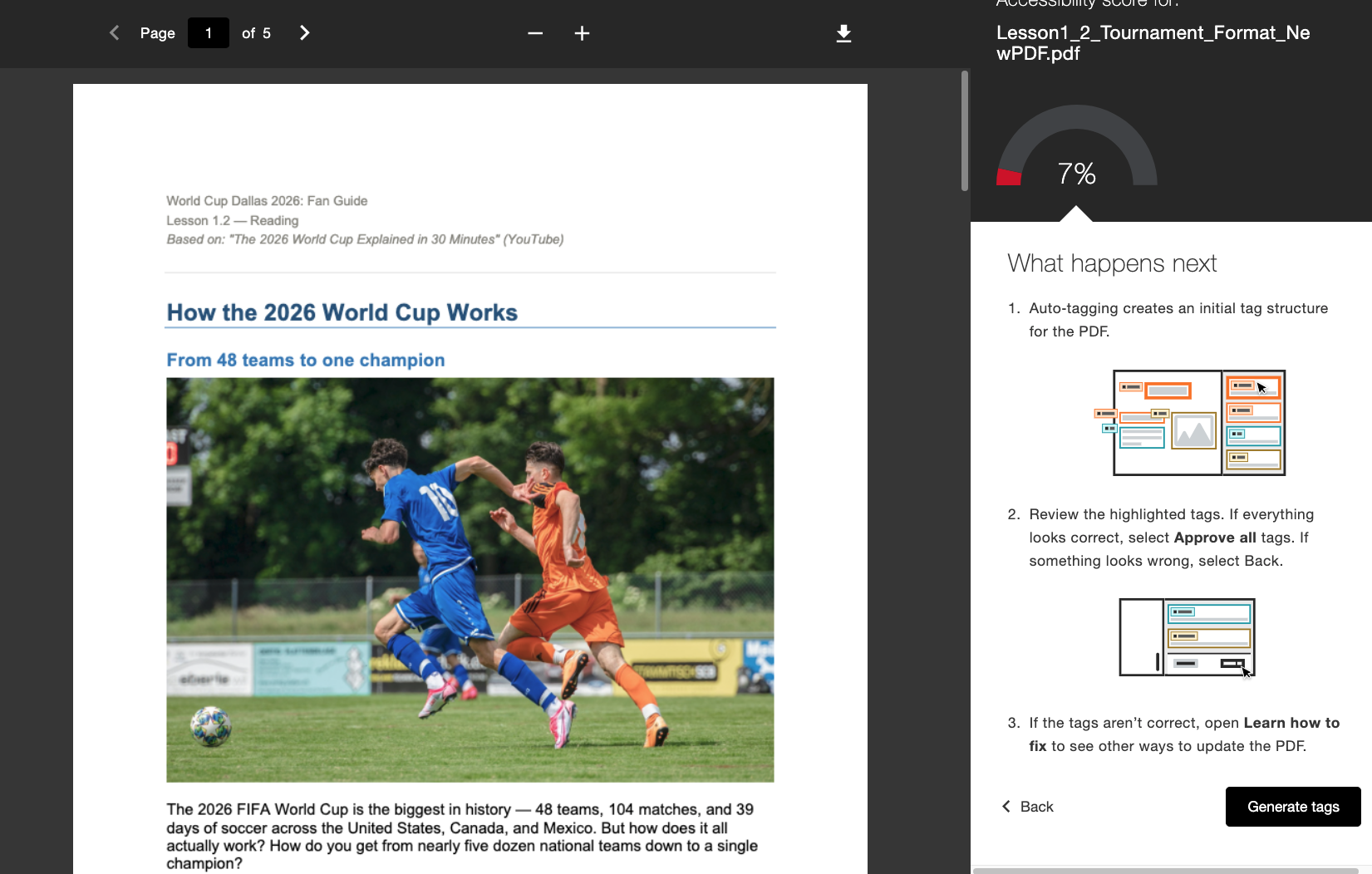
Review the suggested tags from the side panel against the content in the PDF. The progress indicator lists how many tags you've reviewed.
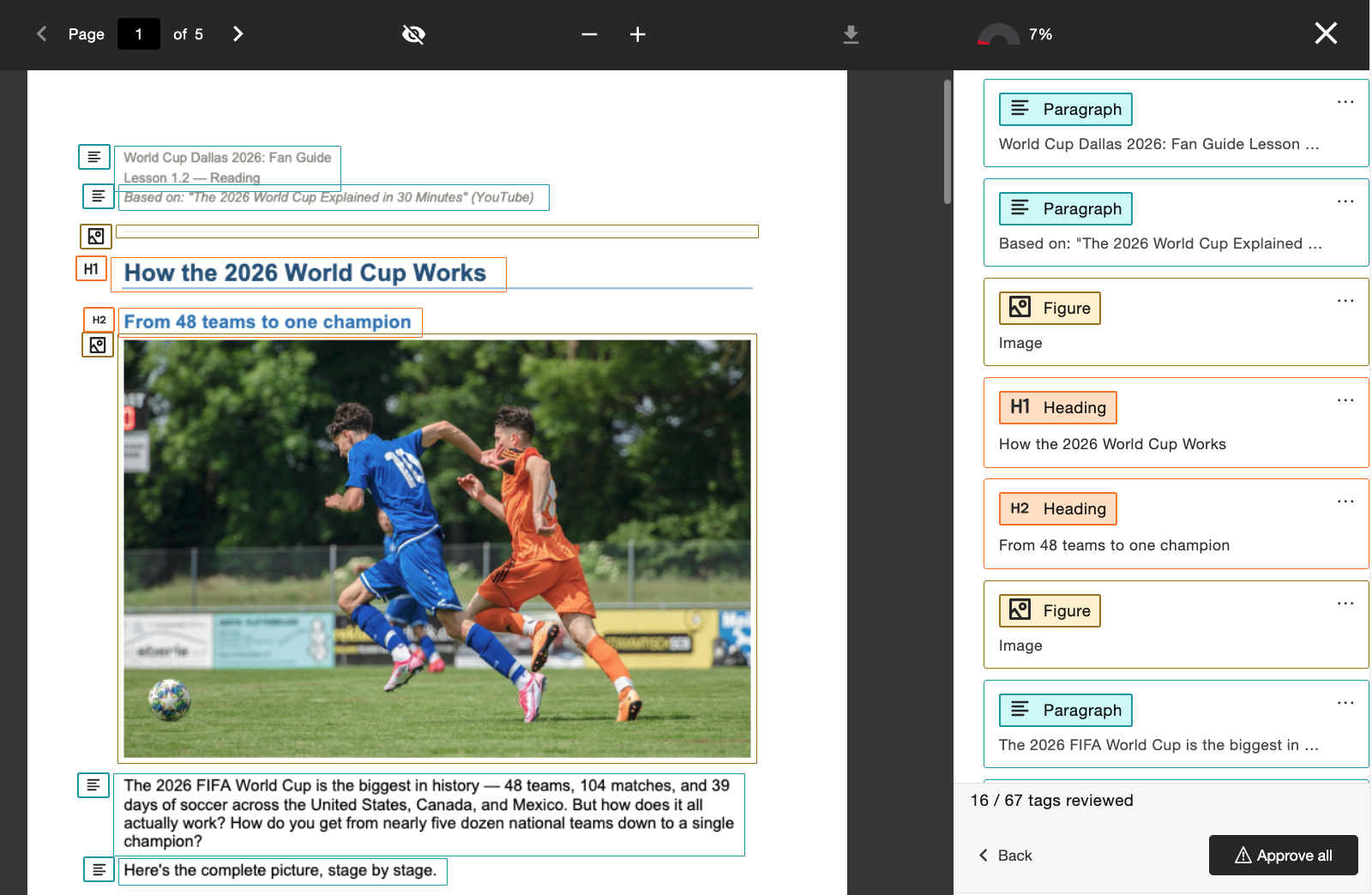
When you're satisfied with the tags, select Approve all.
Note
Selecting Confirm approval will apply the changes directly to the document. We recommend that you save a copy or leverage the download feature before final approval if you still need an older untagged version of the content. Once the change is made, you cannot undo the process to go back to the less accessible untagged PDF.
Upon selecting Approve all, Ally applies these tags to the entire document. Once you finish reviewing and approving, Ally will save a new PDF and upload it back into your course.
Missing title
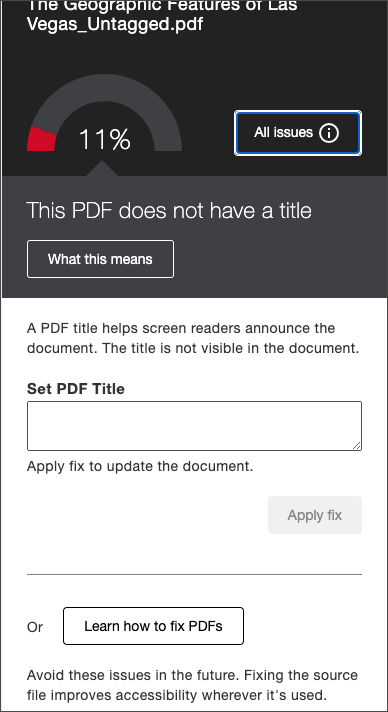
Instructors can set a title using the input field and can select Apply fix to save.
Titles may not be comprised of only special characters (like @!#$#$)
Titles may not end in a period (.)
Titles may not end with a file extension (like .pdf, .xls, etc.)
Title may not match the filename exactly
Missing language
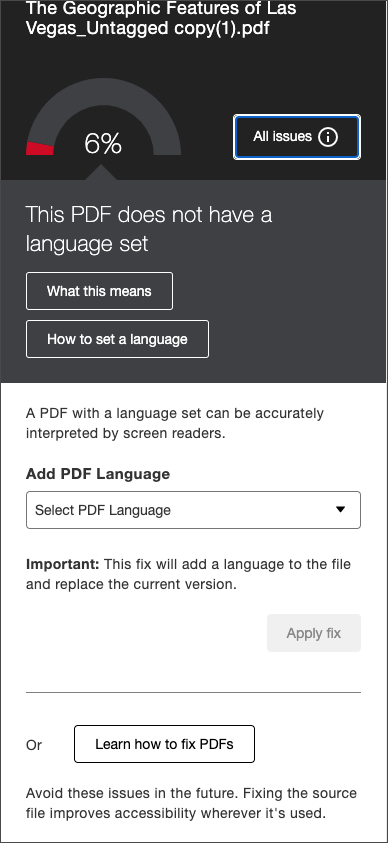
Instructors can select from the dropdown of available languages and select Apply fix to save.
Scanned PDF
Instructors can select Preview and Apply to OCR the scanned document and generate a new preview of the result. Before selecting Apply to save the changes, the instructor can choose to download the original scanned PDF to save for later if needed.
Note
We recommend that you save a copy or leverage the download feature before applying the OCR quick fix if you still need an older scanned version of the content. Once the change is made you cannot undo the process to go back to the inaccessible scanned PDF.