Configure Course Accessibility Report for D2L Brightspace
Record Client ID, Key and Secret
Sign in as an administrator.
Open Admin Tools and select External learning tools.
Open the Ally Institutional Report actions menu.
Select Edit Link.
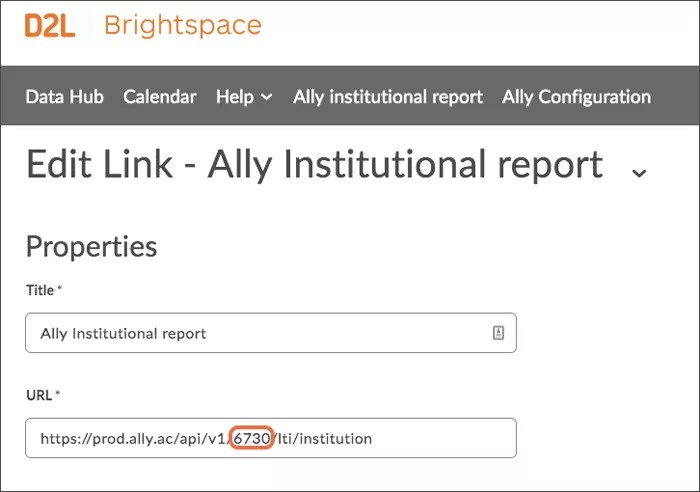
Record the Client ID, Key, and Secret.
Tip
If the “Secret” is not visible, it should have been provided to you by your technical consultant during the implementation. Also make a note of your Client ID, which is the number between “v1/” and “/lti”in the “URL”. These values will be needed during the configuration of the course accessibility report.
Select Cancel.
Add a new link
Open Admin Tools and select External learning tools.
Select New Link.
Type this for the Title: Ally Course Report.
Use one of these URLs for the Tool Provider URL. Replace "
[ClientID]" with the Client ID you recorded.Institutions hosted in the US data centre:
https://prod.ally.ac/api/v1/[ClientId]/lti/instructorInstitutions hosted in the Canadian data centre:
https://prod-ca-central-1.ally.ac/api/v1/[ClientId]/lti/instructorInstitutions hosted in the European data centre:
https://prod-eu-central-1.ally.ac/api/v1/[ClientId]/lti/instructorInstitutions hosted in the Singapore data centre:
https://prod-ap-southeast-1.ally.ac/api/v1/[ClientId]/lti/instructorInstitutions hosted in the Australian data centre:
https://prod-ap-southeast-2.ally.ac/api/v1/[ClientId]/lti/instructor
Check Allow users to view this link.
Select the Link key/secret radio button.
Use the Key you recorded.
Use the Secret you recorded.
Check these Security Settings options:
Send tool consumer information to tool provider
Send context information to tool provider
Send LTI user ID and LTI role list to tool provider
Select Save and Close.
Add course accessibility report to a course
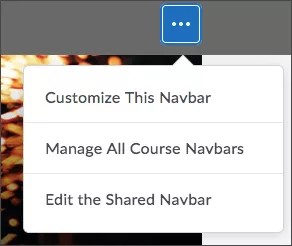
From a course, open the Actions for Navbar and select Edit the Shared Navbar.
Select Add Links.
Select Create Custom Link.
Use this Name: Accessibility report
Name: “Accessibility Report”
Tip
This is the name of the link in the course Navbar. Rename it if you want.
Select Insert Quicklink.
Select Ally Course Report in External Learning Tools.
Select Limit to specific roles and select the roles that should have access to the course accessibility report.
Select Create, Add, and Save and Close.
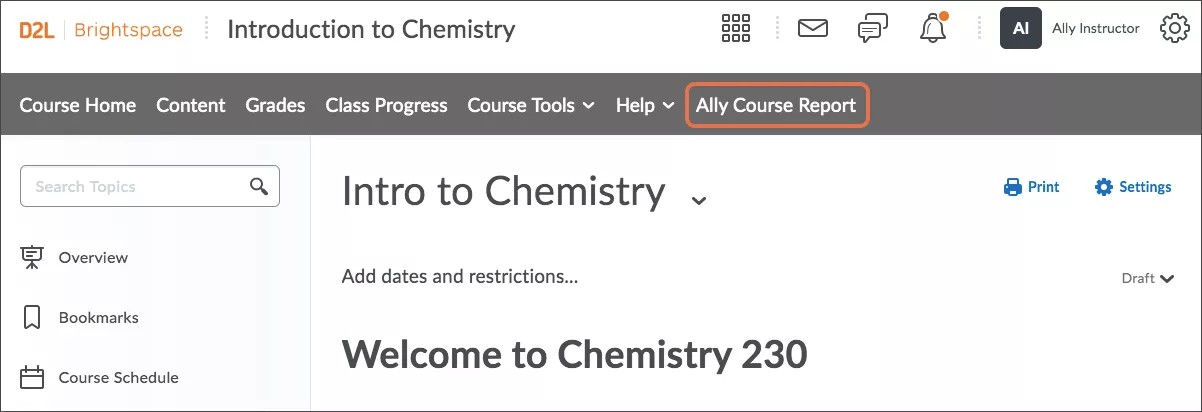
“Accessibility Report” should now be available in the course Navbar.