PDF Remediation Options
When reviewing identified issues within PDF documents, Instructors can take advantage of available quick fixes for PDF files as part of Ally’s feedback and guidance. This includes the ability to fix issues for missing title, missing language, and/or OCR a scanned PDF all directly from within the Instructor Feedback panel.
After making these fixes, Ally will save and upload a new version of the PDF into the course and overwrite the old file in the process.
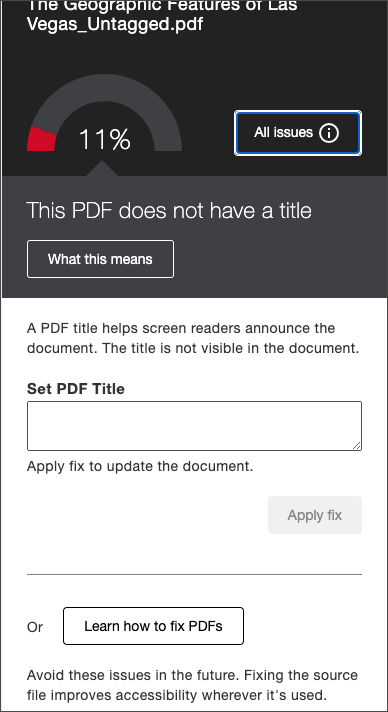
Missing title
Instructors can set a title using the input field and can select Apply fix to save.
Titles may not be comprised of only special characters (like @!#$#$)
Titles may not end in a period (.)
Titles may not end with a file extension (like .pdf, .xls, etc.)
Title may not match the filename exactly
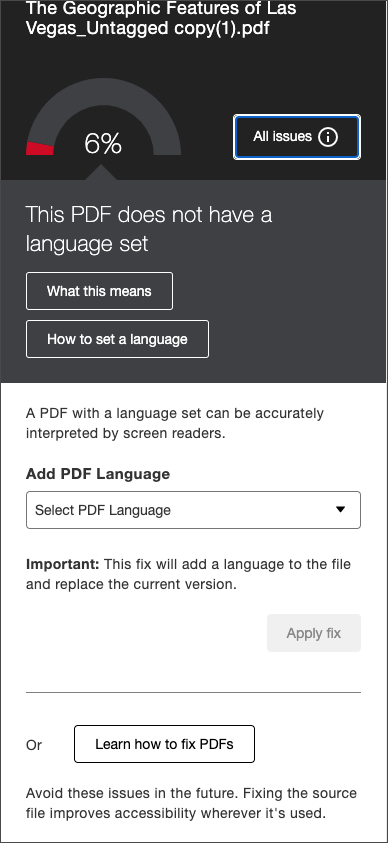
Missing language
Instructors can select from the dropdown of available languages and select Apply fix to save.
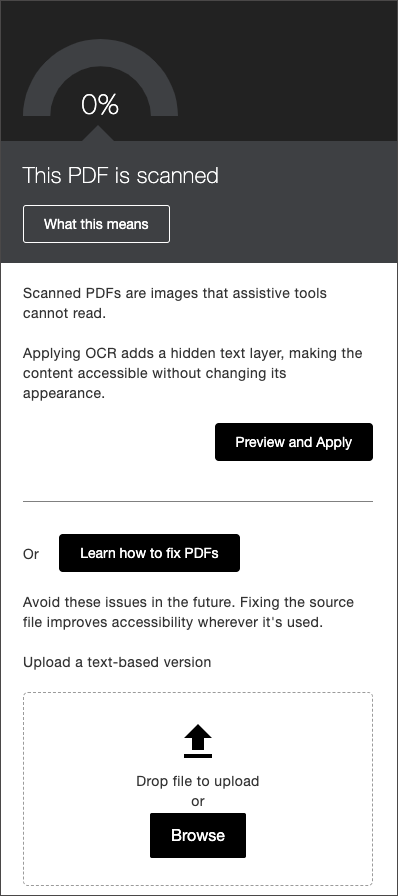
Scanned PDF
Instructors can select Preview and Apply to OCR the scanned document and generate a new preview of the result. Before selecting Apply to save the changes, the instructor can choose to download the original scanned PDF to save for later if needed.
Note
We recommend that you save a copy or leverage the download feature before applying the OCR quick fix if you still need an older scanned version of the content. Once the change is made you cannot undo the process to go back to the inaccessible scanned PDF.