Data Dictionary
The Data Dictionary for Illuminate Developers provides table and column definitions in an easy-to-read format. Use this resource to create reports. Learn about the source, usage, and relationships of the entities available.
Note
Illuminate uses the Snowflake data warehouse. Visit the Snowflake documentation website for tutorials and help with all supported SQL commands, functions, and operators.
Browse by schema, table, or column
From the navigation bar, you can quickly access the Schemas and Entity Relationships.
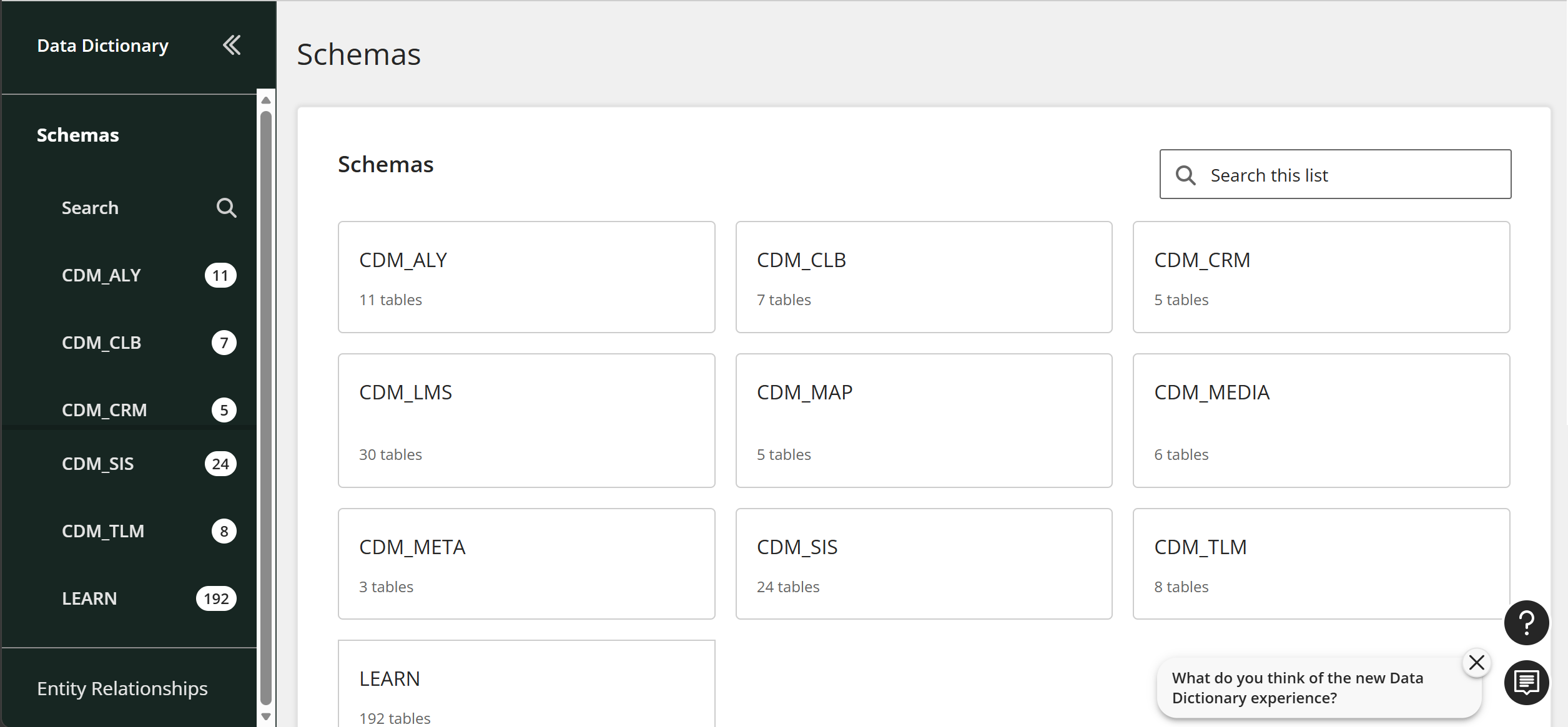
Schemas
Browse the list of schemas to view all available canonical data models.
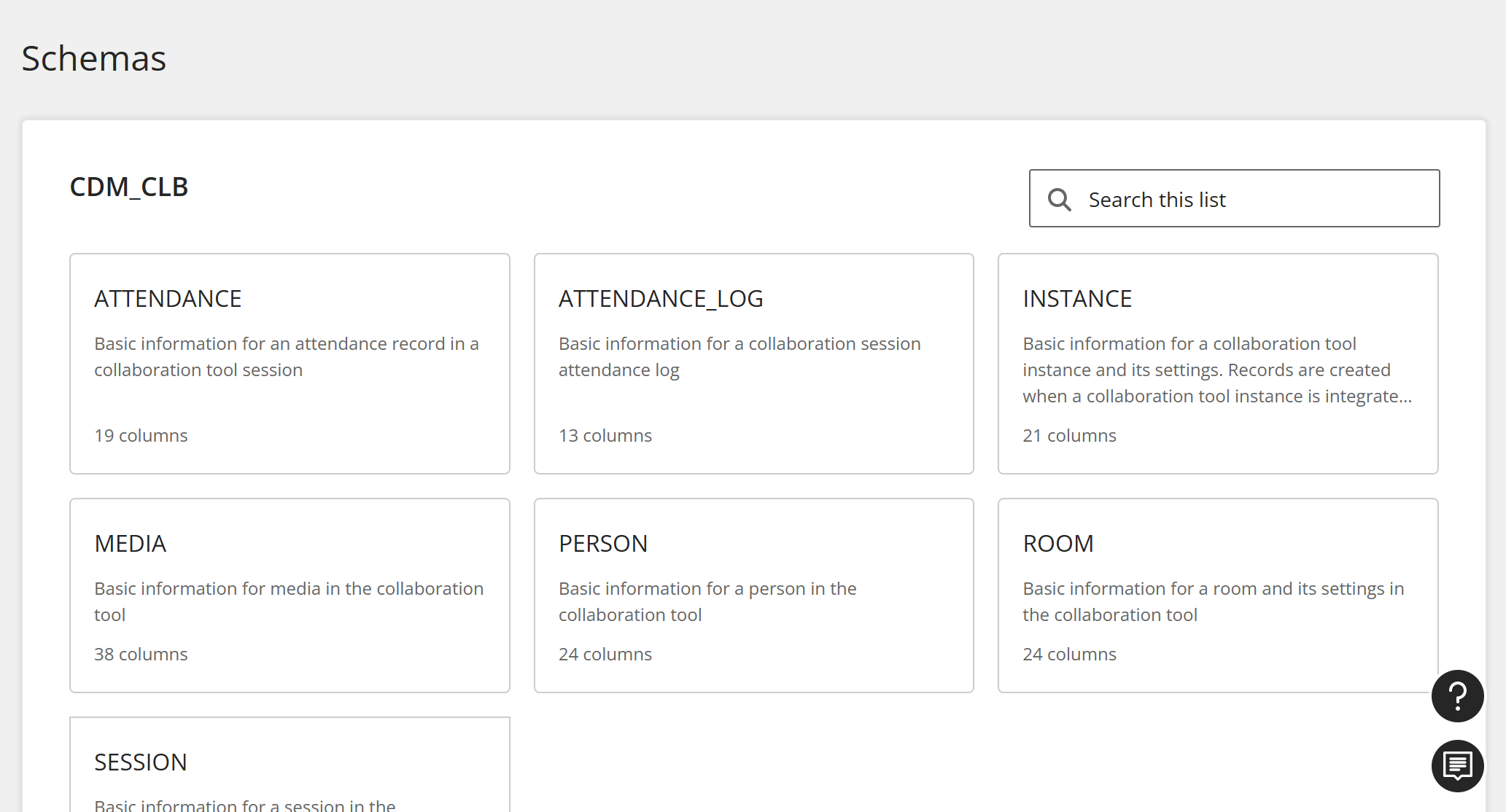
Tables
When you select a CDM, you can view all of its tables. Select a table.
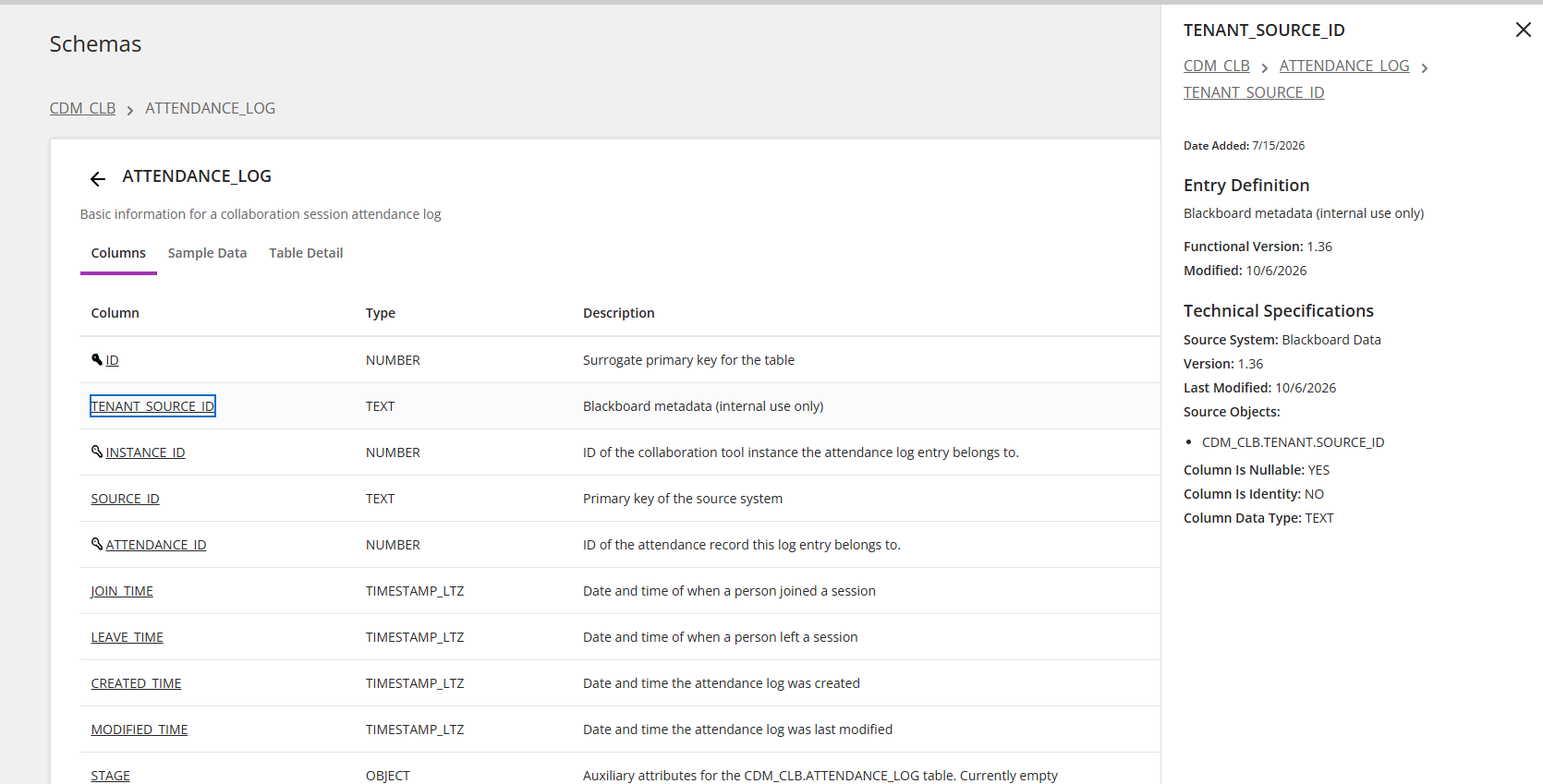
Each table has Columns, Sample Data, and Table Detail tabs.
Columns
From a table, select Columns. Then select a column to see its entry definition and technical specifications
Sample data
From a table, signed-in Administrators, Authors, or Developers can select Sample Data to view up to 100 example rows of their institution's own data. You can copy samples directly from the table. For longer description values, select the expand button and then copy the description from the window.
Note
Loading sample data for the first time can take a few seconds.
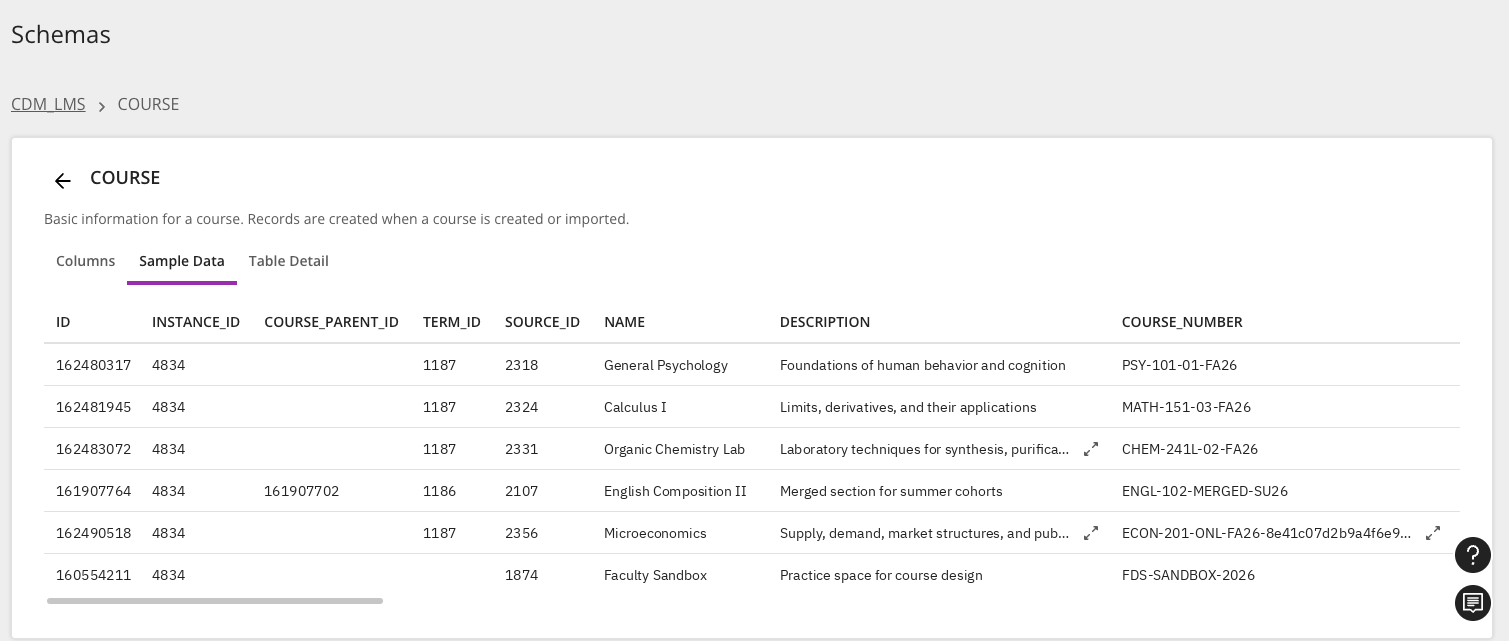
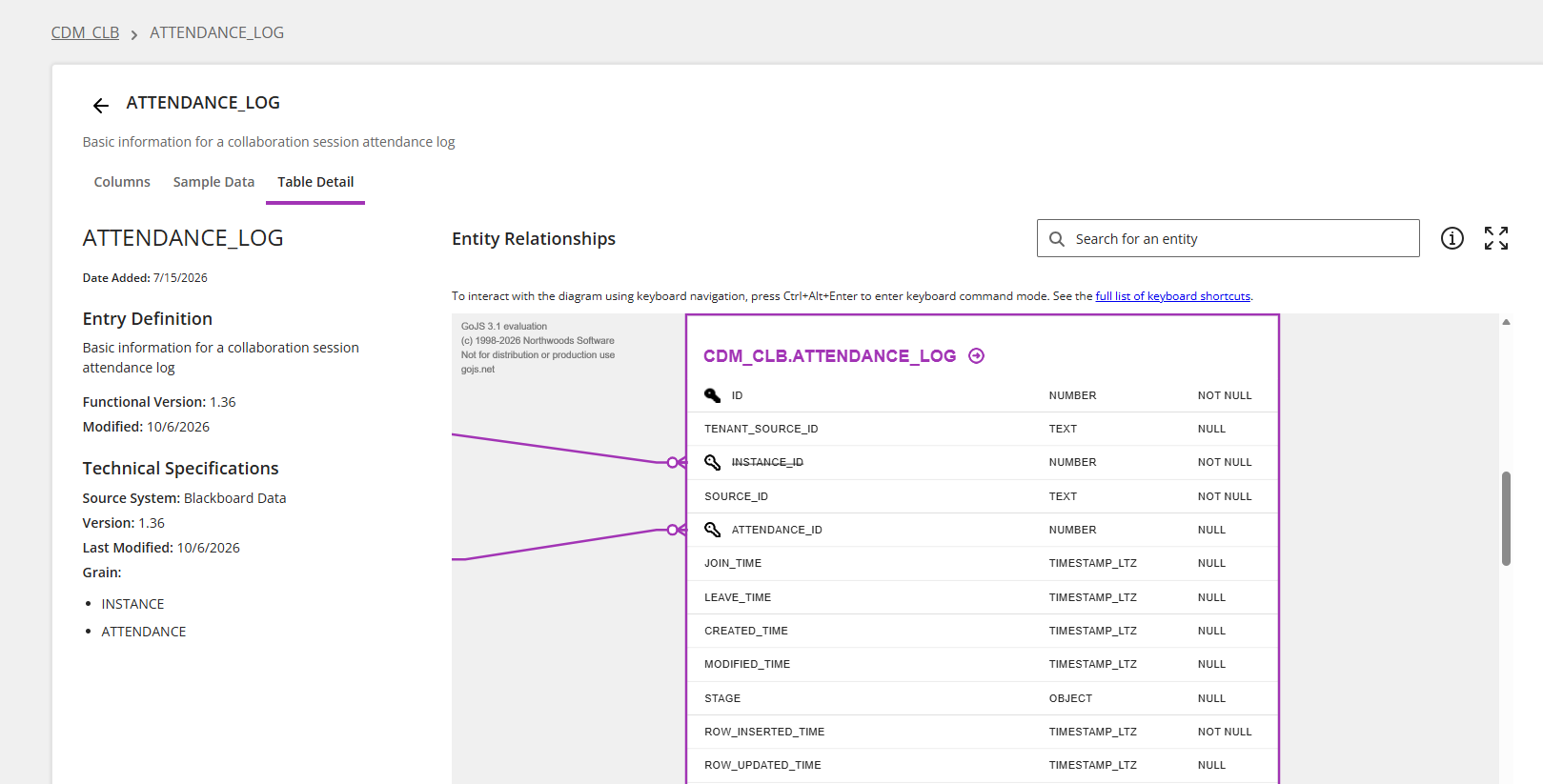
Table details
From a table, select Table Detail to view the definition, technical specifications, and entity relationships for the table.
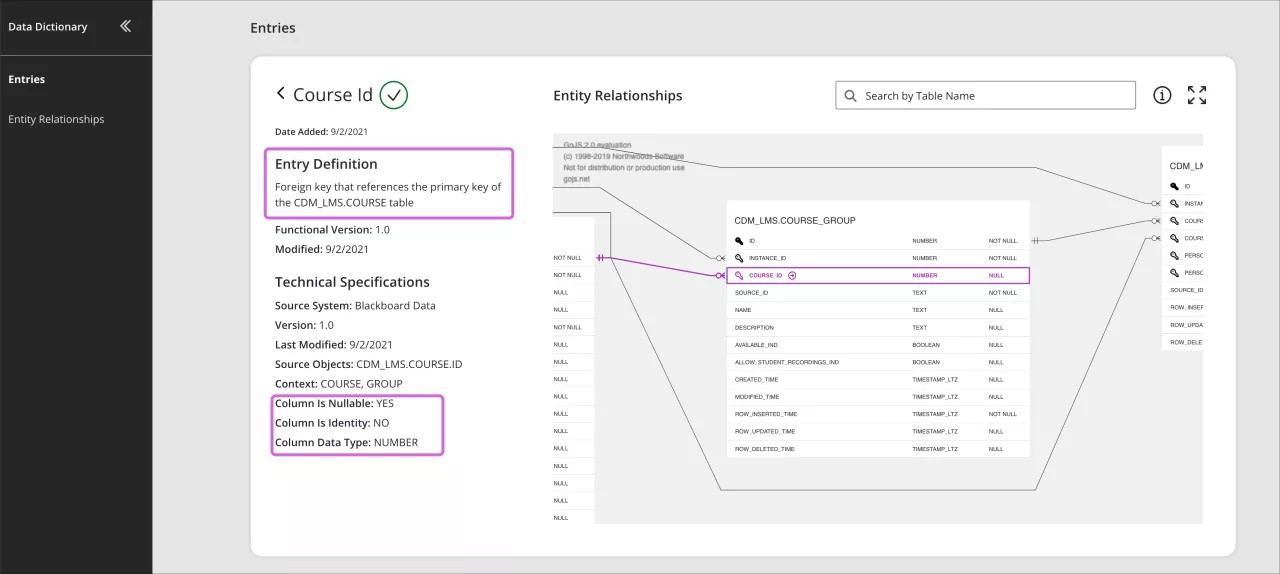
Verified checkmark icon: See at a glance if an entry is mapped and validated as recommended.
Entry Definition: Describes the table or column in an easy-to-read format
Source System: Identifies where the information is coming from. For example, Blackboard LMS.
Source Objects: Identifies the schema, table, and column the information is coming from.
Context: Identifies where entries apply. For example, in a course or a user session.
Column Is Nullable: Tells you if the column data can be Null.
Column Is Identity: Tells you if the column is an identity column.
Column Data Type: The type of data in the column. Learn more about Snowflake's supported data types.
Entity Relationships: The Entity Relationship Diagrams (ERD) show you the relationship and flow of data in the database. Blackboard Illuminate's ERD uses crow's foot notation to show you the relationships.
Enhanced search
Using the Search field in the navigation bar, you can search across all tables and columns at one time. Use the toggles to filter which types of items to include in the search.
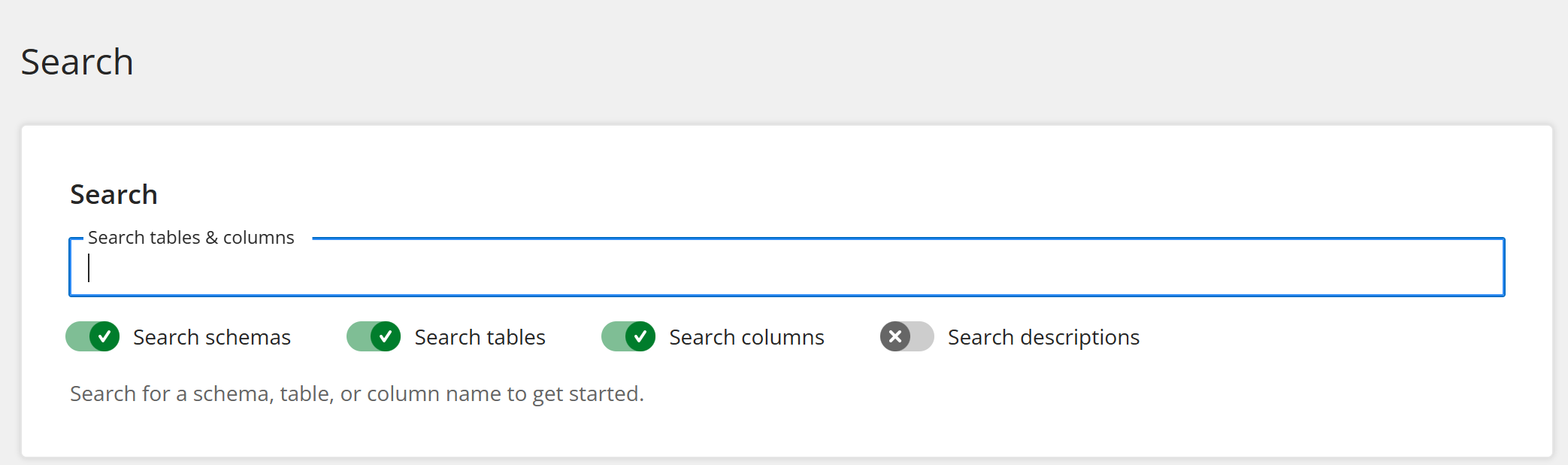
For a more granular search, you can use the search field found on each schema, table, or column page.
Tip
If you receive no results when searching by name, select Search descriptions too to search descriptions as well.
Entity Relationship Diagram
Entity Relationship Diagrams (ERD) show you the relationship and flow of data.
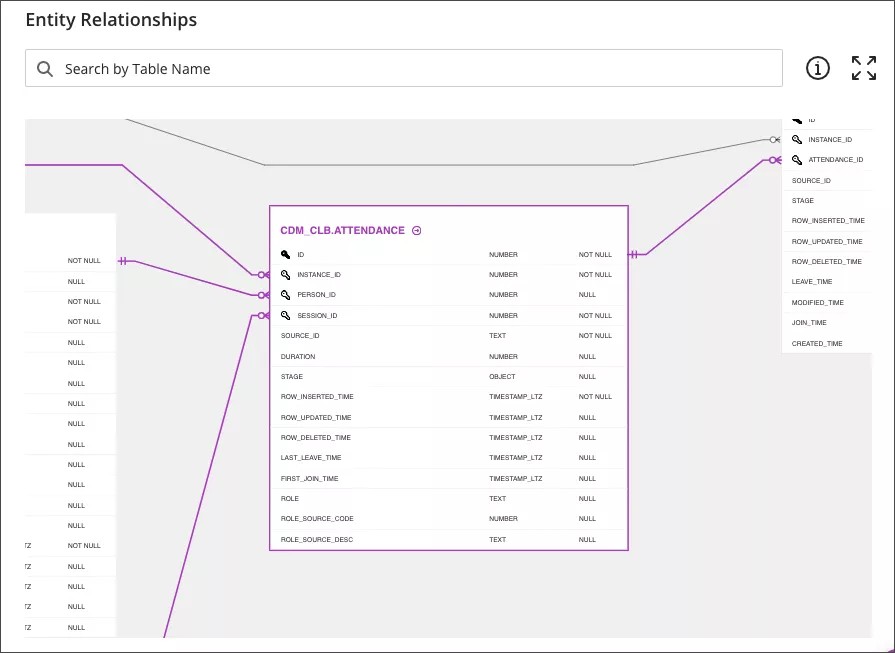
The ERD is interactive.
To highlight the relationships, select a table or column to highlight the relationships.
To see an entry definition, select the link next to the table or column name.

To expand your view, select Full screen.

To see a legend of ERD icons, move your pointer over the information icon.

Use the Search tool to find a table in the ERD.
Use two fingers or your scroll wheel to zoom the ERD in or out.
Press Ctrl and select the ERD to move it. On a Mac press Command and select the ERD.
Tip
The ERD uses crow's foot notation to show relationships. Learn more about Crow’s Foot Notation quick reference cheat sheet.
Localization
You can use the language selector to choose your preferred language.
Entry description
Column is Nullable
Column is Identity
Column Data Type