Migrate to Institutional Authentication
Blackboard's standardized authentication method integrates an institution's identity provider, the Universal Authentication System (UAS), into Blackboard products. You may also know it as Institutional Authentication.
Institutional Authentication is the recommended authentication method for Illuminate. It streamlines authentication by using your institution’s authentication system with existing usernames and passwords.
For institutions who use the older method called "native authentication," you can migrate your account to Institutional Authentication. Go to Settings and then select Snowflake Account Settings. A banner appears that says the migration is available.

Map users for migration
To migrate your institution’s reader account to the Universal Authentication System (UAS), you need to provide a user mapping between Blackboard Illuminate users and their associated Institutional Authentication users.
Note
The native method of Illuminate authentication identifies users by email address. Institutional Authentication instead uses the username attribute, which isn't necessarily the same as the user's email.
Log in to Blackboard Illuminate.
From the navigation bar, select Settings.
Select Snowflake Account Settings.
From the migration available banner, select Configure Migration. The Migration to Universal Authentication System (UAS) screen appears.
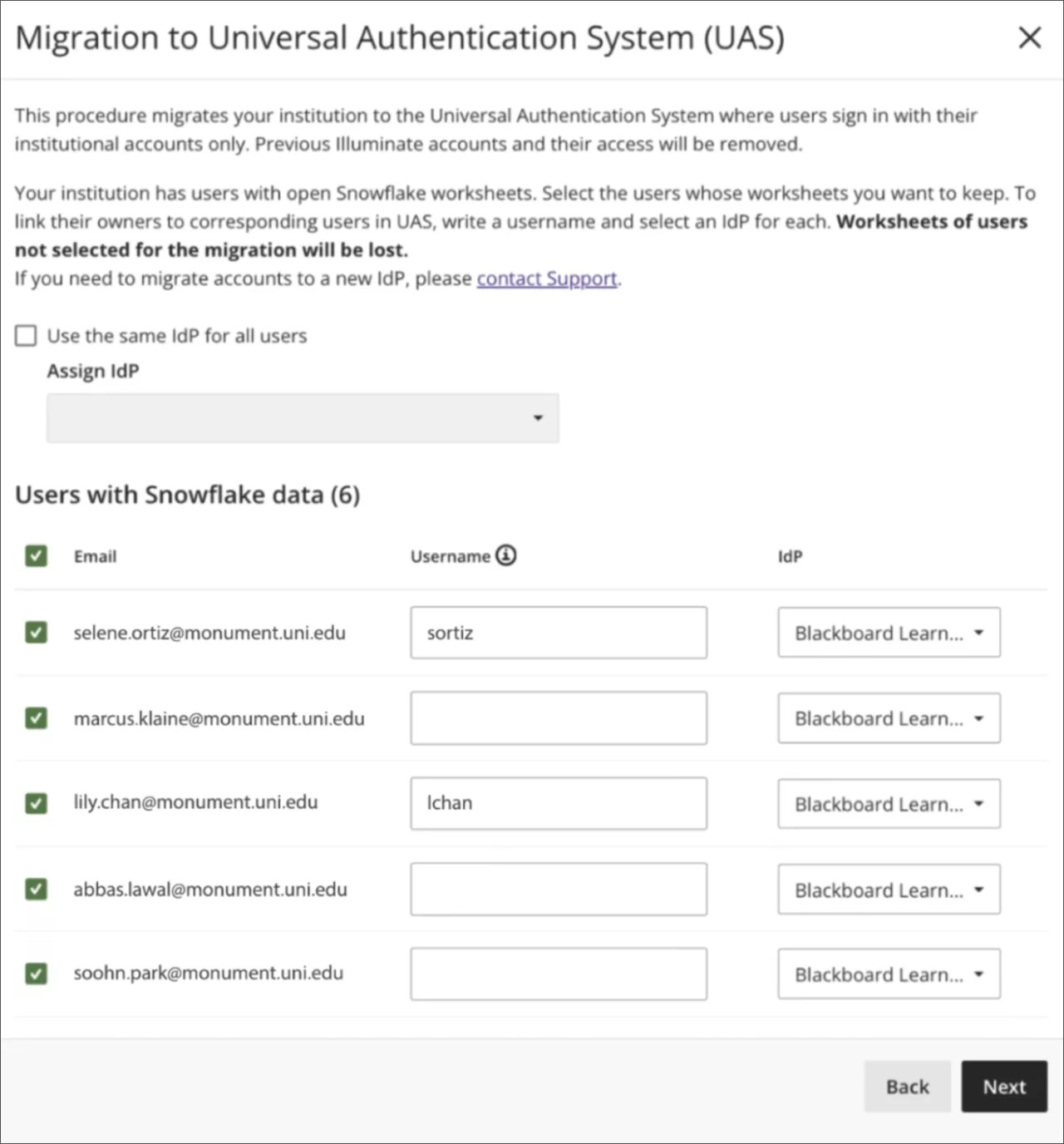
Under Users with Snowflake data select each user to migrate.
In the Username column, enter the existing username your UAS system assigned to the individual.
If your institution has multiple identity providers set up, you can select Use the same IdP for all users to apply the same one to all users.
Or you can select an IdP for each user in the IdP column. For more information, see Supported identity providers.
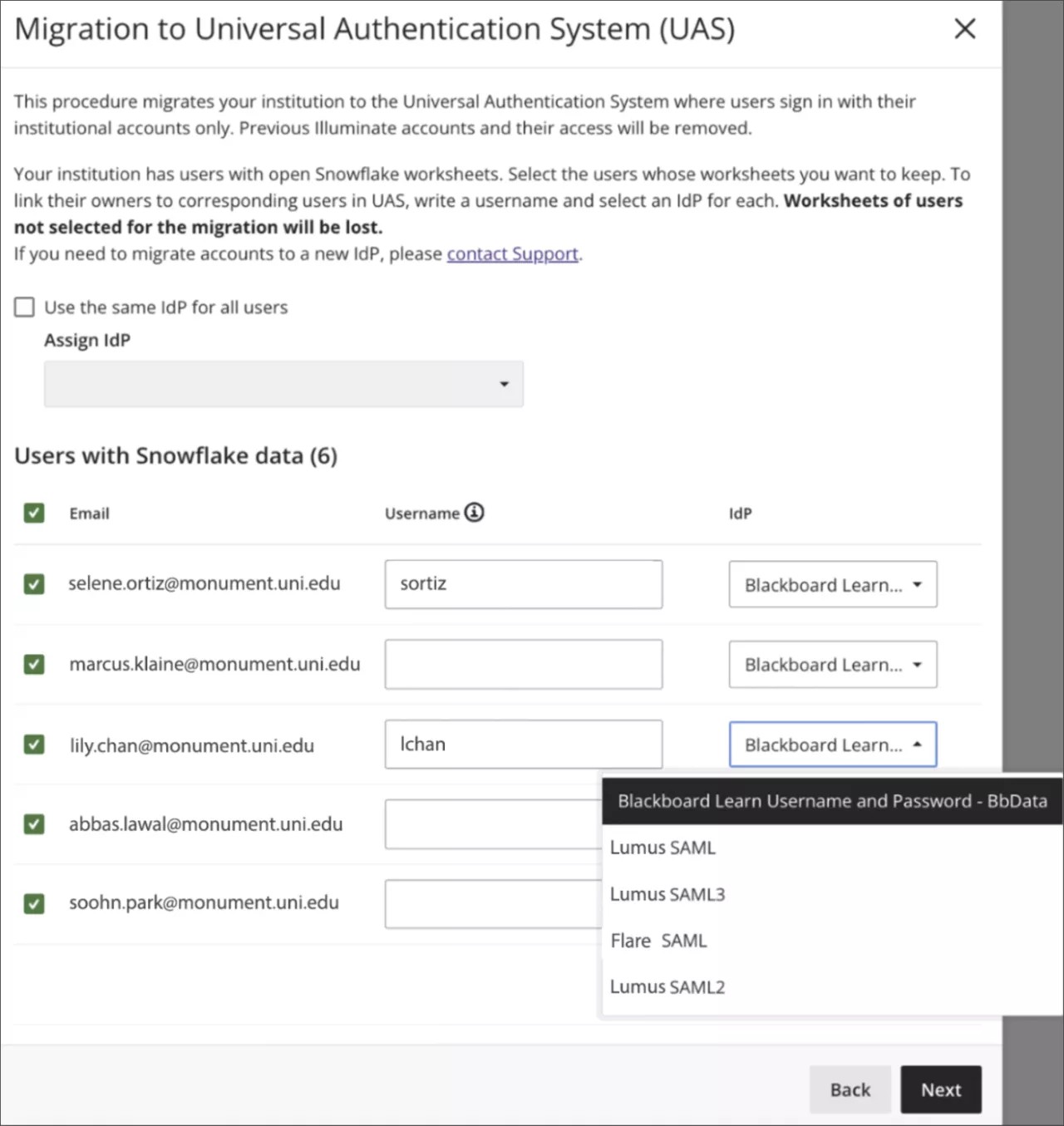
Select Next.
On the confirmation screen, review the list of users who will be migrated and removed.
Note
Users who aren't selected for migration are removed from Illuminate. They won't be able to use Illuminate credentials to log in to Snowflake, and they will lose all Snowflake data.
Users who migrate successfully will retain their content or tracking information from their reader accounts, such as Snowflake's worksheets, including SQL queries, activity history, etc.
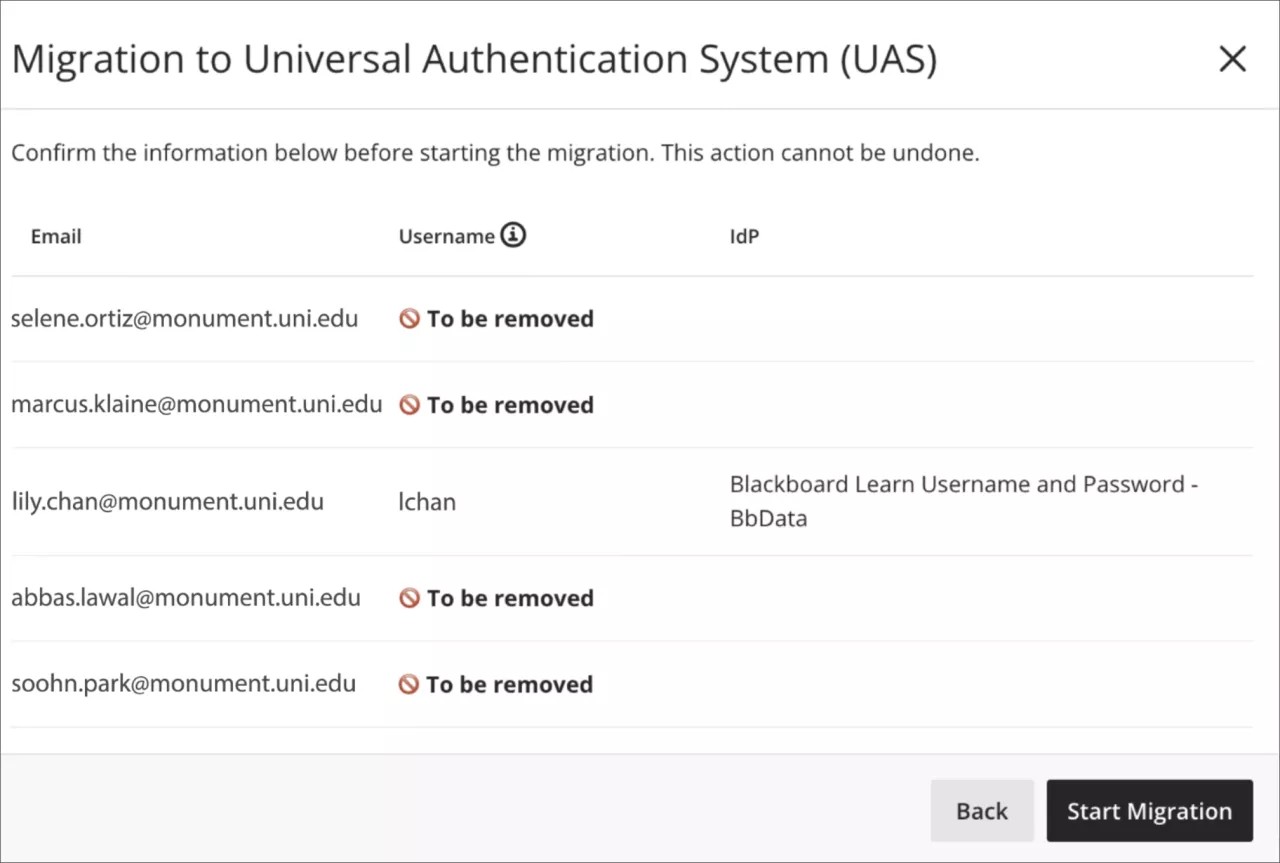
Select Start Migration.
As the migration processes, a status banner displays progress.
Progress banner: The migration is currently running. When it finishes, the banner will switch to a Success or Failure state.
Success banner: The migration was successful less than (1 month) ago.
Failure banner: The migration execution failed. If it's possible to restart the migration process, the banner will contain a Reconfigure Migration button to allow you to fill the form out again with correct, valid data before you can restart.
Supported identity providers
Blackboard supports these Identity Provider (IdP) types:
Blackboard LMS Connector: If a matching user is in the Blackboard LMS user DB, the mapped username will be pre-filled with a suggested, valid value.
SAML: Some institutions may have built their own infrastructure, including IdP, and therefore, they need to have their own IdP on-boarded. We can’t suggest or verify a mapped username when the migration is to SAML.
Assign roles to migrated users
Once the migration is complete, assign the migrated users to existing roles (groups) with Snowflake access privileges. You can also create new roles (groups) in the target IdPs with one of the following IDs:
Developer:
DATA_DReporting:
DATA_RRestricted Viewer:
DATA_RV, orAuthor:
DATA_A
For more information about managing roles, refer to Assign Roles to Users.