Migrate accounts to Universal Authentication System (UAS)
Anthology's standardized authentication method integrates an institution's identity provider, the Universal Authentication System (UAS), into Anthology products. You may also know it as Institutional Authentication.
Migration Specifics
Once your institution’s reader account is migrated, users will no longer use their Anthology Illuminate accounts to log in. In fact, Anthology Illuminate accounts will be removed entirely, and their credentials won’t be used across the Anthology Illuminate platform anymore.
Users who migrated successfully will retain their content or tracking information from their reader accounts, such as Snowflake's worksheets, including SQL queries, activity history, etc.
Migration Status
On the Snowflake Account Settings tab in Anthology Illuminate, a migration status information banner may display with one of the following states:
Migration available banner: Contains a button to open the migration configuration form.

Success banner: The migration was successful less than (1 month) ago.

Failure banner: The migration execution failed. If it's possible to restart the migration process, the banner will contain a Reconfigure Migration button to allow you to fill the form out again with correct, valid data before you can restart.



Progress banner: The migration is currently running. When it finishes, the banner will switch to a Success or Failure state.

Migration Form
To migrate your institution’s reader account to the Institutional Authentication (UAS-based authentication), you need to provide a user mapping between Anthology Illuminate users and their associated Institutional Authentication users.
The difference between Anthology Illuminate vs. Institutional Authentication is that in the Anthology Illuminate authentication a user is identified through an email address, while in the Institutional Authentication the user is defined through the username attribute that is not necessarily the same as the user's associated email.
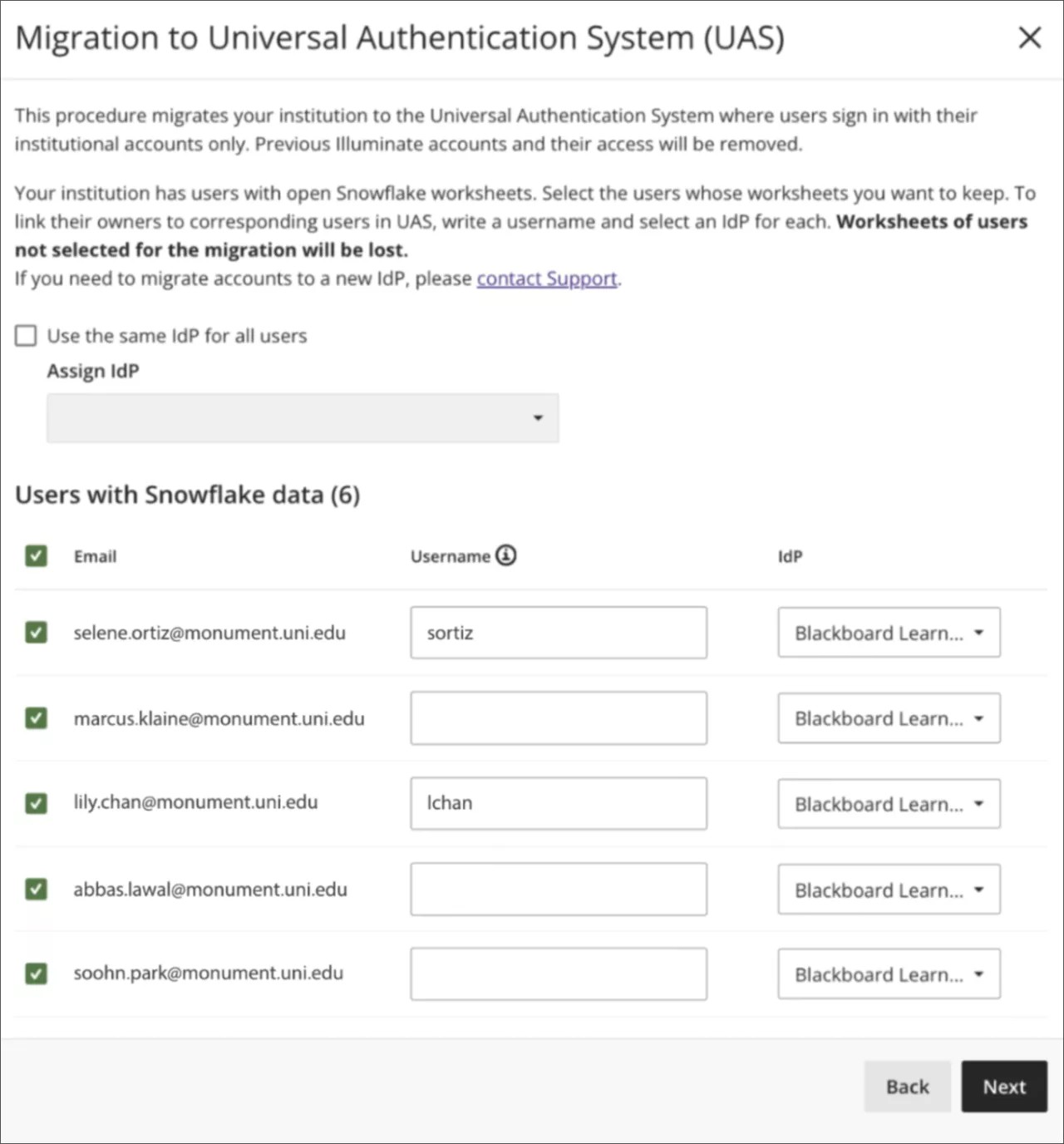
The mapping is defined through the migration tool input form and is represented as an association between a user's email and username values.
Handle unmapped users
You may not need to address all Anthology Illuminate authentication users to include them in the migration execution.
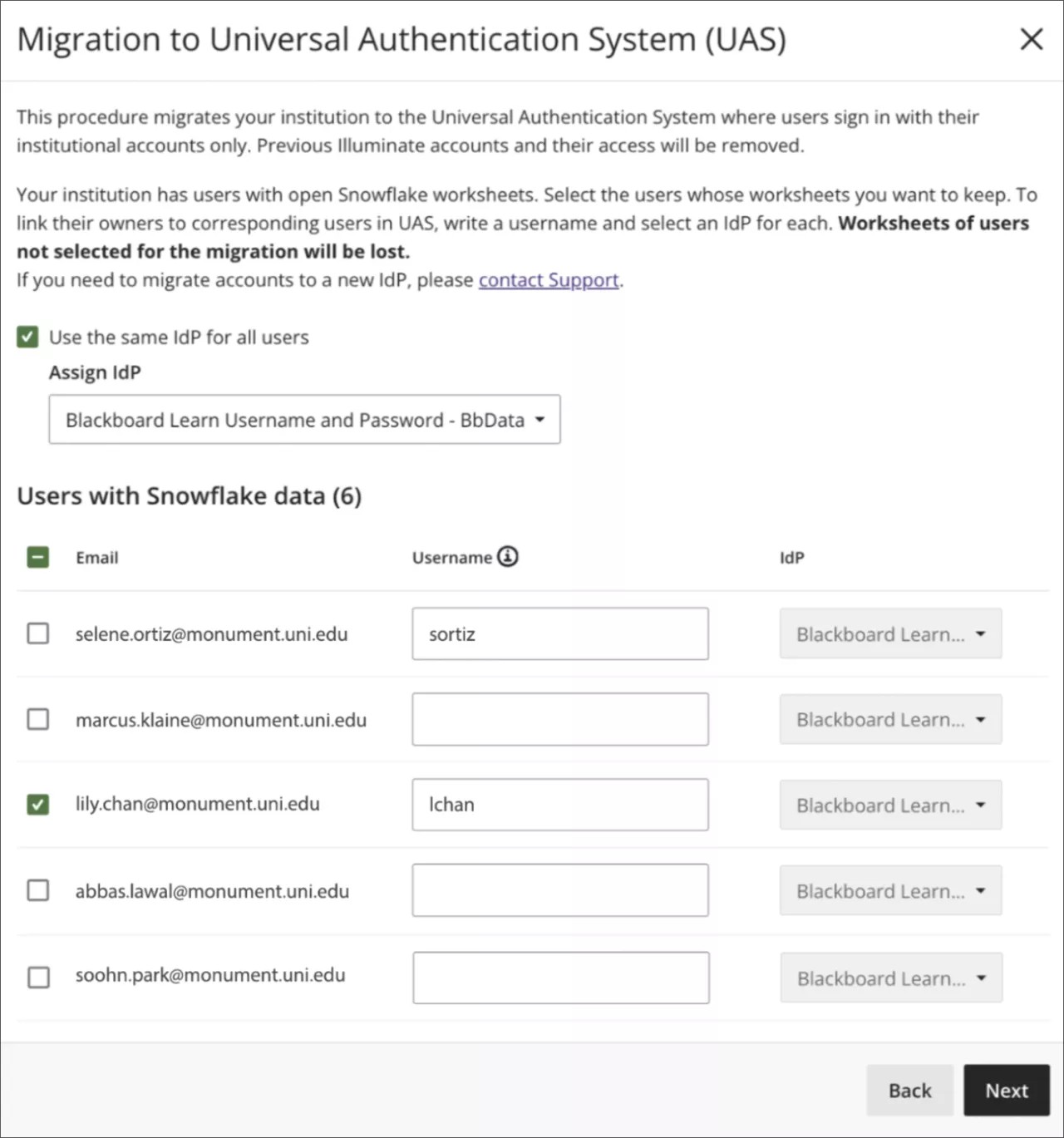
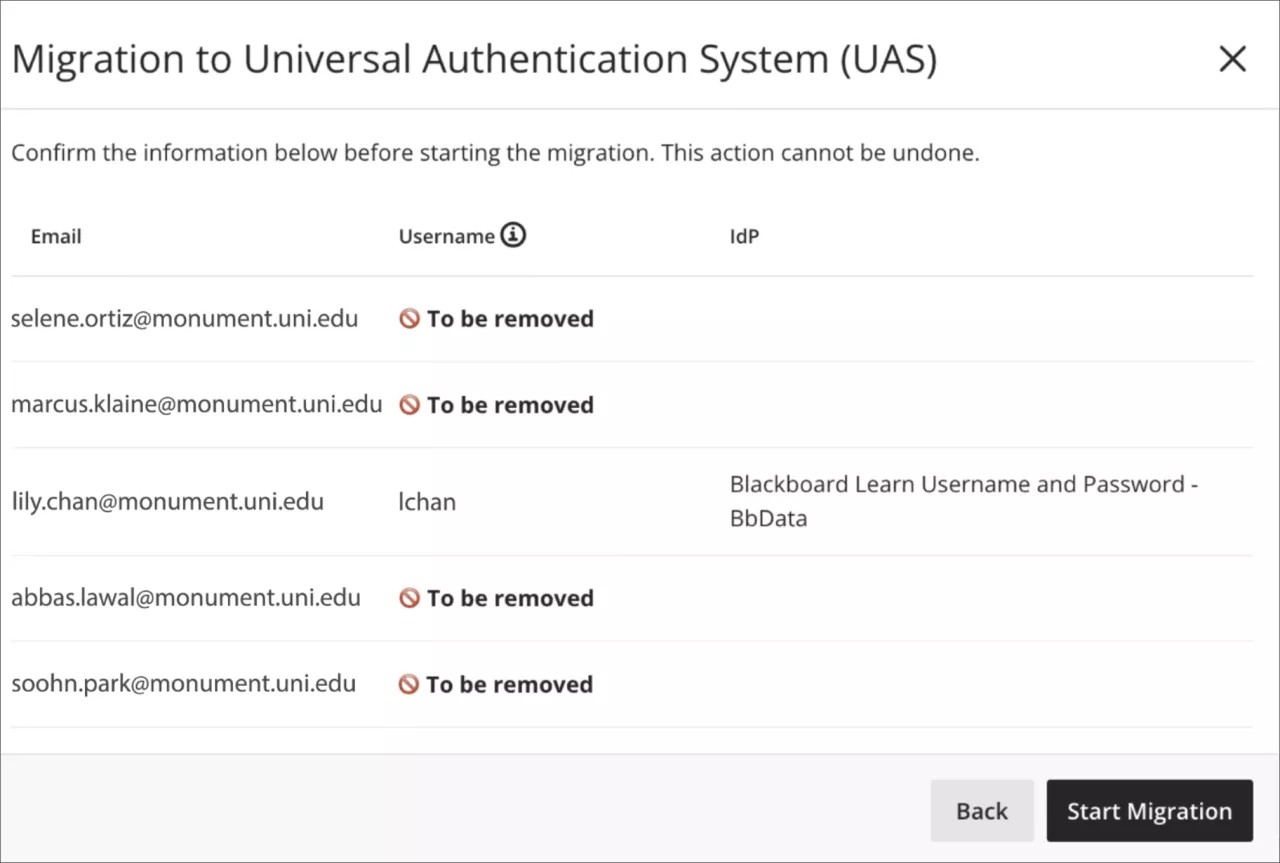
When a user isn't selected for migration, Illuminate removes the corresponding reader account user. After the account's migration, the user won’t be able to use Anthology Illuminate credentials to log in to Snowflake, and they will lose all Snowflake data. You can check this during the confirmation phase of the form:
Identity provider specifics
Anthology supports these Identity Provider (IdP) types:
Learn Connector: If a matching user is in the Learn user DB, the mapped username will be pre-filled with a suggested, valid value.
SAML: Some institutions may have built their own infrastructure, including IdP, and therefore, they need to have their own IdP on-boarded. We can’t suggest or verify a mapped username when the migration is to SAML.
Multiple IdPs setup
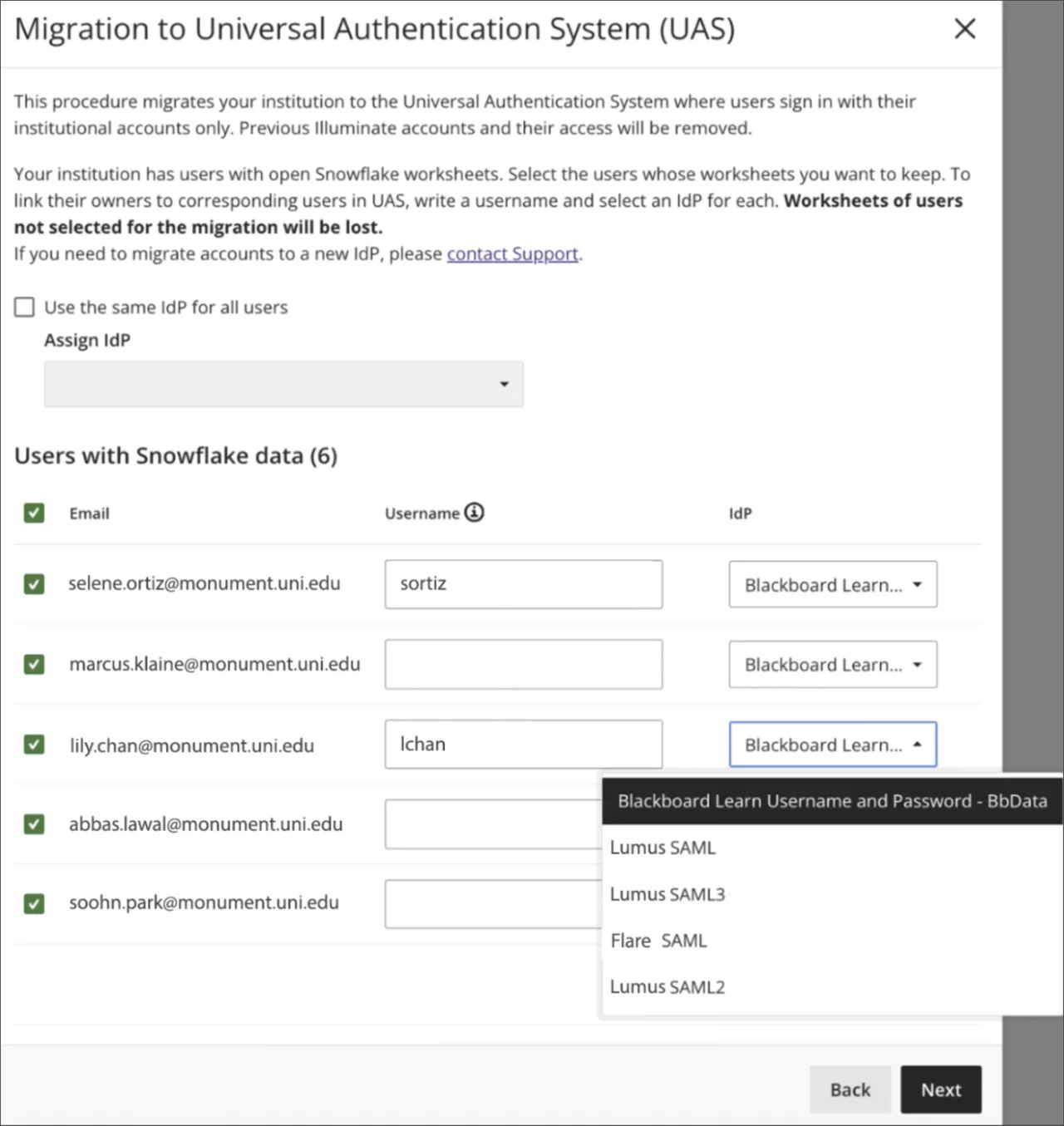
If your institution has multiple IdPs set up, you can assign the same IdP to all users or you can allow each user can migrate to their own IdP.
Use the same IdP for all users: Select this option and then select the IdP to assign to all users.
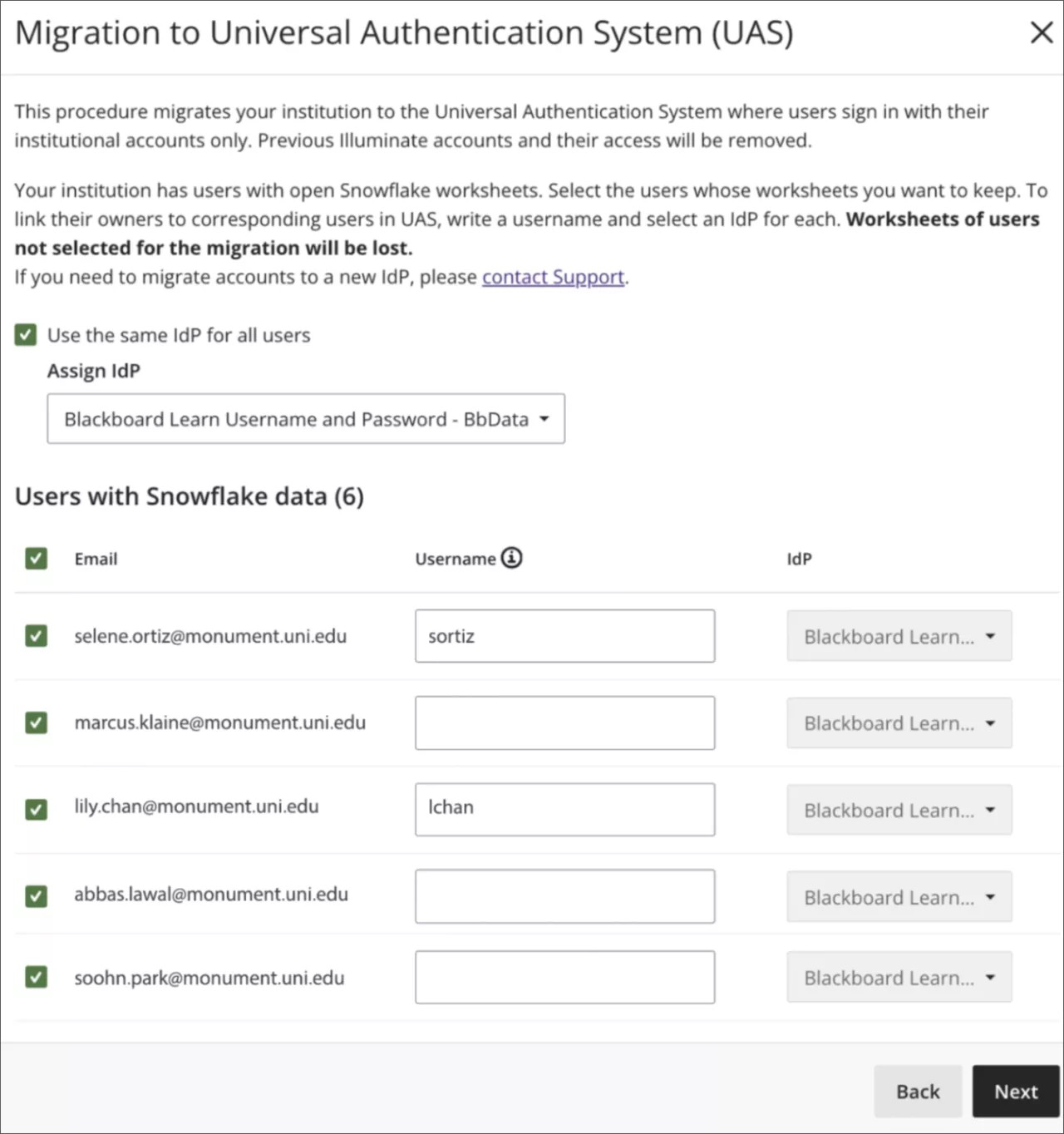
Select an IdP for each user: Clear the Use same IdP for all users option and then select an IdP for each user.
Migration Execution
To confirm the form execution, select Start Migration to begin the migration. The migration status banner displays the progress.
Once the migration is complete, ensure the target users are assigned to existing roles (groups) with Snowflake access privileges. You can also create new roles (groups) in the target IdPs with one of the following IDs, and assign them to the target users:
Developer:
DATA_DReporting:
DATA_RRestricted Viewer:
DATA_RV, orAuthor:
DATA_A
Tip
For more information, refer to the Access Per Role.
Assign roles with Snowflake access privilege in Blackboard
Warning
This is not available for SAML IdPs.
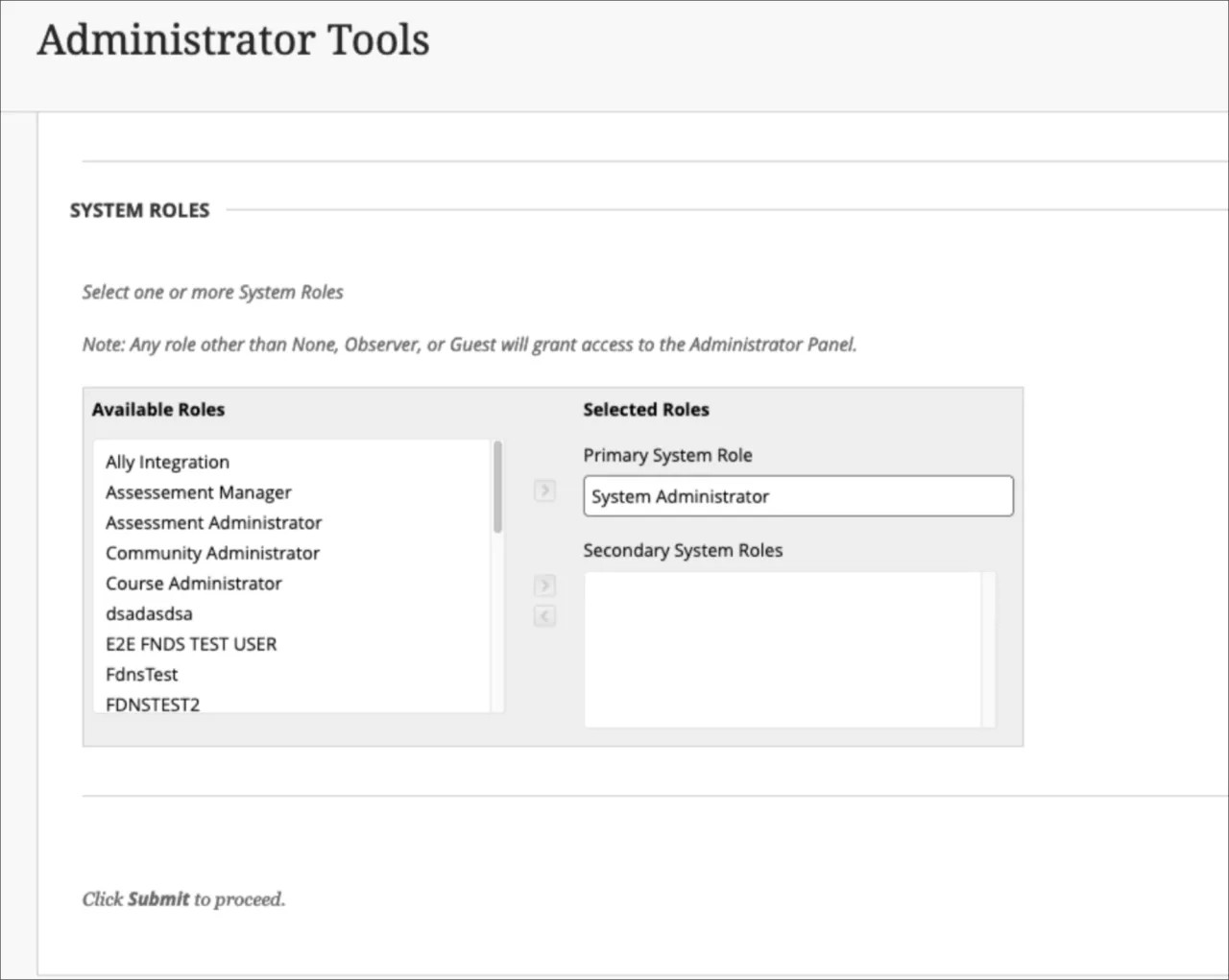
From the Blackboard Administrator Panel, under Users, select System Roles.
Select Create Role to create a system role with one of the specified IDs.
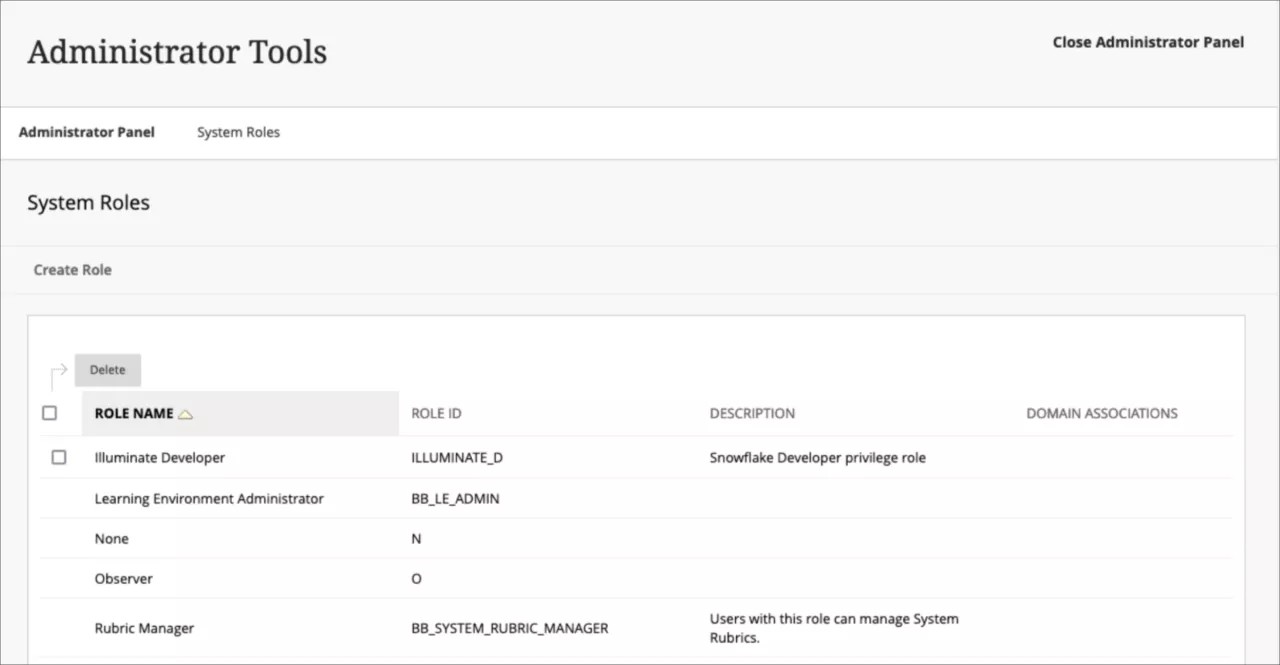
From the Blackboard Administrator Panel, under Users, select Users. Assign the system role to the target users from the migration.