Developer Basics
Access Snowflake with your Anthology Login Credentials
Select Launch Snowflake.
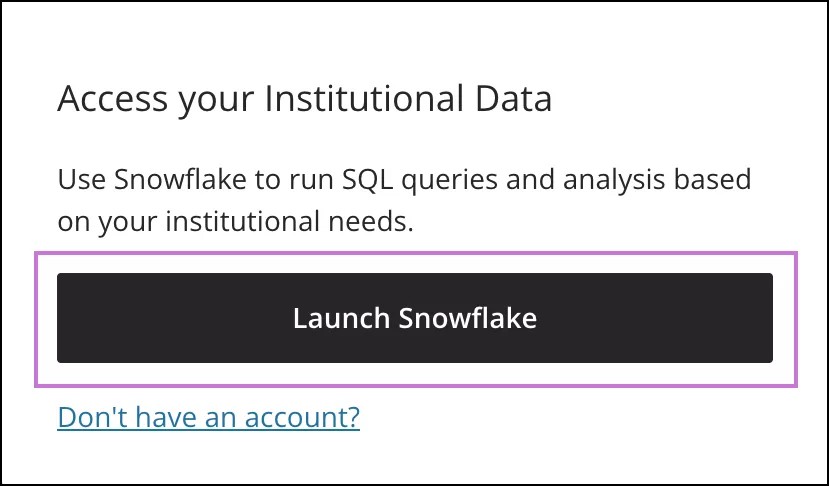
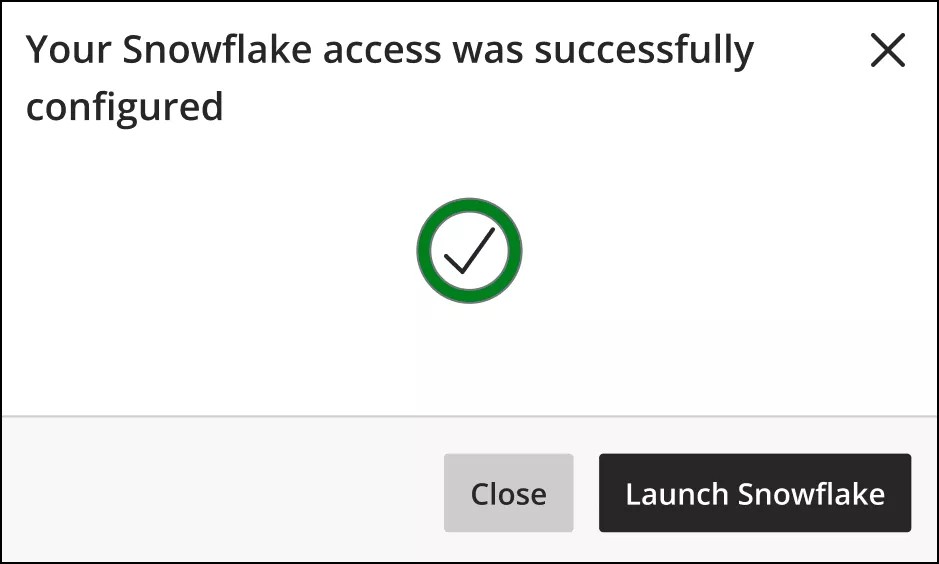
If you are attempting to log in for the first time, your Snowflake access will be configured automatically. Wait for the process to be successfully completed.
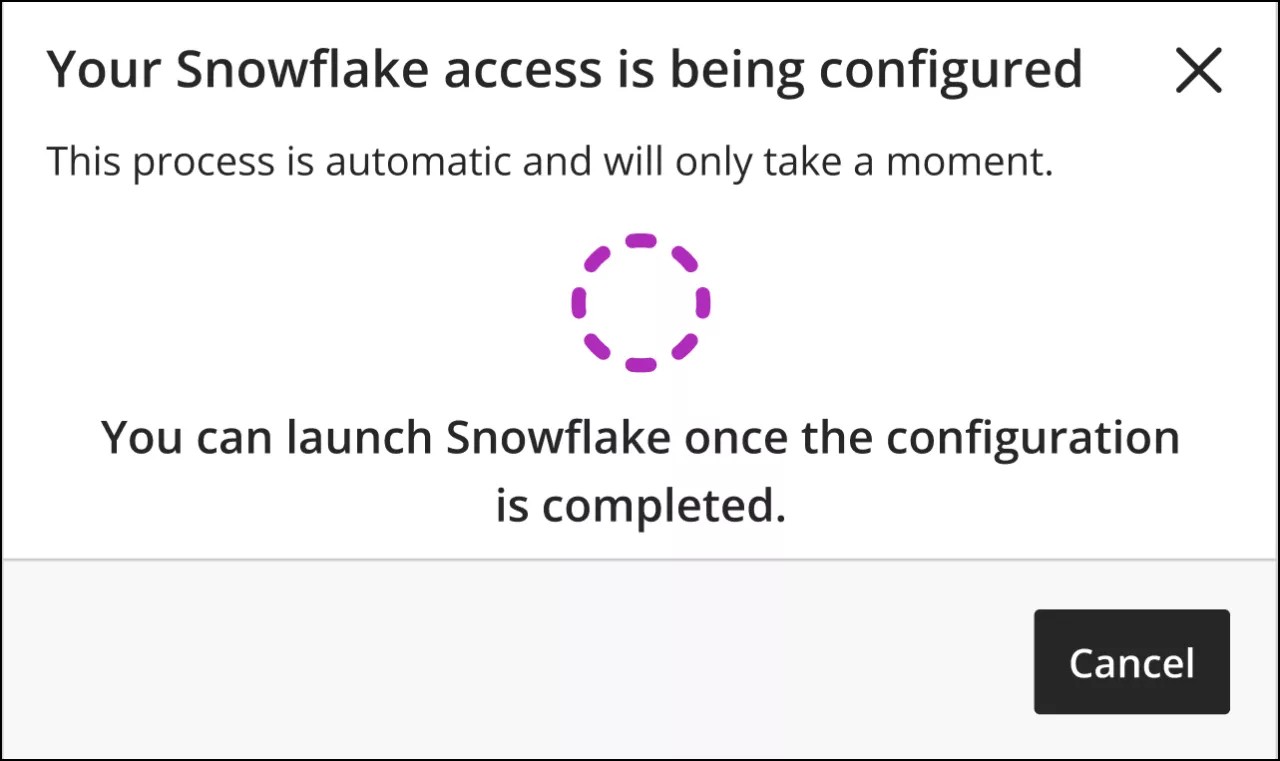
Important
If your Snowflake access configuration fails, repeat the process from step 1.
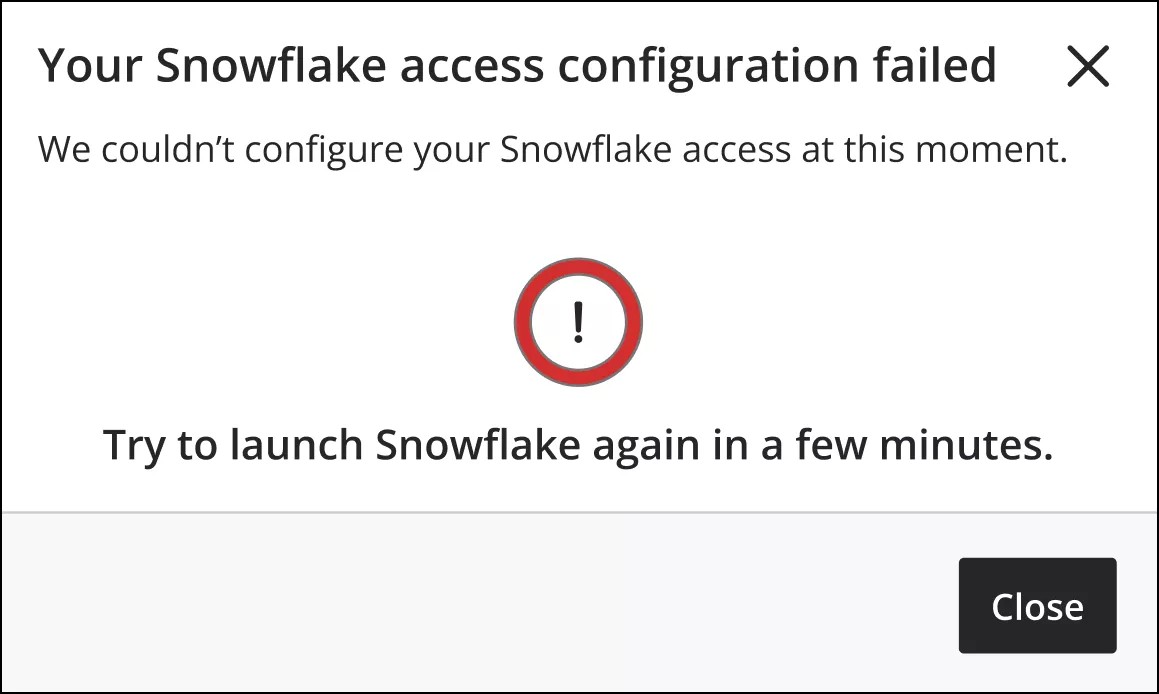
Once your Snowflake account is successfully configured you will be redirected to Snowflake in a new tab in your browser.
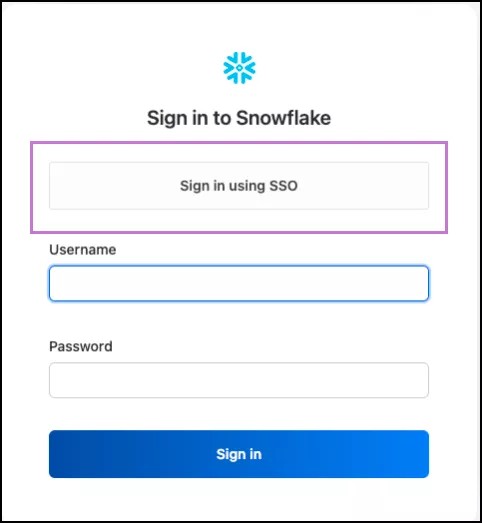
In Snowflake, you need to select Sing in using SSO, and you will be redirected to the authentication page.
Log in using your Anthology login credentials on the authentication page.
Select Sign In.
Restrict access to Snowflake and Settings
New Anthology Illuminate users have access to Reporting, Developer, and Settings by default. Users with access to Settings can manage service account credentials that are used in machine-to-machine connections, for example, PowerBI.
You can restrict access to Developer and Settings to specific roles or individuals, while allowing them to access Reporting, if your institution uses Anthology Login for authentication.
Assign a different system role in Blackboard for users of Developer and Reporting. Each user who requires access needs to have the relevant system role assigned in Blackboard:
Developer (access to Snowflake, Settings, and Reporting): select System Administrator
Reporting (only): select another role. We recommend you create a new role.
Check that these users are part of the correct login group that provides access to Anthology Illuminate via Anthology Login.
Log a support ticket requesting Anthology Illuminate user group mapping and provide the details of your chosen system roles.
Important
If your institution doesn't use Anthology Login, you'll need to change your authentication method for Anthology Illuminate to leverage access restrictions.
Changing your authentication method for Anthology Illuminate does not affect your authentication method for Blackboard. Once this has been completed, follow the steps above to restrict access to Developer and Settings.
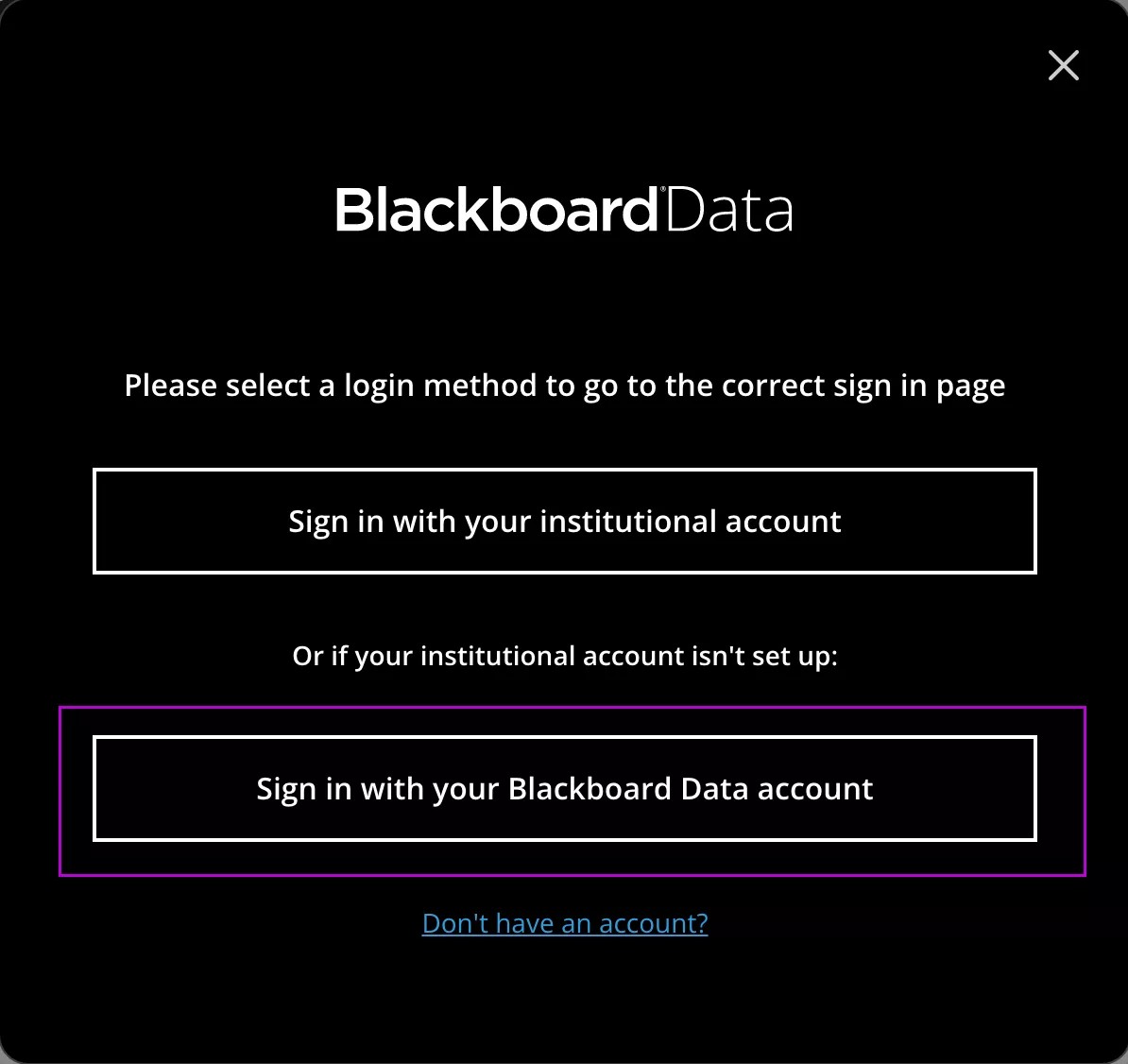
If you login to Anthology Illuminate using the Sign in with your institutional account option, your institution uses Anthology Login.
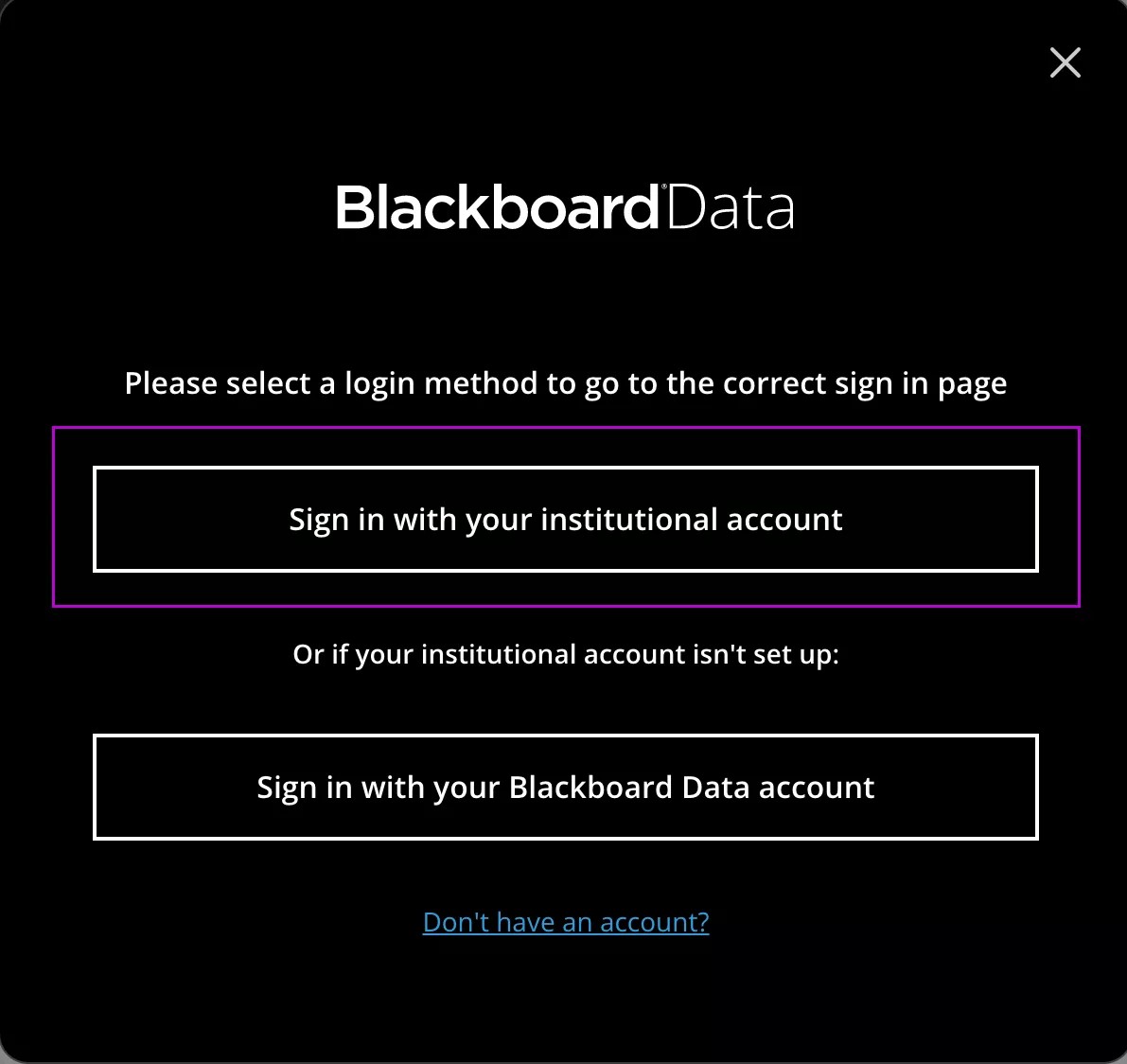
If you login to Anthology Illuminate using the Sign in with your Anthology Illuminate account option, your institution doesn't use Anthology Login.