Constituent Email Engagement Reporting
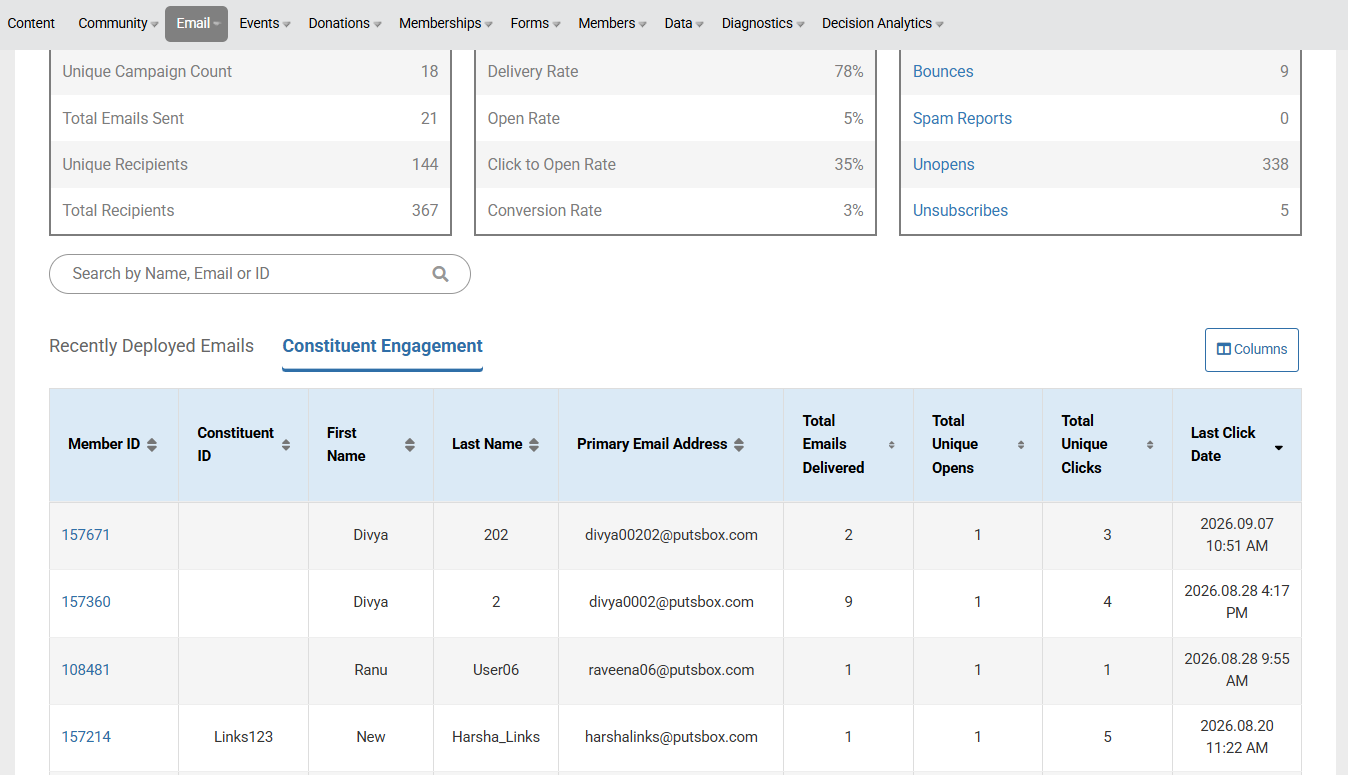
The Constituent Engagement Report provides a constituent-level view of email engagement across multiple email communications. It brings applicable activity together for a selected date range so administrators can understand how each constituent is engaging over time without reviewing reports for individual emails one at a time.
You can use this report to:
Identify constituents with higher or lower levels of measurable email engagement.
See how many applicable emails were delivered to a constituent.
Review aggregate unique opens and unique clicks.
Find a specific constituent by name, identifier, or email address.
Sort constituents by engagement activity.
Adjust the visible columns to focus on the information most useful for the current task.
Review email engagement within the appropriate community context.
Support audience segmentation, communication planning, stewardship, and follow-up analysis.
The report summarizes email activity recorded by Encompass. It provides evidence of email interaction, but it should be considered alongside other constituent information when evaluating a person's overall level of engagement with the institution.
Prerequisites
You must have the following permissions:
Super Admin – Full access
Admin - Full access
To know more about roles and permissions, navigate to Email Marketing Admin Rights
Access Method
Navigate to Email Reporting.
Select Constituent Engagement tab beside Recently Deployed Emails tab.
Manage Constituent Email Engagement Report
You can view the latest 30 records without applying any date filter. However, you must apply a date filter if you want to view records beyond the first 30 displayed. The selected range determines which email activity is included in the constituent totals. For example, if a constituent opened messages both inside and outside the selected range, only applicable activity from the selected range is included in the report. The report supports up to one year of engagement data in a single request. To analyze a smaller period, select a shorter range and apply the filter again.
When selecting a date range, consider the objective of your analysis:
Use a shorter range to review engagement related to recent communications or a focused outreach period.
Use a longer range to identify broader engagement patterns that may span multiple campaigns.
Use the same range when comparing groups or repeating an analysis so the results are based on a consistent period.
Understand the Report
Each row represents one constituent and summarizes that constituent's applicable email engagement during the selected date range. The report may include the following columns:
Column | Description |
|---|---|
Member ID | The constituent's Encompass member identifier. |
Constituent ID | The institution's constituent identifier, when available. |
First Name | The constituent's first name. |
Last Name | The constituent's last name. |
Primary Email Address | The primary email address associated with the constituent. |
Total Emails Sent | The number of applicable emails sent to the constituent during the selected date range. |
Total Emails Delivered | The number of applicable emails successfully delivered to the constituent during the selected date range. |
Total Unique Opens | The constituent's recorded unique open activity during the selected date range. Repeat opens are excluded from the unique total according to Email Reporting's engagement-counting rules. |
Total Unique Clicks | The constituent's recorded unique tracked-link click activity during the selected date range. Repeat click activity is excluded from the unique total according to Email Reporting's engagement-counting rules. |
Total Clicks | The total number of recorded tracked-link clicks during the selected date range, including multiple clicks where applicable. |
Last Click Date | The most recent recorded click date within the selected date range. |
Total Bounces | The number of applicable emails that recorded a bounce for the constituent during the selected date range. |
Total Unsubscribes | The number of applicable unsubscribe events recorded during the selected date range. |
Total Spam Reports | The number of applicable spam complaint events recorded during the selected date range. |
Distinct Campaigns Clicked | The number of different campaigns in which the constituent clicked at least one tracked link during the selected date range. |
GID / Community | The community associated with the reported activity when community context is included. |
The columns available to your organization may vary based on the final report configuration and the data associated with each constituent.
Interpreting Opens and Clicks
You can use opens and clicks to measure different types of user interaction.
An open indicates that Encompass recorded the message as opened. Open tracking can be affected by recipient privacy settings, image loading, and automated activity, so it should not be treated as a perfect measure of readership.
A click indicates that Encompass recorded activity on a tracked link. Clicks often represent a stronger interaction than opens, but they do not by themselves show the constituent's intent or the result of the visit.
A unique total reduces the effect of repeated activity in accordance with Email Reporting's engagement-counting rules.
Email clients and privacy technologies can affect engagement tracking, so use these metrics as indicators of engagement rather than definitive proof that a recipient read or acted on a message.
Search for a Constituent
You can use the report search to locate constituents by:
Member ID
Constituent ID
First name
Last name
Primary email address
Search applies to the complete set of results for the selected date range and community context, not only the records shown on the current page.
To return to the full result set, clear the search. If no constituents match the search, the report displays a no-results message.
Sort the Results
You can select a sortable column heading to reorder the report. Select the heading again to change the sort direction. Sorting applies to the complete filtered result set, including records on other pages.
This can help you: Find constituents with the highest or lowest delivered-email totals, compare constituents by unique opens or unique clicks, arrange constituents alphabetically by name, and review identifiers or email addresses in a consistent order. The active sort column and direction are shown in the table heading.
Choose the Columns to Display
You can use the column selection control to add or remove available columns from the table. The report initially displays the standard default columns. You can add optional columns or remove columns that are not needed for the current analysis. At least one column must remain visible.
You can select Reset to restore the standard default column set. Columns can be customized and reset to the standard default configuration at any time. Updates are applied immediately, and reducing the number of visible columns can make the report easier to scan on smaller screens.