The Contact Form
The Contact form (comprises the following tabs which enable you to view the information that you need.
| Tab | Description |
|---|---|
| Key Information |
Includes the following areas:
|
| Contact Overview |
Includes the following areas:
|
| Inbound Interest & Lifecycle |
Includes the following areas:
|
| Student Records |
Includes the following areas:
Note The flow Contact - Set Most Recent Previous Education determines the value that is set in the Most Recent Previous Education read-only field. Based on an institution's requirement, an administrator can edit logic in the flow to determine the previous education record that must be set in the field. Such a framework of setting an applicable previous education record enables an institution to run reports to understand student recruitment patterns, their course selection decisions, and so on. By default the flow will be in an off state, it must be switched on to enable its logic. It's recommended to copy the flow and then edit the copied flow instead of editing logic in the default flow. That way, the original flow with its default functionality will be available if the copied flow needs to be discarded. An administrator can edit the flow Contact - Set Most Recent Previous Education. By default:
An administrator can also define custom logic that is applicable to the institution. This will involve making changes to the default Fetch Xml Query. Logic that is applicable to the business case of the institution can be included. While the default code contains quotation marks in the value tag, they are not required and must be removed when a value is specified. |
| Insights | This tab enables Reach users to view marketing insights in the Contact (Reach - New) form in the Anthology Reach model-driven app instead of navigating to the Marketing model-driven app to view the same information in the Insights tab. To add the Insights tab to a custom Contact form, see Adding the Insights Tab to a Custom Contact Form. For more information on the insights tab see, Microsoft Documentation. |
| Student Progress |
Includes the following areas:
|
| Student Success Profile |
Includes the following areas:
|
| Nearby Contacts | The fields in this tab enable Reach users to search and display students who are within certain miles from the address of the Contact, Account, or Trip activity. For more information, see Nearby Contacts Feature. |
| Book Appointment Restrictions | This tab displays the Appointment Types and Departments that will be excluded when the contact tries to book an appointment on the portal. Includes the following areas:
For more information, see Working With Appointments on the Portal. |
| Events |
Includes the following areas:
|
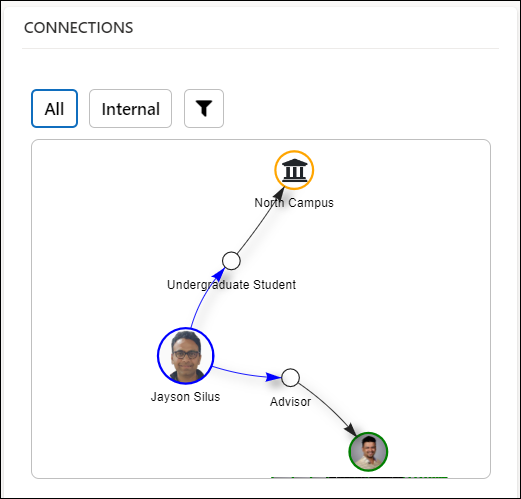
Notes:
- Users can view a contact's insights in the Insights form.
- In a contact form, click the Degree Planning button to view student pages from Degree Works. This enables an advisor to better plan student academics and to vastly improve student counseling.
- When you save a contact record with one of the value of the Contact Type field as Student, its equivalent success network record is automatically created with:
- Its name in the format <First Name> <Last name> - <Owner>.
- Its value in the Staff Role field is set to a value that is determined by the institution.
- As the Contact Type field is mandatory in Anthology Reach, it must also be updated in xRM Advancement when a contact record is created. To enable this behavior, the Contact Type field will be displayed in xRM Advancement's new contact form:
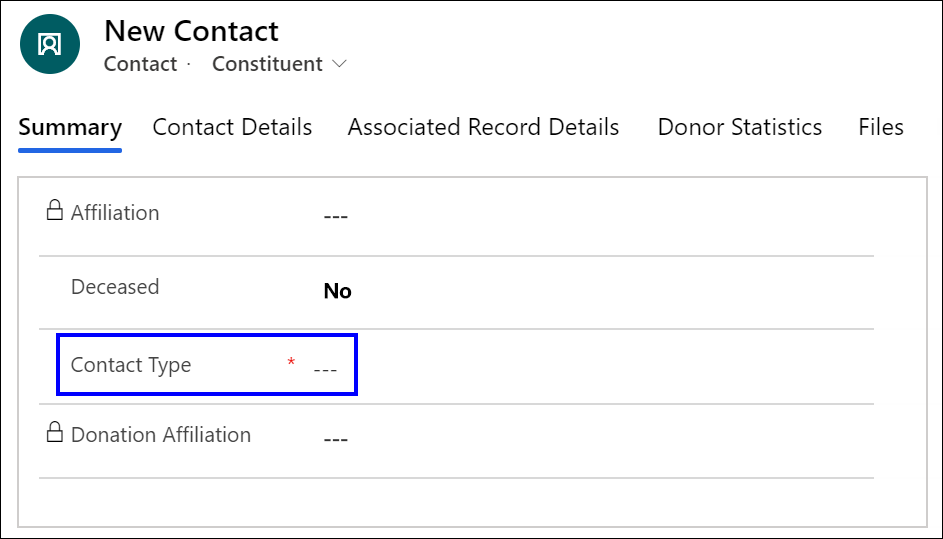
In xRM advancement, a framework is available in the Contact - On create set contact affiliations (xRM) flow to set affiliation values based on the value set in the Contact Type field. When the contact record is saved:- The flow will be triggered and affiliation records associated with the set Contact Type will be automatically associated.
- The Contact Type field will be hidden.
The Contact - On create set contact affiliations (xRM) flow is available as a draft. Professional services teams must:
- Customize a copied instance of the flow and then modify it in their environment.
- Create mappings of affiliation instances that must be set for Contact Type values.
- The Legacy field in a contact indicates that the contact has had a family member in the past who attended the same institution that the contact is or will be attending.
The Legacy field is automatically selected when the Stop Legacy Check configuration (under Settings > Configuration> Default Configuration) is set to False and the following conditions are met:- A family connection exists between the legacy contact and the family member contact.
- Family member contact has an alumni connection to an account with an account type of campus.
- The alumni connection and family connection are active.
The Miles from Campus field in a contact displays the distance of the selected institution from the primary address of a contact. The primary address of the contact and the institution are used to calculate and automatically update the value of the Miles from Campus field. The value is recalculated if the primary address of the contact or the institution is updated.
The batch job that picks up contact records with updated address, runs every 30 minutes to calculate the distance between the Contact and the Campus.
