Create a Badge
You create badges in Milestone from the badge library page.
Go to the Badge Library in your organization.
Select + Create New Badge.
Enter a Name for the badge.
Enter a Description for the badge.
Select Create New Badge.
The Edit Badge page will open.
The Edit Badge page
The Edit Badge page shows the title of the badge, the description, and a field for Criteria. These are the fields that are required for a badge.
There are two options for Criteria.
Select Markdown to enter the criteria for the badge.
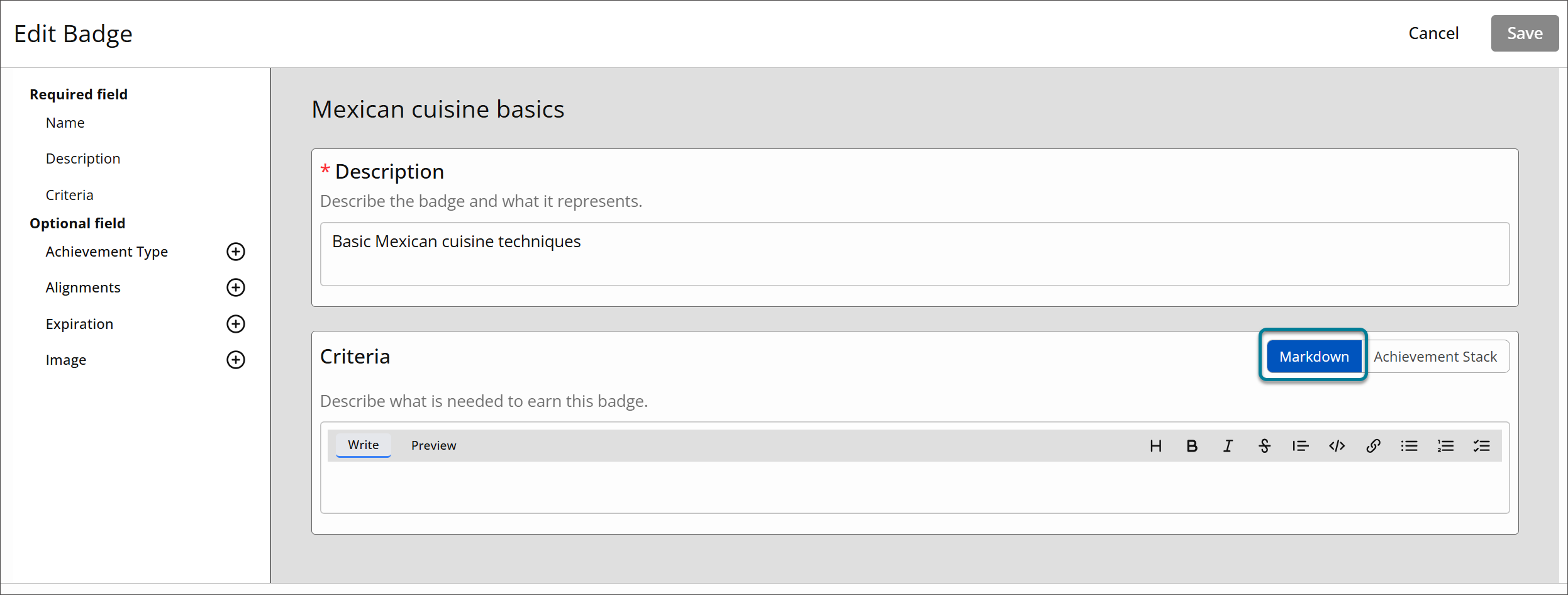
Select Write and enter the text for the criteria.
Use the formatting tools to format the text.
Select Preview to preview your text.
Select Achievement Stack to choose badges that must be earned to achieve the new badge.
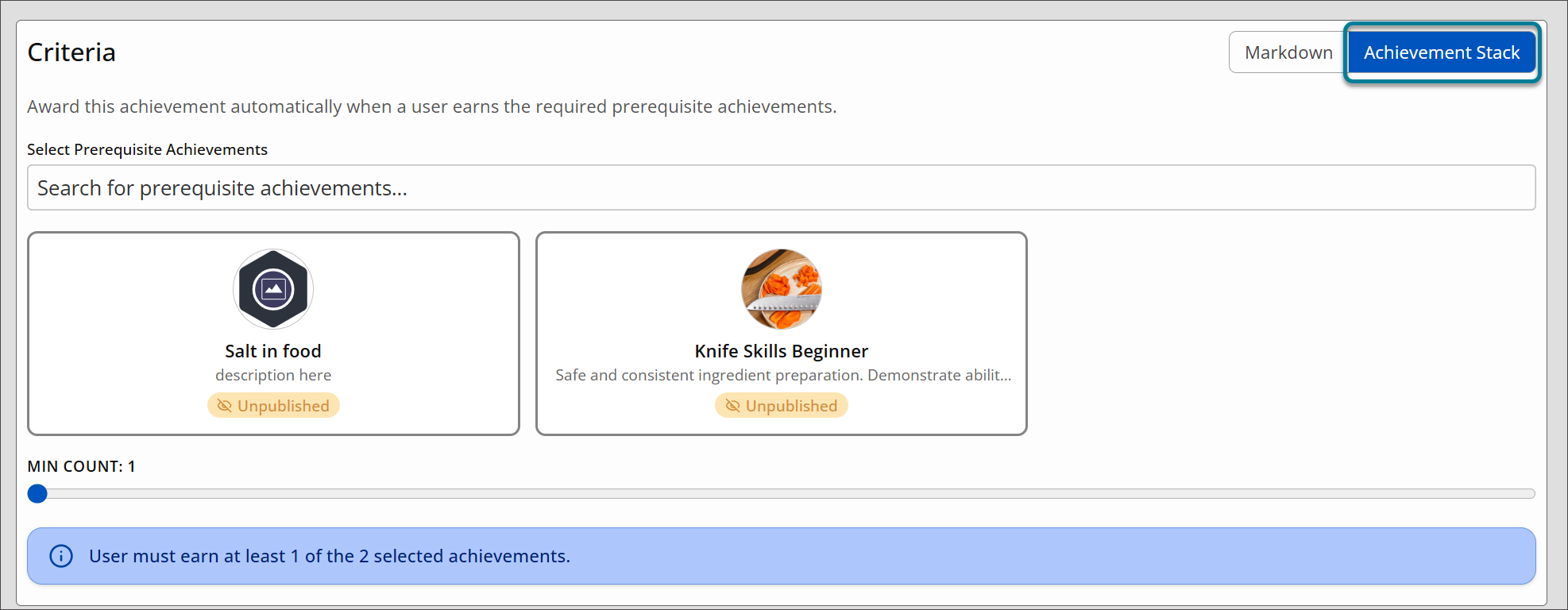
Use the search bar to search for prerequisite achievements.
Select the badges that must be earned to achieve the new badge.
Use the Min Count slider to select how many of the prerequisite badges must be earned to achieve the new badge.
Optional fields
In the column on the left, there is a list of optional fields you can add to the badge by selecting the plus sign. If you want to remove any of those fields after adding them, select the Delete button.
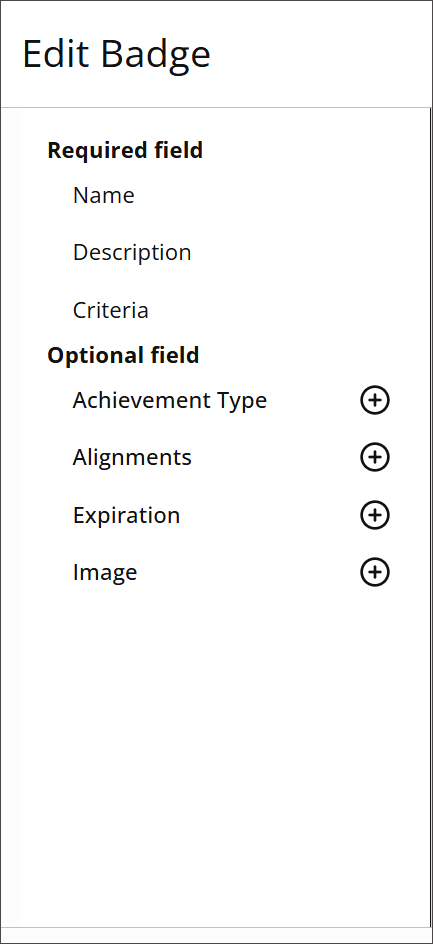
Achievement type—select the achievement type.
Alignment—create an external alignment for the badge. This is where you will add skills.
Enter an alignment name.
Enter the URL for the official description of the alignment item.
Enter a brief alignment description.
Select whether the alignment represents a skill or is part of a framework.
Expiration—add a validity duration to the badge.
Image—upload an image file for the badge. The image file must be at least 200 x 200 pixels, and must be an SVG, JPEG, or PNG file.