계정을 Universal Authentication System(UAS)으로 마이그레이션하기
Note
본 문서는 AI 지원 기계 번역을 사용하여 번역되었습니다. 번역본은 '있는 그대로' 제공되며 정확성에 대해 어떠한 보증도 하지 않습니다. 본 콘텐츠의 영문 버전이 공식적이고 권위 있는 원본입니다.
앤솔로지의 표준화된 인증 방법은 교육 기관의 신원 제공자인 범용 인증 시스템(UAS)을 앤솔로지 제품과 통합합니다. 교육기관 인증이라고도 불릴 수 있습니다.
Institutional Authentication is the recommended authentication method for Illuminate. It streamlines authentication by using your institution’s authentication system with existing usernames and passwords.
For institutions who use the older method called "native authentication," you can migrate your account to Institutional Authentication. Go to Settings and then select Snowflake Account Settings. A banner appears that says the migration is available.

마이그레이션 양식
기관 리더 계정을 기관 인증(UAS 기반 인증)으로 이전하려면 Blackboard Illuminate 사용자와 관련 기관 인증 사용자 간의 사용자 매핑을 제공해야 합니다.
참고
Blackboard Illuminate 인증은 사용자가 이메일 주소로 식별되지만, 기관 인증은 사용자 이름을 사용자 속성으로 정의하고 이 속성이 꼭 관련 이메일과 같지 않을 수도 있다는 것이 차이점입니다.
Log in to Blackboard Illuminate.
From the navigation bar, select Settings.
Select Snowflake Account Settings.
From the migration available banner, select Configure Migration. The Migration to Universal Authentication System (UAS) screen appears.
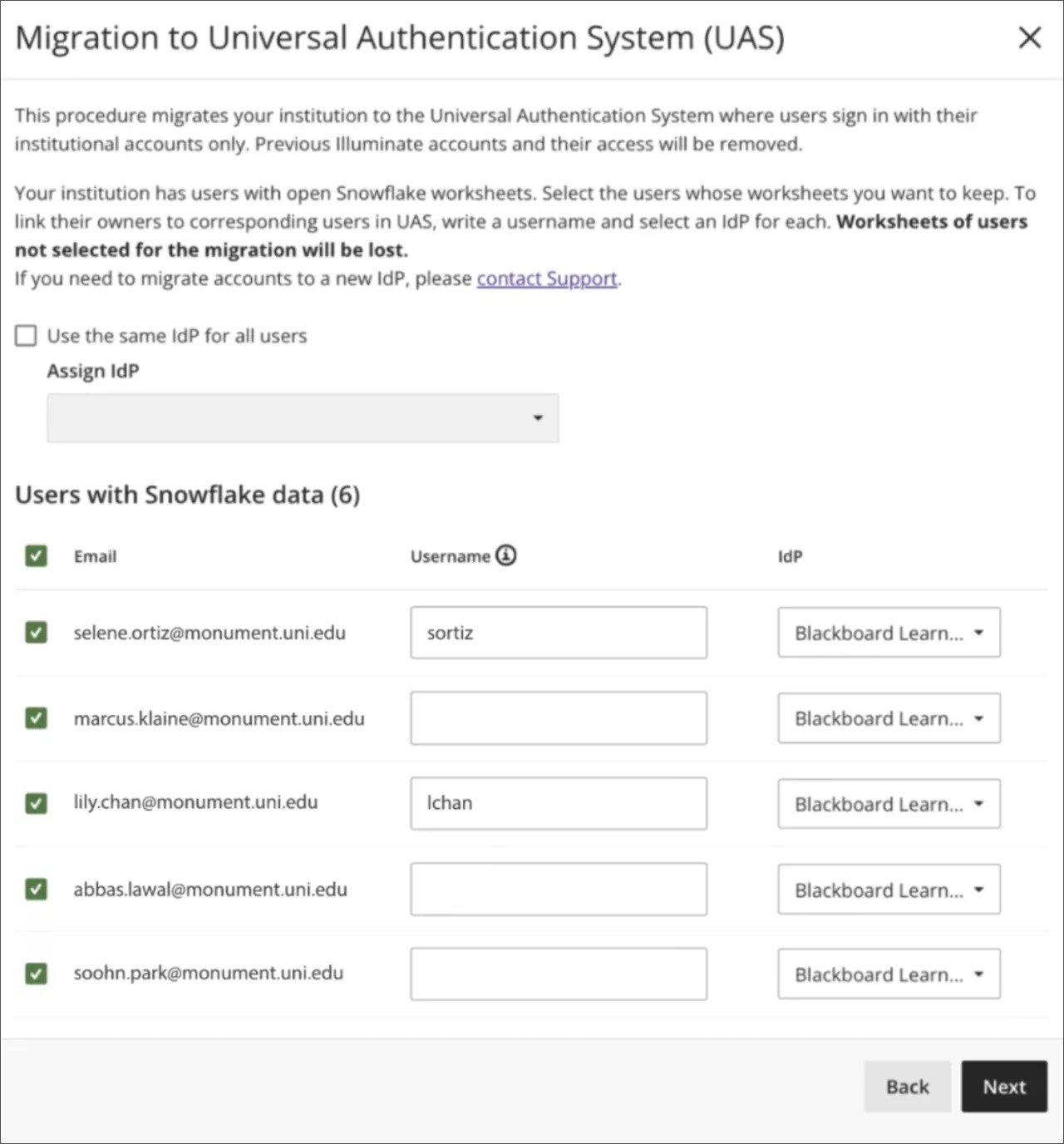
Under Users with Snowflake data select each user to migrate.
In the Username column, enter the existing username your UAS system assigned to the individual.
If your institution has multiple identity providers set up, you can select Use the same IdP for all users to apply the same one to all users.
Or you can select an IdP for each user in the IdP column. For more information, see 신원 제공자의 구체적 사항.
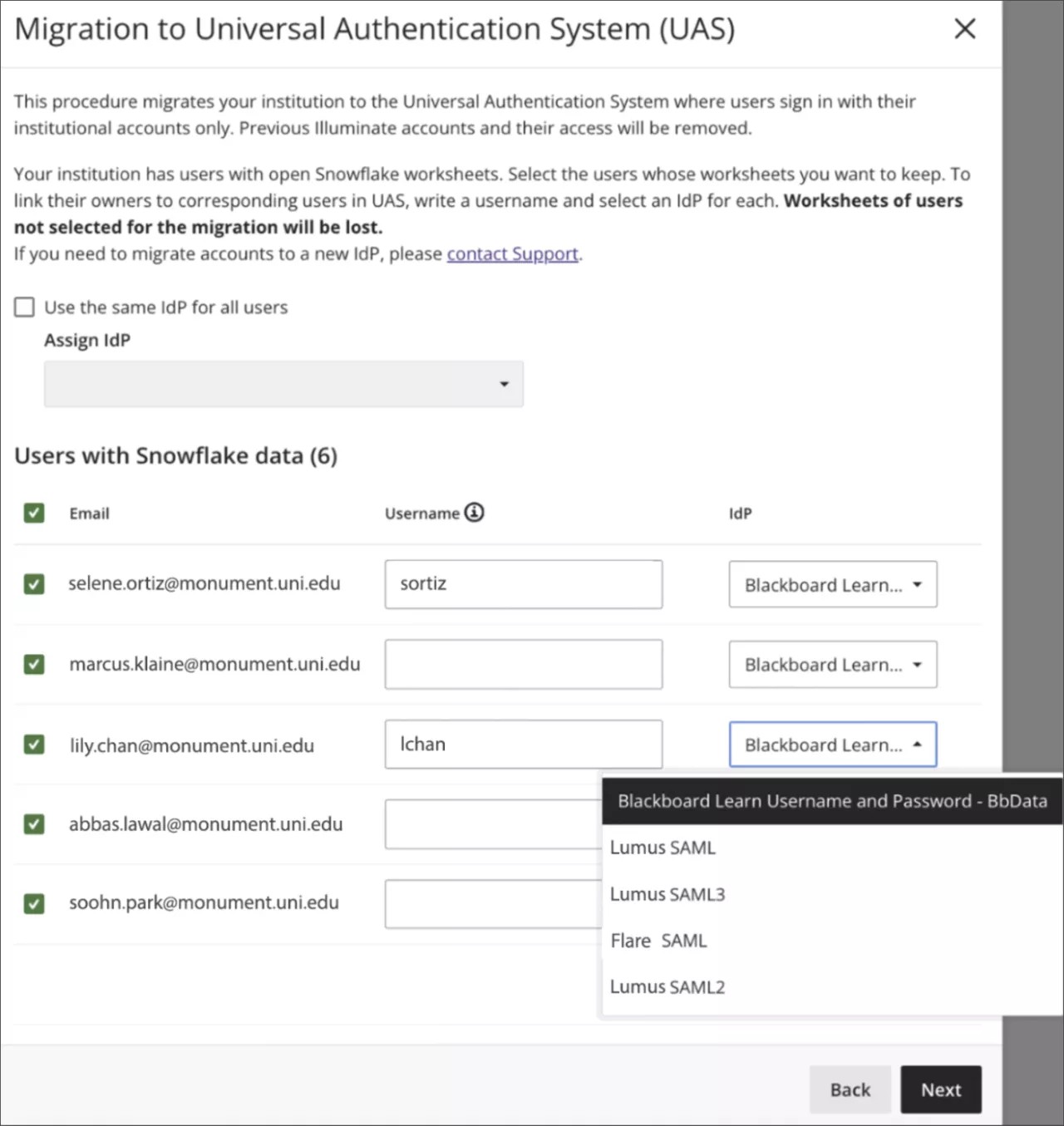
Select Next.
On the confirmation screen, review the list of users who will be migrated and removed.
참고
Users who aren't selected for migration are removed from Illuminate. They won't be able to use Illuminate credentials to log in to Snowflake, and they will lose all Snowflake data.
Users who migrate successfully will retain their content or tracking information from their reader accounts, such as Snowflake's worksheets, including SQL queries, activity history, etc.
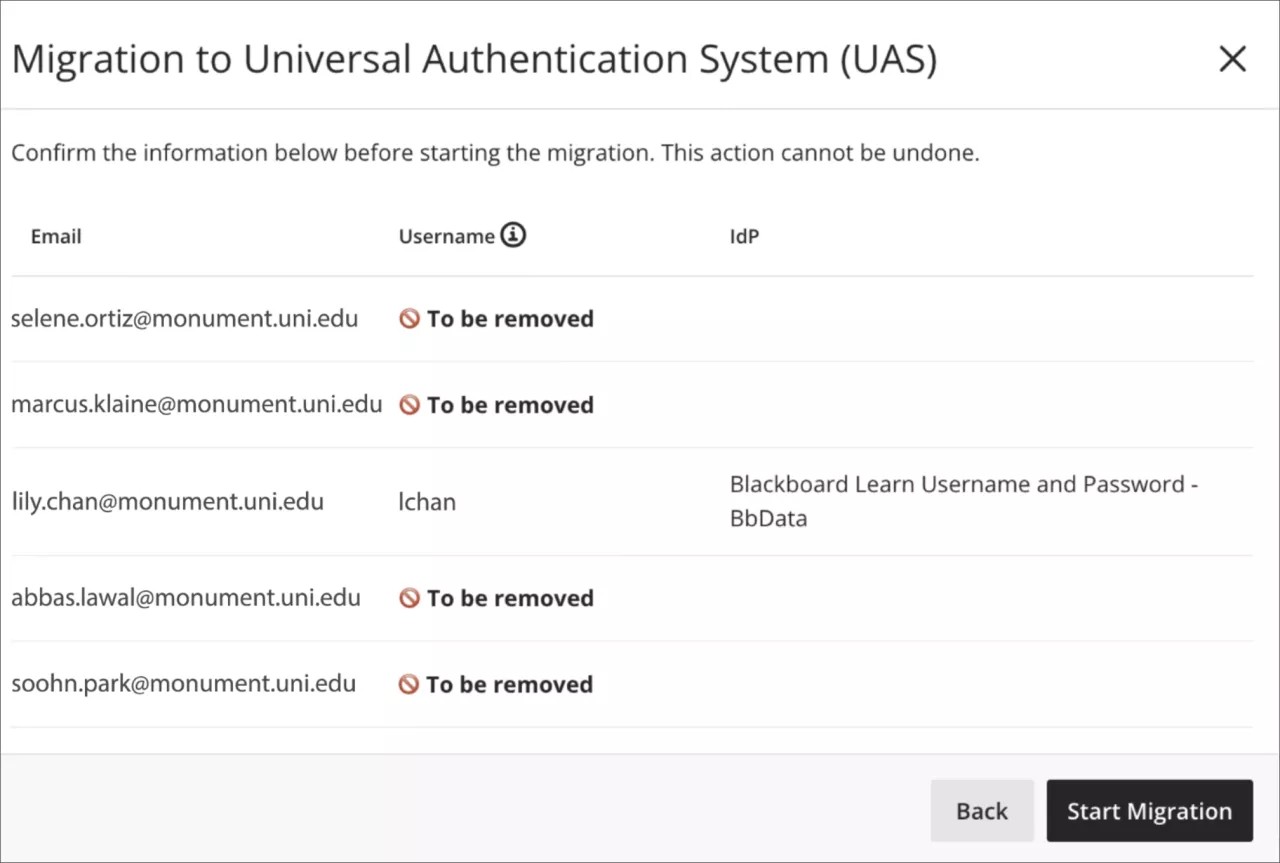
Select Start Migration.
As the migration processes, a status banner displays progress.
진행 배너: 마이그레이션 현재 진행 중입니다. 배너가 종료되면 성공 상태나 실패 상태로 전환됩니다.
성공 배너: 마이그레이션은 한 달도 되지 않아 성공적으로 완료되었습니다.
실패 배너: 마이그레이션 실행에 실패하였습니다. 재시작할 수 있는 마이그레이션 과정의 경우, 배너에 재구성 마이그레이션 버튼이 포함되어 있어 재시작하기 전에 올바른 데이터로 양식을 다시 작성할 수 있습니다.
신원 제공자의 구체적 사항
앤솔로지는 다음과 같은 신원 제공자(IdP) 유형을 지원합니다:
Learn Connector: Learn 사용자 DB에 일치하는 사용자가 있으면 매핑된 사용자 이름이 제안된 유효한 값으로 자동 입력됩니다.
SAML: 일부 기관은 IdP를 포함한 자체 인프라를 구축했을 수 있으므로, 자체 IdP를 도입해야 할 수도 있습니다. SAML을 사용하여 마이그레이션하는 중에는 매핑된 사용자 이름을 제안하거나 검증할 수 없습니다.
이주 실행
폼 실행을 확인하려면 마이그레이션 시작을 클릭하여 마이그레이션을 시작하십시오. 마이그레이션 상태 배너에 진행 상황이 표시됩니다.
개발사:
DATA_D보고:
DATA_R제한된 시청자:
DATA_RV또는저자:
DATA_A
자세한 내용은 역할별 접근 권한을 참조하세요.