Feedback Panel
Open the feedback panel
Ally provides you detailed feedback and support to help you become an accessibility pro. Blackboard LMS about accessibility issues, why they matter, and how to fix them. Green is the goal!
After you upload files in your course, Ally produces an accessibility score for each file. In lessons with multiple files, the accessibility score is shown for each file. In areas where you access files, the accessibility icon is located to the right or left of the file.
Select the Accessibility score to open the feedback panel.
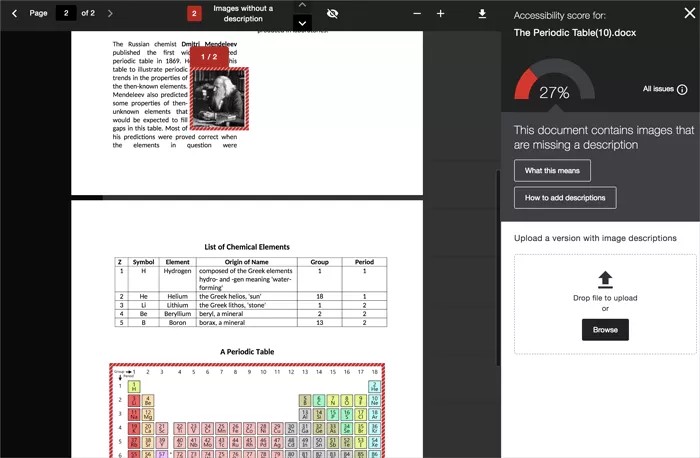
Ally’s feedback panel shows you a preview of the document’s content as well as detailed feedback and support to help you fix your accessibility issues.
Preview the document
The instructor feedback, in-browser, preview shows the content for PDFs, Word documents and PowerPoint documents.
Highlights
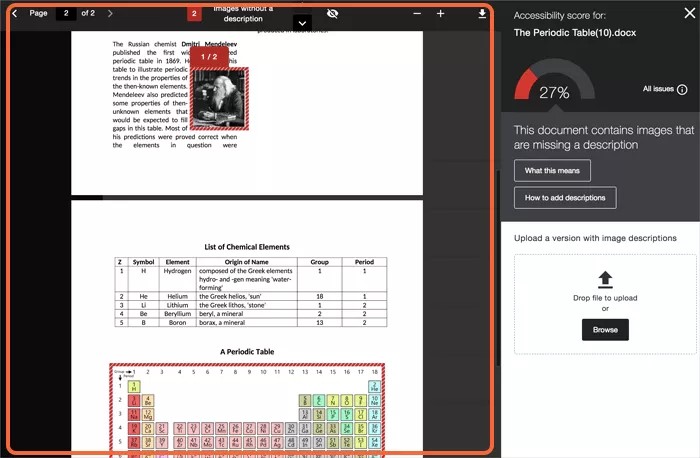
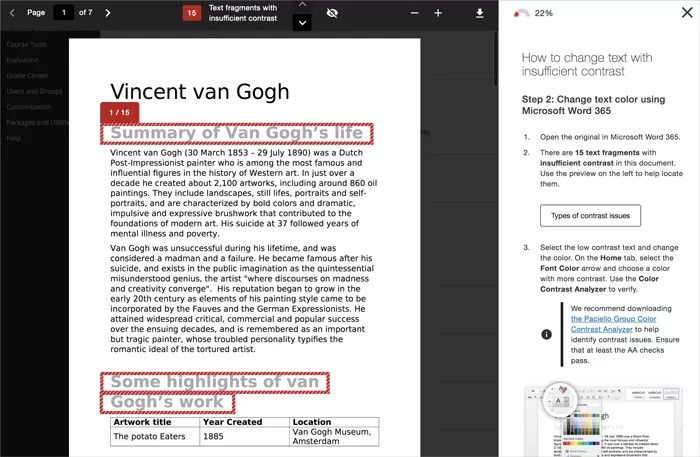
The preview highlights where specific accessibility issues can be found in the document. Highlights show every occurrence of one issue type at a time. For example, if your images are missing alternative descriptions, the highlights show you every place this specific issue occurs. If your document also has poor text contrast, select that issue in the feedback panel to see the occurrences of that issue highlighted.
Highlights are provided for these issues:
Images without an appropriate alternative description
Text fragments with insufficient contrast
Tables without table headers
Note
All other accessibility issues are not highlighted in the preview.
Missing text description
Text contrast
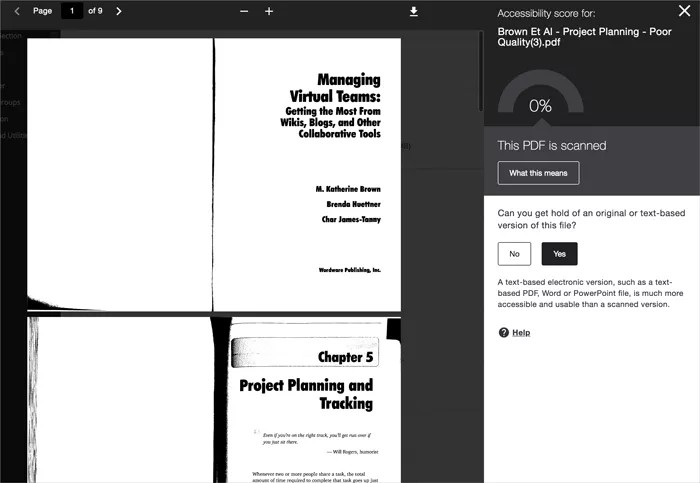
Scanned PDF
Preview tools

Use the tools above the preview to explore the issues in your document.
Move through the document preview page by page.
See how many times a specific issue appears in the document.
Jump between the issue highlights.
Hide or show the highlights.
Zoom the preview content in or out.
Download the original file.
Step-by-step guidance
For accessible files, Ally tells you what you did correctly. For files with Low to High scores, Ally shows you the issues and gives a step-by-step guide on how to fix them.
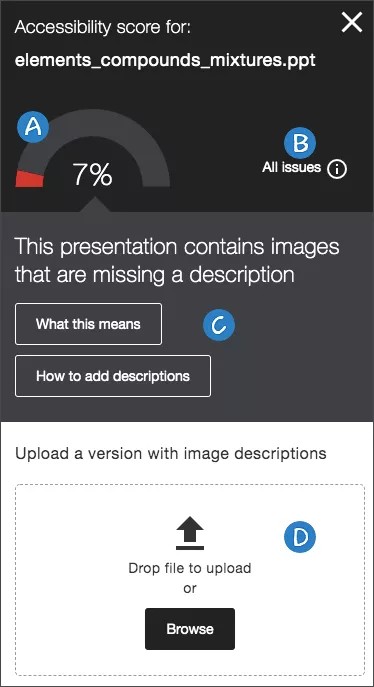
Accessibility score: See the overall score for the entire file.
All issues: Select All issues to see every issue in the file. This view shows you by how much the score can improve by fixing each issue. Find the issue you want to start fixing and select Fix.
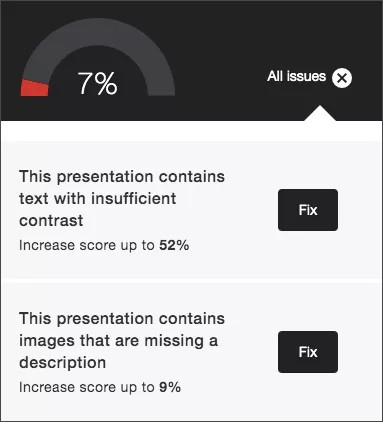
Description of issue and step-by-step help: See the description for an issue with the file. Ally organizes this feedback in a decision tree, so all you need to do is read the directions and respond to the prompts. Blackboard LMS what the issue is, why it matters, and how to correct it appropriately.
Select What this means to learn more about the issue.
Select How to and follow the steps to improve the file's accessibility.
Tip
These instructions change depending on the file and the accessibility issues found. For example, with a PDF you may see instructions on how to make the PDF tagged. Select How to Make a PDF Tagged.
Upload: Upload updated files to replace the existing one.