Alternative Formats
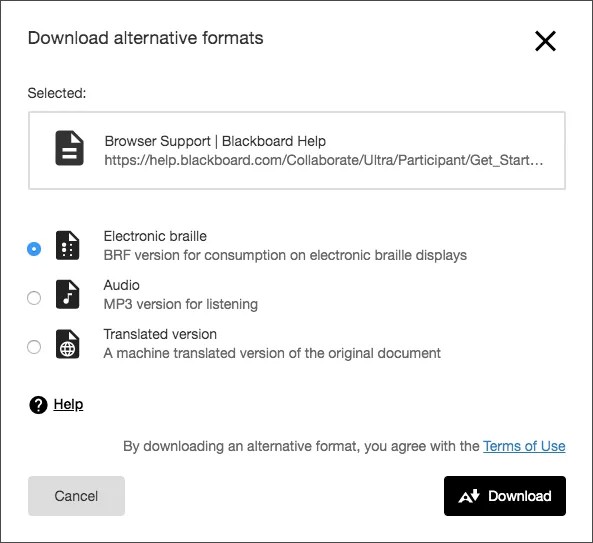
Many sites today are visited by people with diverse needs. Alternative formats provide greater opportunity for everyone to access the information they need in the way they need or want it.
Alternative formats aren't just for a select group of people. Alternative formats benefit everyone. For example, a visitor to your site may be prone to eye strain, or maybe they prefer to listen. They can listen to an audio format of your content instead. Or use the HTML or ePub formats for easier reading on a mobile device.
Administrators and content editors don’t need to do anything. Ally creates the alternative formats for you.
Find the available alternative formats
Ally creates alternative formats of website pages and files based on the originals. For example, if the original content is a PDF, Ally creates audio, electronic braille, and ePub formats of the same content. These formats are made available with the original content so everything is in one convenient location.
Note
The alternative formats created depend on the original content type. If you don't see an option to download alternative formats, Ally isn’t enabled for that website or the file is not a supported content type.
Look for the Download Alternative Formats icon. You'll find the icon on the right side or along the bottom of the page.
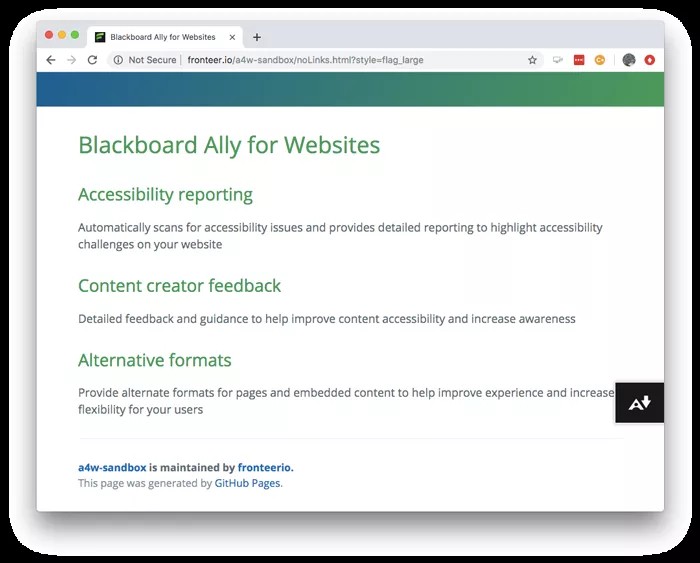
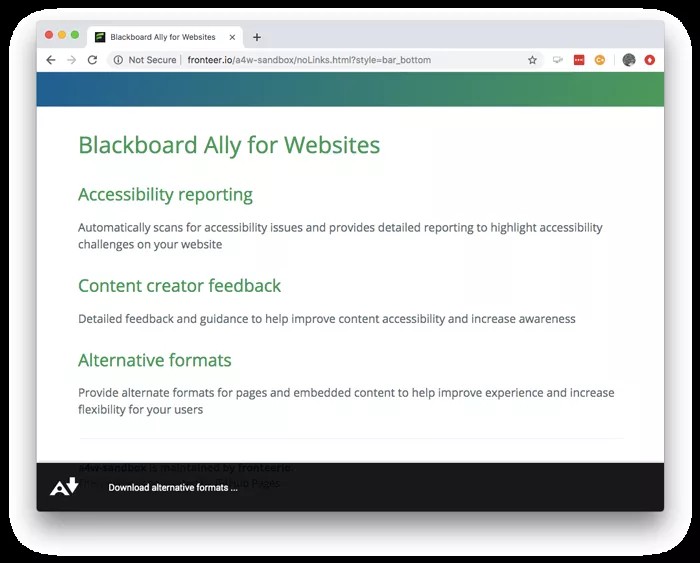
Select a format for the whole page or for individual files on the page. A list of available formats appears to choose from.
Tip
If there are no files on the page, all you see is the available alternative formats for the page.
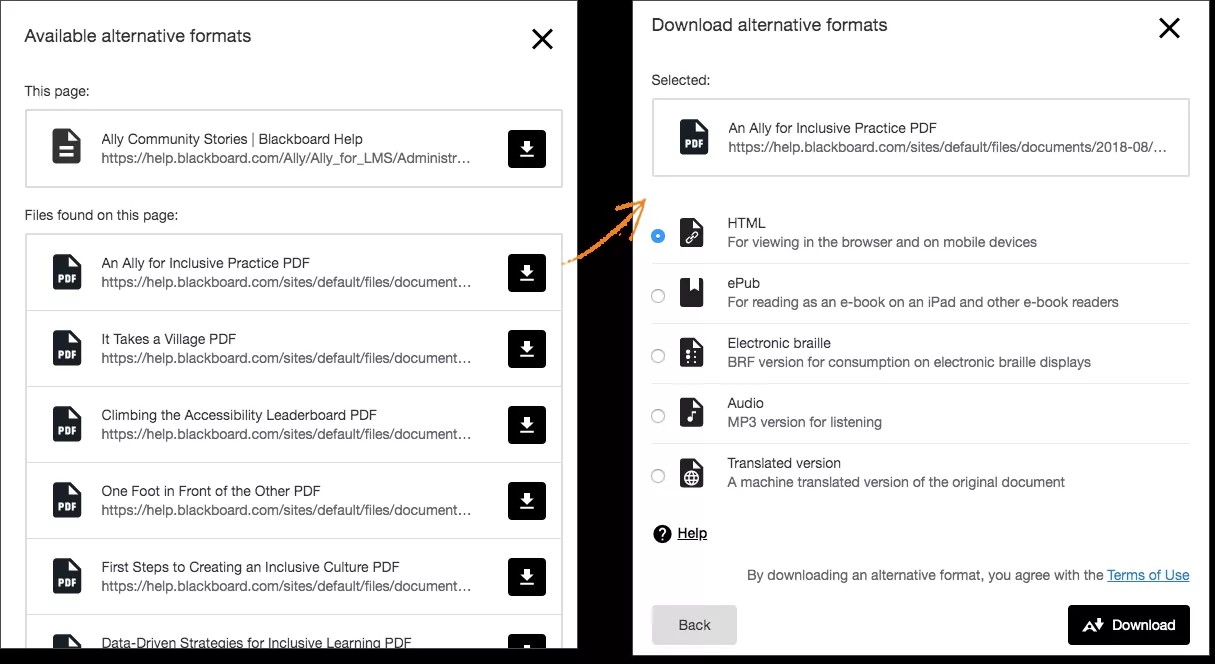
What alternative formats does Ally generate?
Ally provides alternative formats for these content types:
PDF files (custom encoded fonts are not supported)
Microsoft® Word files
Microsoft® Powerpoint® files
OpenOffice/LibreOffice files
Uploaded HTML files
Content created in the LMS course editor (WYSIWYG)
Note
Alternative formats for WYSIWYG content is currently only available for Blackboard LMS Ultra, Blackboard LMS Original, Instructure Canvas, D2L Brightspace, and Schoology.
These alternative formats can be generated:
OCR’d version (for scanned documents)
Tagged PDF (currently for Word, Powerpoint and OpenOffice/LibreOffice files)
Immersive Reader (LMS only)
Mobile-friendly HTML
Audio
ePub
Electronic Braille
BeeLine Reader
Translated Version
Translated Version is disabled by default. Administrators can submit a support case to have it enabled.