Worker Positions
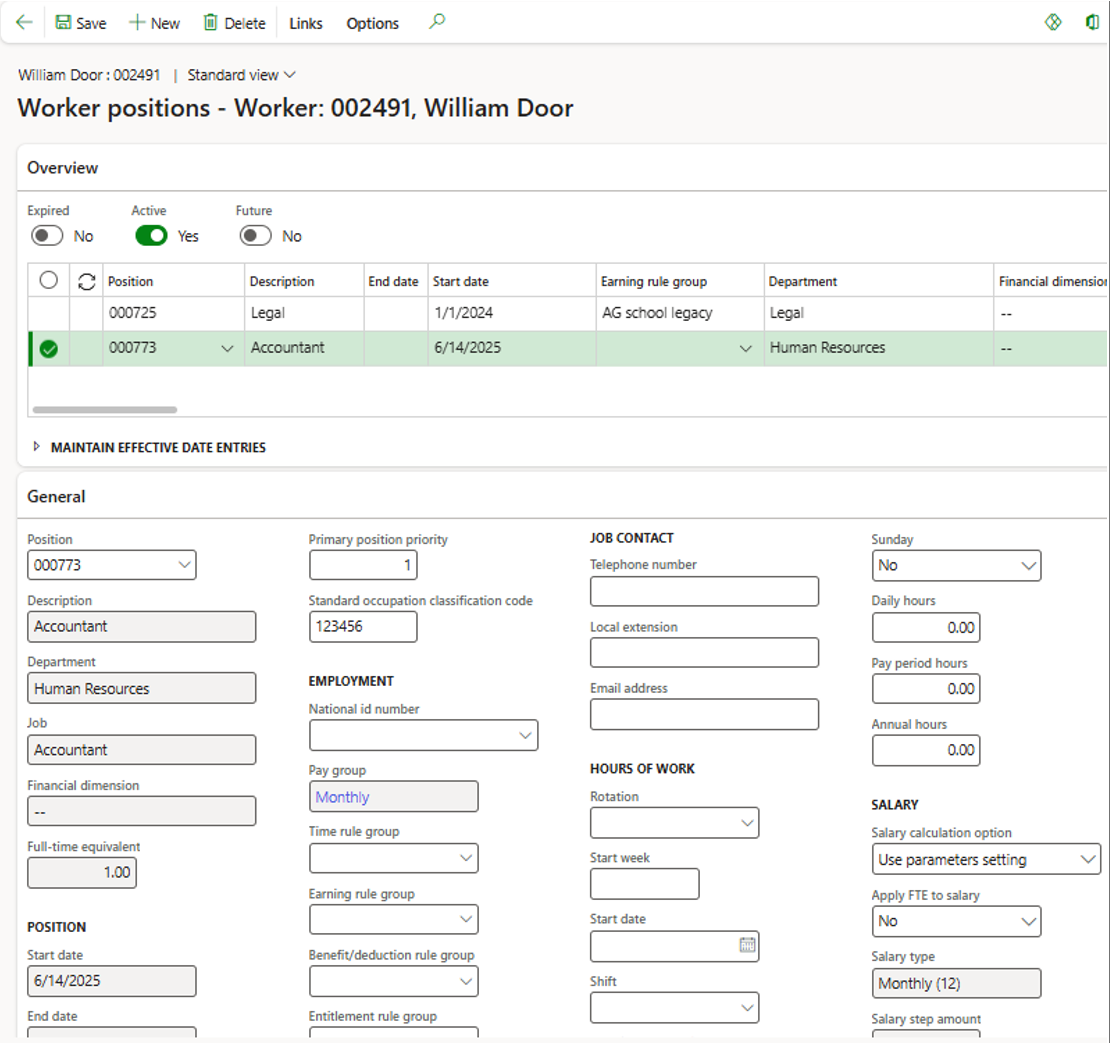
Accessed from:
-
Common > Anthology Payroll Workers list > worker > AthPay Profile tab > Positions section > Positions
Description
This form displays payroll worker position records. These records hold configuration determining how that worker should be paid for a position and how its payroll transactions should be generated and reported.
Some of the fields are read-only information from its parent HR position, position worker assignment, and compensation.
Usually, when a worker is assigned to a position in HR, a Payroll worker position record is created automatically with an Active date matching the Start date of that assignment. If, however, your organization has configured Anthology Payroll in more than one legal entity and a worker has employment records for more than one of those legal entities, Anthology Payroll will NOT create a payroll worker position record automatically. From the legal entity that will pay the worker using this position, select New to create a new row and, from the Positions drop-down, select the appropriate position. Update the Active date to match the Start date. When a worker is being paid from more than one legal entity, using separate position worker assignments for each legal entity is recommended if you consider integrating with other products.
Fields
| Field | Description |
|---|---|
| Position | Unique identifier for the position, from HR |
| Description | HR Description for the selected position. Not editable. |
| Department | Department for the selected position in HR. Not editable. |
| Job | Job associated with the selected position in HR. Not editable. |
| Financial dimension | Dimension set configured for the selected position in HR. Not editable. |
| Full-time equivalent |
FTE assigned to the selected position in HR. Not editable. Payroll will use this value for its calculations instead of “Employment factor (FTE),” which is also on this form, when the “Use HR position's full-time equivalent factor” parameter is set to “Yes” on the General definitions parameters form. |
| Start date | Start date of the HR position worker assignment. Not editable. |
| End date | End date of the HR position worker assignment, if any. Not editable. |
| Position type | Select the type from your organization’s list. |
| Position assignment type |
Select the assignment type from your organization’s list. Your organization could use this selection to identify the shift codes that can be assigned to this position and/or accumulator eligibility. |
| Occupation |
Select the occupation from your organization’s list. Your organization could use this selection to:
|
| Union affiliation | Positions need Daily hours, Pay period hours and Annual hours values for calculating and reporting pay. Your organization’s standard set of values for these fields will be available as Union affiliation options. You can either select one of these affiliations or populate the Daily hours, Pay period hours and Annual hours fields on this form. |
| Union certification | If the Union affiliation that you selected on this form has multiple variations available as certifications, select the relevant certification. Usually, this field is empty. |
| Employment factor (FTE) |
Enter the full-time equivalent factor for this position if you use FTE to scale salary, generated earnings, or payroll entitlements. A full-time position should have a value of 1.0, and a half-time position 0.5. If this field is not editable, it means that the “Use HR position's full-time equivalent factor” parameter is set to “Yes” on the general definitions parameters form. The HR position’s “Full-time equivalent” field is being used instead of this field. |
| Workers compensation category | Select the workers compensation category relevant to this position. |
| Primary position priority |
When a worker has more than one active position, ensure that the worker’s primary position has a lower number than any secondary positions. General reporting will determine the worker’s primary position by selecting the active position with the lowest Primary position priority value (e.g., 0 would be selected over 1; 1 would be selected before 2). Pay period processing will determine the worker’s primary position for the pay group by selecting the active position assigned to that pay group with the lowest Primary position priority value (e.g., 0 would be selected over 1; 1 would be selected before 2). |
| Standard occupation classification code | Enter the 6-digit occupation classification code or occupation title for statutory reporting. US only. |
| National ID number | Normally, leave this field empty. Select a national ID for statutory reporting only if the standard identification type does not apply for this worker/position. |
| Pay group |
Select the pay group through which this position will be paid. Transactions cannot be associated with this position for this worker until a pay group has been selected. To change the pay group that has been assigned to a worker position, select Links > Functions > Change pay group in the menu bar. That initiates a process that evaluates the start date of the new pay group selection to ensure that there are no outstanding transactions that will be disrupted by the change, and to carry over the worker’s benefit/deduction enrolments to the new pay group. |
| Time rule group |
This selection determines the set of time premium policies that apply to this worker position. Those policies include overtime rules for shifts and earning split logic, which occur when time transactions are processed into earning transactions. If this field is empty, the Time rule group field on the payroll Worker record may identify the rule group to be used. If the worker Time rule group field is empty too, then a Time rule group may be derived from the Occupation selected on this Worker position form. |
| Earning rule group |
This selection determines the set of earning rates that apply to this worker position. If this is the worker’s primary position for this pay group, the earning rule group also makes the position eligible for any generated earnings that apply to all workers in the rule group. If this field is empty, the Earning rule group field on the payroll Worker record may identify the rule group to be used. If the worker Earning rule group field is empty too, then an Earning rule group may be derived from the Occupation selected on this Worker position form. |
| Benefit/deduction rule group |
If this position is the worker’s primary position, this selection determines the set of benefit/deductions and their enrolment options that apply to this worker position. Note that it does not automatically enroll the worker in those benefit/deductions. In the Worker benefit/deduction form, you can use the Evaluate pane to generate the list of all the benefit/deductions configured for this rule group, select the appropriate enrolments for this worker, remove any that don’t apply and save them. If this field is empty, the Benefit/deduction rule group field on the payroll Worker record may identify the rule group to be used. If the worker Benefit/deduction rule group field is empty too, then a Benefit/deduction rule group may be derived from the Occupation selected on this Worker position form. |
| Entitlement rule group |
This selection determines the set of payroll entitlements that apply to this worker position. If this field is empty, the Entitlement rule group field on the payroll Worker record may identify the rule group to be used. If the worker Entitlement rule group field is empty too, then an Entitlement rule group may be derived from the Occupation selected on this Worker position form. |
| Location |
Select the standard location for this position, if required for statutory withholding or reporting. In US jurisdictions where local taxes apply, this is the field most commonly used to identify work location. |
| Position filter |
Select the usual state or province in which the earnings associated with this position should be taxed. If the “Multiple jurisdiction workers” parameter is set to “Yes” in the General definitions parameters form, this field is required. |
| Task | If it would be useful for new earning transactions associated with this position to have a default Task selection when they are created, select that default here. |
| Report distribution | Pay statements and W-2s can be printed in order of worker name, worker ID or this Report distribution code. The Report distribution code sort would allow you to sort them by physical delivery locations, for example. |
| Derive position filter from project |
Usually “No.” Select “Yes” if this worker may work in multiple states in this position, and you associate Projects (from the Project management and accounting module) with earning transactions to reflect which state the work is being done in. The earning transactions created for this position will get their default Position filter value from the Position filter field on this form or, if there is a Project associated with that earning, from the state in the Project’s address. |
| Only use the location’s work address |
Select “Yes” if the Location selected on this form should always be used to determine where the earnings associated with this worker position should be taxed or the worker does not live or work in a US jurisdiction where local taxes apply. Select “No” if this worker lives or works in a US jurisdiction where local taxes apply and the earnings for this position may need to be taxed based on a work address that is different than the Location address. Tax processing will check for alternative work addresses associated with the Task and Project selections on earning transactions. |
| Rotation |
Select a rotation if you wish to
|
| Start week | If you have selected a Rotation, enter a start week. If the rotation is one week long, enter 1. |
| Start date | If you have selected a Rotation, enter the first day that the rotation applies to this worker position. |
| Shift | Select the shift code that will appear by default when you add a shift to the Time journal or import a time record that does not specify a Shift code. |
| Rotation days option |
If you use the Create Time from Rotations process, then select "Rotation shifts on position's work days" if shifts should be created for only the days of the week that are set to "Yes" on this form, for example, because the worker is part-time, and thus does not work all days in the standard rotation. Select "All rotation shifts" if the Rotation selected on this form is a multi-week rotation that doesn’t follow a days-of-the-week pattern, so the days of the week selections should be ignored. Select “Use parameters setting” if the selection made on the General definitions form (either "Rotation shifts on position's work days" or "All rotation shifts") does not need to be overridden. |
| Monday |
Usually “Yes.” Select “No” to prevent salary from being generated for Mondays or shifts from being generated from rotations on Mondays, when the “Rotation days option” is “Rotation shifts on position’s work days.” |
| Tuesday |
Usually “Yes.” Select “No” to prevent salary from being generated for Tuesdays or shifts from being generated from rotations on Tuesdays, when the “Rotation days option” is “Rotation shifts on position’s work days.” |
| Wednesday |
Usually “Yes.” Select “No” to prevent salary from being generated for Wednesdays or shifts from being generated from rotations on Wednesdays, when the “Rotation days option” is “Rotation shifts on position’s work days.” |
| Thursday |
Usually “Yes.” Select “No” to prevent salary from being generated for Thursdays or shifts from being generated from rotations on Thursdays, when the “Rotation days option” is “Rotation shifts on position’s work days.” |
| Friday |
Usually “Yes.” Select “No” to prevent salary from being generated for Fridays or shifts from being generated from rotations on Fridays, when the “Rotation days option” is “Rotation shifts on position’s work days.” |
| Saturday |
Usually “No.” Select “Yes” to have salary generated for Saturdays or allow Saturday shifts to be generated from rotations when the “Rotation days option” is “Rotation shifts on position’s work days.” |
| Sunday |
Usually “No.” Select “Yes” to have salary generated for Sundays or allow Sunday shifts to be generated from rotations when the “Rotation days option” is “Rotation shifts on position’s work days.” |
| Daily hours |
Enter 0.00 if the Union affiliation value selected on this form holds the standard daily hours for a day of work for this worker position. Enter a value to override that default. If you provide a non-zero value in this field, you should also provide a non-zero value in Pay period hours and Annual hours. For salaried workers, this value may be used to calculate the equivalent hourly rate each pay period, depending on the Salary calculation option selection on this form. |
| Pay period hours |
Enter 0.00 if the Union affiliation value selected on this form holds the standard hours worked in a pay period for this worker position. Enter a value to override that default. If you provide a non-zero value in this field, you should also provide a non-zero value in Daily hours and Annual hours. For salaried workers, this value may be used to calculate the equivalent hourly rate each pay period, depending on the Salary calculation option selection on this form. |
| Annual hours |
Enter 0.00 if the Union affiliation value selected on this form holds the standard hours worked in a year for this worker position. Enter a value to override that default. If you provide a non-zero value in this field, you should also provide a non-zero value in Daily hours and Pay period hours. For hourly workers, the Annual hours value is used to extrapolate annual pay. |
| Salary calculation option |
Salary earning transactions have an implied number of hours and a rate, which are used when calculating the value of included and replacement earnings for the same day. This parameter identifies the mechanism for dividing salary earnings across the days in the pay period. Select “Use parameters setting” if the selection made on the General Definitions form does not need to be overridden. Select "Work day hours from daily hours" to have payroll use the "Daily hours" from the payroll worker position or its Union affiliation. Note that for monthly or semi-monthly pay periods, which divide the consistent salary total across a varying number of work days in a period, this means that the Rate will be slightly lower in periods with more work days, but the number of hours per day will be constant. Select "Work day hours from pay period hours" to have payroll use the "Pay period hours" from the payroll worker position or its Union affiliation. For monthly or semi-monthly pay periods, which divide the consistent salary total across a varying number of work days in the period, this means that the number of hours will be slightly lower in periods with more work days, but the Rate will be constant. Select "Rotation hours with same pay for each day" if you have selected a Rotation in this form, to have payroll pay the same salary amount each day, using the hours indicated by the rotation, and calculate the rate by dividing the daily salary value by those hours. Select "Rotation hours with pay based on rate times hours" if you have selected a Rotation in this form, to have payroll use the hours indicated by the rotation for all the days in the pay period, divide the pay period salary by the total of those hours in the pay period to determine a consistent rate for the pay period, resulting in different salary amounts on days with a different number of hours in the rotation. |
| Apply FTE to salary |
Select “No” if the position is full-time or if the salary amount already reflects the appropriate part-time wage. Select “Yes” to multiply the base salary (“Salary step amount” on this form” by the “Employment factor (FTE)”, if that field on this form is active, otherwise by “Full-time equivalent” on this form. When “Yes” is selected and the FTE is less than 1.00, select Save at the top of the form to display or update the “Salary based on FTE” field on this form to show the resulting salary rate adjusted by FTE. |
| Salary type | The frequency of the “Salary step amount” value on this form. For example, “Monthly” or “Annual.” From HR Compensation. Not editable. |
| Salary step amount | The salary amount corresponding to the frequency indicated in the “Salary type” on this form. From HR Compensation. Not editable. |
| Salary based on FTE | If “Yes” is selected in the “Apply FTE to salary” field on this form and the FTE is less than 1.00, select Save at the top of the form to display or update this field on this form to show the resulting salary rate (the “Salary step amount” multiplied by the FTE). |
| Country/region | Select the country in which earnings in this position are taxed. |
| Tax state of residence | Select the worker’s state of residence for the purposes of withholding taxes. |
| State where working | Select the default state in which the work of this position is being done. |
| Active date |
First date this set of payroll attributes is in effect. Typically, an HR position worker assignment will have one payroll worker position record that becomes active on the HR assignment start date. It may have one or more additional payroll worker position records with different start dates, so that the series of records captures the history of the payroll configuration for this worker position. |
| Expiry date |
Last date this set of payroll attributes is in effect. Typically, an HR position worker assignment will have one payroll worker position record with an Expiry date of 12/31/2154 (no end date) or the end of the tax year in which the worker was last in this position. It may have one or more additional payroll worker position records with different start dates, so that the series of records captures the history of the payroll configuration for this worker position. |
