Accounts migreren naar het Universal Authentication System (UAS)
Note
Deze documentatie is vertaald met behulp van AI-ondersteunde machinevertaling. Vertalingen worden geleverd 'zoals ze zijn', zonder garantie van de juistheid ervan. De Engelse versie van deze inhoud is de officiële en leidende versie.
De gestandaardiseerde authenticatiemethode van Blackboard integreert de identiteitsprovider van een instelling, het Universal Authentication System (UAS), in Blackboard-producten. Je kunt het ook wel Instellingsverificatie gebruiken.
Institutional Authentication is the recommended authentication method for Illuminate. It streamlines authentication by using your institution’s authentication system with existing usernames and passwords.
For institutions who use the older method called "native authentication," you can migrate your account to Institutional Authentication. Go to Settings and then select Snowflake Account Settings. A banner appears that says the migration is available.

Migratievorm
Om het lezersaccount van uw instelling te migreren naar de Institutionele Authenticatie (UAS-gebaseerde authenticatie), moet u een gebruikersmapping aanbieden tussen Blackboard Illuminate-gebruikers en hun bijbehorende Institutionele Authenticatiegebruikers.
Opmerking
Het verschil tussen Blackboard Illuminate en instelling-authenticatie is dat bij de Blackboard Illuminate-authenticatie een gebruiker wordt geïdentificeerd via een e-mailadres, terwijl bij instelling-authenticatie de gebruiker wordt gedefinieerd via het gebruikersnaamattribuut dat niet noodzakelijkerwijs hetzelfde is als het bijbehorende e-mailadres van de gebruiker.
Log in to Blackboard Illuminate.
From the navigation bar, select Settings.
Select Snowflake Account Settings.
From the migration available banner, select Configure Migration. The Migration to Universal Authentication System (UAS) screen appears.
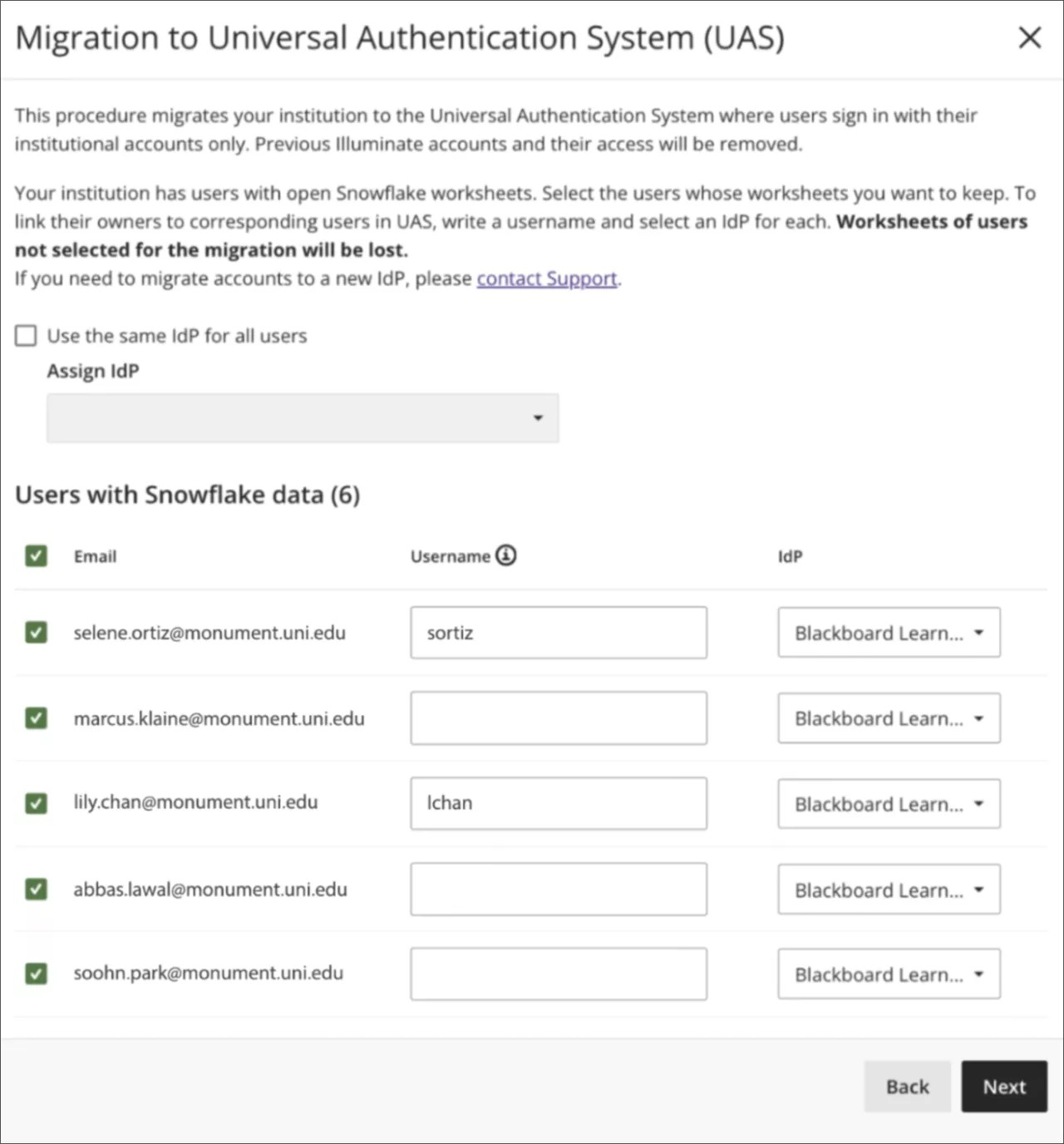
Under Users with Snowflake data select each user to migrate.
In the Username column, enter the existing username your UAS system assigned to the individual.
If your institution has multiple identity providers set up, you can select Use the same IdP for all users to apply the same one to all users.
Or you can select an IdP for each user in the IdP column. For more information, see Specifieke identiteitsaanbieders.
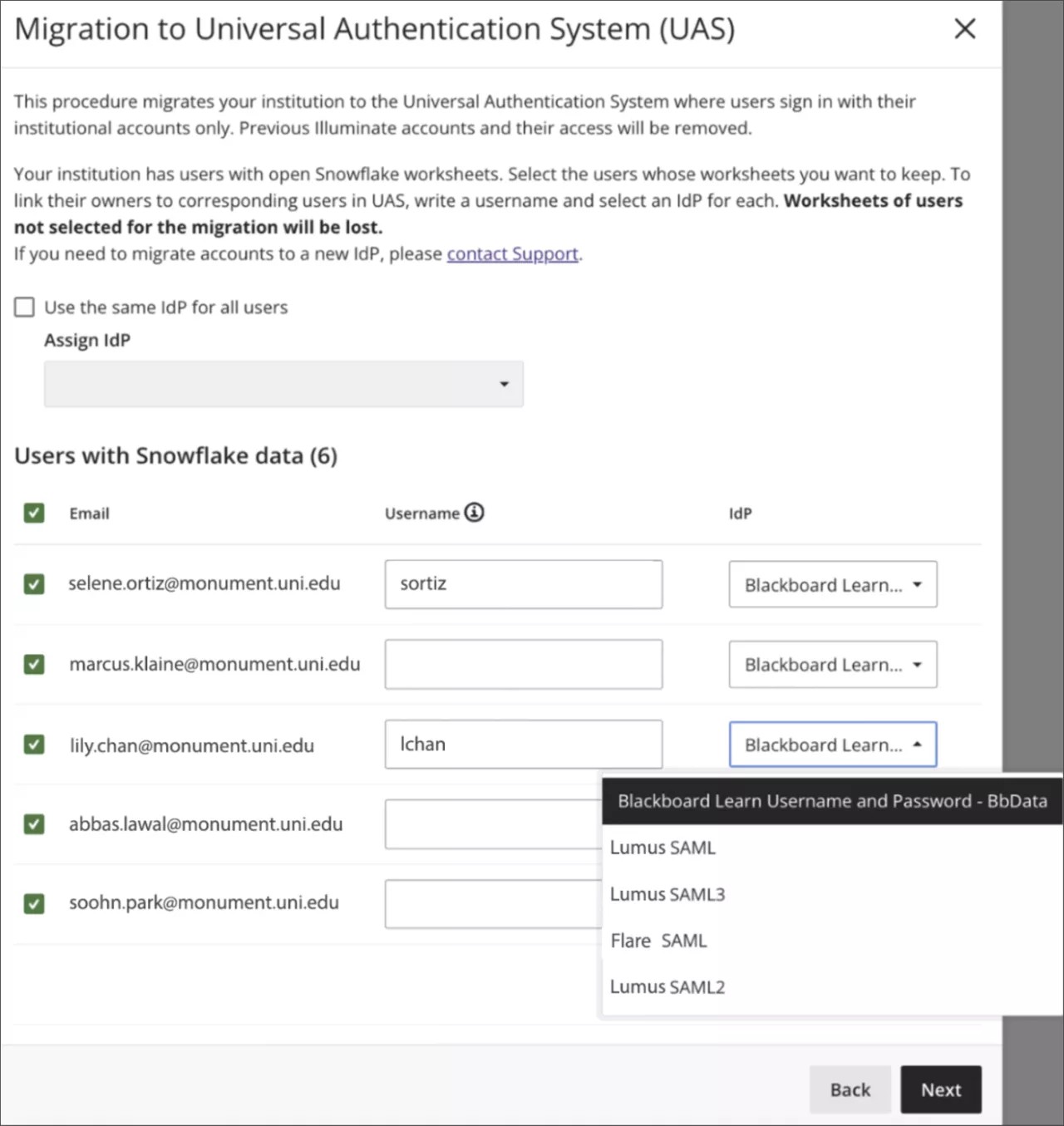
Select Next.
On the confirmation screen, review the list of users who will be migrated and removed.
Opmerking
Users who aren't selected for migration are removed from Illuminate. They won't be able to use Illuminate credentials to log in to Snowflake, and they will lose all Snowflake data.
Users who migrate successfully will retain their content or tracking information from their reader accounts, such as Snowflake's worksheets, including SQL queries, activity history, etc.
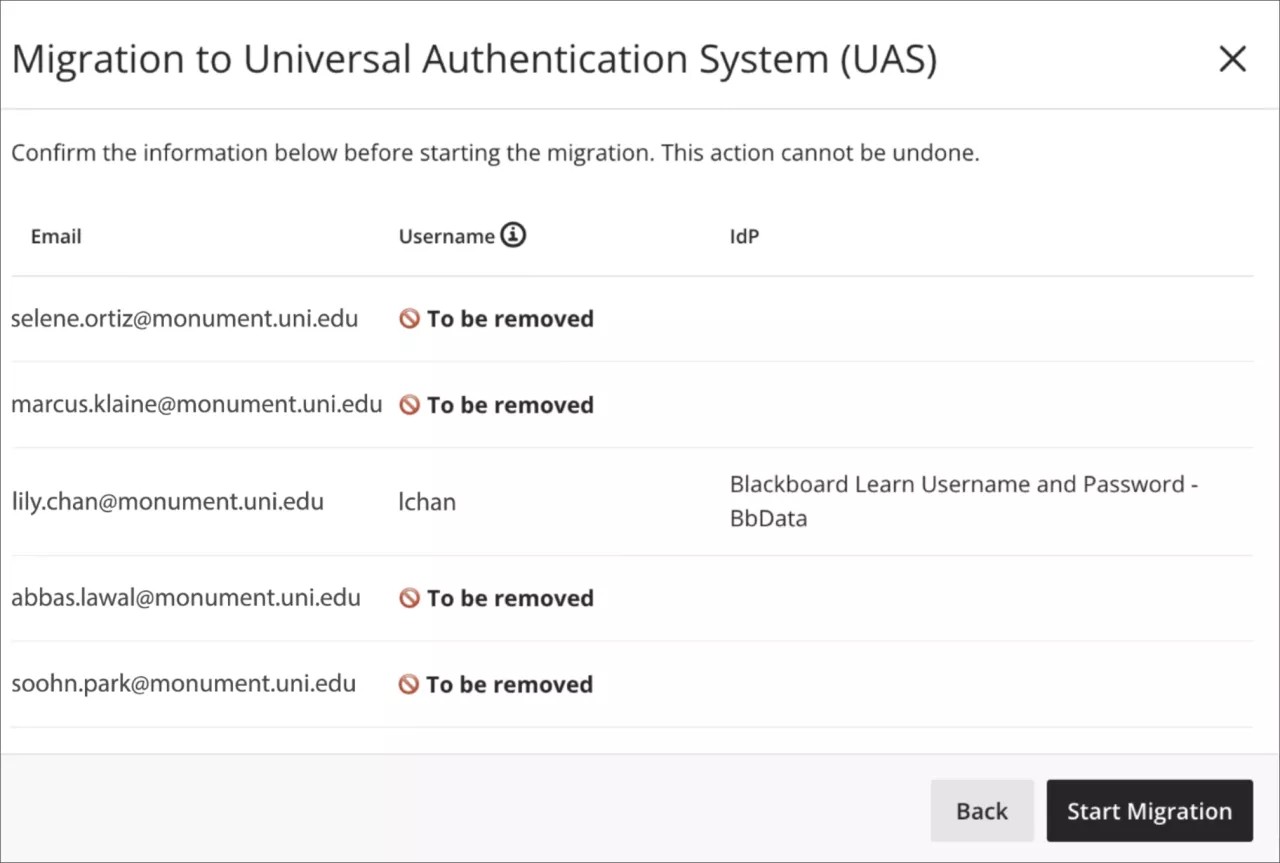
Select Start Migration.
As the migration processes, a status banner displays progress.
Voortgangsbanner: De migratie draait momenteel. Wanneer het klaar is, schakelt de banner over naar een Succes- of Mislukkingstoestand.
Succesbanner: De migratie was minder dan (1 maand) geleden succesvol.
Failure banner: De migratie-uitvoering is mislukt. Als het mogelijk is om het migratieproces opnieuw te starten, bevat de banner een knop 'Migratie herconfigureren' zodat je het formulier opnieuw kunt invullen met correcte, geldige gegevens voordat je opnieuw kunt starten.
Specifieke identiteitsaanbieders
Blackboard ondersteunt deze Identity Provider (IdP) types:
Learn Connector: Als een overeenkomende gebruiker in de Learn user database staat, wordt de toegewezen gebruikersnaam vooraf ingevuld met een voorgestelde, geldige waarde.
SAML: Sommige instellingen hebben mogelijk hun eigen infrastructuur gebouwd, waaronder IdP, en daarom moeten ze hun eigen IdP hebben geïnboardd. We kunnen geen toegewezen gebruikersnaam voorstellen of verifiëren wanneer de migratie naar SAML gaat.
Migratie-uitvoering
Om de formulieruitvoering te bevestigen, selecteer je Start Migratie om de migratie te starten. De migratiestatusbanner toont de voortgang.
Ontwikkelaar:
DATA_DReporting:
DATA_RBeperkte Kijker:
DATA_RV, ofAuteur:
DATA_A
Voor meer informatie, zie Toegang per functie.