Ychwanegu neu Ddileu Defnyddwyr yn Illuminate
Note
Cyfieithwyd y ddogfennaeth hon gan ddefnyddio cyfieithu peirianyddol gyda chymorth AI. Darperir cyfieithiadau "fel y maent" heb unrhyw warant o'u cywirdeb. Y fersiwn Saesneg o'r cynnwys hwn yw'r ffynhonnell swyddogol ac awdurdodol.
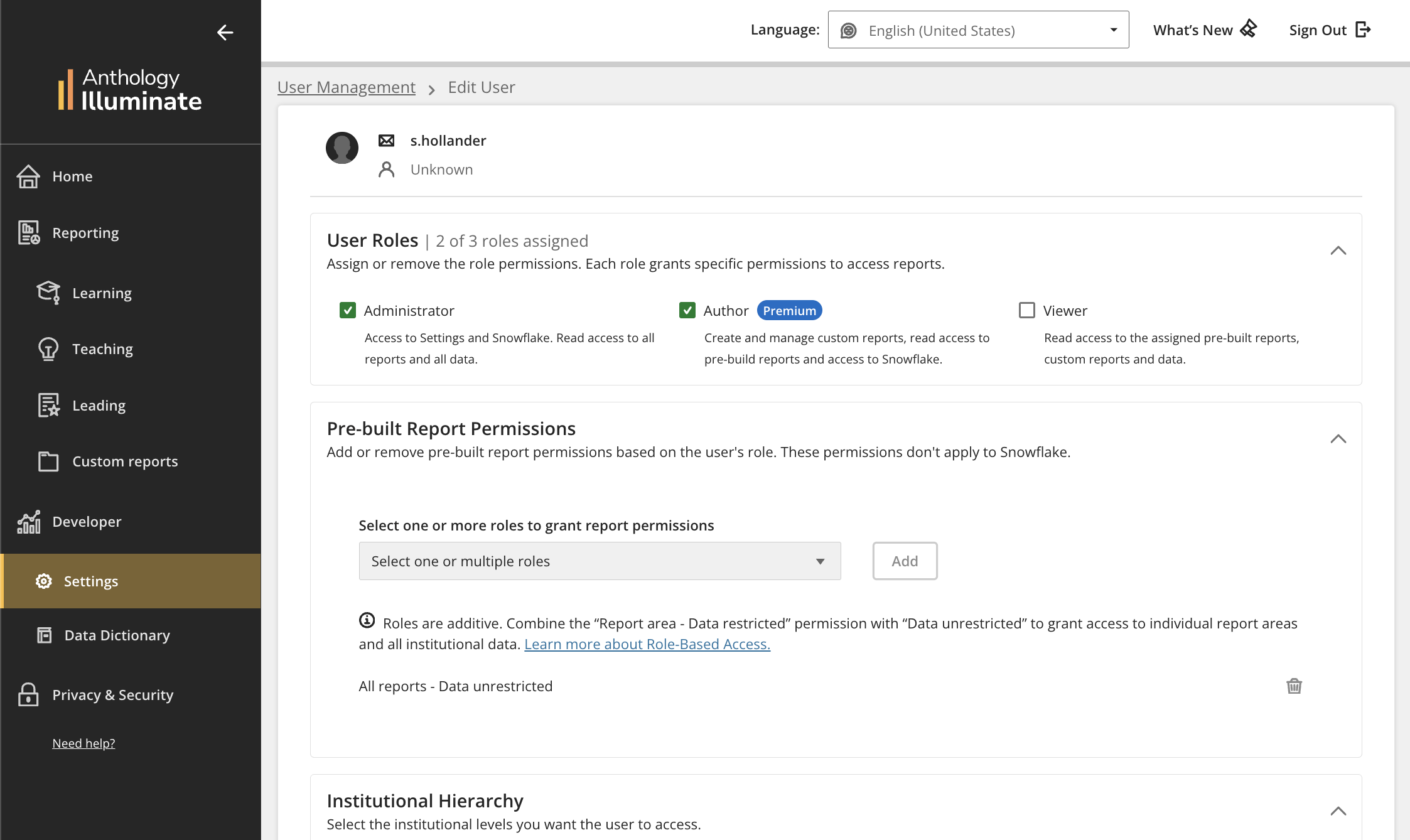
Os yw eich sefydliad yn defnyddio dilysiad sefydliadol, gall gweinyddwyr reoli'r holl ddefnyddwyr, rolau a chaniatâd yn Gosodiadau Illuminate.
Ychwanegu defnyddiwr at Illuminate
O Datblygwr, Gosodiadau, dewiswch Rheoli trwyddedau.
Dewiswch Creu Defnyddiwr.
Ar y dudalen Creu Defnyddiwr Newydd, nodwch enw defnyddiwr Blackboard y person i'w ychwanegu.
Yn y maes IdP, dewiswch y darparwr adnabod.
Dewiswch Creu Defnyddiwr. Rydych yn derbyn cadarnhad bod y defnyddiwr wedi'i ychwanegu i Illuminate a gallwch nawr aseinio eu rolau defnyddiwr.
Dileu defnyddiwr Illuminate
Gall gweinyddwyr ddileu defnyddwyr o bob rôl.
Nodyn
Unwaith y caiff defnyddiwr ei ddileu, mae'n colli mynediad i'r platfform ar unwaith. Ni ellir dadwneud y weithred hon.
Ni all gweinyddwyr ddileu eu hunain na thynnu eu rôl Gweinyddwr eu hunain.
O Datblygwr, Gosodiadau, dewiswch Rheoli trwyddedau.
O dan Gweithredoedd, dewiswch Dileu i ddileu'r defnyddiwr.
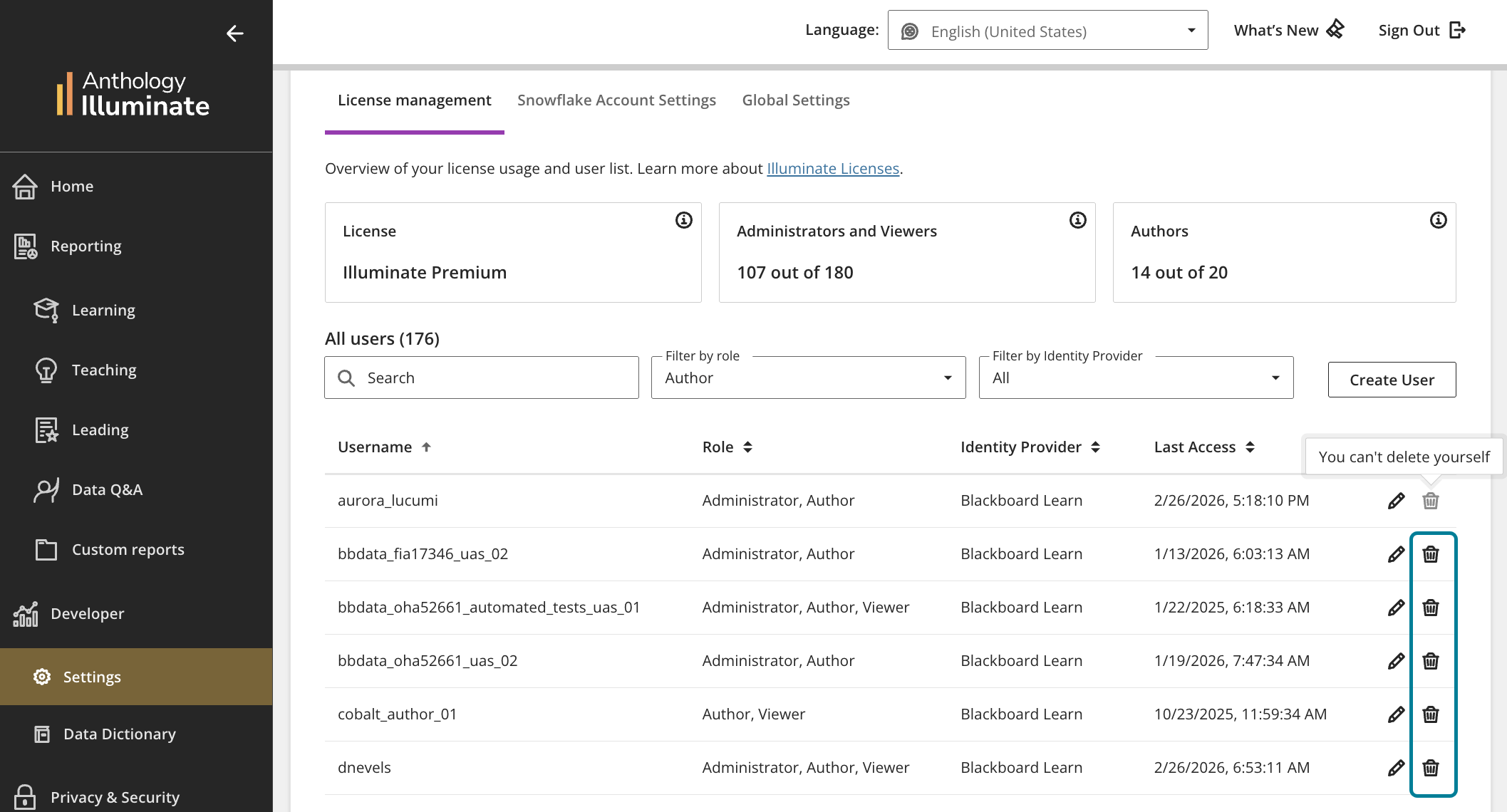
Os yw'r defnyddiwr yn awdur sydd â chynnwys pwrpasol wedi'i gadw, bydd y prompth Trosglwyddo cynnwys yn ymddangos. Dewiswch i ba awduron y mae'r cynnwys i'w drosglwyddo. Nodyn: Os bydd y trosglwyddiad cynnwys yn methu, bydd y broses ddileu yn stopio'n awtomatig i atal unrhyw golli data.
Mae'r sgrin Dileu Defnyddiwr yn ymddangos. Dewis Dileu.