Home
The Student Portal home page is displayed when you successfully sign in as a student. The greeting shows your first name, e.g., "Hello Bob!"
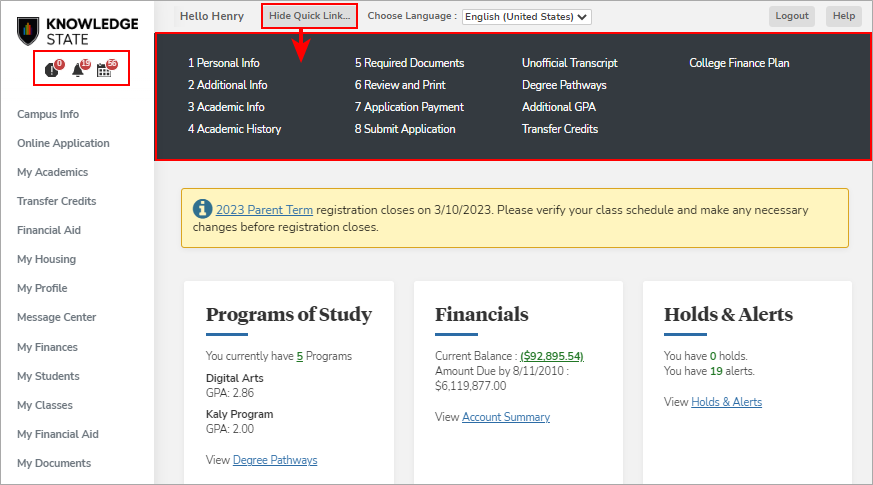
The navigation bar on the home page provides links to Show Quick Linksor Hide Quick Links, select the Language, Personalize the home page, Logout, and access Help.
If your institution enabled the Cookie Consent Configuration option, the footer of the home page includes the option to configure the Cookie Preference. The placement of this option may vary.
The icons under the campus logo provide links for your Holds, Alerts, and Appointments.
Personalize the Home Page
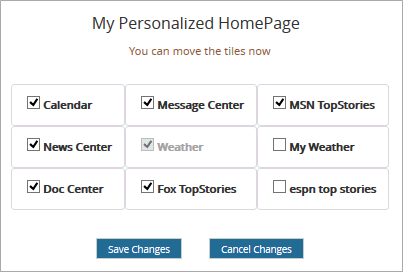
You can personalize the home page by adding or removing components that provide quick access to frequently used information. When you select the Personalize link, the available components are displayed. Select or clear the check boxes for the options you want to view or hide and select Save Changes.
To rearrange tiles on the home page, move the cursor over a tile. When the cursor changes into a 4-pointed arrow  , select and move the tile to another position on the page. Drop the tile when a horizontal line appears.
Web Parts
The following web parts are available:
-
The My Calendar web part displays classes for the day (no personal events). The link redirects to My Calendar, where you can view all classes and personal events for the day.
-
The News Center web part shows the news in carousel view.
-
The Advisor web part lists advisors for the student in carousel view. The email icon opens the email interface to send an email to an advisor.
-
The Document Center web part displays the number of documents due for the student. The link redirects to My Documents, where you can view and upload documents.
-
The My Weather web part provides the option to enter a ZIP for the region for which weather details are to be displayed. Select Save to save the ZIP code preference.
-
The Message Center web part displays the number of holds, alerts, and appointments due for the student. Each icon redirects to the Message Center to view details about holds, alerts, and appointments.
Dashboard Tiles
Administrator Notes
The administrator can configure the Student Portal to display information messages and dashboard tiles instead of web parts. The information messages and the data on the tiles will be specific for the logged-in student.
Information messages may indicate that registration for a term is open or that the registration period will close. The link on the term name redirects to the Registration page.
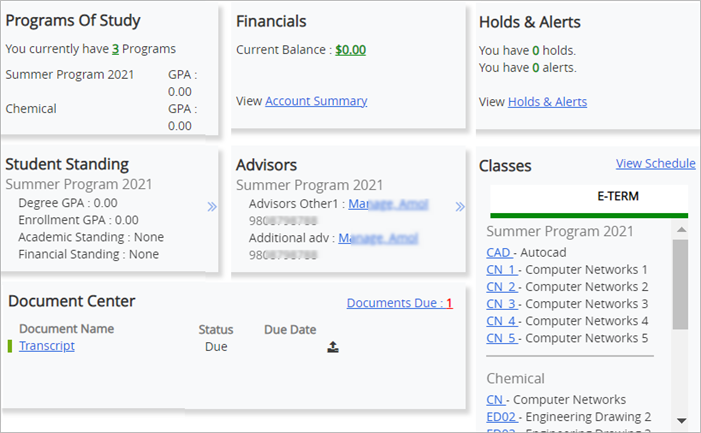
The dashboard tiles provide summary data on the student's programs of study, financial data, holds and alerts, advisors, and classes.
-
Program of Study shows the number of programs the student is enrolled in with a link to the Degree Audit page and GPA values for the enrollments.
-
Financials shows the student's current account balance and provides links to the Account Information details.
-
Holds & Alerts shows the number of holds and alerts and a link to the Message Center page with details about the alerts and holds.
-
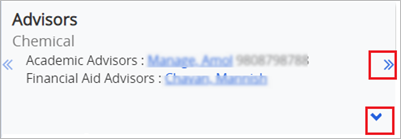
Advisors shows the enrollments with different program versions having multiple advisors. Selecting on the advisor's name takes you to the Outlook mailbox.
-
To view more enrollments, select the
 icon.
icon. -
To view more advisors, select the
 icon.
icon.There are specific advisors for specific program versions.
-
-
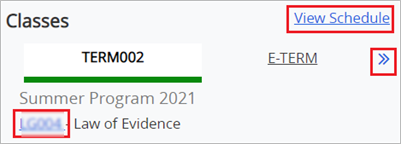
Classes shows the link to View Schedules, selecting on which opens up the My Class Schedule page with details about the courses.
-
To view different terms, select the
icon. -
Select the given term code tab to view the enrollment specific courses scheduled in the term.
-
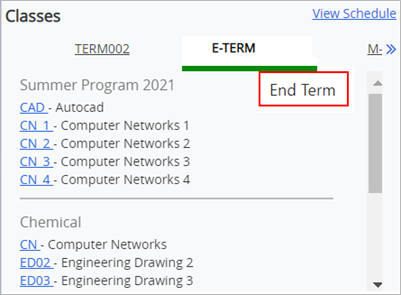
Hover on a specific term, to view a tooltip with the term name.
-
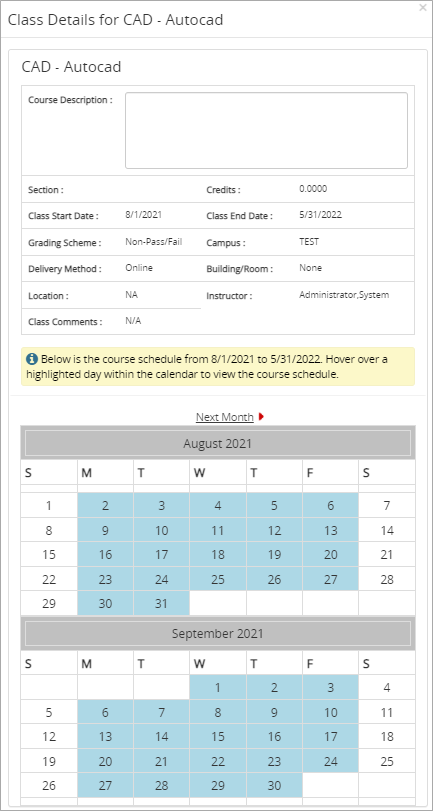
Select any course name (for example, CAD) to view with details about the class and a calendar with dates highlighted for the class schedule.
In case of Classes and Advisors, you can now add any URL as well as the title of the URL. When you select the URL, it takes you to the respective website in a new tab while keeping the current portal display and login consistent.
-
-
Student Standing shows all the active and future start enrollments with the Degree GPA and Enrollment GPA values as well as Academic Standing and Financial Standing SAP status.
To view more enrollments, select the
icon.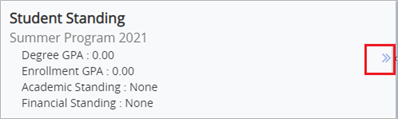
-
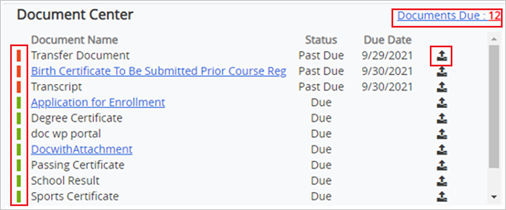
Document Center shows the documents that have been added for students under Anthology Student. Documents that have attachments are hyperlinked and displayed in blue color. When you select the hyperlink, the attachment is downloaded.
-
To go to the Document Center page, select Documents Due.
-
To upload a document, select the
 icon. The document center page for that existing document is displayed.
 -
Each row has a color-coded bar that specifies the past due and future due documents.
-
