Account Information
The Account Information page allows you to manage your student account for all enrolled programs. The information is arranged in seven tabs. You can view your account balance and payment schedule, make a payment online, view or print statements, view the subsidiary statement (ledger), view estimated tuition discounts, and registration bills. You can sort the details of your payments by date.
If the Portal for your institution is configured to display pending charges, the Account information page will display two grids: Account Details and Pending Charges.
-
Records in the Account Details grid are sorted by transaction number in descending order by default.
-
Records in the Pending Charges grid are sorted in ascending order by transaction date by default.
View Your Account Information
-
Navigate to My Finances > Account Information. The Account Information page is displayed. The Account Details tab is selected by default.
-
Select the link for the program in the list to view the details and payment schedule, and to make payments for that program.
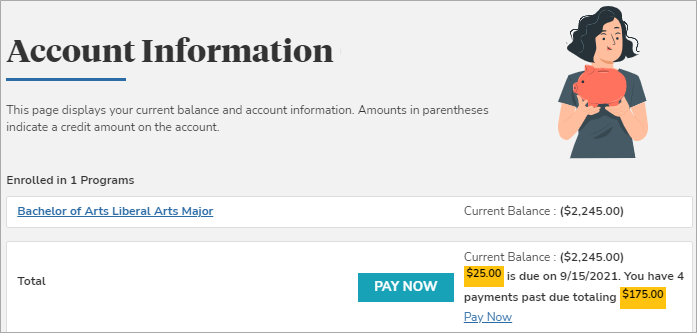
Account Details across all enrollments are displayed along with the Pending Charges.
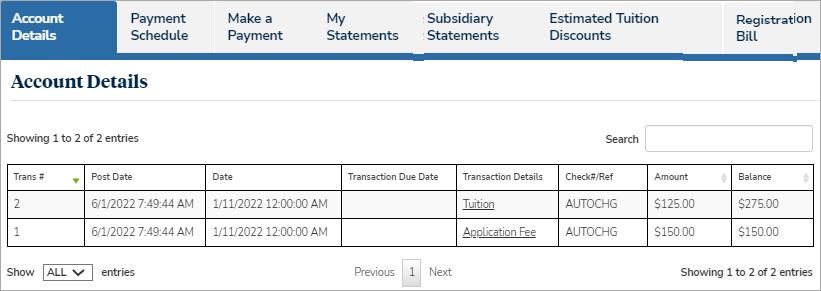
The records are sorted in descending order based on the transaction date & time value posted in the student ledger.
Select Next and Prev to browse through the grid pages, or type a page number in the Go to page box and select Go.
Use the Show _entries drop-down list to set the number of rows displayed in the grid. Use the Search option to locate specific items within the grid.
The balance column shows the actual point-in-time account balance for a given transaction.
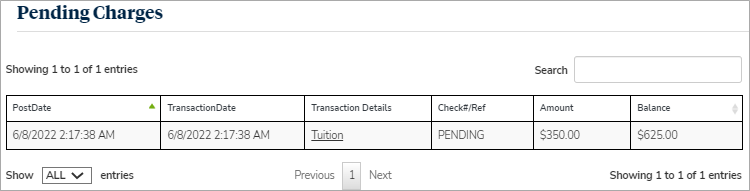
-
Select the Date column header to sort your transaction details by date.
-
When a payment is made, a link is displayed in the Transaction Details field. Select this link to download the receipt of the transaction as a PDF document.
-
Select Next and Prev to browse through the pages of your transaction details, or type the page number in the Go to page box and select Go.
-
