Degree Audit
The Degree Audit (or Degree Progress Audit - DPA) option enables you to review your degree requirements and your current academic progress. It matches your completed courses with the requirements of your degree program. You can also view these details for a hypothetical program that you may want to apply for. The degree audit is an internal document meant solely for advising purposes and is not an official document of your academic record.
- View Your Degree Audit
- View Courses Completed Earlier
- Change the Program or Areas of Study
- Requirement Rules Summary
- View Details of a Hypothetical Program
View Your Degree Audit
-
Navigate to My Academics > Degree Audit.
-
In the View by Enrollment list, select a program for which you have enrolled. The DPA is divided into the following sections. The enrollment and program details determine which sections are displayed.

Section Description Program Details Displays the current program, program version, campus, degree pursued, enrollment identifier, academic advisor, GPA, shift, credit required, credits completed, status, enrollment date, expected start date, expected graduation date, and credits. Additional GPAs Displays weighted and unweighted GPA details. Student Academic Progress Displays the credits completed out of credits required. Course Levels Displays the available course levels and associated GPAs. This section is displayed only if the Degree Progress Audit is enabled with the Course Level GPA setting. The method for calculating the Course Level GPA is derived from the program version setting (weighted vs. unweighted). Course Categories/Area(s) of Study Summary Displays all categories in the courses of the program followed by a detailed section for each Course Category and Requirement Rules Summary (if configured). Course List Displays details of the courses in the program. Electives Displays details of elective courses and enables students to view/add courses from the elective pool. The progress bar shows the credits requirement status of the elective pool. 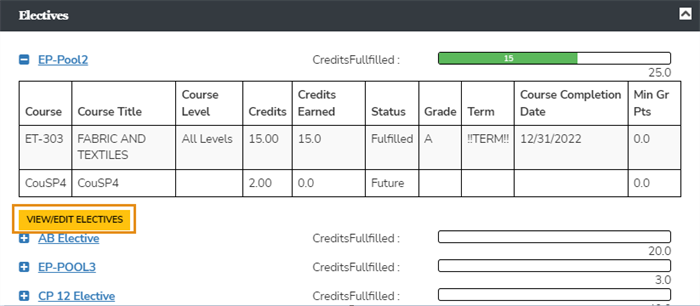
If you want to edit the added elective courses, select View/Edit Electives.
If the pool is configured with an active pool condition, a View Conditions button is displayed in the View/Edit Electives popup.
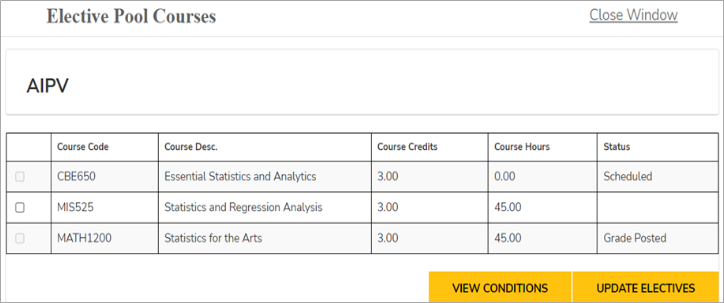
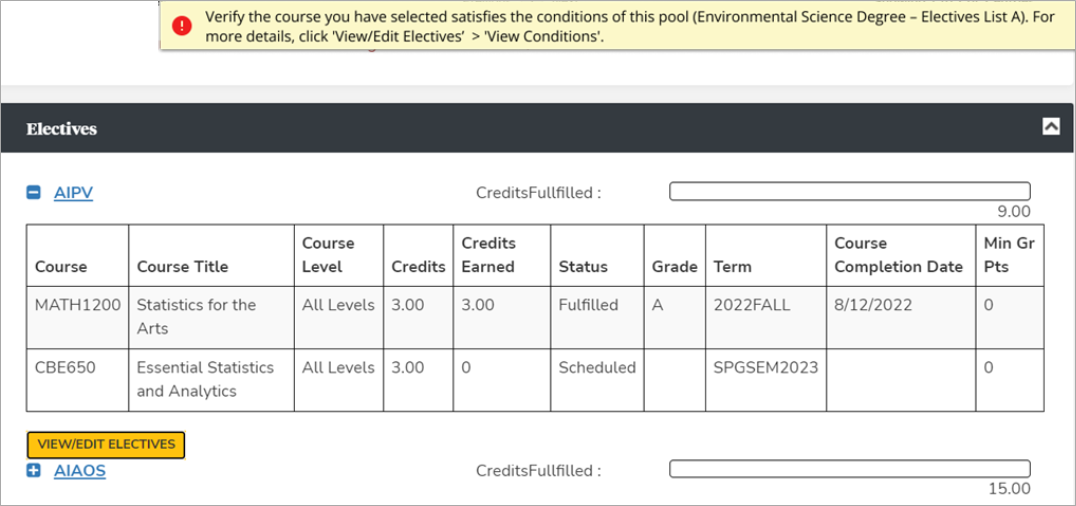
If you try to add a new course, a warning message is displayed in case Pool conditions are enabled for that particular pool.
Courses Taken Not Applied Displays courses that have not been referenced in any fulfillment records for Student Required Courses or Requirement Rules (e.g., transfer courses that were taken at another institution). Requirement Rules Summary
Displays courses that have requirement rules at all the levels and courses required for those rules and the courses applied, along with the credits or hours required for those rules and the credits or hours earned. Change Program/Areas of Study Displays the Program Options link. -
Select the
 or
or  icon next to a section to expand or collapse a section. By default, all sections are expanded.
 When you scroll down, an arrow icon appears next to the scroll bar. Select the
 icon to return to the top of the page.
View Courses Completed Earlier
You can view all courses that you have taken earlier from a different institution. The list of these courses helps you to manage your transfer credits.
-
Select My Academics > Degree Audit.
-
Select the View Taken Courses Not Applied link in the Course List section.
The Taken Courses Not Applied window is displayed with details of courses that you have taken but not applied to in your current institution.
Select Next and Prev to browse through the pages of your completed courses, or type the page number in the Go to page box and select Go.
Requirement Rules Summary
You can use Requirement Rules Audit tab to:
-
View and manage the requirement rules for a student
-
Make sure that students satisfy the requirements outlined in the requirement rules.
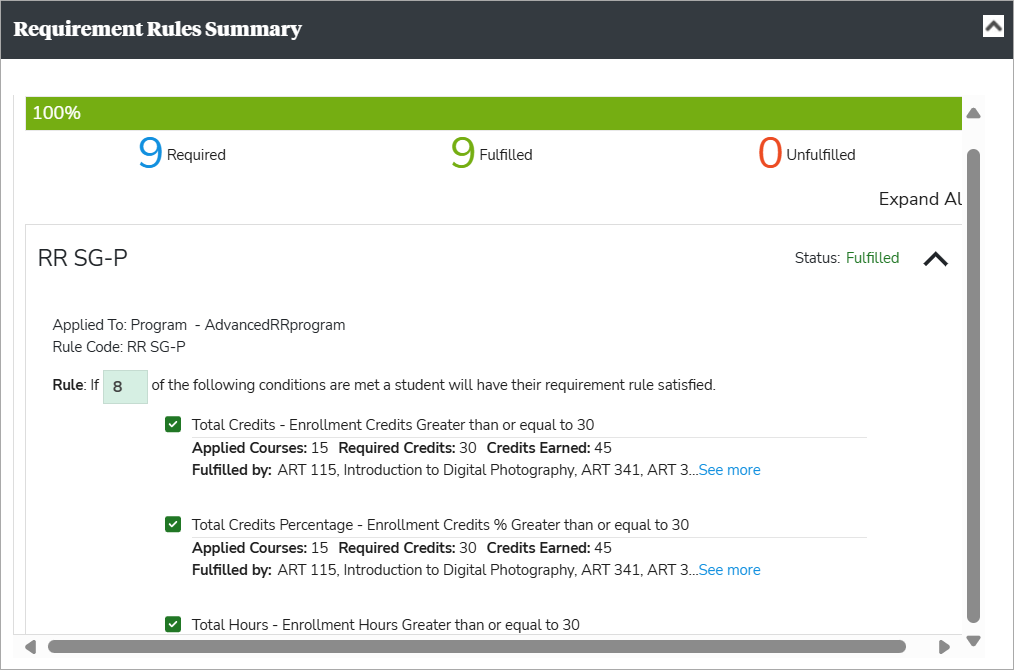
On the Requirement Rules tab on the Degree Progress Audit page, you can review:
-
All the requirement rules at all the levels
-
The courses required for those rules and the courses applied
-
The credits or hours required for those rules and the credits or hours earned
-
The fulfillment status of your Requirement Rule and see whether it is fulfilled
-
The courses you must take in order to fulfill them
With Student Portal and Faculty Portal version 25.2:
-
You now have an enhanced experience of stabilized underlying architecture
-
Advisors and registrars can ensure accurate rule application and compliance, which fosters a more effective degree progress auditing process.
Change the Program or Areas of Study
You can use the Hypothetical Program option to evaluate the effect of changing your program and your areas of study. You can evaluate how your completed courses and areas of study can affect your new hypothetical program or areas of study.
-
Select My Academics > Degree Audit.
-
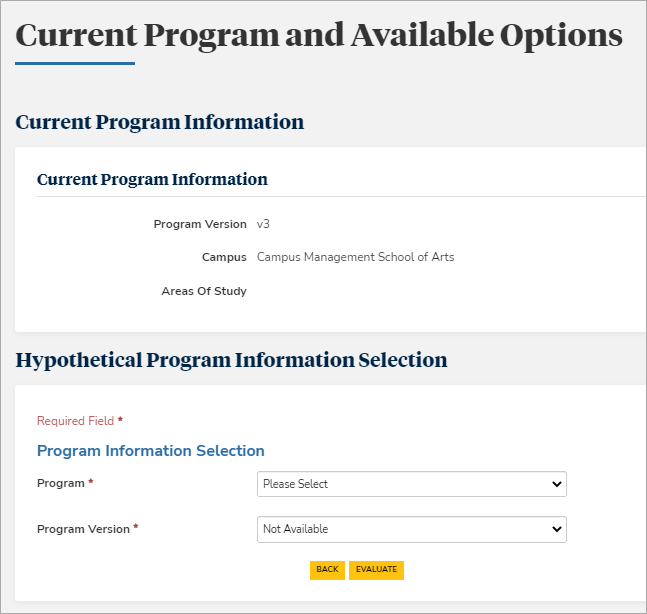
Select Program Options button at the bottom of the page. Details about your current program and the Hypothetical Program Information Selection section are displayed.
-
Type the required details in the Hypothetical Program Information Selection section. All fields marked with an asterisk are required.
-
Select the Program. The version of the program is updated depending upon your selected program.
-
Select the Program Version. The areas of study for the program are updated depending upon your selected program version.
-
Select the required areas of study in the Majors and Minors Section.
-
-
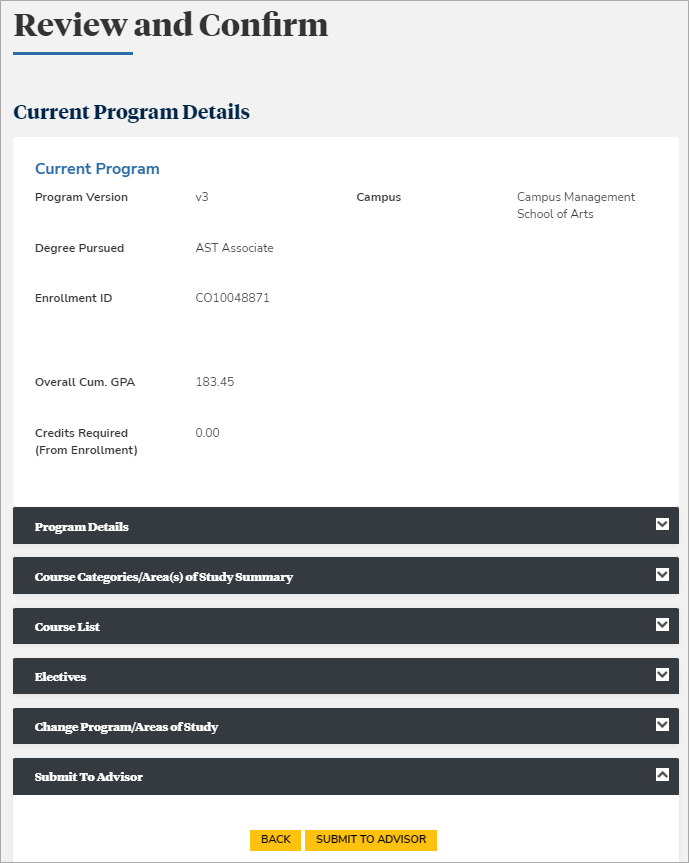
Select the Evaluate button. The Review and Confirm page displays details of your current program and the following sections for the chosen hypothetical program:
-
Hypothetical Program Details: Displays details such as the version and degree to be pursued for the hypothetical program.
-
Hypothetical Student Academic Progress: Displays a status bar to enable you to view the number of credits completed out of the total credits allocated to the hypothetical program.
-
Hypothetical Course Categories Summary: Displays all categories of courses available in the hypothetical program.
-
Hypothetical Course List: Displays the list of all courses available in the hypothetical program.
-
Hypothetical Requirement Rule Summary: Displays all the requirement rules applicable to the hypothetical program, its major courses, and general education requirements.
-
-
Select the Submit to Advisor button to submit a request to your advisor for a change in your program.
- Select Back to return to the Current Program and Available Options page.
View Details of a Hypothetical Program
You can view details of your selected hypothetical program. You can also view courses completed earlier at a different institution.
-
Select the
or icon next to a section to expand or collapse a section. By default, all sections are expanded. -
Select Next and Prev in the Hypothetical Course List to browse through pages of courses in the hypothetical program, or type the page number in the Go to page box and select Go.
-
Select the Show All Courses check box in your chosen hypothetical program.
-
Select a column header of the table in the Hypothetical Course List section table to sort the content.
-
Select each Course Title in the Hypothetical Course List section to view the name and credits of the course in a new window.
-
Select the View Taken Courses Not Applied link in the Hypothetical Course List section to view courses that you have completed earlier.
