Reports
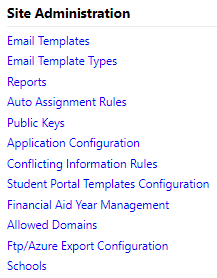
The Reports section of the Administrator menu enables an institution to generate various reports.
Required Permissions:
-
View administrator reports
-
View supervisor reports
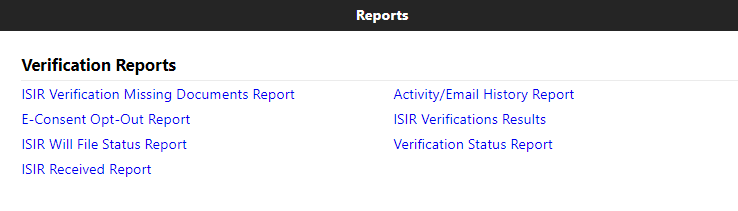
After you select a report type from the Verification Reports page, specify your data selection criteria. The selection criteria are different for each report. Most reports include a campus list and a date range.
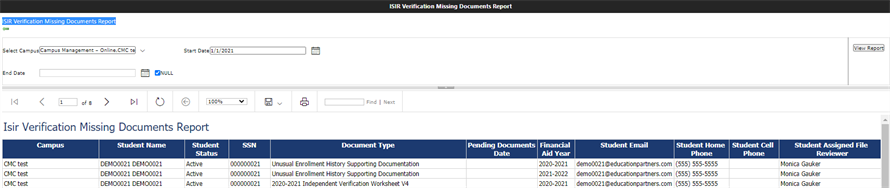
To view a report, select View Report button to the right of the selection criteria.
The controls above the report output enable you to:
- Page through the report
- Refresh the report
- Zoom in/out
- Save or export the report in Word, Excel, PDF, CSV, and other formats
- Print the report
- Search for specific data in the report
To return to the reports list after viewing a report, select the  icon at the top left.
ISIR Verification Missing Documents Report
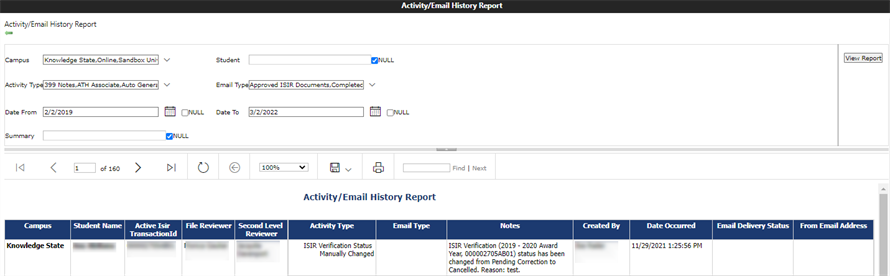
Activity/Email History Report
E-Consent Opt-Out Report
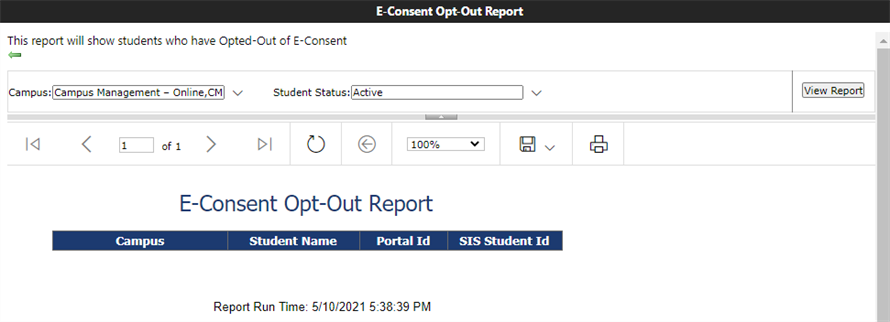
When the E-Consent functionality is enabled (see Allow Student Electronic Consent Flow), this report will identify students who have opted out of E-Signature and Consent.
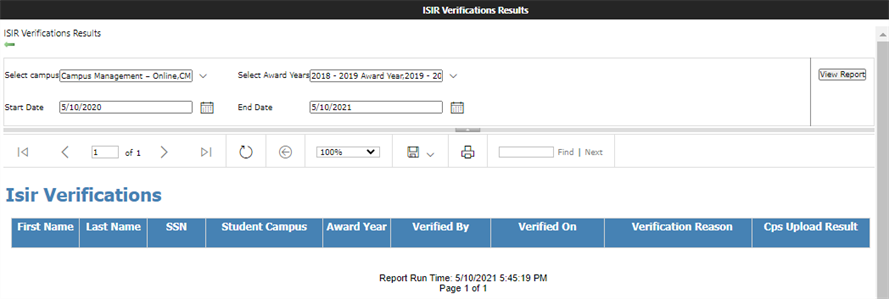
ISIR Verifications Results
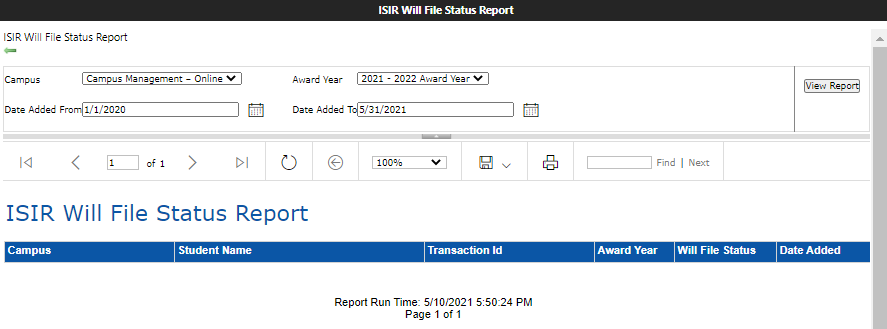
ISIR Will File Status Report
Verification Status Report
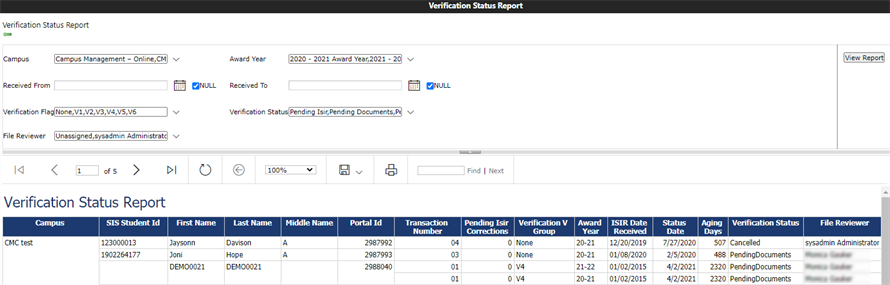
The Verification Status Report was updated in version 21.2 with additional data and format changes for increased ease of use. The following updates have been made:
-
Student Name column is split in three columns, First Name, Last Name, Middle Name
-
Award Year column format is changed from End year to YY-YY
-
ISIR Transaction Id column name is changed to Transaction Number. It shows only the last two numbers of the transaction
-
Status Date is a new column, after the Received date. This value presents the date that corresponds with the student ISIR Verification Status
-
SIS Student Id is added as new column, before the student name
-
Portal Id is added as new column, after the student name
ISIR Received Report
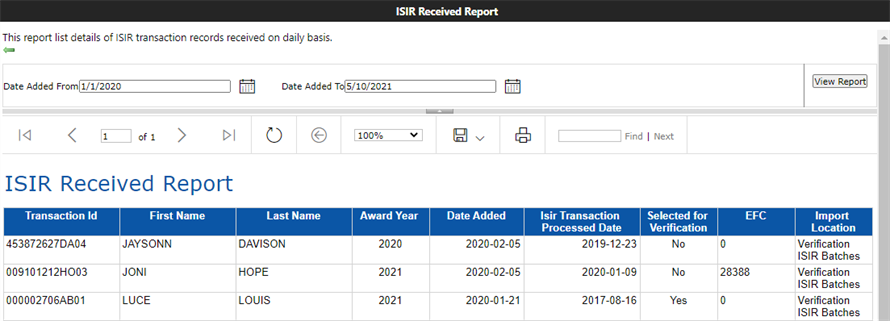
The standard ISIR Received Report was introduced with version 21.1. This report is used to retrieve ISIR records information that are importing on daily basis. The ISIR Received Report will include the following columns:
- Transaction Id
- First Name
- Last Name
- Award Year
- Date Added
- This reflects the date range selections. By default, the system will display ISIRs received within the last 24 hours
- ISIR Transaction Processed Date
- Selected for Verification
- EFC
- Import Location
- This column represents the location from which the ISIR was inserted
- Default, Verification ISIR Batch
- Mailbox Manager ISIR Message