Modifying Campus Survey Flows
Administrators can modify copies of the following flows to customize default email content that campus survey respondents will receive:
- Sample - Campus Survey – Trigger Notification Process: When a campus survey is assigned, this flow triggers the process to send an email notification to the main course instructor using the template in the Sample - Campus Survey - Email Template flow.
- Sample - Campus Survey – Send Reminder Email: This scheduled flow sends campus survey due date reminder notifications using templates defined in the Sample - Campus Survey – Email Template flow. The reminder email is then dispatched from the Campus Survey – Send Survey Link Email flow.
- Sample - Campus Survey – Send Email to Other Instructors: This flow triggers the process to send an email notification to other additional instructors when they are added to a campus survey.
- Sample - Campus Survey – Email Template: This flow receives inputs from the following flows:
- Sample - Campus Survey – Trigger Notification Process
- Sample - Campus Survey – Send Reminder Email
- Sample - Campus Survey - Send Email to Other Instructors
It then returns the email draft to the source flow after which the email is sent to the respondent from the Campus Survey – Send Survey Link Email flow.
It's recommended to copy the above flows and then customize content in the copied flows. This will enable administrators to switch back to the above flows if it’s required to restore default functionality. However, its recommended to use the Campus Survey – Send Survey Link Email flow out-of-the-box. It’s not required to copy it as it does not include any email content that can be modified.
By default, logic to compose the appropriate email is available in the Sample - Campus Survey – Email Template flow which will be updated based on inputs received from one of the following flows:
- Sample - Campus Survey – Trigger Notification Process
- Sample - Campus Survey – Send Reminder Email
- Sample - Campus Survey – Send Email to Other Instructors
The constructed email will then be returned to the parent flow to which the following information will be appended:
- Campus Survey name
- Date
- The sender’s name
- The receiver’s name
- The Portal URL
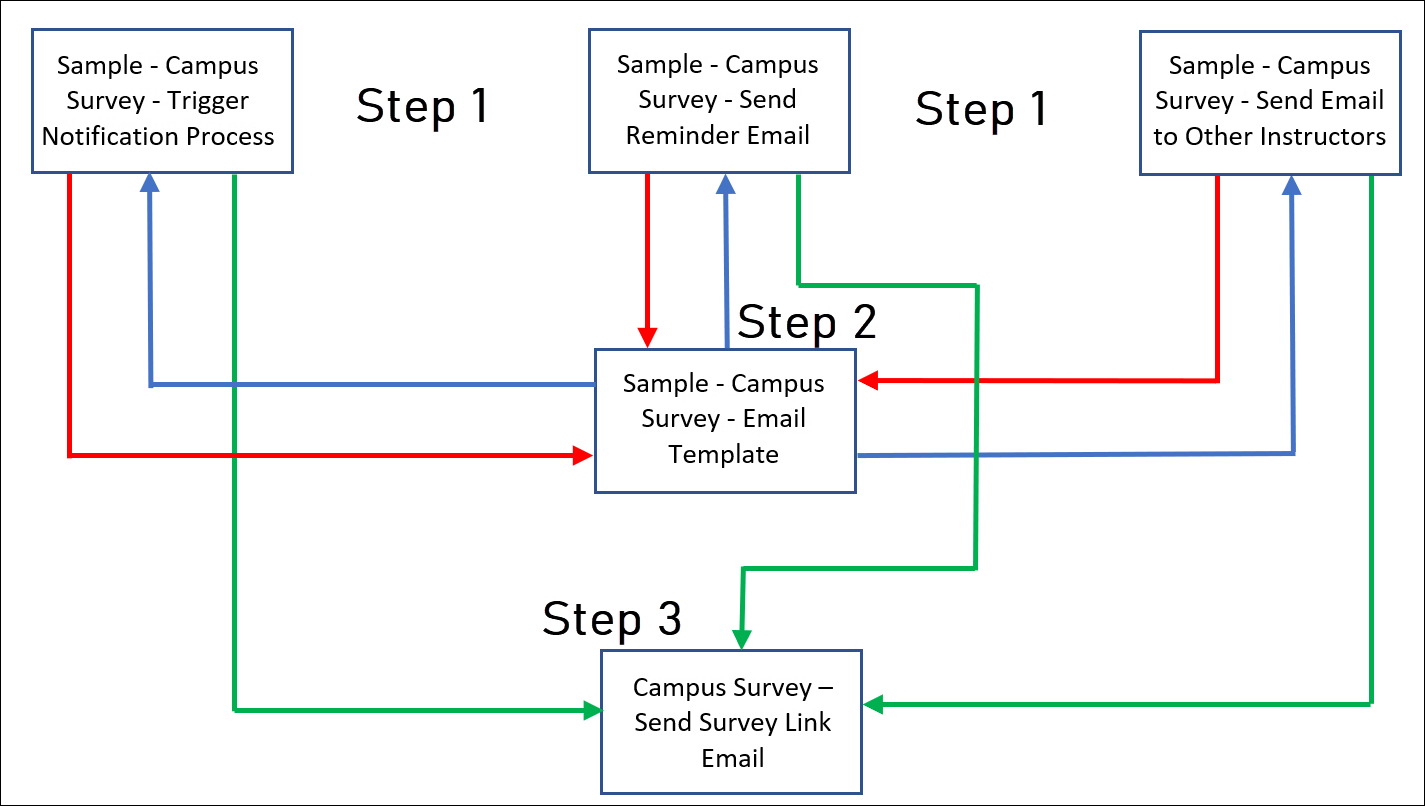
Final email content will then be passed to the Campus Survey – Send Survey Link Email flow to dispatch the email. The following diagram illustrates this process:
Index
- Red Arrows – Initial information sent from the parent flows to the Sample - Campus Survey – Email Template flow.
- Blue Arrows – Composed email returned to the parent flow.
- Green Arrows – Final email will be sent to the Campus Survey – Send Survey Link Email flow.
While the following steps refer to the default flows, administrators will need to perform the steps in copied instances of the above flows.
- In the Sample - Campus Survey – Email Template flow, click the Type of Email for Campus Survey step:
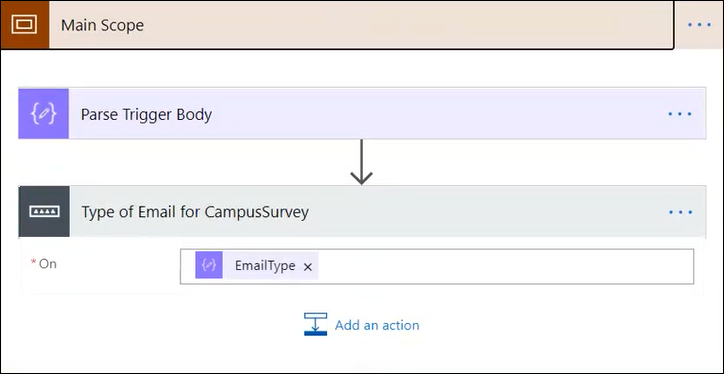
The following steps will be displayed:- Prepare Email Message Content For Campus Survey Assignment
- Prepare Email Message Content For Reminder
- Prepare Email Message Content For Co-instructor
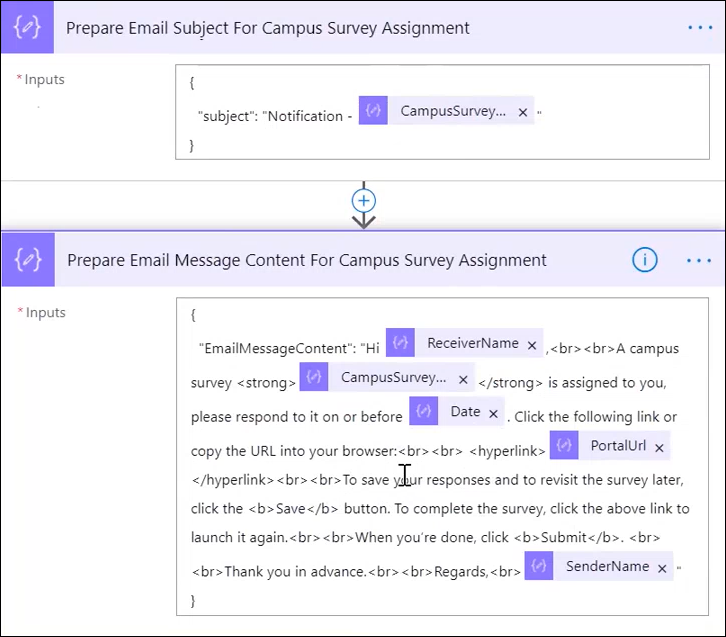
- Click one of the above steps to modify default email content as displayed in the following image:
- Save your changes.
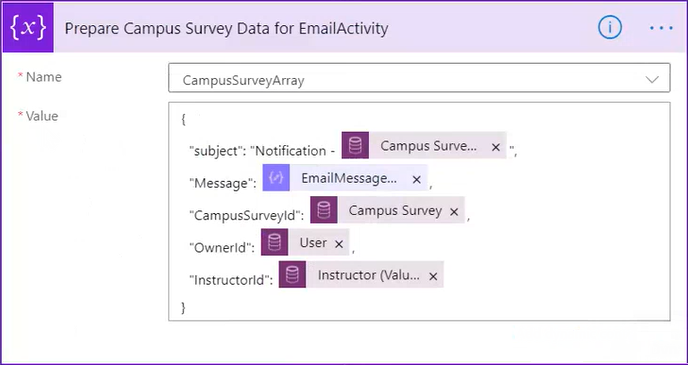
Note: In any of the copied parent flows, ensure that information is not changed in this step: