Home Page
After you have successfully signed in, the Occupation Insight home page is displayed. The reports grid contains the list of your Occupation Insight reports.
The default sort of the reports listing is Occupation Insight canned reports on top, followed by user generated custom reports in descending alpha order.
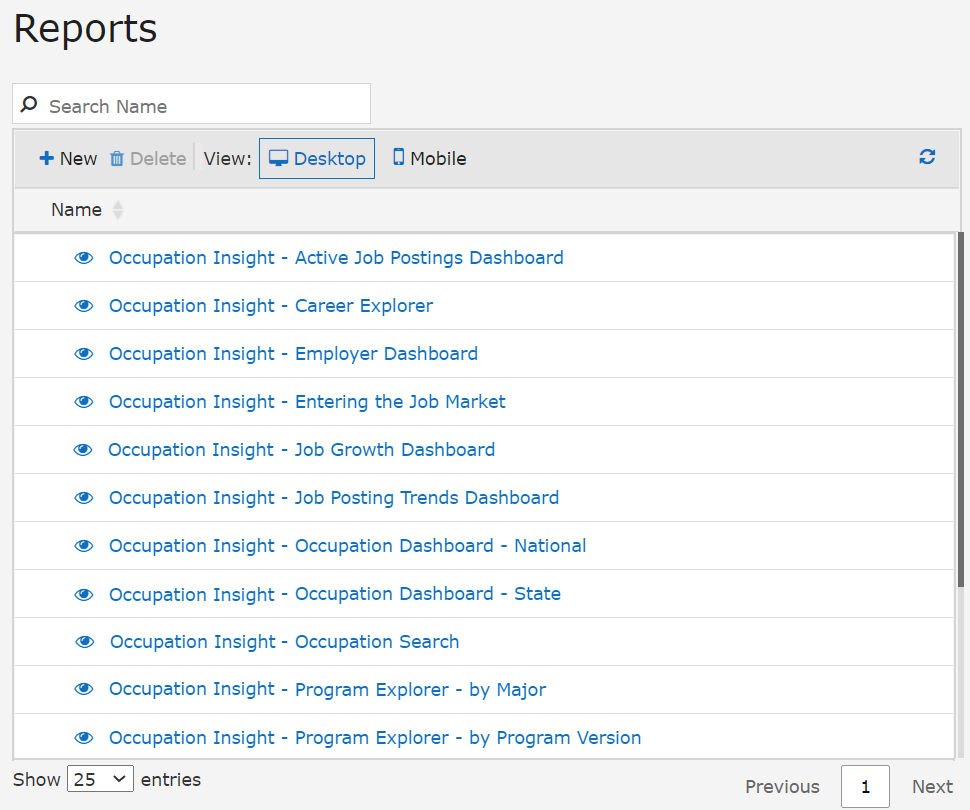
Refer to the table below for details about the functionality available on the home page.
| UI Element | Description |
|---|---|
| Header | |
| Logo | The Occupation Insight logo is a link to the home page. When you return to the Home page, you will see updated information based on any changes saved while in edit mode. |
| User name | User name of the logged in user |
| Drop-down | The drop-down next to the User Name displays the Sign out link and the About window with the Occupation Insight version and database information. |

|
Link to this help system |
| Reports Listing | |
|
Search for a report by name. |

|
Click New to load embedded Power BI resources to begin building a new report. You will be prompted to choose from available data sets from within your Power BI workspace. |

|
Select one or more reports and click the Delete button to request the reports be deleted from your available reports. You will be prompted to confirm the delete request. Once reports are deleted by this process they are permanently deleted and cannot be retrieved. |

|
Occupation Insight is device responsive. When Occupation Insight is accessed from a desktop device, Desktop is the default view. For more information, see Desktop View and Mobile View. |

|
Occupation Insight is device responsive. When Occupation Insight is accessed from a mobile device, Mobile is the default view. See Desktop View and Mobile View. Note: The mobile mode currently supports only view functionality. You cannot create new reports or edit existing reports in mobile mode. |

|
Refresh the reports list. |

|
Sort the reports alphabetically by name. |
 / / |
indicates that the Contributor published the report. Readers can view the report. indicates that the Contributor has not published the report. Readers cannot view the report. |

|
Select the check box next to a report or reports to enable the Delete button in the grid header. |
| <Report Name> | Link to load your report. See Work with Reports. |
| Select the number of maximum reports to be displayed in the grid: 25 (default), 50, or 100. | |

|
Navigate to a specific page of the reports list. |
